GPT-5.6 Sol Outside Codex, Part 2: The Copilot CLI Setup That Manages Context For You
In GPT-5.6 Sol Is Way Better in Claude Code (Here’s How to Set It Up), I walked you through running Sol inside Claude Code using a local proxy — and asked you to try it yourself.
I took my own advice. A full week of daily use.
Two things surprised me.
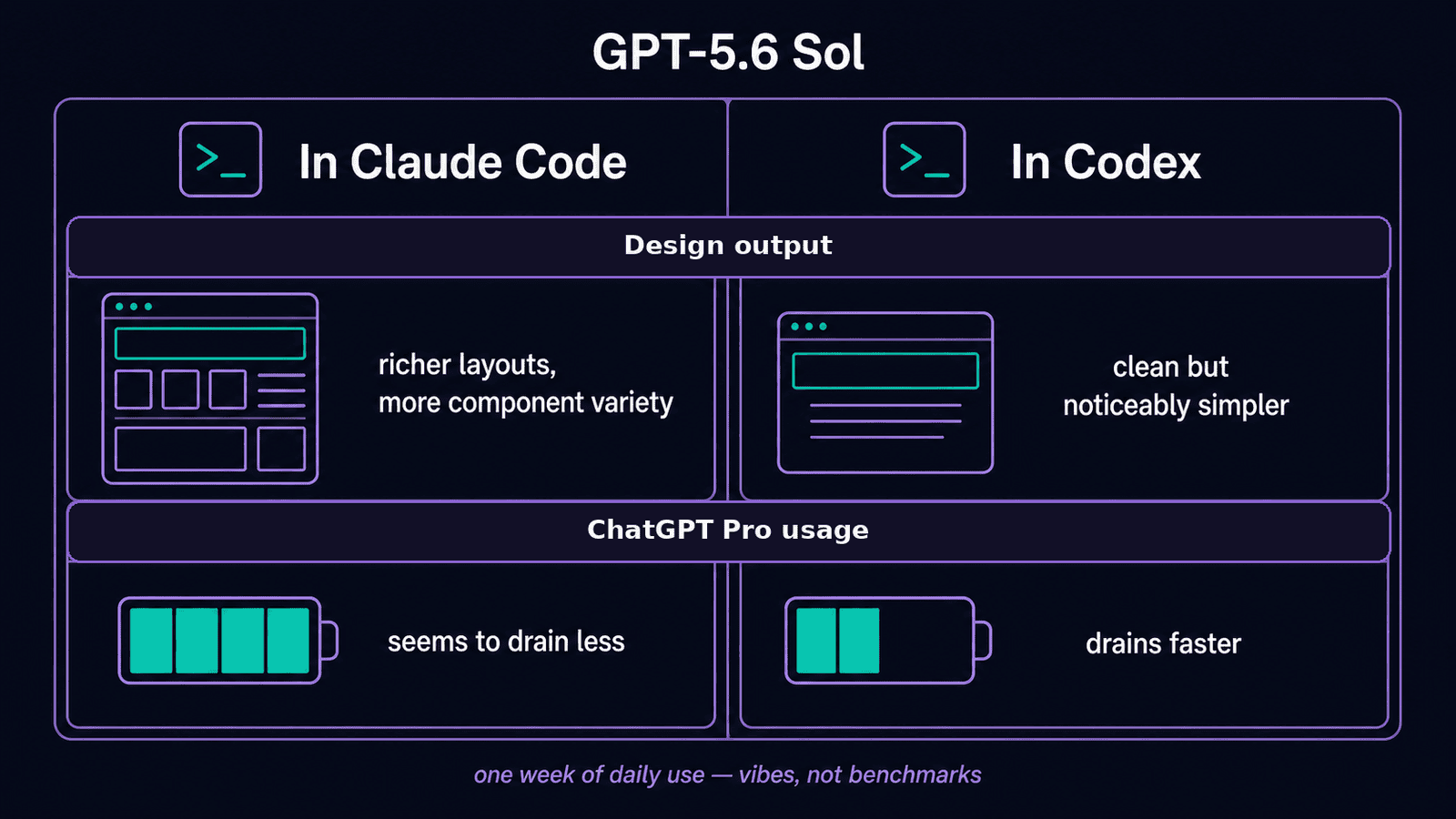
Sol inside Claude Code produced remarkably strong design output — richer layouts, more component variety, deeper page structures — even with zero custom skills or design system context loaded. The same model in Codex, given identical prompts at the same reasoning effort, came back with clean but noticeably simpler pages.
(It’s as though Claude Code’s system instructions act like invisible scaffolding — quietly pushing whatever model you route through them toward more complete work.)
The second observation is less definitive.
Sol in Claude Code appears to drain less of my ChatGPT Pro allowance than the same work in Codex. I want to be upfront: I haven’t measured this. The observation comes from a week of normal sessions and some Codex dashboard squinting.
Take it with a generous grain of salt until someone benchmarks it properly.
Both findings deserve a closer look down the road.
But over that same week, a bigger problem surfaced — one that had nothing to do with model quality or allowance drain.
The context window.
.
.
.
The Context Window Problem
Claude Code has auto-compaction built in — but it fires as a last resort, when the window is already full and quality has already started to degrade. I wrote about this in Never Let Claude Code Auto-Compact Again, where I recommended managing context manually at clean task boundaries.
I literally wrote the post on manual compaction — and I still catch myself glancing at the context meter like it’s a fuel gauge on a long drive. The discipline works.
It’s also a tax.
Here’s the thing.
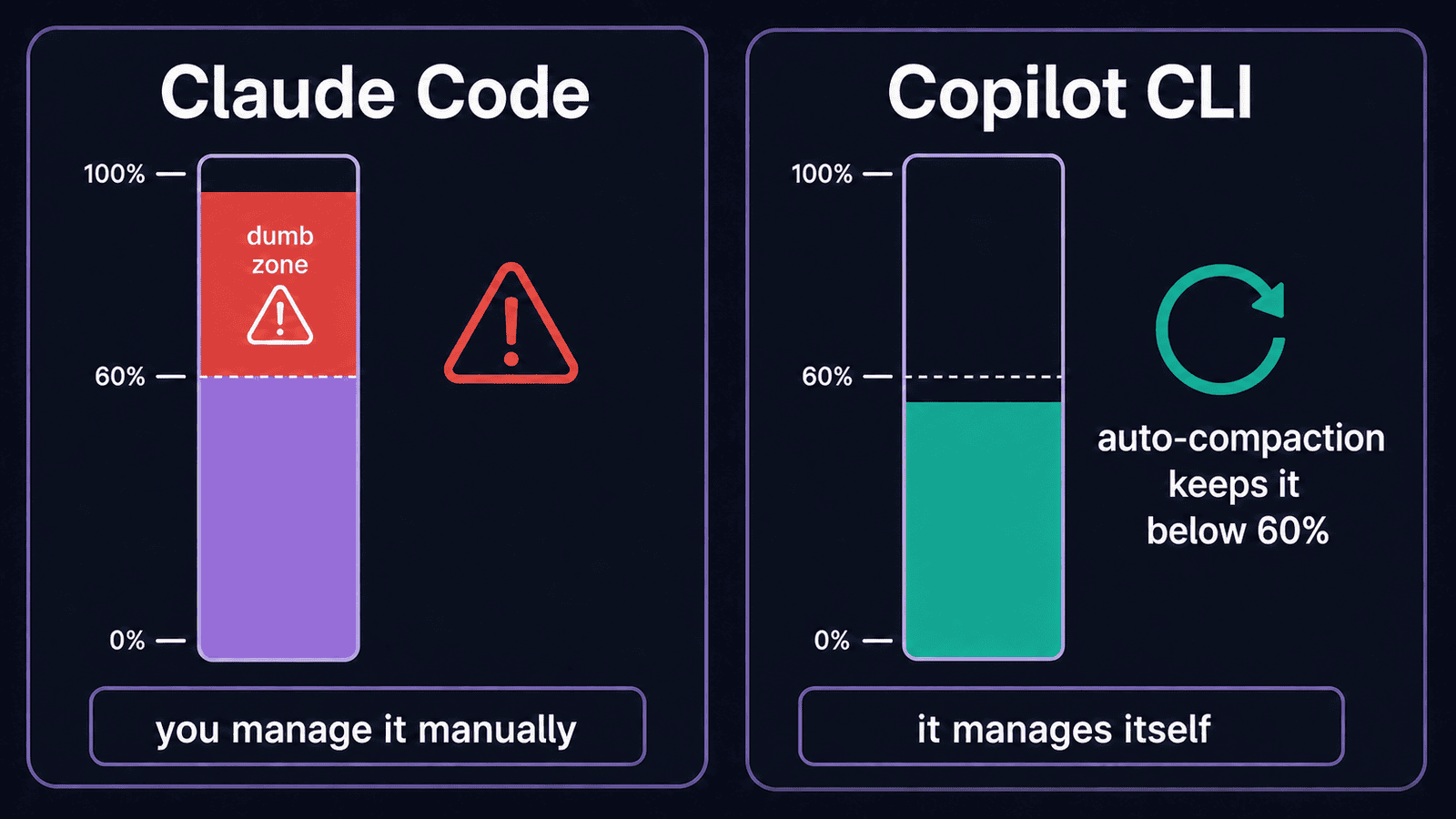
Long sessions accumulate context faster than you’d expect. File reads, tool responses, assistant turns, hook output — all of it stays in the window, in full, on every single turn. The model reprocesses that entire history each time it generates a response. Once the window crosses roughly 60%, you drift into what I’ve been calling the “dumb zone” — the region where output quality degrades because the model is wading through too much stale material.
You don’t notice right away.
That’s the insidious part.
The first few responses past 60% look fine. Then constraints start getting missed. Suggestions repeat. Decisions from earlier in the session get quietly forgotten. By the time you think to check the actual numbers, the session is already deep in the red.
Here’s what 90% looks like:
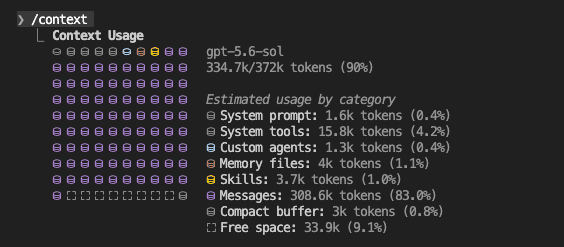
334,700 out of 372,000 tokens. Messages eating 83% of the window. 9.1% free space remaining.
Somewhere past the 90% mark, I typed a one-line follow-up and went to make coffee. The reply was still streaming when I came back — four minutes for something that took fifteen seconds at the start of the session.
That speed tax compounds.
As the window fills, replies that started at 10–15 seconds stretch into 4–6 minute waits. Over a multi-hour session, you’re losing real time on top of degraded quality.
Codex handles this transparently — it compacts proactively as you work, keeping the window fresh without intervention.
After a week of watching Sol produce excellent output inside Claude Code — only to hit the context wall in every long session — the question became obvious: can you run GPT-5.6 Sol in Copilot CLI and get that same automatic context management outside of Codex?
You can.
.
.
.
How Copilot CLI Manages Context
I remembered something from my Copilot CLI experiments last year, back before the pricing change: sessions just… kept going. No wall. At the time I didn’t appreciate why.
Now I do.
When the conversation reaches approximately 80% of the context window, Copilot CLI starts compacting in the background. You keep working — tool calls continue, responses keep flowing. The compaction replaces your conversation history with a structured summary: the session’s goals, what was accomplished, key technical details, important files, and planned next steps. The summary is built for continuation, so the model picks up the thread without losing direction.
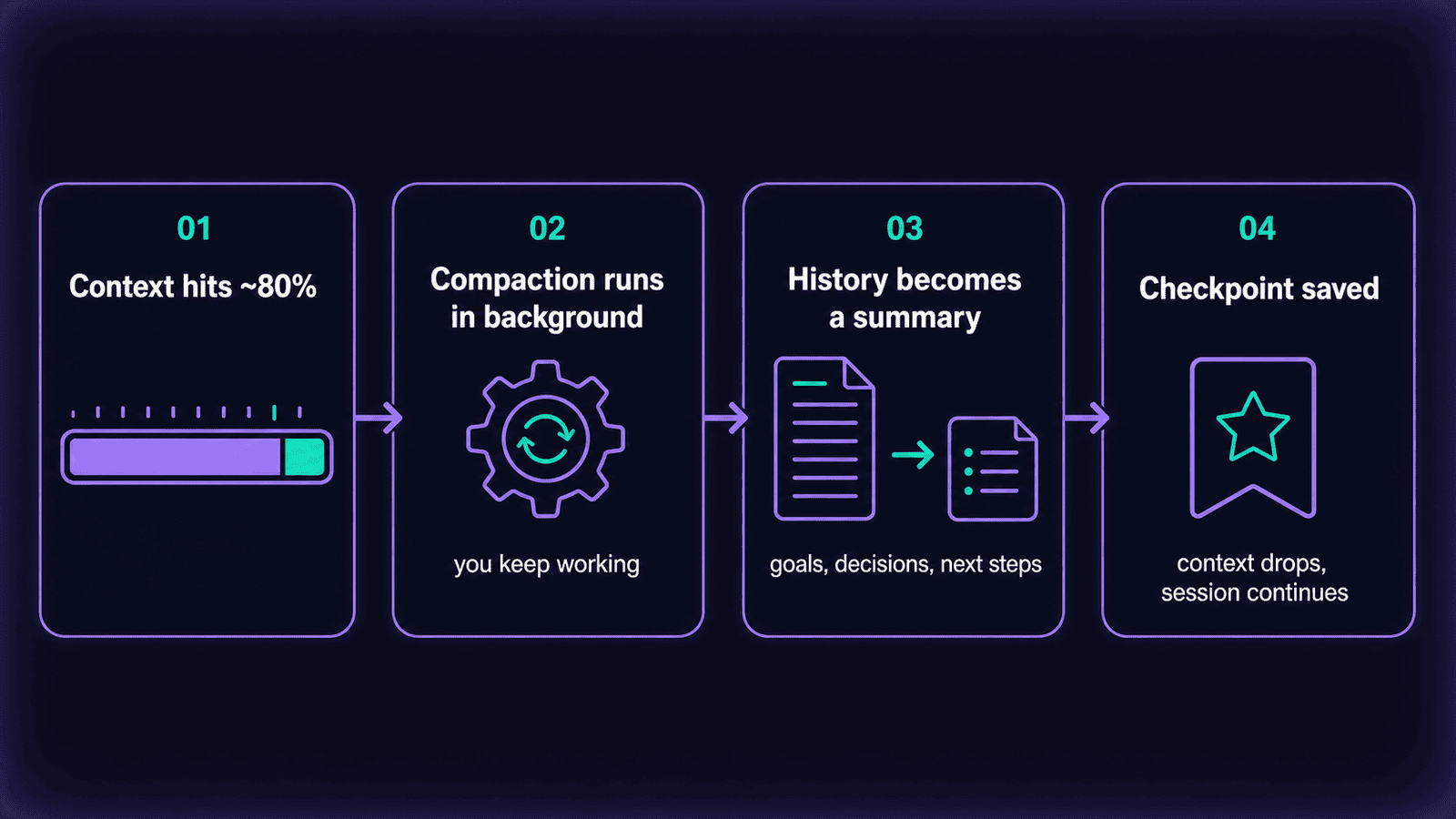
Every compaction — automatic or manual — creates a checkpoint.
Checkpoints are numbered, titled snapshots of the summary, and you can inspect them anytime with /session checkpoints. (Think of them as breadcrumbs — a record of where the session has been and what it decided along the way.)

In my sessions running GPT-5.6 Sol in Copilot CLI, the context rarely exceeded 60%. On some occasions it climbed toward 70%, but compaction always brought it back down before the dumb zone became a factor.
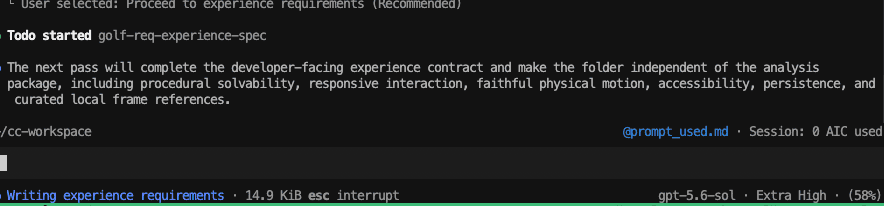
58% context during active work with Sol at Extra High effort. In Claude Code, that same kind of session would already be deep in the dumb zone.
For the full technical breakdown — including manual compaction, live context inspection, and large tool output handling — see GitHub’s context management documentation.
.
.
.
The Setup: What’s New for Copilot CLI
Here’s what changed.
If you followed last week’s setup guide, you already have CLIProxyAPI installed, configured, authenticated with your OpenAI account, and running as a background service.
All of it carries over.
The proxy, the configuration, the OAuth session, your existing proxy key — Copilot CLI plugs into the same infrastructure. The only new pieces are Copilot CLI itself and a launcher function that routes requests through your existing proxy.
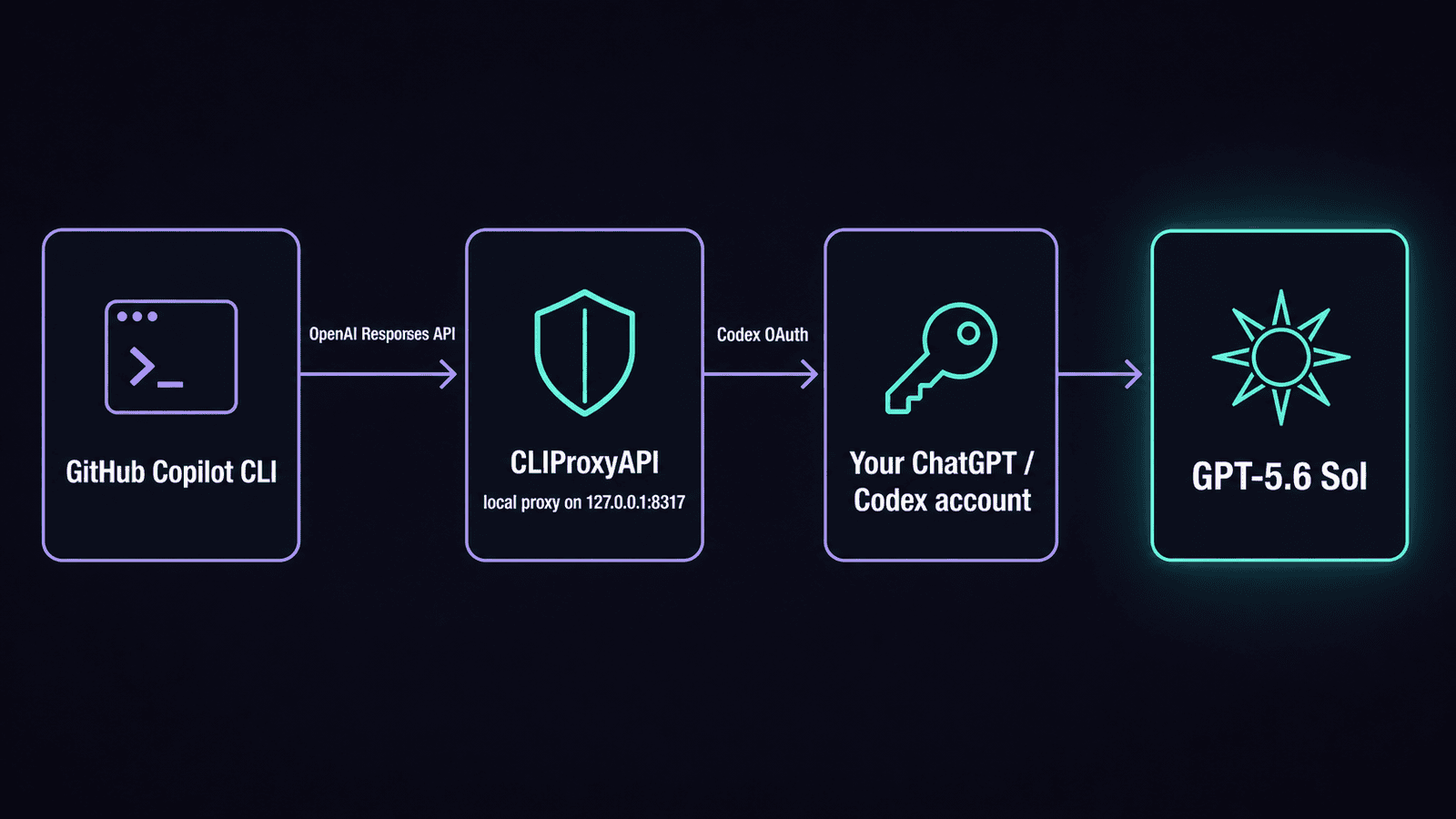
Here’s the full request chain:
Install Copilot CLI
On macOS via Homebrew:
brew install --cask copilot-cliOn Linux via npm (requires Node.js 22 or newer):
npm install -g @github/copilotConfirm the installation:
copilot versionThe Launcher Function
The launcher creates an isolated Copilot profile that routes model requests through your CLIProxyAPI proxy. Your normal copilot command stays completely untouched — nothing about your existing Copilot setup changes.
Add this function to your shell configuration file (.zshrc on macOS, .bashrc on Linux):
copilotx() ( set -eu key_file="${COPILOTX_KEY_FILE:-${XDG_CONFIG_HOME:-$HOME/.config}/copilotx/proxy-key}" if [ ! -r "$key_file" ]; then printf 'Missing proxy key: %s\n' "$key_file" >&2 exit 1 fi proxy_key="$(tr -d '\r\n' < "$key_file")" if [ -z "$proxy_key" ]; then printf 'Proxy key is empty: %s\n' "$key_file" >&2 exit 1 fi # Remove stale custom-provider settings that could override this route. unset COPILOT_PROVIDER_BEARER_TOKEN unset COPILOT_PROVIDER_MODEL_ID unset COPILOT_PROVIDER_WIRE_MODEL unset COPILOT_PROVIDER_TRANSPORT unset COPILOT_PROVIDER_MAX_PROMPT_TOKENS unset COPILOT_PROVIDER_MAX_OUTPUT_TOKENS # Route Copilot CLI through the local OpenAI-compatible proxy. export COPILOT_PROVIDER_TYPE="openai" export COPILOT_PROVIDER_BASE_URL="http://127.0.0.1:8317/v1" export COPILOT_PROVIDER_API_KEY="$proxy_key" # GPT-5.6 Sol uses the OpenAI Responses API. export COPILOT_PROVIDER_WIRE_API="responses" # Model exposed by CLIProxyAPI through Codex OAuth. export COPILOT_MODEL="gpt-5.6-sol" command copilot \ --model "$COPILOT_MODEL" \ --effort "${COPILOTX_EFFORT:-high}" \ "$@")After saving, reload your shell:
source ~/.zshrc # macOSsource ~/.bashrc # LinuxThe function runs in a subshell, so all the proxy variables vanish when the session ends. Your normal Copilot configuration remains separate — switching between copilotx (Sol through the proxy) and copilot (GitHub-hosted models) is just a matter of which command you type.
Reusing Your Existing Proxy Key
If you already have a proxy key from the Claude Code setup, you don’t need to generate a new one. (One less secret to manage.) Point the launcher at your existing key file before launching:
export COPILOTX_KEY_FILE="$HOME/.config/claudex/proxy-key"Or change the default path inside the function itself:
key_file="${COPILOTX_KEY_FILE:-${XDG_CONFIG_HOME:-$HOME/.config}/claudex/proxy-key}"The key must match the value in your CLIProxyAPI configuration — the same key you’re already using for the Claude Code proxy.
The Two Flags You Need
Launch Copilot with full autonomous access:
copilotx --allow-all --autopilotBoth flags work together:
| Flag | What it grants |
|---|---|
--allow-all | All tools, workspace and external paths, URL access |
--autopilot | Autonomous continuation through successive implementation steps |
And here’s the kicker — running autopilot without full permissions creates a specific failure mode: the agent reaches an operation that needs approval, can’t pause for your input, and the operation gets automatically denied. The session stalls with permission errors instead of making progress. Both flags together give the agent the autonomy and the permissions to work through multi-step tasks end to end.
For a normal interactive session where Copilot asks before each sensitive action:
copilotxWorth knowing: the launcher deliberately keeps these flags out of its defaults. You add them explicitly each time, so you’re always making a conscious choice about how much autonomy to grant. (GitHub’s own documentation recommends using --allow-all only inside repositories you trust.)
Choosing Reasoning Effort
The launcher defaults to high. Override it depending on the task:
| Effort | When to use | Launch command |
|---|---|---|
low | Fast, routine tasks | COPILOTX_EFFORT=low copilotx --allow-all --autopilot |
medium | Standard implementation | COPILOTX_EFFORT=medium copilotx --allow-all --autopilot |
high | General work (default) | copilotx --allow-all --autopilot |
xhigh | Complex debugging, architecture, migrations | COPILOTX_EFFORT=xhigh copilotx --allow-all --autopilot |
Verify the Setup
Two quick checks while CLIProxyAPI is running. That’s all.
Proxy health:
KEY="$(tr -d '\r\n' \ < "${XDG_CONFIG_HOME:-$HOME/.config}/copilotx/proxy-key")"curl -sS \ -o /dev/null \ -w 'Proxy HTTP status: %{http_code}\n' \ http://127.0.0.1:8317/v1/models \ -H "Authorization: Bearer $KEY"unset KEYExpected:
Proxy HTTP status: 200When reusing the key from the Claude Code setup, change the path in the command to point at your existing key file location.
End-to-end through Copilot:
COPILOT_OFFLINE=true \
  copilotx -p 'Reply exactly: copilot-sol-ok'
Expected:
copilot-sol-okThe offline flag prevents Copilot CLI from contacting GitHub during this test while still allowing requests through your configured model provider. It’s a clean way to confirm the response is coming through the local proxy rather than a GitHub-hosted model.
If both checks pass, the full chain is working: Copilot CLI to your local proxy to Codex OAuth to Sol and back.
.
.
.
What This Costs
Model inference goes through your ChatGPT/Codex allowance via the Codex OAuth session you set up last week — the same one your Claude Code proxy already uses. There’s no separate OpenAI API key involved, and Copilot’s own credit system doesn’t apply to BYOK model requests routed through a custom provider. (Your Codex allowance does the heavy lifting here — the proxy just translates the request format.)
Your GitHub sign-in remains separate. When you’re signed into GitHub, Copilot CLI can still use GitHub-specific capabilities — repository tools, issue lookups, pull request context, code search — while model inference follows your configured BYOK provider.
One caveat worth stating clearly: this exact end-to-end combination — Copilot CLI routing through CLIProxyAPI to Codex OAuth — works reliably in my testing, but the complete chain is a community integration. GitHub and OpenAI haven’t officially documented it as a supported configuration. Verify your usage on the Codex dashboard after the first few sessions to confirm billing lands where you expect.
Try It and Report Back
The setup adds roughly ten minutes on top of what you built last week.
The payoff is Sol running through Copilot CLI with automatic context management — structured compaction summaries, inspectable checkpoints, and a context window that stays in the productive zone without you having to babysit it.
Run a long session. Watch how the context behaves when you check /context after an hour of real work. If you’ve been hitting the dumb zone in Claude Code, the difference should be visible fast.
And if you notice anything about the token-usage observation — whether Sol through Copilot CLI drains more or less of your Codex allowance compared to Sol in Codex directly — I’d like to hear about it. My own dashboard squinting suggests a difference, but one person’s observation shouldn’t shape yours.
Let me know what you find.

Leave a Comment