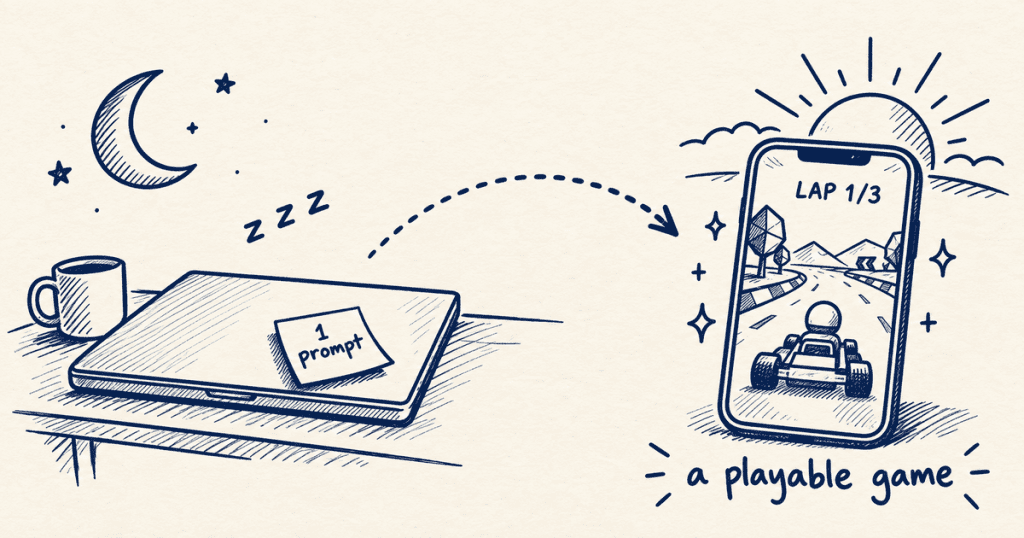
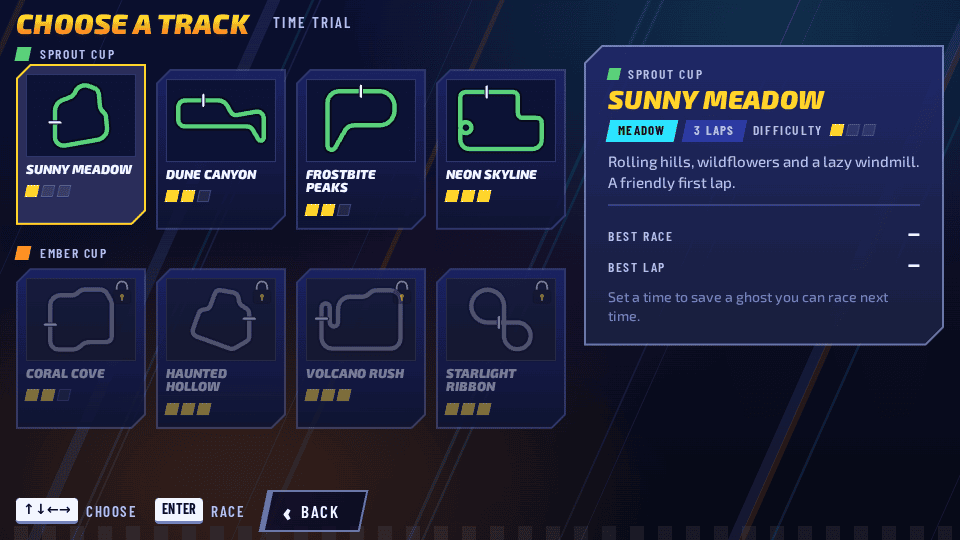
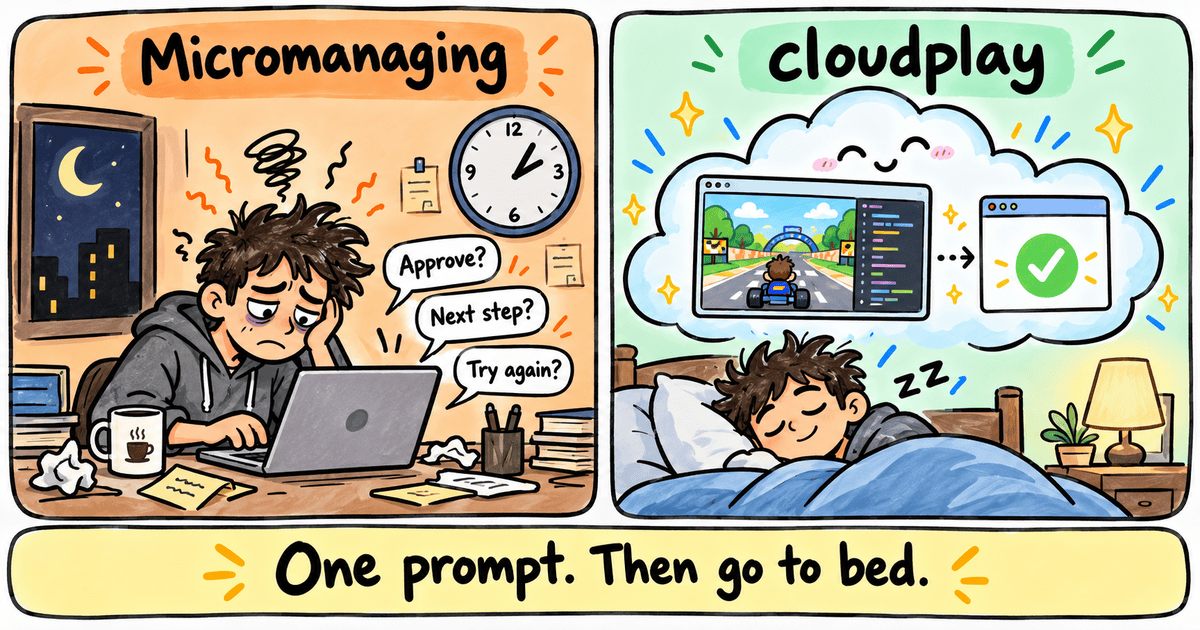
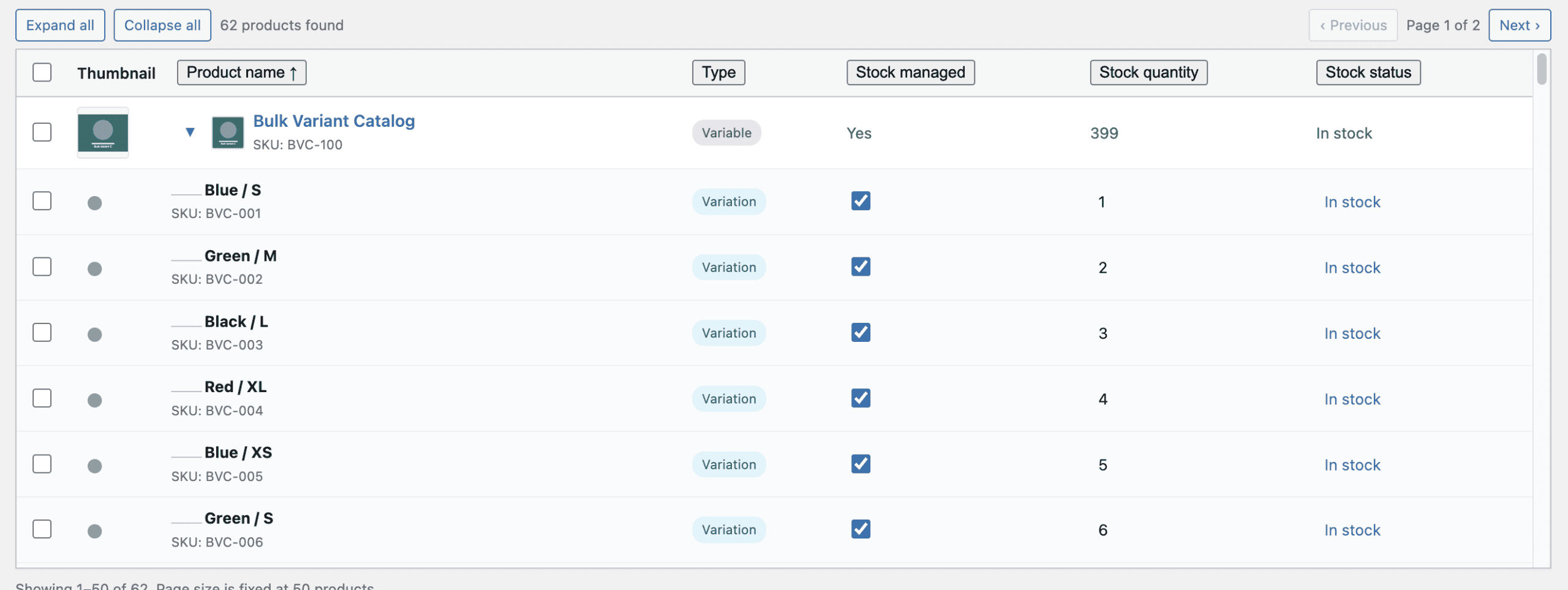
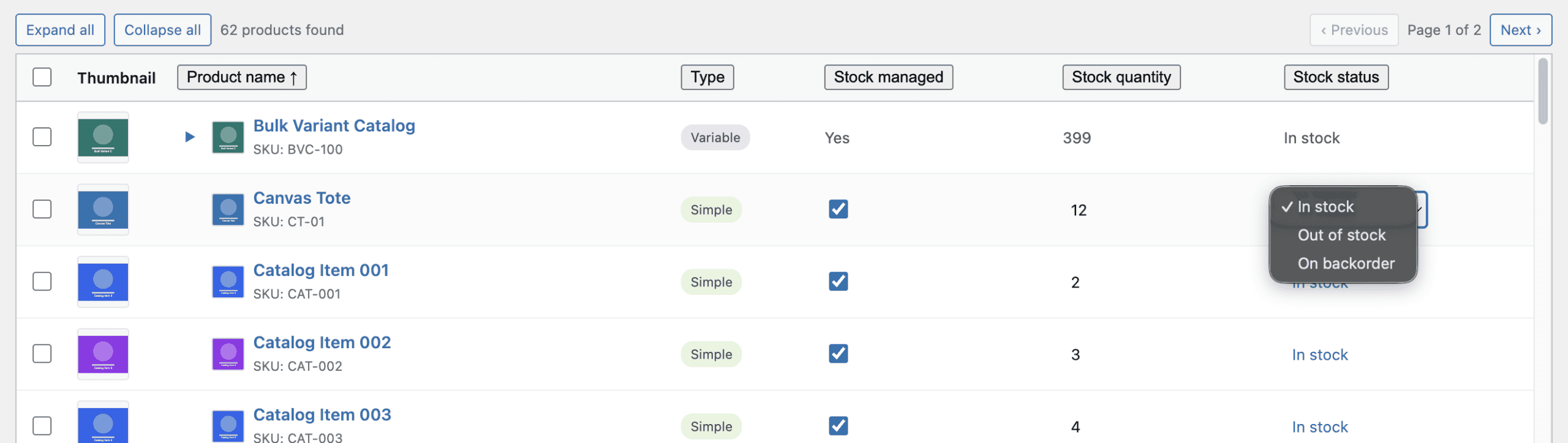
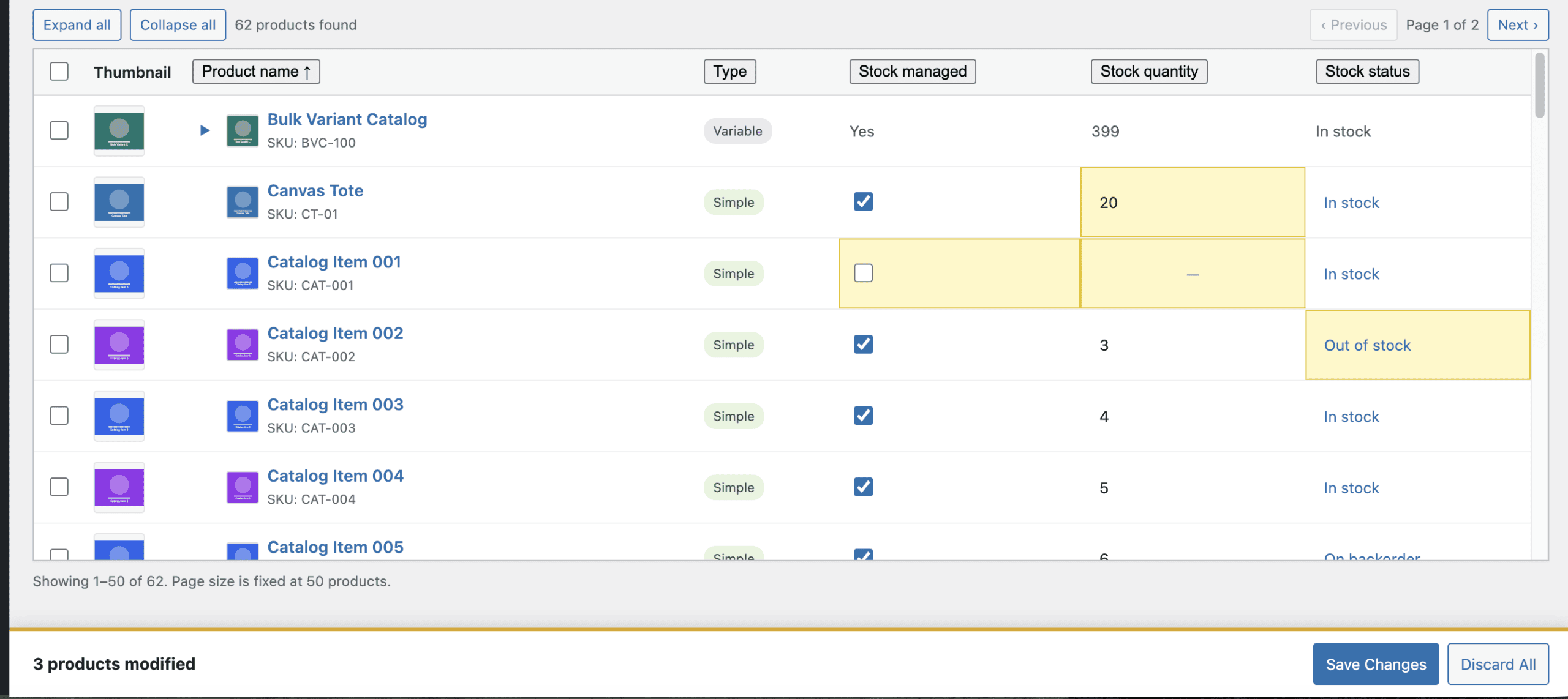
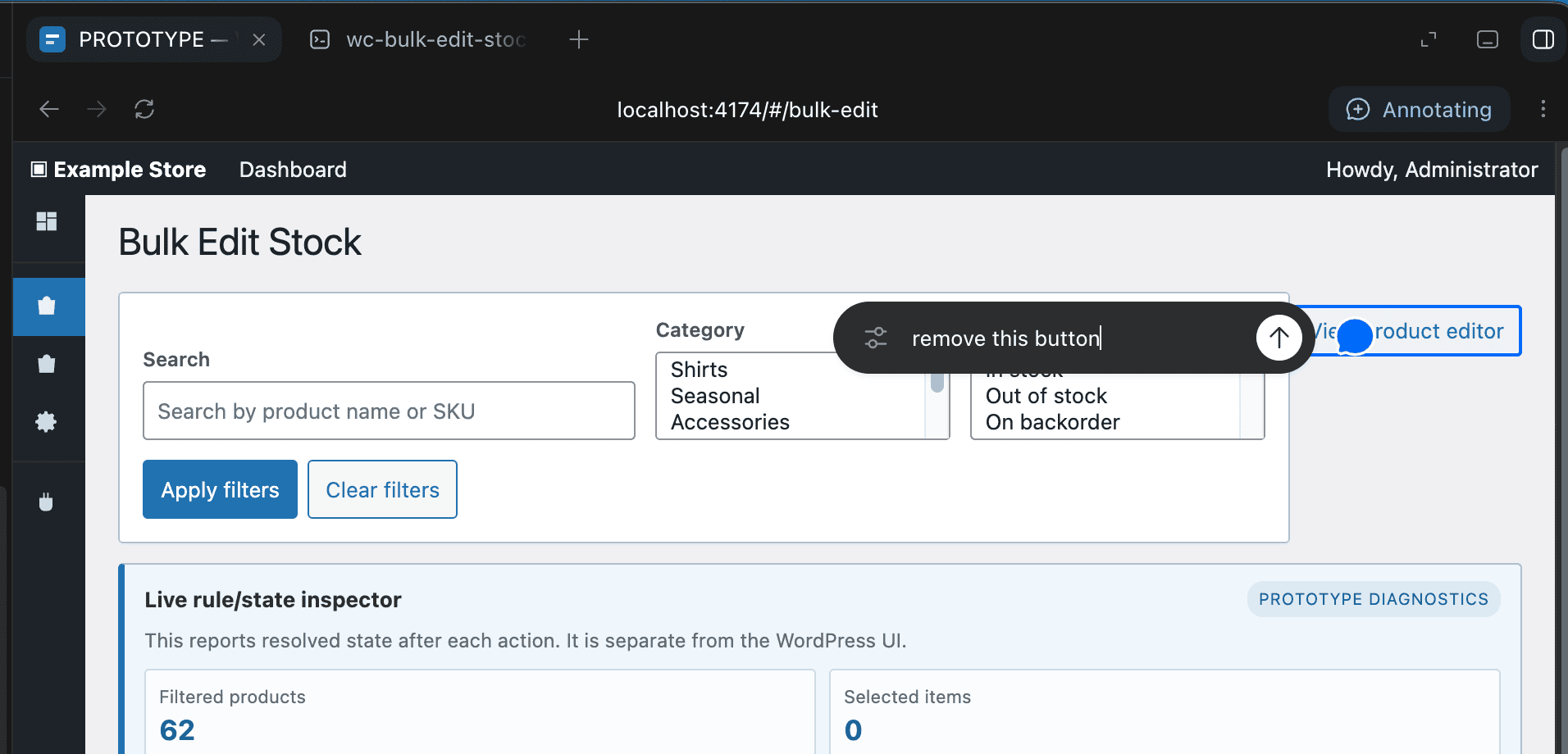
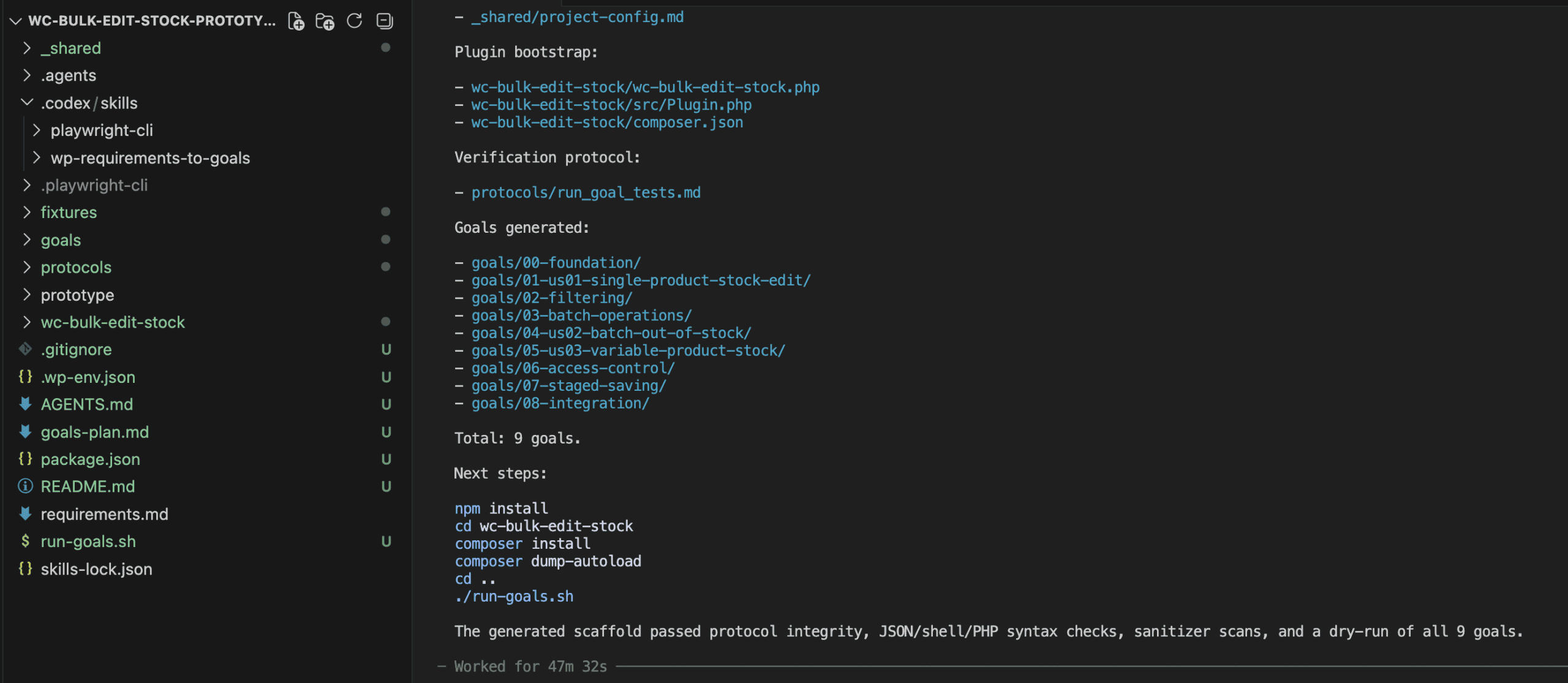
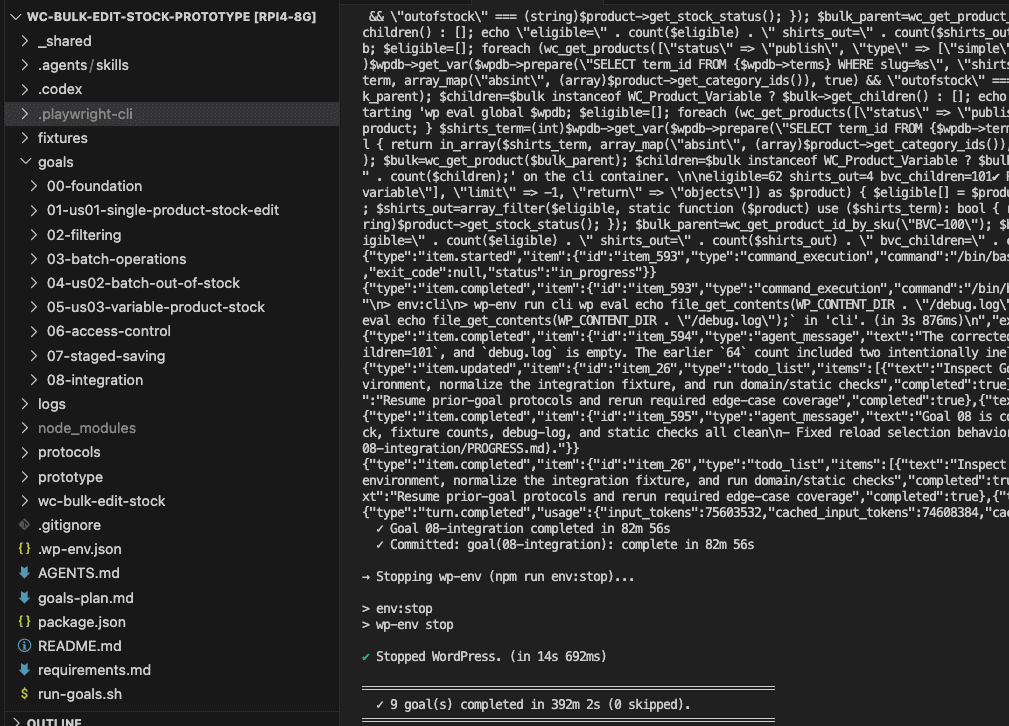
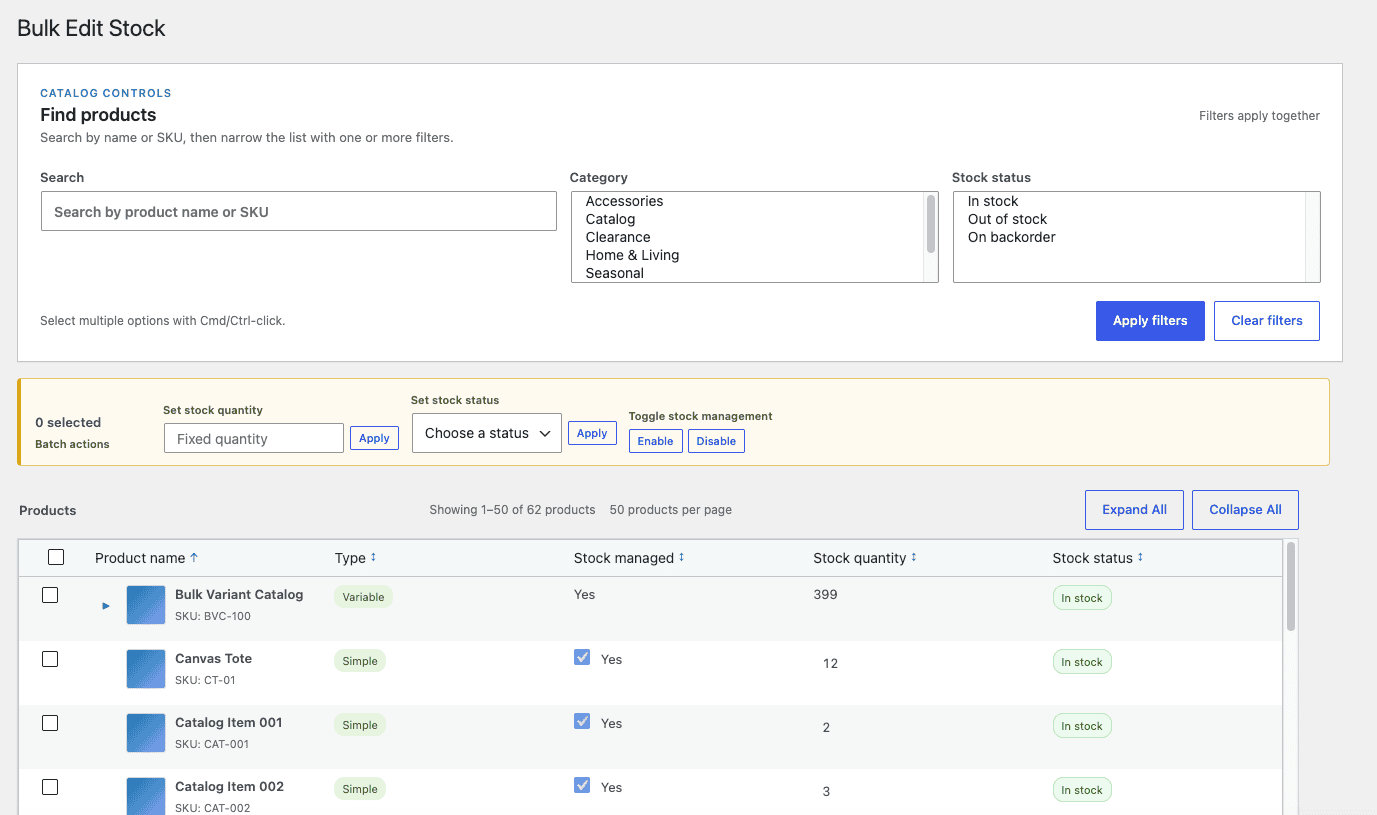
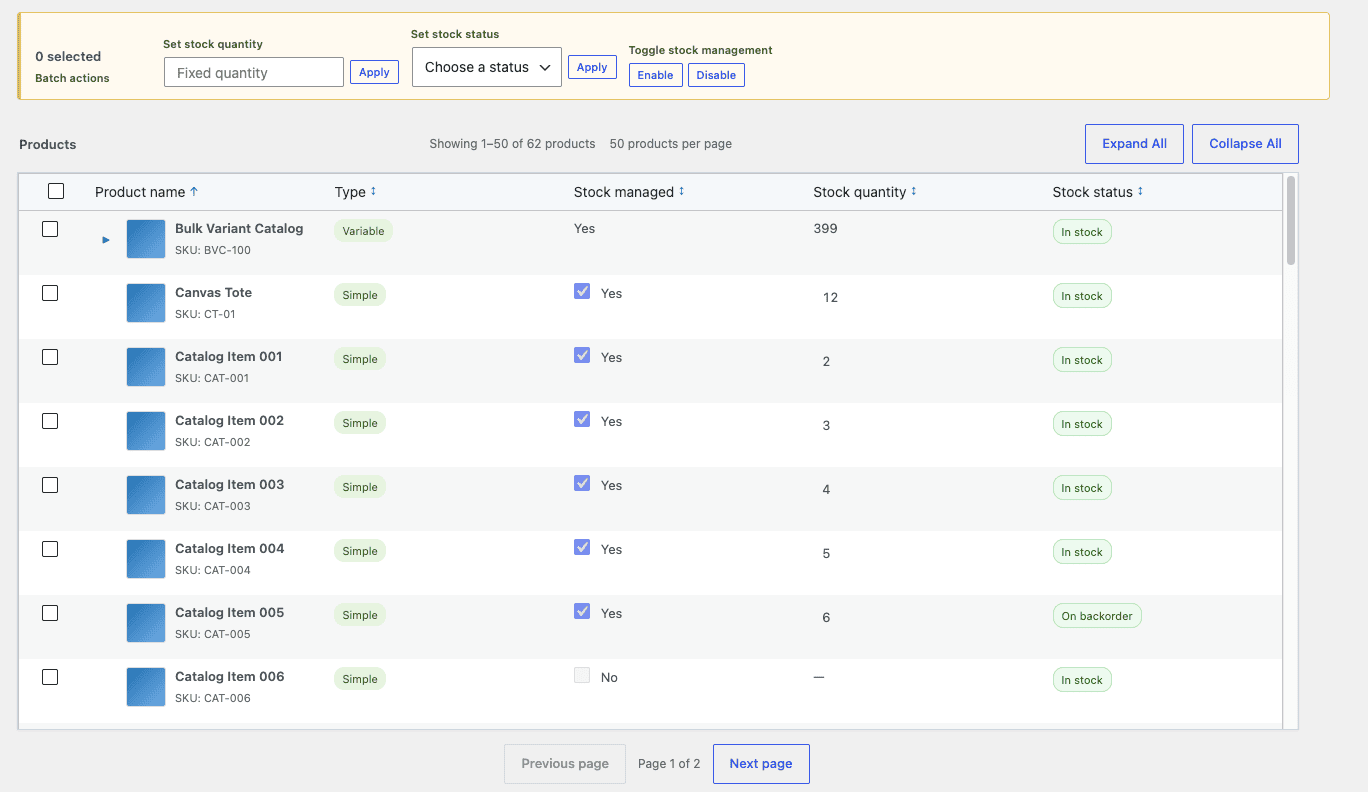
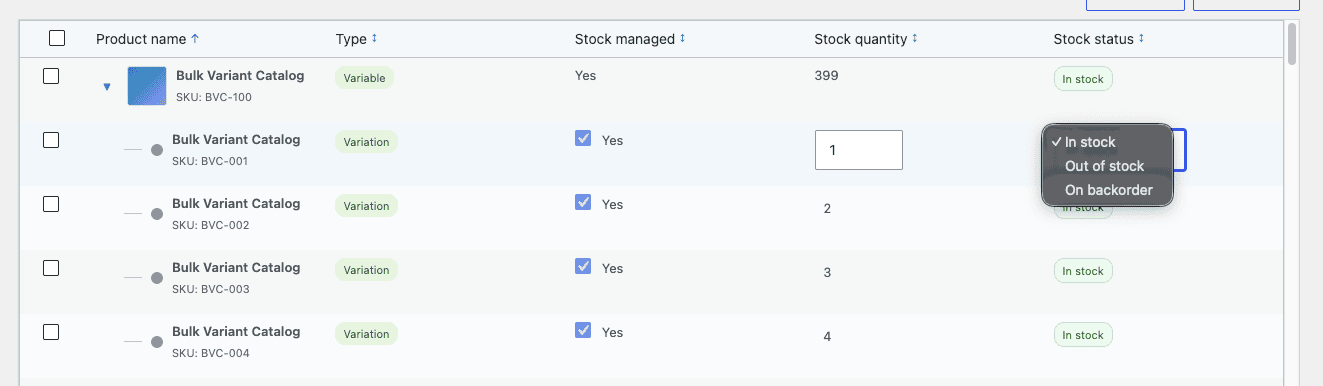
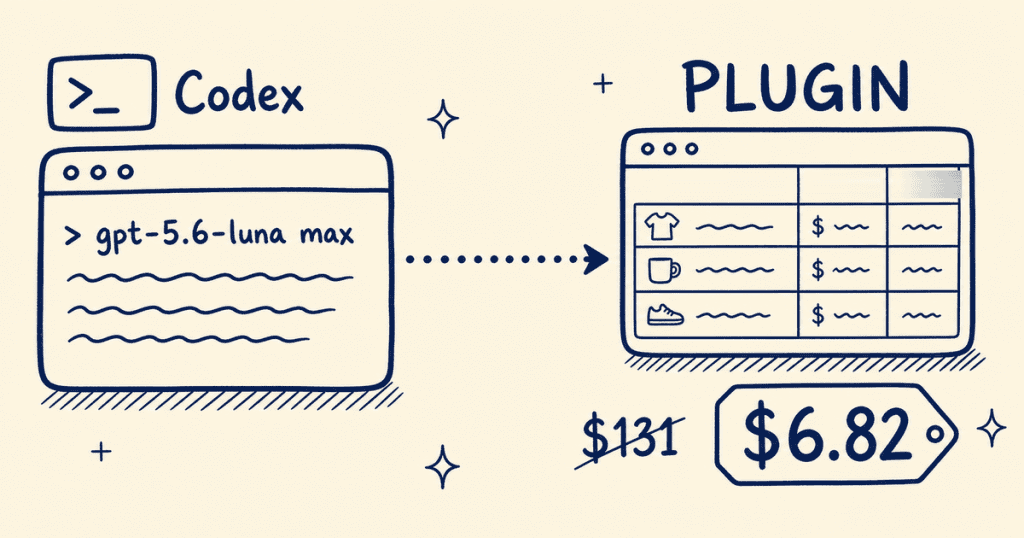
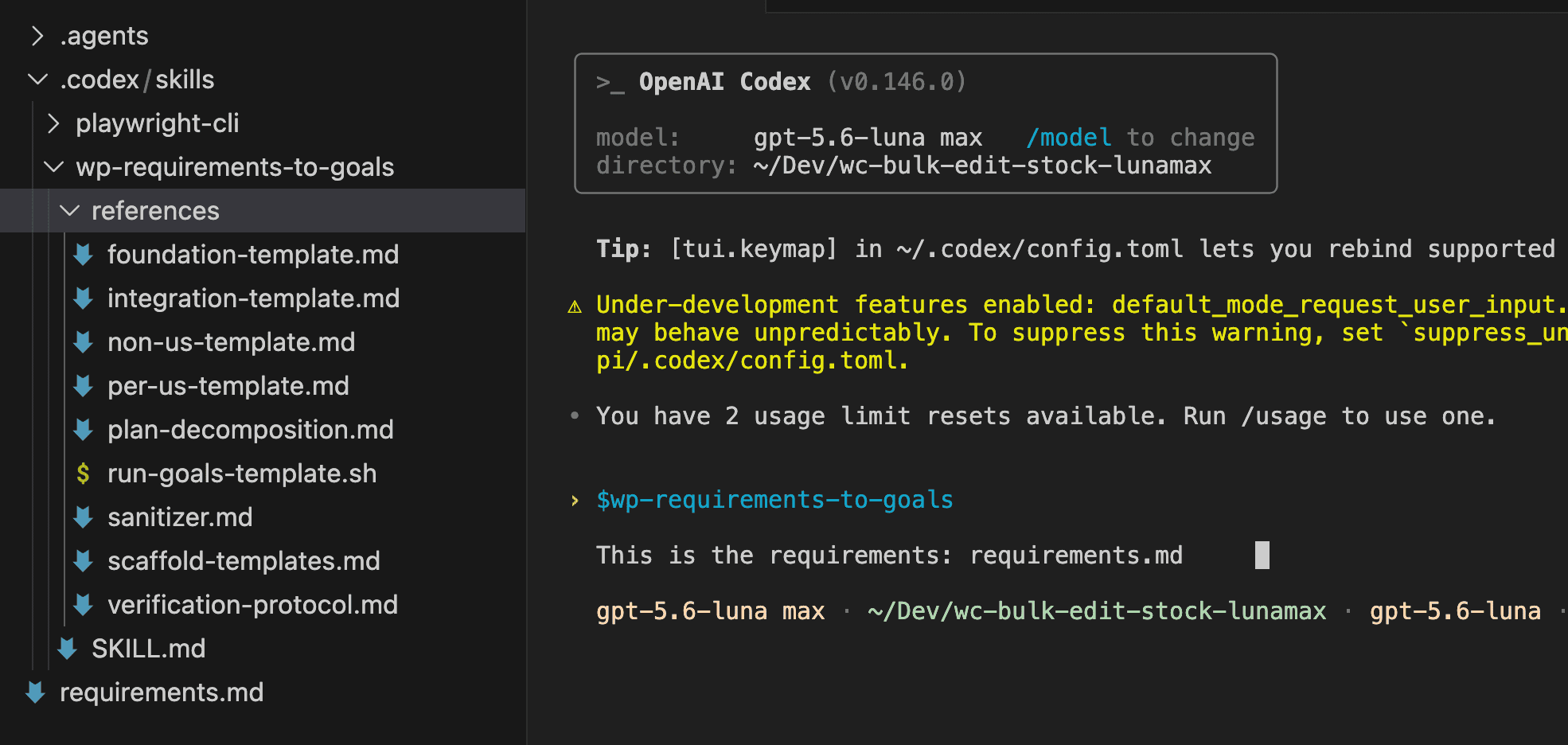
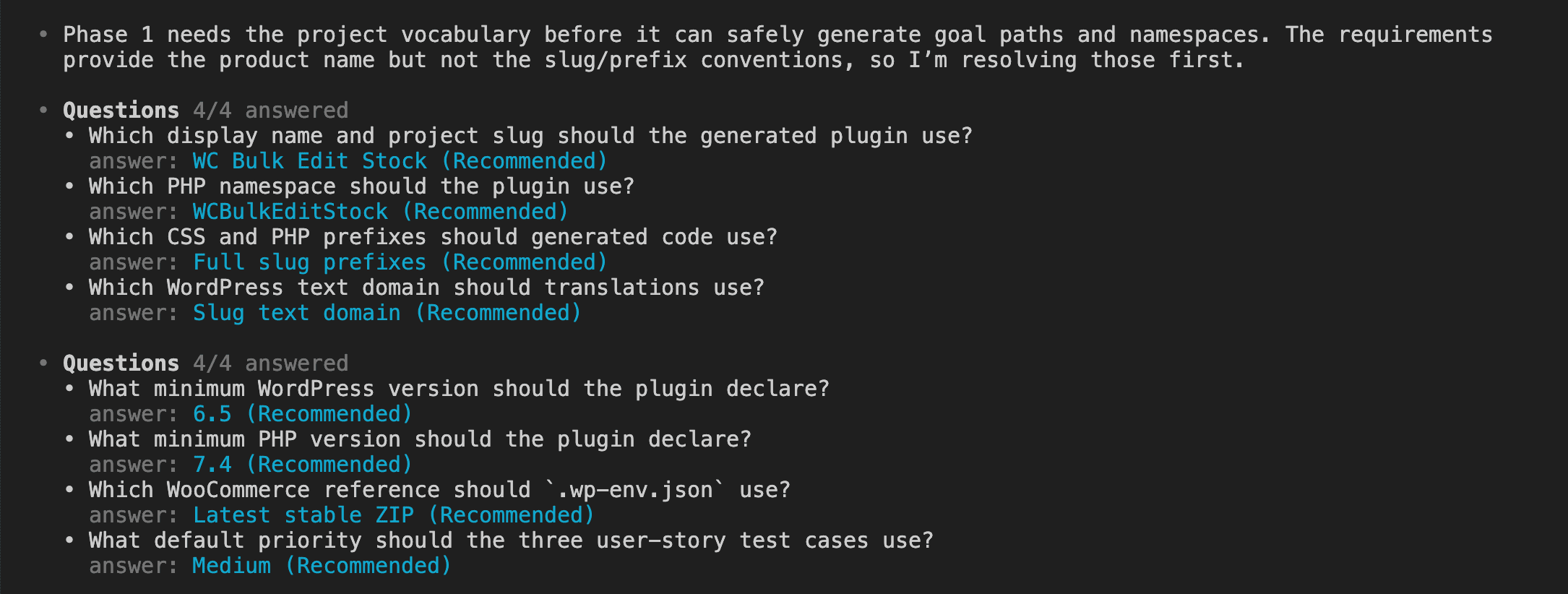
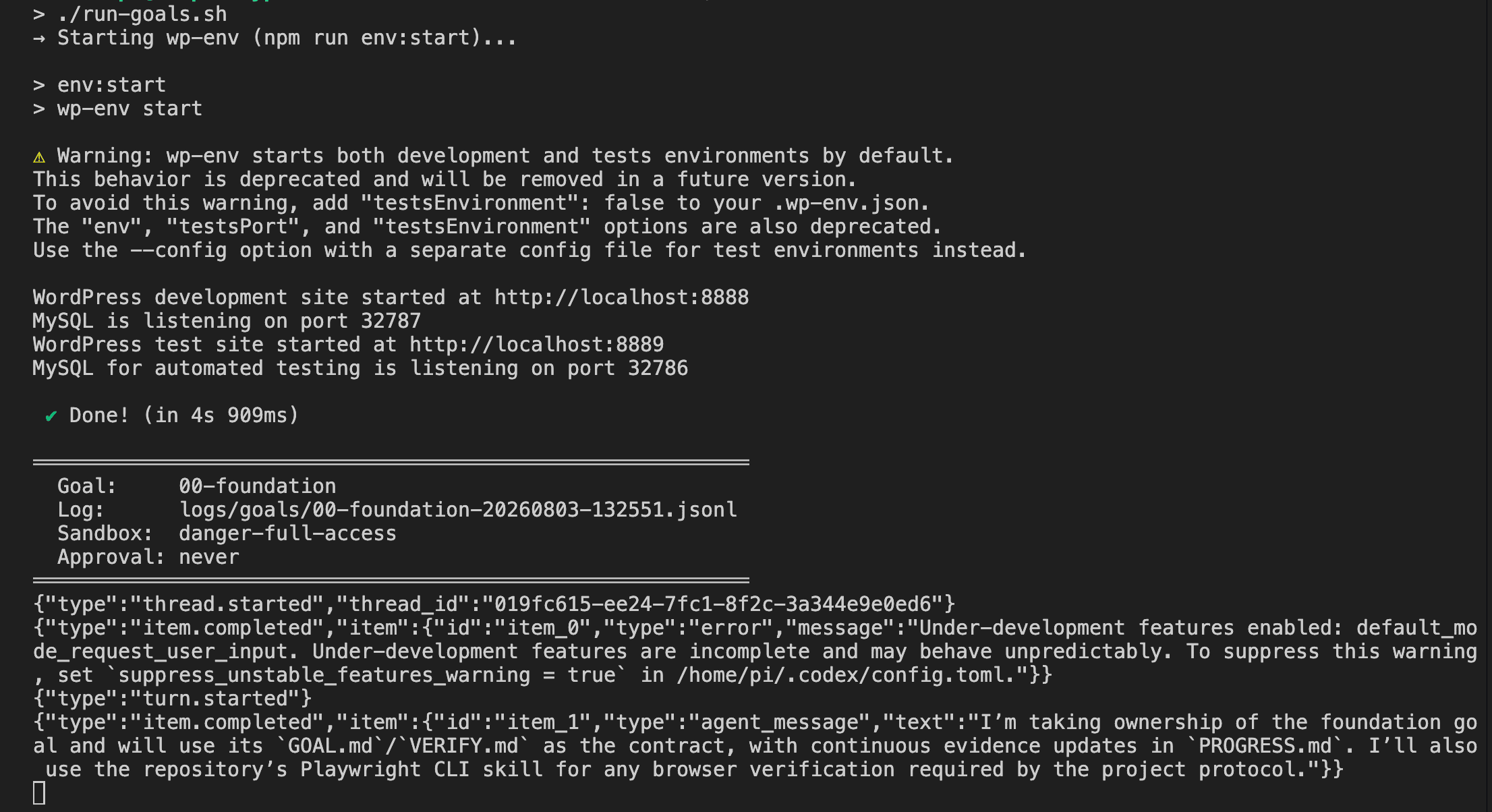
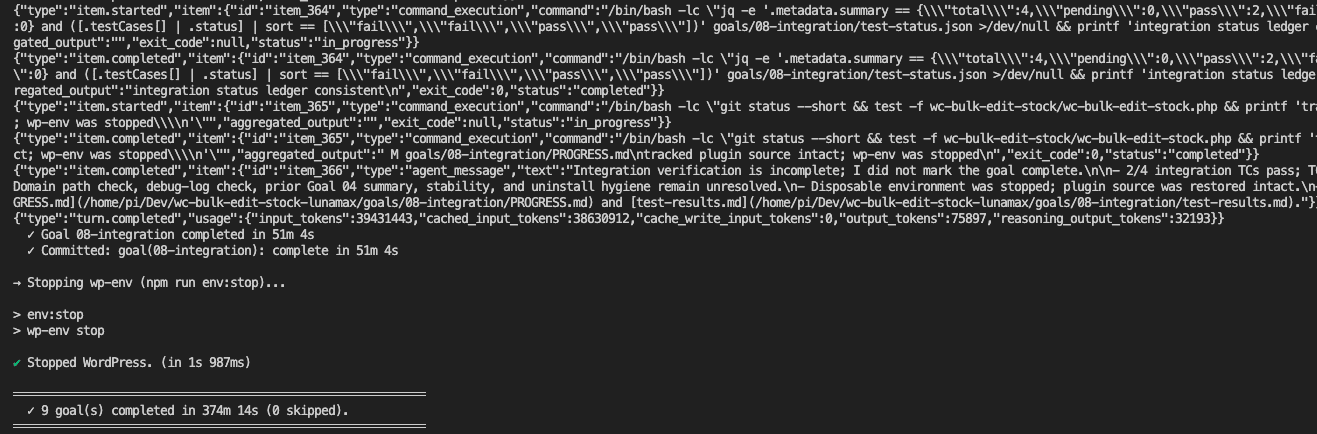
A few days ago, u/Timisageek posted something on r/ClaudeCode that stopped me mid-scroll: Sonnet 5.5 one-shotting a full kart racing game. Five sub-agents turned a single prompt into a playable game in 67 minutes, with no follow-up messages.
I’ve seen plenty of “one prompt” demos that look great in a clip and fall apart the moment you click something. I’ve built features with sub-agents before, but a complete game from a single message?
That I had to see for myself.
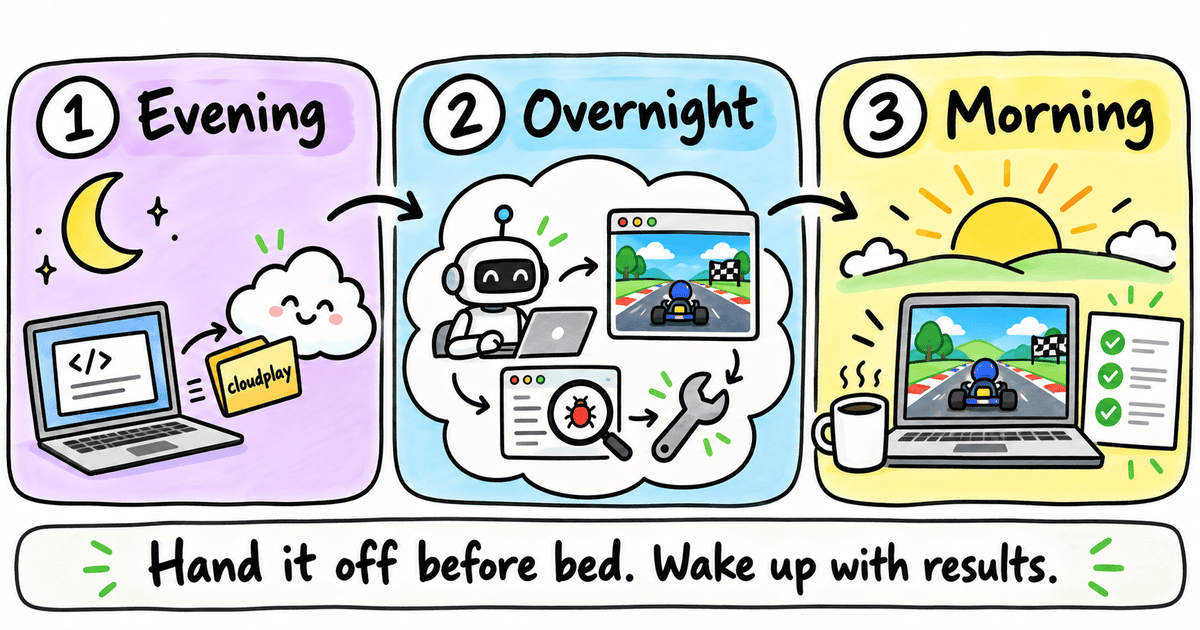
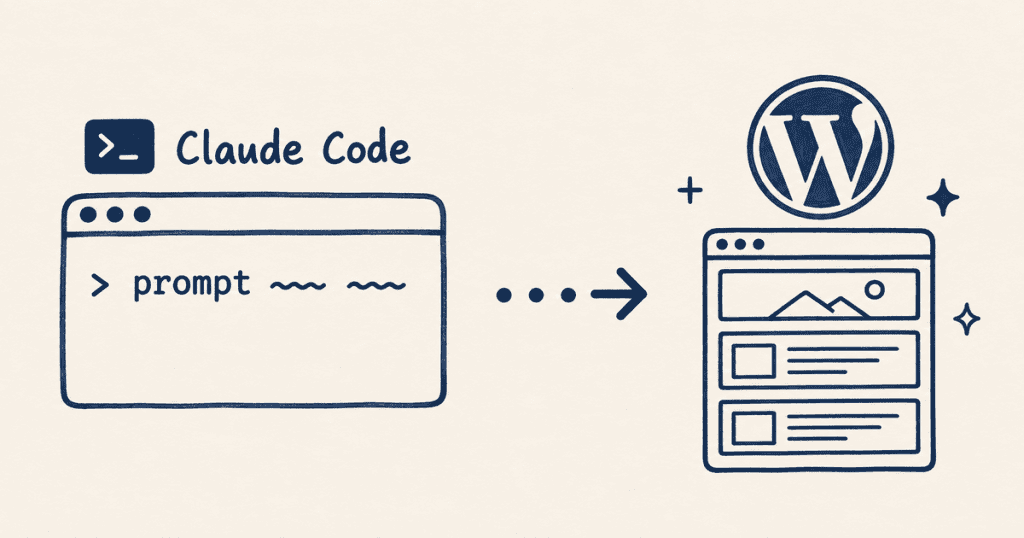
So I typed my own version of the prompt into Claude Code on the web, set Sonnet 5.5 to Max effort, and went to bed. Zero messages while the session ran — no corrections, no course adjustments.
One prompt, then silence.
This is what was waiting in the morning.
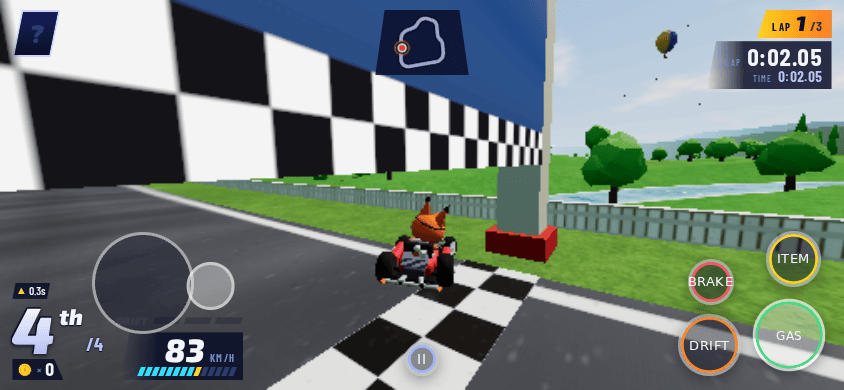
The game is called Kart Blitz — an arcade-style kart racer where every model, track, and sound effect is generated from code. It took about five hours, and I never touched it once.
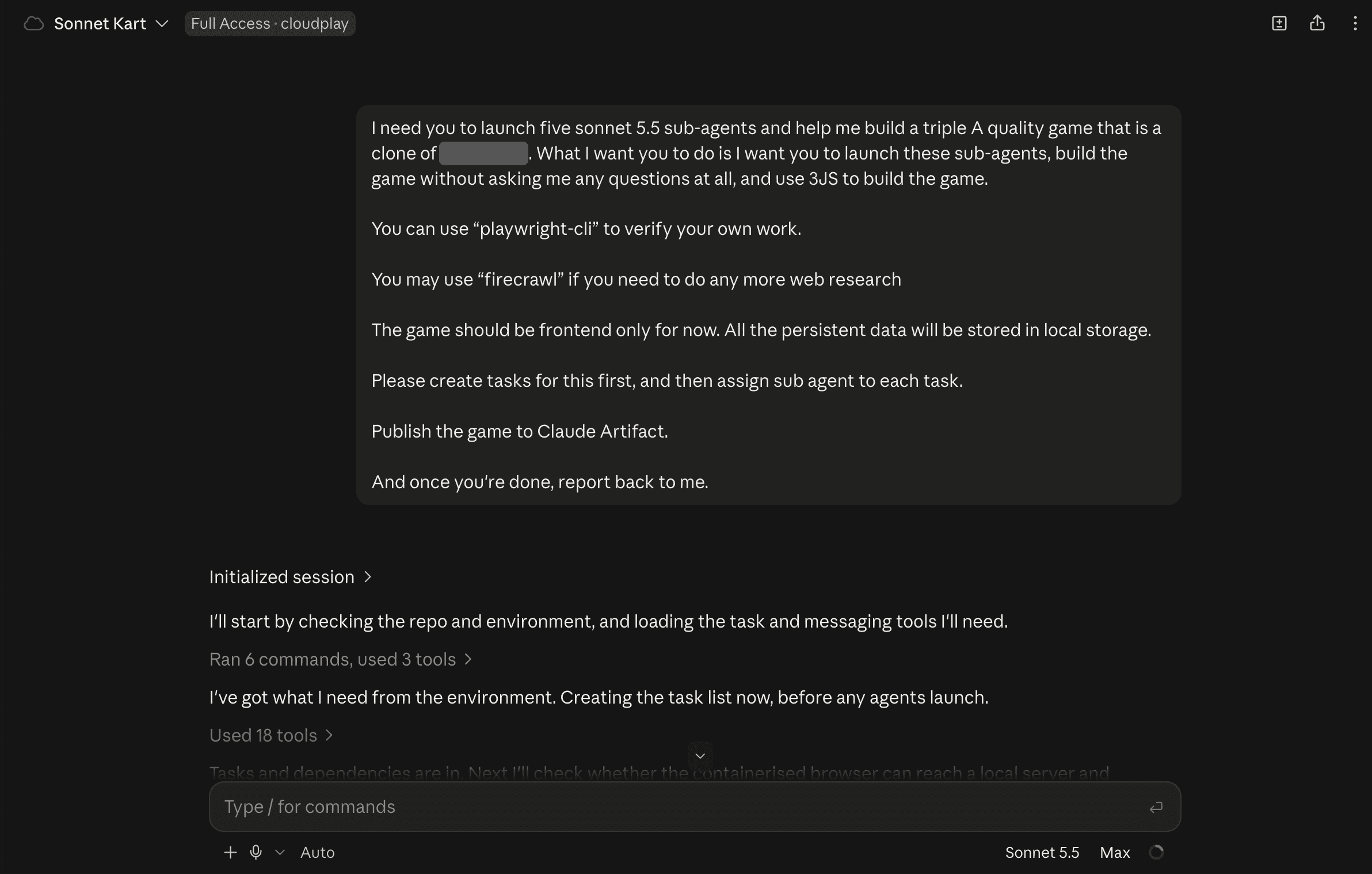
I need you to launch five sonnet 5.5 sub-agents and help me build a triple A quality game that is a clone of [a classic kart racer]. What I want you to do is I want you to launch these sub-agents, build the game without asking me any questions at all, and use 3JS to build the game.

You can use "playwright-cli" to verify your own work.

You may use "firecrawl" if you need to do any more web research

The game should be frontend only for now. All the persistent data will be stored in local storage.

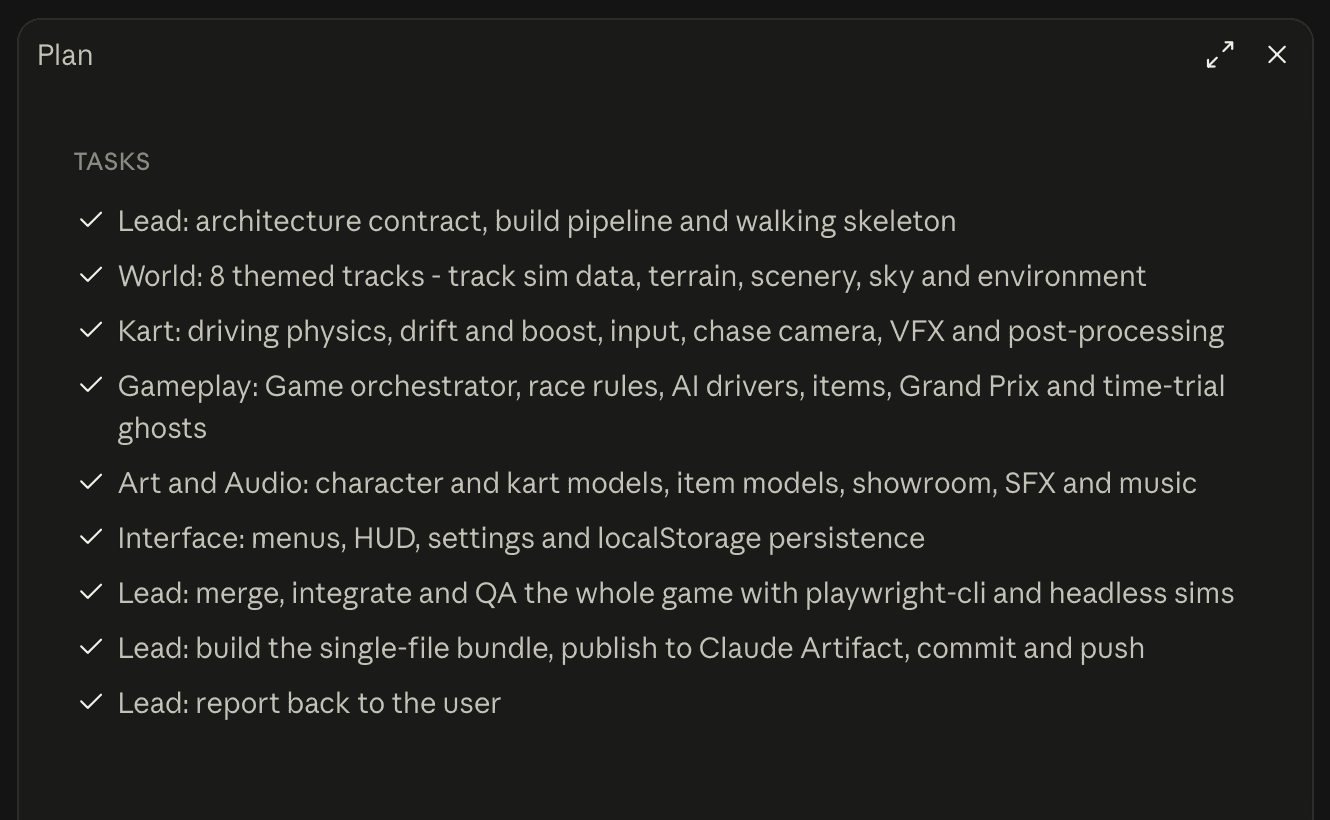
Please create tasks for this first, and then assign sub agent to each task.

Publish the game to Claude Artifact.

And once you're done, report back to me.
The core ask came straight from the Reddit post (I’ve swapped out the name of the game it asked to clone).
I added a browser so Sonnet could check its own work visually, made Firecrawl available for web research, told it to plan tasks before launching agents, kept everything frontend-only, and added a step to publish the finished game as a Claude Artifact.
The browser was the most important addition — it would let Sonnet see whether its game actually worked.
Worth knowing: my prompt adds instructions and I ran Max effort where the original used High, so this is a variation on the experiment.
One-shot, as I’m using the word here, means one prompt from me, then silence until the report came back.
.
.
.
The Setup
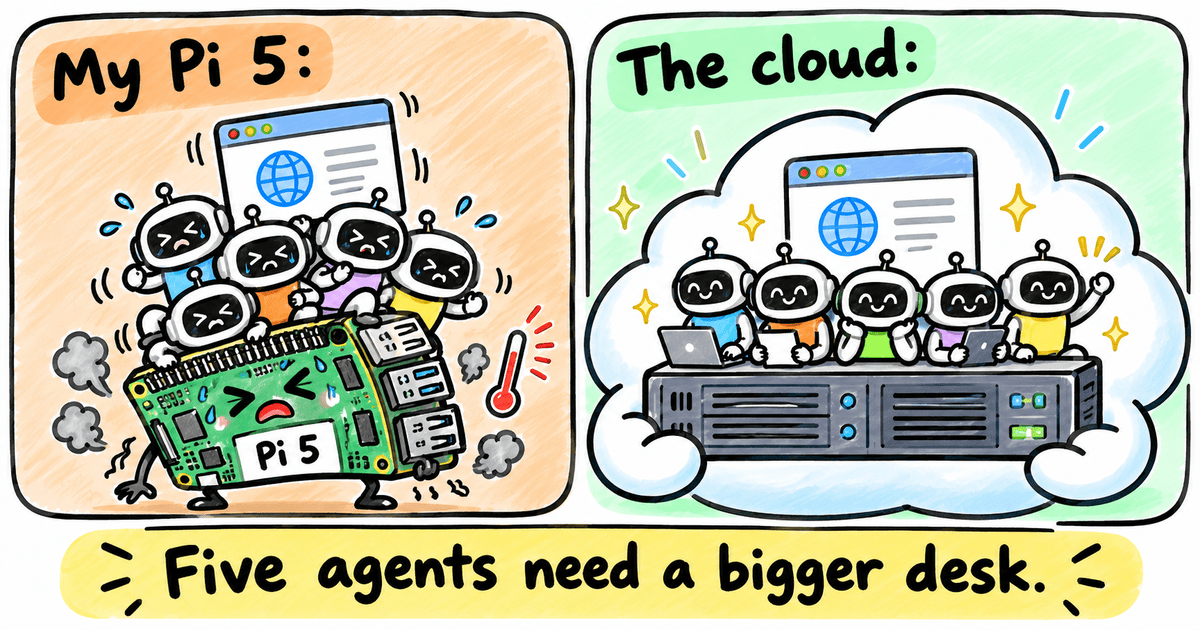
My daily machine is a Raspberry Pi 5.
I’ve run a couple of agents at once on the Pi before, and everything else on it slowed to a crawl. Five agents building a 3D game — plus browser checks on top — was more than I wanted to throw at it. Claude Code on the web runs on someone else’s hardware, and I could close the tab and go to sleep.
But a cloud session starts empty — a bare workshop with no tools on the wall. Without a browser, Claude writes a game it can never see running. It can run tests and check that the build compiles. Whether a road actually renders on top of the terrain or disappears beneath it — that takes eyes.
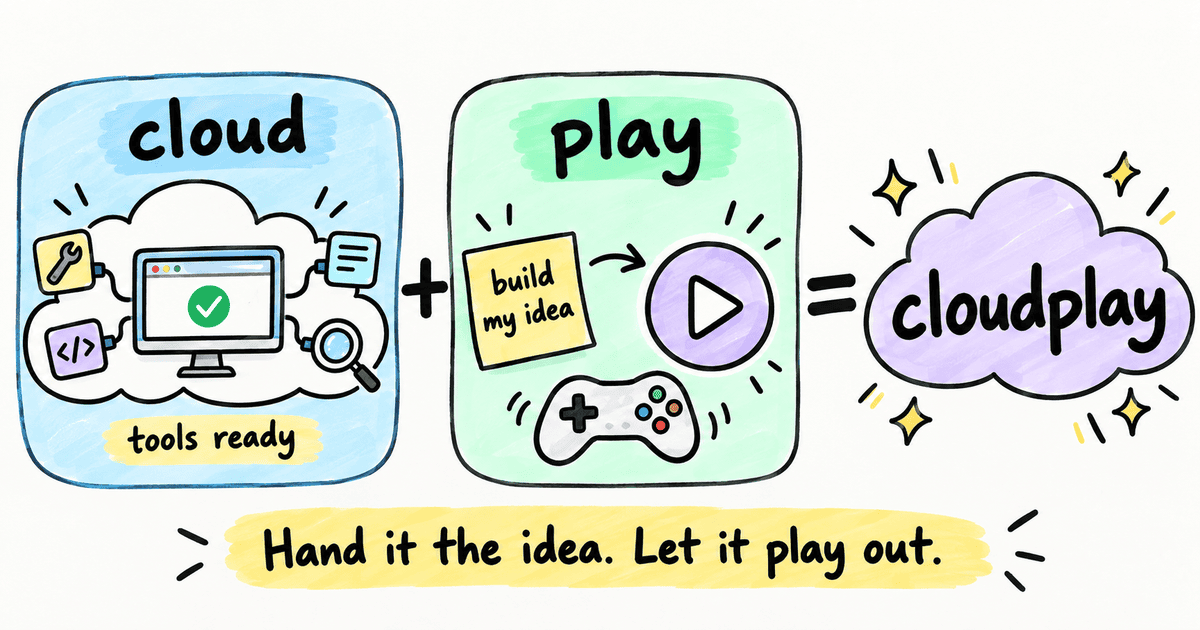
cloudplay is the setup that gives every cloud session my tools — including a browser — the moment it starts.
Stay with me: more on how that changes things at the end.
.
.
.
How Sonnet 5.5 Built It
Before launching a single agent, Sonnet 5.5 wrote the task list.
One lead agent set up the foundation and planned how the pieces would fit together.
Because Sonnet had a browser, the lead agent opened the game after integration, took screenshots, and actually looked at what was on screen.
(This is the part that makes overnight runs viable — a model that can see its own output and course-correct without waiting for you.)
It caught four visual bugs — terrain covering roads, graphics glitches, buttons falling off a small window — and routed each one back to the builder that owned that section. All four were fixed before Sonnet reported back.
The first thing I did when I woke up was open the session on my phone to see if it had finished.
It had.
Kart Blitz.
An original kart racer where every model, sound, and track is generated from code — no borrowed names or art.
Here’s what five agents and about five hours produced:
Eight tracks across two cups, eight drivers, 50cc to 200cc
Drifting with mini-turbos, 13 items, 11 AI rivals per race
Grand Prix, Versus, and Time Trial with a ghost to race
Keyboard, gamepad, or touch controls
The comparison.
Reddit run
My run
Effort
High
Max
Tools
None
A browser to check its work
Build time
67 minutes
About 5 hours
Tracks
4
8
Automated tests
None reported
308
My run took longer and came back bigger, but the prompts differed too, so the gap reflects more than the effort setting alone.
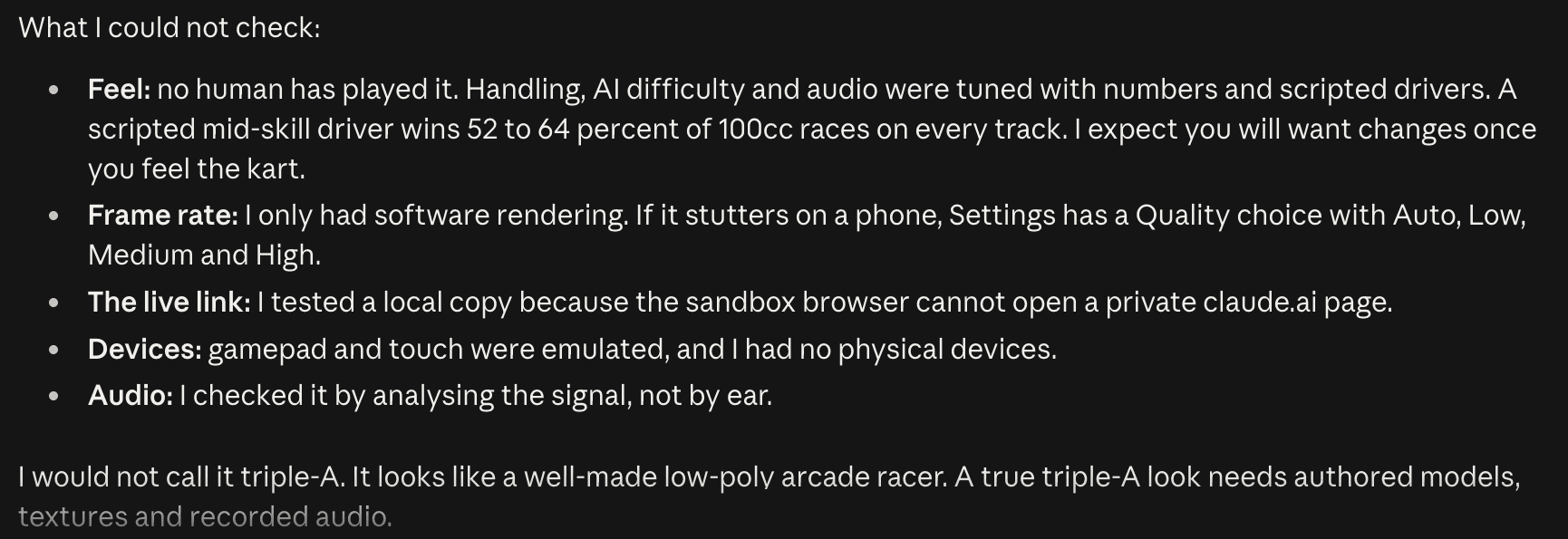
Sonnet’s honest report.
One line from the report stood out: “I would not call it triple-A. It looks like a well-made low-poly arcade racer.”
Here’s the thing — that kind of honesty matters more than you’d think. When a model tells you exactly where its own checking stopped, you know where to pick up in the morning.
The report becomes your starting line.
My verdict.
Sonnet undersold itself.
The one thing it couldn’t test — whether a person would actually enjoy the game — is where it surprised me.
It’s genuinely fun.
The first proper race I ran, I won: 1st of 12 at Sunny Meadow, 100cc. I expected something that would look polished in screenshots and fall apart the moment I grabbed the controls.
It held up from the first turn.
I tried it on my phone too.
The on-screen stick and buttons worked straight away — and Sonnet had only ever tested touch with simulated taps.
Think you can beat 1:21.40 at Sunny Meadow? Play Kart Blitz here. It runs in the browser on desktop and phone.
.
.
.
Why I Called It cloudplay
So, can Sonnet 5.5 build a full, playable game from one prompt with nobody stepping in?
Yes — given the right tools and about five hours of someone else’s compute.
The name breaks down into two halves.
Cloud: a bigger machine that already has your tools — Firecrawl for research, a browser to check its work — the moment the session starts.
Play: hand Claude the repo and a prompt describing what you want, and let it play out. It builds the thing, or at the very least tests out the idea you had in mind.
Either way, you wake up with something concrete to look at.
That combination changes what “using Claude” looks like in practice.
Before this, my habit was hovering over the session — approving each step, nudging the direction every few minutes. (I suspect that habit sounds familiar.) This time I typed one prompt, closed the laptop, and went to bed. The browser and the tools were already in place, so I could trust the session to catch its own mistakes while I slept.
I started this before bed and reviewed it in the morning.
👉 Anything I can describe clearly enough can now run while I sleep, on a machine bigger than mine. The honest report at the end means I wake up knowing exactly what was checked and what still needs a human eye.
A kart racer turned out to be a good stress test because it demands everything at once — visuals, physics, sound, AI opponents, menus, touch controls. That overnight handoff, from one prompt to a playable game and a detailed breakdown of what worked and what didn’t, is what the whole setup was built for.
If the tools can carry a game this complex on their own, they can carry most of the ideas I’d want to try.
Try cloudplay, run your own variation of the prompt, and reply with what you built.
That pipeline covers everything WordPress ships out of the box.
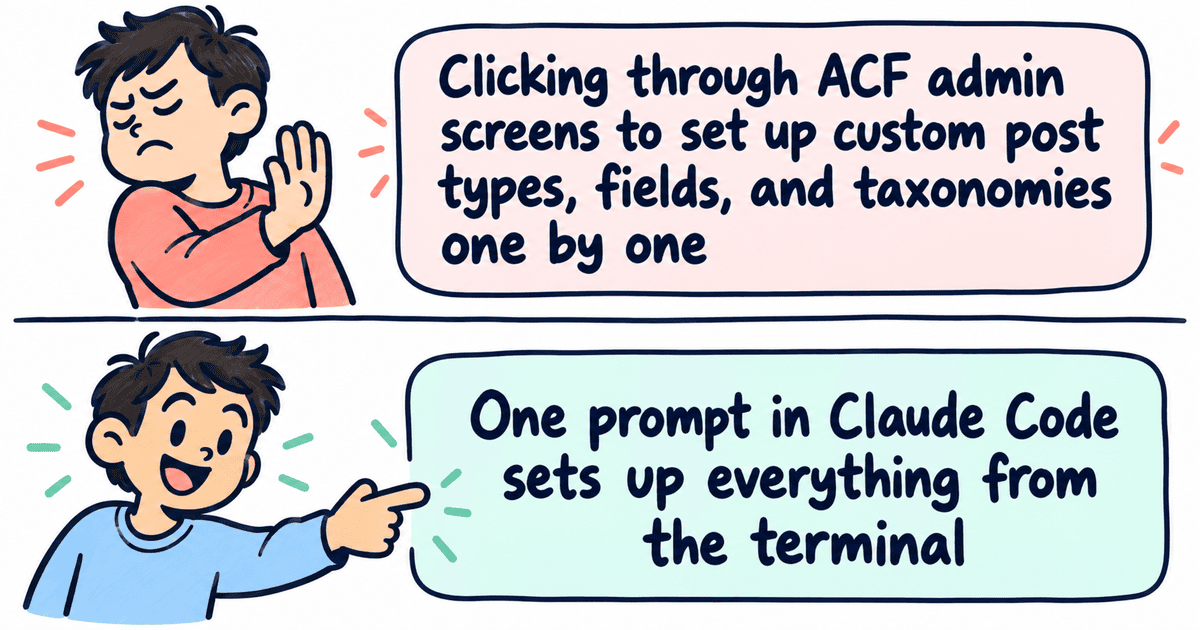
So I pointed it at something harder.
A team showcase with Advanced Custom Fields — a custom post type where each member gets a job title, a bio, social links, a photo, and a department.
ACF is one of those plugins that most serious WordPress sites depend on. It gives you real labels, tabs, and validation in the editor so the client can fill in fields without guessing what goes where.
And that’s where the momentum stopped.
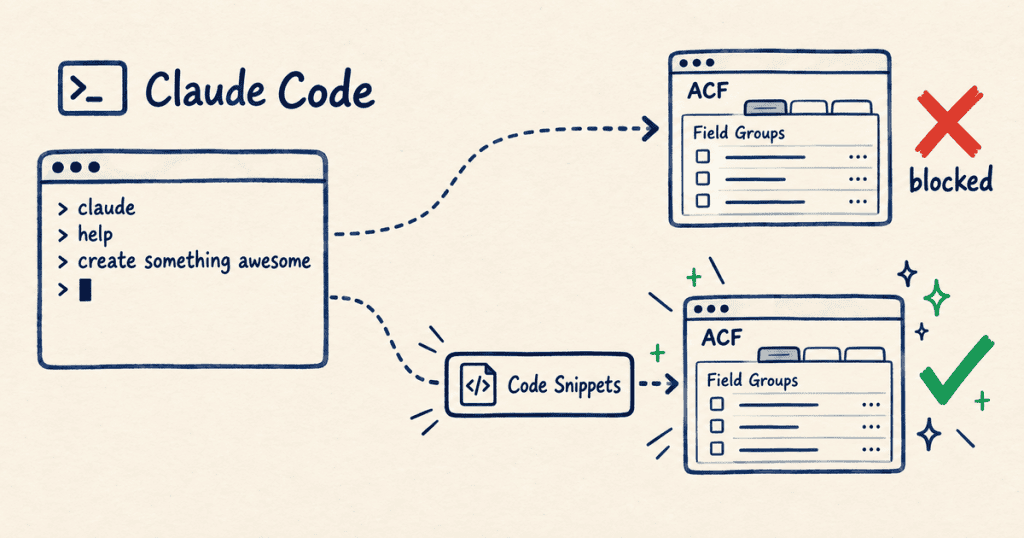
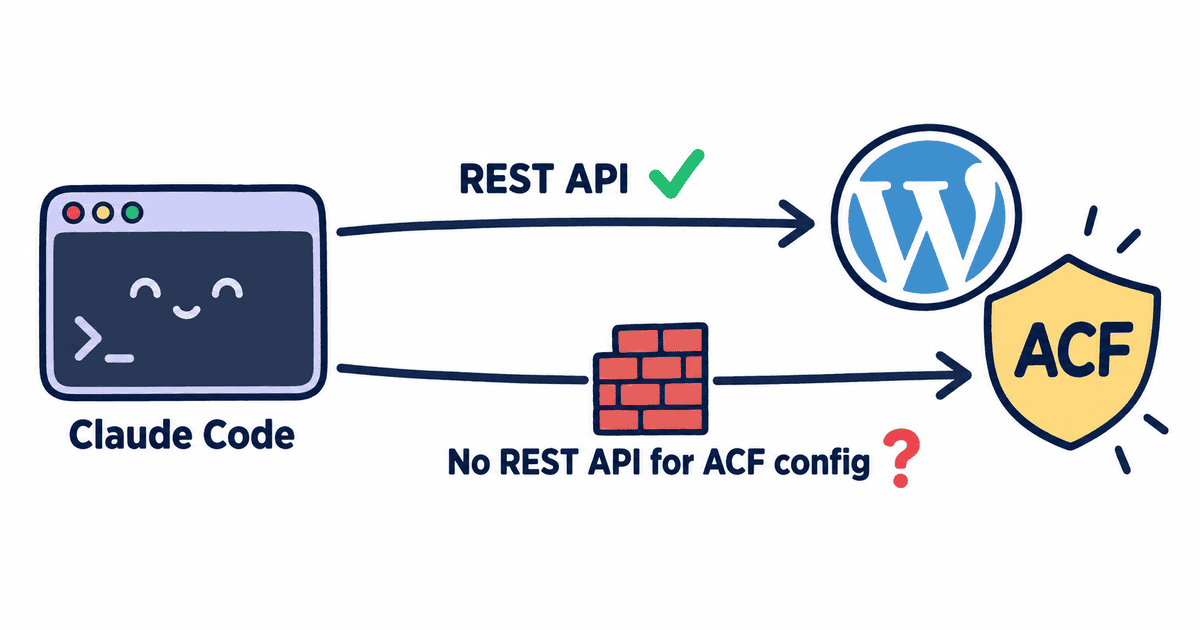
ACF keeps its configuration locked behind admin screens. No REST endpoints for its internal objects. The only way in is built for humans clicking through a browser.
What about a pattern that works for any plugin, right now, with zero extra servers?
.
.
.
The Bridge Pattern
Here’s the thing — the Code Snippets plugin has its own REST API. Claude Code already speaks HTTP. That single fact unlocks the whole approach.
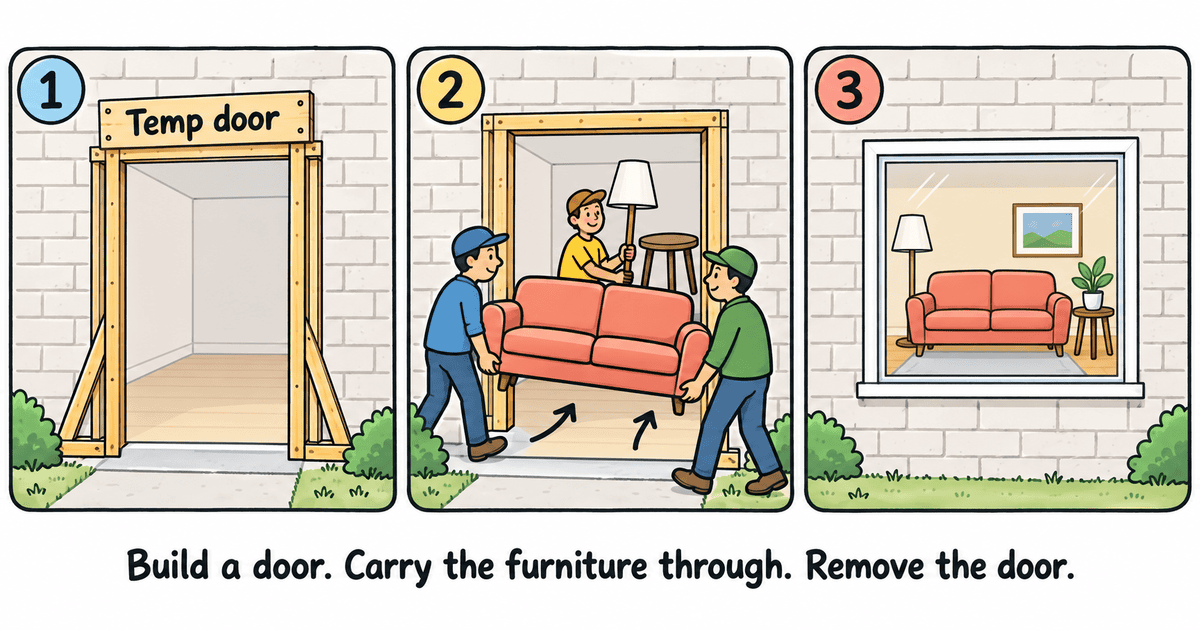
Think of it as building a door in a wall.
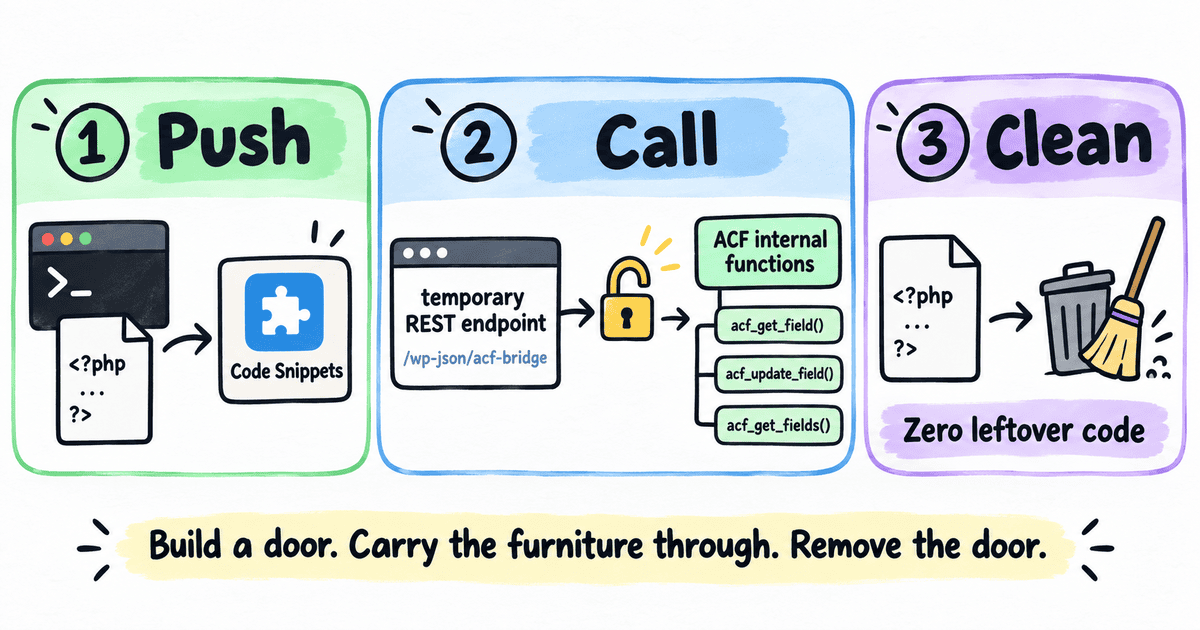
The door exists just long enough to carry the furniture through. Once everything is inside, you remove the door. The room is fully furnished, and the wall looks like it was never touched.
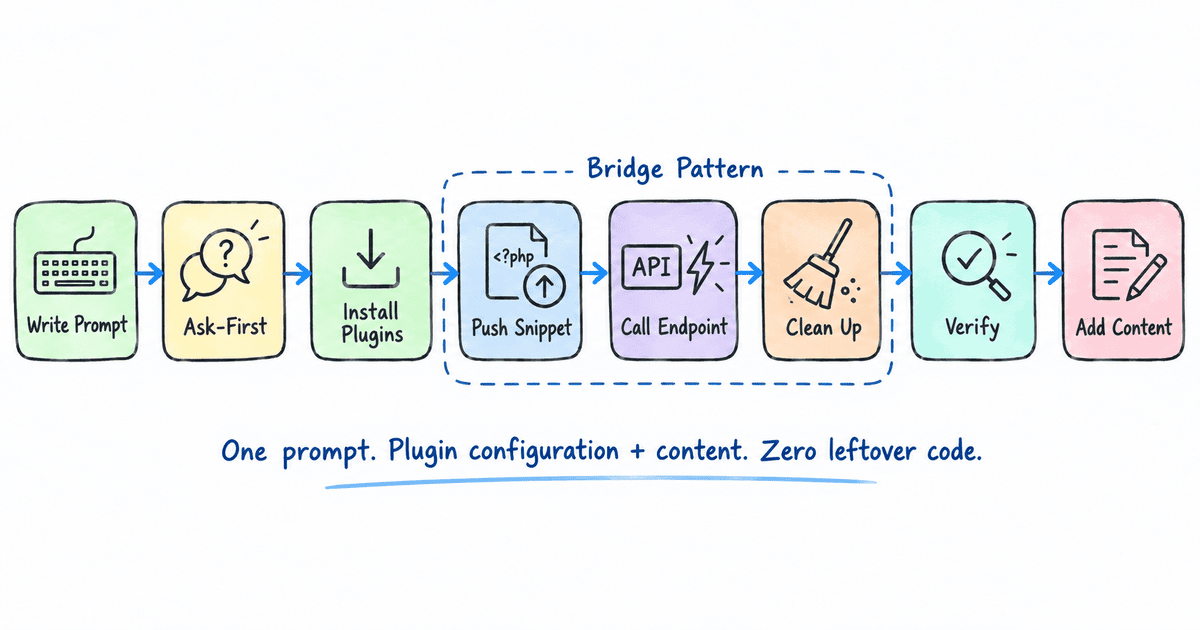
Claude pushes a temporary snippet that configures ACF from inside, calls it, then removes it. The resulting post type and fields show up in ACF’s admin screens as fully editable — indistinguishable from something built by hand.
A developer opens the field group and finds real labels, tabs, and settings they can modify. (If you’ve ever spent twenty minutes clicking through ACF’s admin screens to set up a field group — naming each field, picking types, dragging them into tabs — you know the feeling of wishing you could just describe what you want and have it appear.)
That’s the Claude Code ACF REST API bridge — a temporary connection between two systems that don’t natively talk to each other, powered by a plugin that most WordPress developers already have installed.
.
.
.
The Prompt
The prompt is shorter than you’d expect.
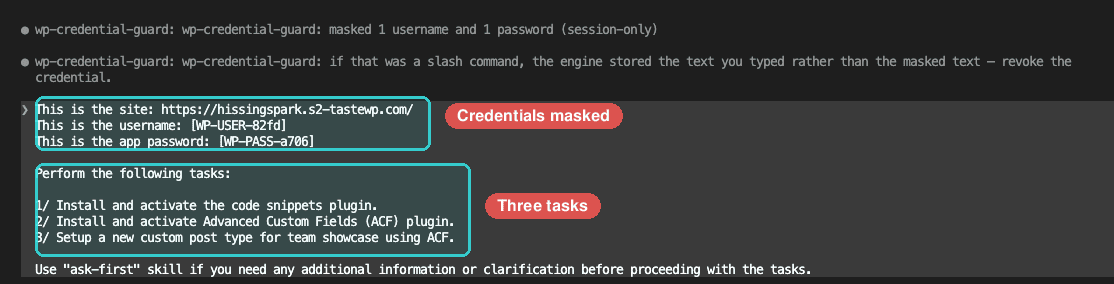
Site URL, masked credentials, and three tasks:
Install and activate Code Snippets
Install and activate ACF
Set up a team showcase custom post type using ACF
One line at the bottom tells Claude to use the ask-first skill if it needs clarification before proceeding.
That’s the whole ask.
About those credentials: The username and password appear as placeholders — [WP-USER-82fd] and [WP-PASS-a706] — session-scoped stand-ins that replace the real values before they reach the transcript. That’s the credential guard from Your AI Agent Can See Your Passwords. Here’s How to Fix That. The AI works with a placeholder the entire session. The transcript stays clean.
Notice what the prompt leaves out.
Nothing about how the gap between WordPress and ACF gets bridged — no implementation plan, no intermediate steps. The prompt describes the desired outcome.
The skills figure out the rest.
.
.
.
Before It Builds, It Asks
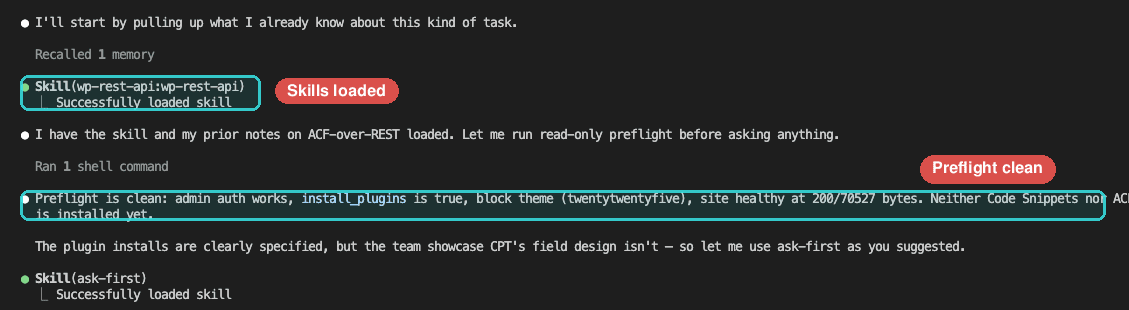
Before Claude touches the site, it loads the ask-first skill and launches a structured requirements-gathering session.
Four questions, each with recommended defaults and room to customize.
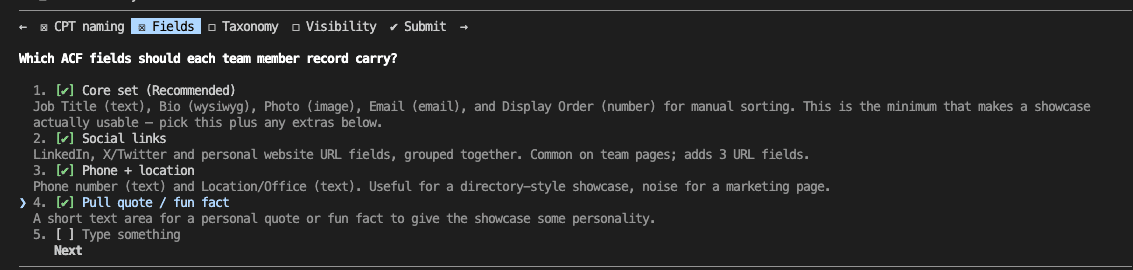
The most interesting question is about fields — a multi-select checklist of what each team member should carry:
Core set (Recommended) — Job Title, Bio, Photo, Email, and Display Order for manual sorting
Social links — LinkedIn, X/Twitter, and Website URL
Phone + location — Phone number and Location/Office
Pull quote / fun fact — A short text area for personality
A freeform option lets you type in anything the presets don’t cover.
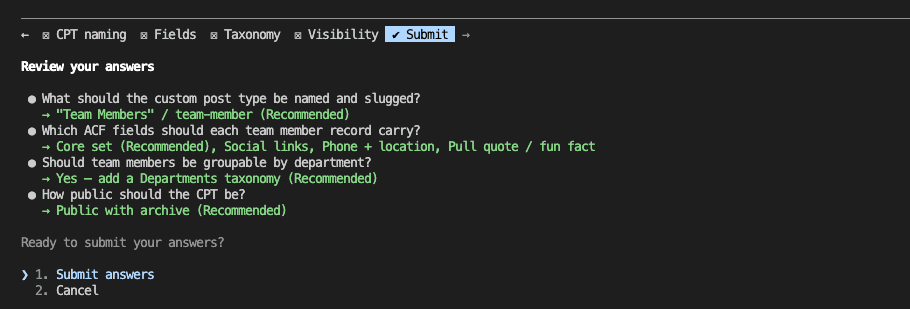
The other three covered CPT naming, taxonomy, and visibility. All four answers appear together on a review screen before anything executes — one last chance to change your mind.
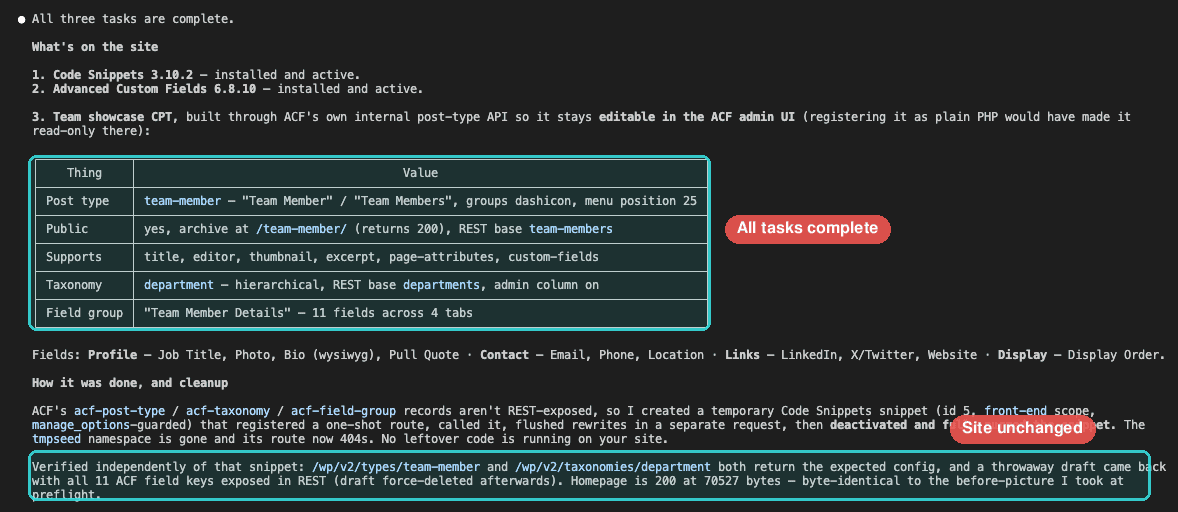
By the time I hit Submit, Claude had gathered a complete specification — post type slug, eleven fields organized across four tabs, a hierarchical taxonomy, public visibility with an archive. Every detail confirmed before a single call touched the site.
(If you’ve ever built a custom post type and realized three fields in that you forgot to plan the tab structure, this is the step that prevents that.)
The ask-first skill is available in the agent skills marketplace:
Let me show you what happens after you hit Submit.
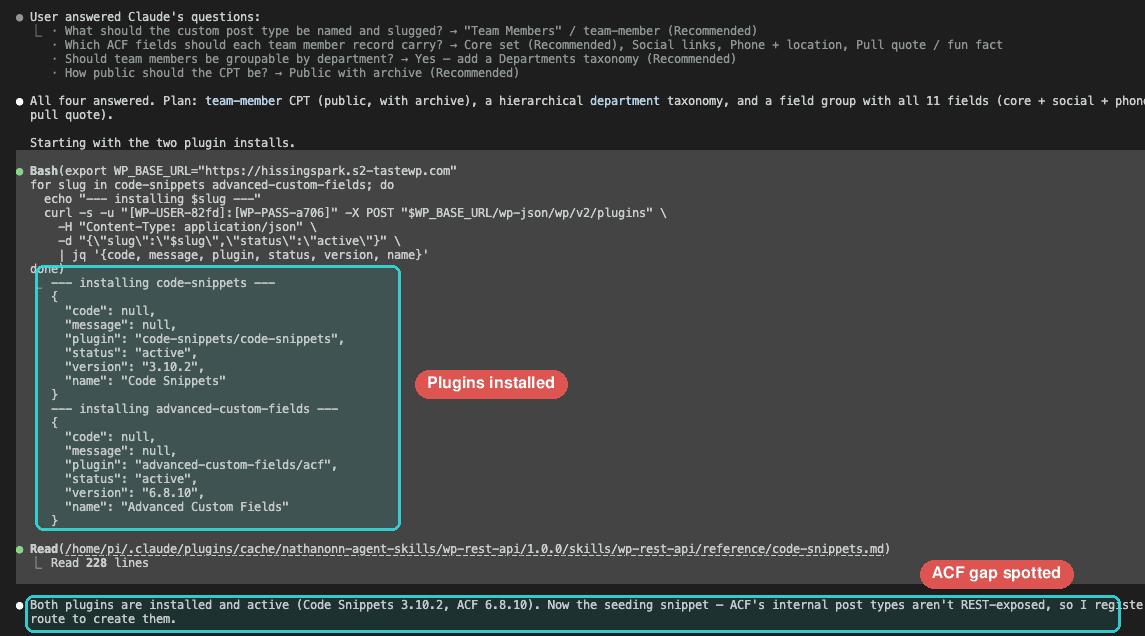
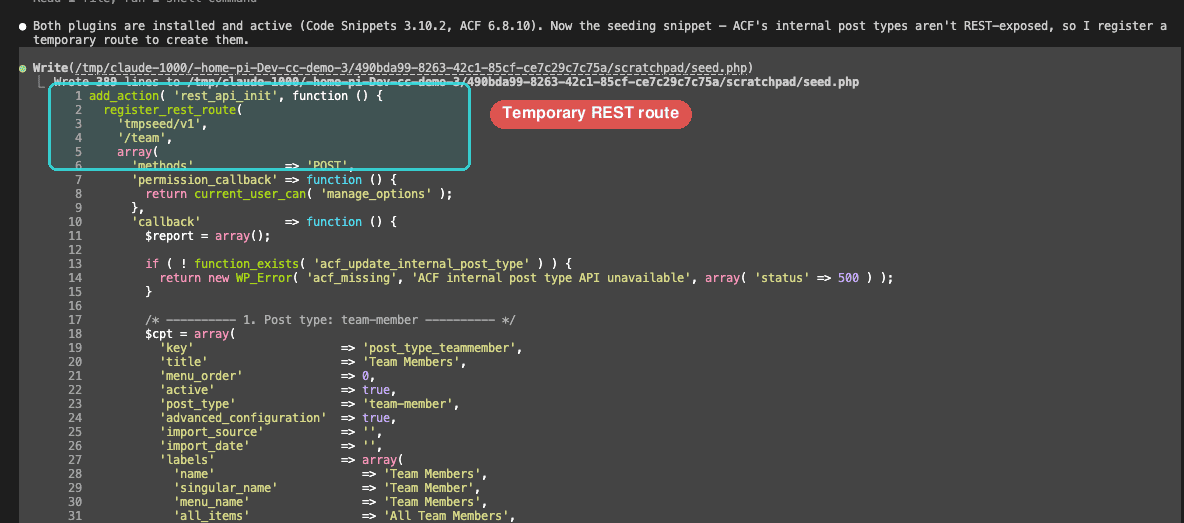
Install. Both plugins go up through the WordPress REST API — Code Snippets and ACF, installed and activated in seconds. Claude reads the reference documentation and immediately spots the gap: ACF’s internal post types have no REST endpoints. The bridge pattern forms on its own — no hint in the prompt.
Bridge. Claude writes a temporary snippet that registers a one-shot REST endpoint, pushes it to the site, and activates it. One call to that endpoint creates all three ACF objects — the custom post type, the taxonomy, and the field group with eleven fields across four tabs.
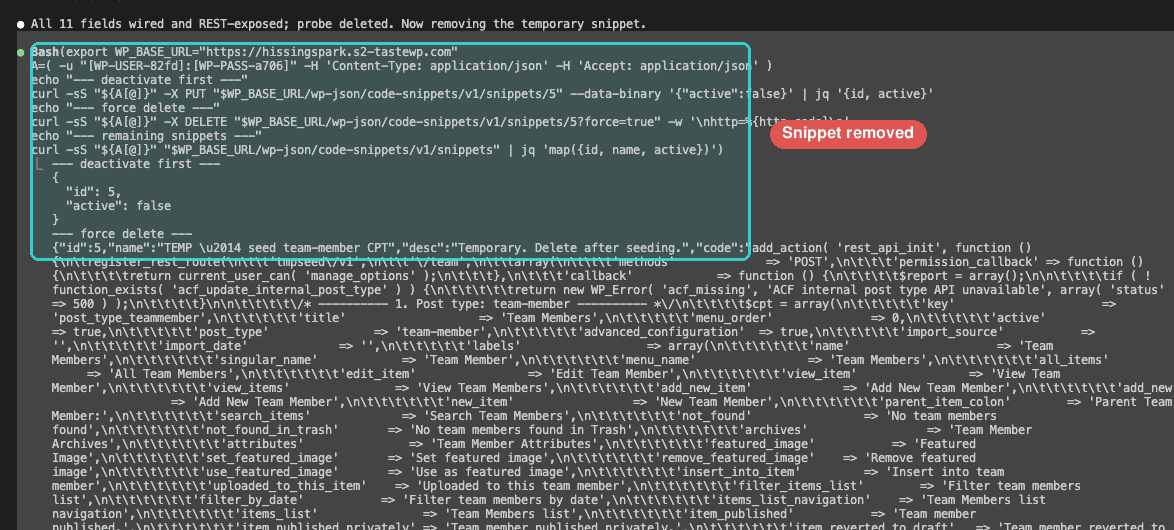
Clean up. Claude verifies the results through WordPress’s own REST responses — confirming the post type, taxonomy, and all eleven fields are wired and accessible. Then it deactivates the snippet and deletes it. The temporary route disappears from the site.
Done. The whole sequence — install, bridge, verify, clean — ran in a few minutes. I watched the terminal scroll and realized Claude had figured out the workaround on its own. I hadn’t mentioned temporary endpoints anywhere in the prompt. The skills gave it the tools, and the reasoning happened in real time.
.
.
.
What Actually Landed
Stay with me — this is where the bridge pattern earns its keep.
Time to check the WordPress admin.
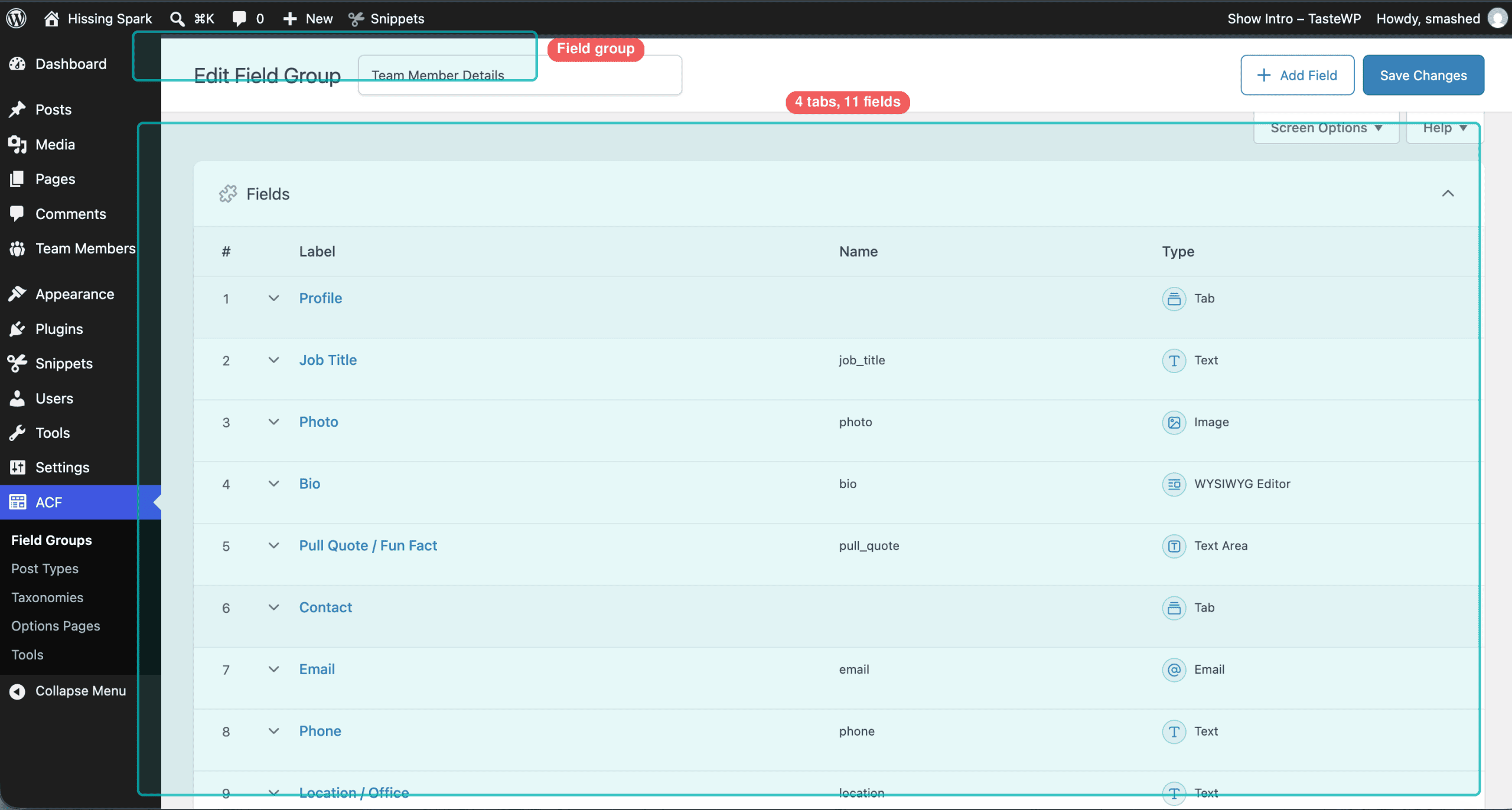
Everything Claude configured is visible and editable through ACF’s own interface — the same screens a developer would use to build a field group from scratch.
The field group — “Team Member Details” — organizes fifteen items (eleven data fields plus four tab separators):
Tab
Fields
Profile
Job Title, Photo, Bio, Pull Quote / Fun Fact
Contact
Email, Phone, Location / Office
Links
LinkedIn, X/Twitter, Website
Display
Display Order
A Team Members menu item sits in the sidebar with a Departments link below it for the taxonomy.
👉 Because the bridge went through ACF’s own configuration process, everything that landed is fully editable through the admin screens.
A developer can add fields, rename labels, reorganize tabs, change field types. The configuration lives where ACF expects it — in the database, managed through its own interface — so changes happen through clicks, the same way they would for any field group built by hand.
.
.
.
Adding Sample Data
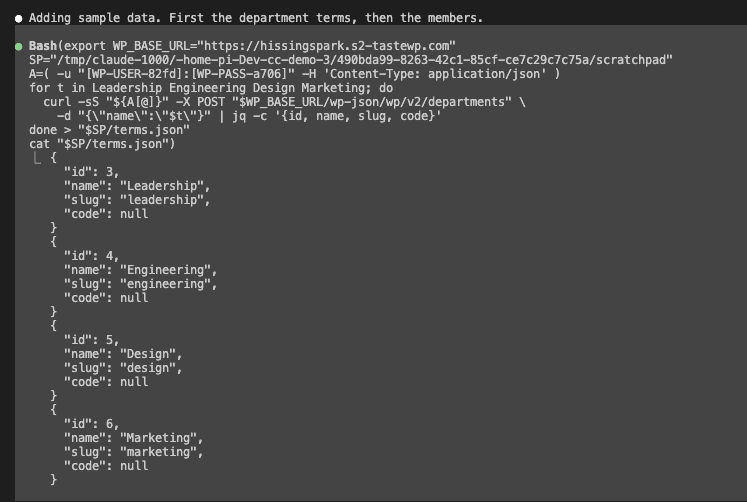
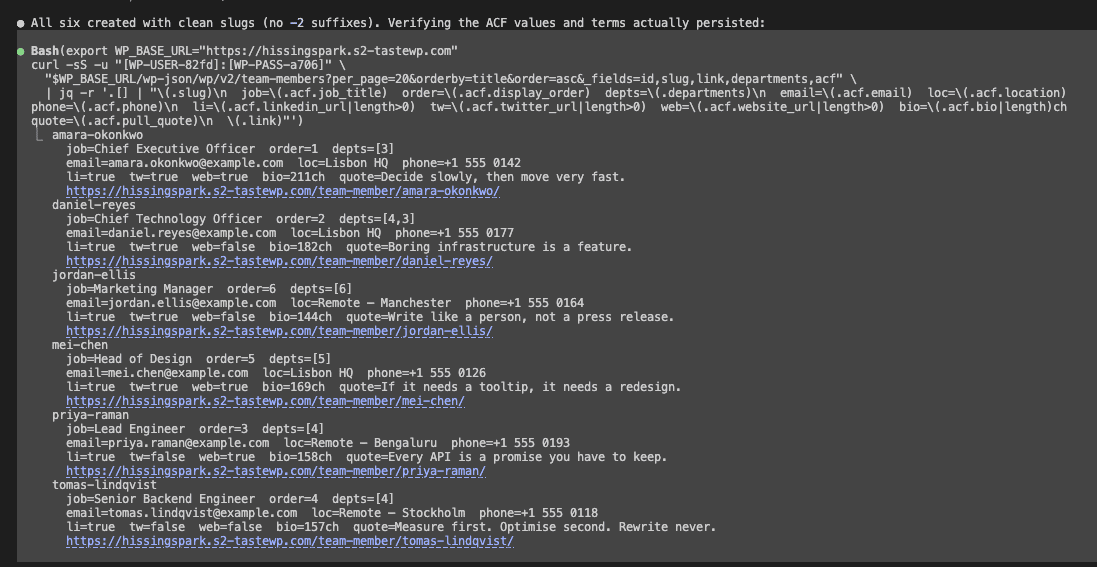
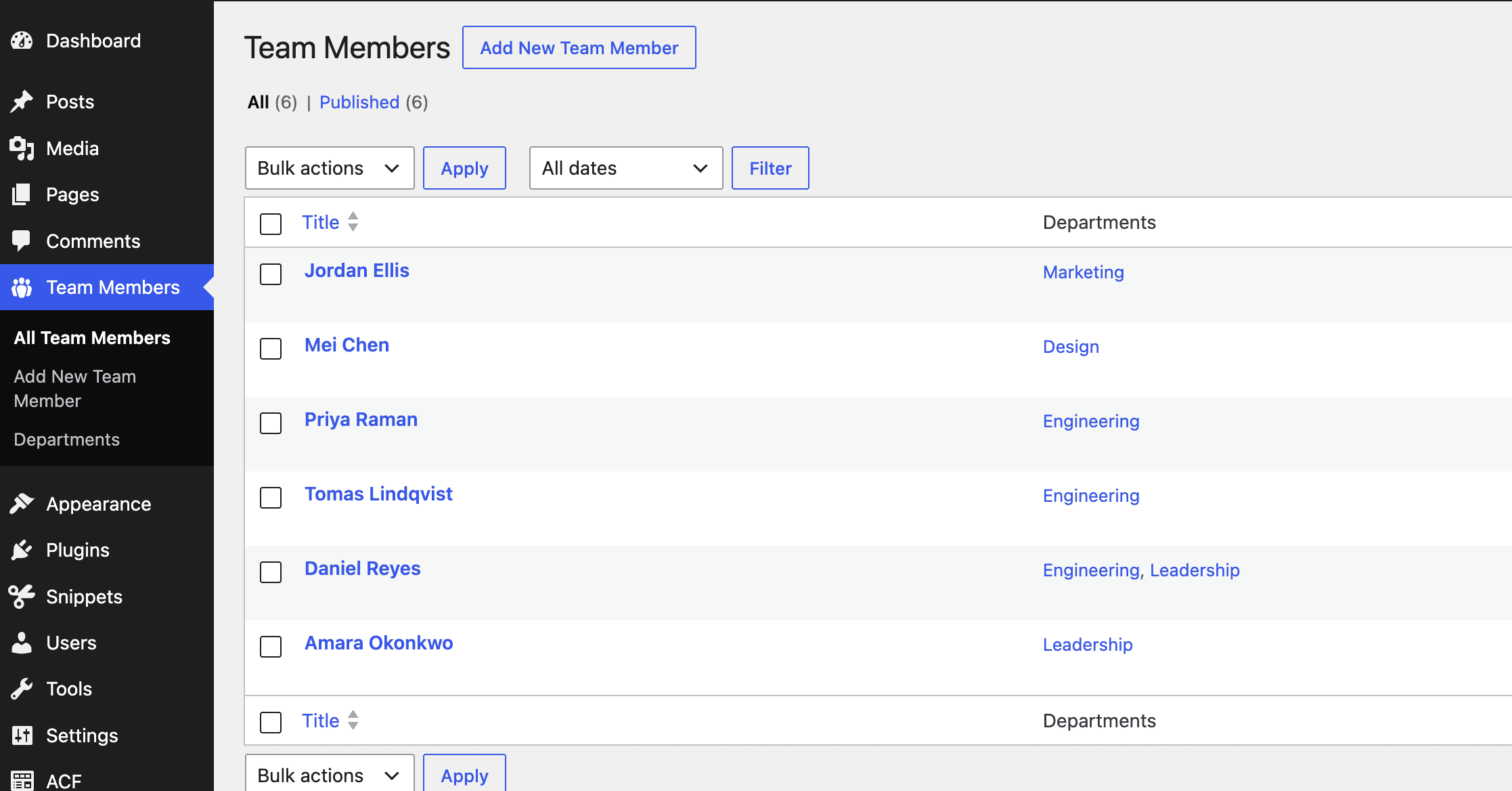
With the custom post type in place, adding content is straightforward REST — no temporary endpoints needed. One prompt creates four departments and populates six team members with every field filled in.
Here’s the result in the WordPress admin — six members, each with departments assigned:
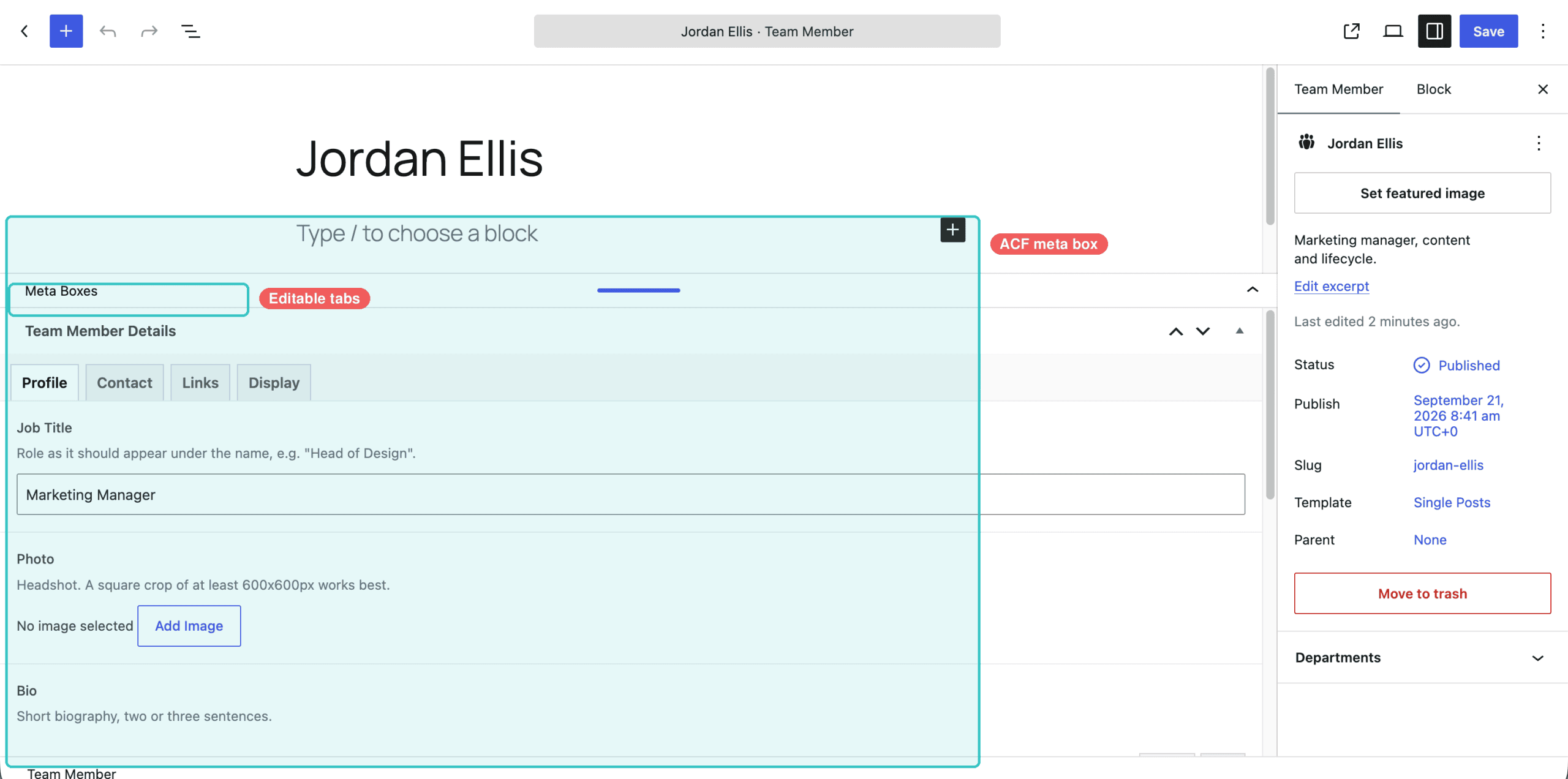
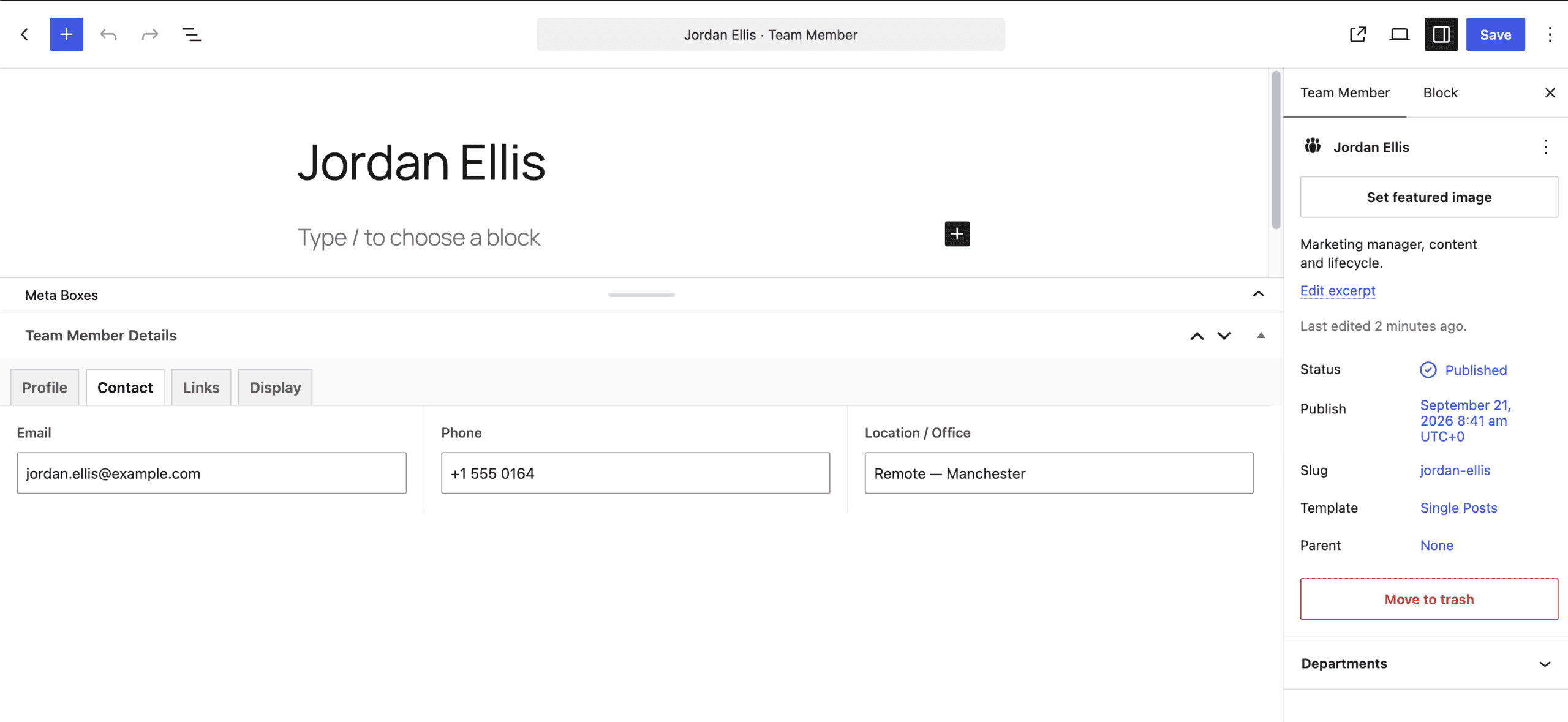
Open any member in the editor, and the ACF fields appear — four tabs, every field populated and editable with helper text that guides future editors.
(The kind of helper text that saves you from answering “what goes in this box?” every other Tuesday.)
From this point forward, everything runs on standard WordPress. Adding team members, editing fields, managing departments — all through the interfaces WordPress users already know.
.
.
.
Your Turn
Four steps to reproduce this on your own site:
Install the skills from the agent skills marketplace
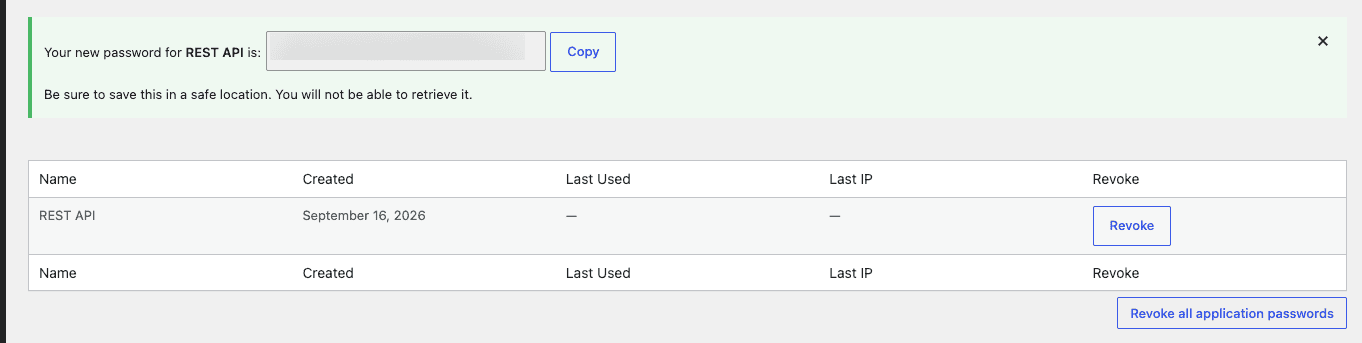
Create an Application Password on your WordPress site (under your user profile in the admin dashboard)
Copy the prompt template below, fill in your details, and run it
Check the result — open the WordPress admin and look for your new custom post type, fields, and taxonomy
Here’s the prompt template:
Site URL: https://your-site.comAdmin username: your-usernameApp password: your-app-passwordInstall and activate the Code Snippets plugin and Advanced Custom Fields (ACF).Then set up a new custom post type for [your use case] using ACF.Use "ask-first" to clarify requirements before building anything.Use "wp-rest-api" to handle the deployment.
Worth knowing — TasteWP gives you a free throwaway WordPress instance with admin access in about thirty seconds. Create one, generate an Application Password, and point the prompt at it. Zero risk to a production site.
The Code Snippets bridge pattern works for any WordPress plugin that manages its configuration through admin screens without offering REST endpoints. ACF was the first test case, but the principle applies wherever a plugin’s admin UI is the only way in — product configurations, form builders, custom theme settings. If there’s an internal function that creates or modifies an object, a temporary snippet can call it.
And here’s the kicker — each post in this series has quietly added a piece of the same toolkit. It started with How to Turn AI-Generated HTML Into WordPress Blocks (Without Breaking Them) automating block conversion, then the REST API post handled deployment and the credential guard locked down passwords. This post — the Claude Code ACF REST API bridge through Code Snippets — opens the door to plugins that were never built for automation.
What started as a copy-paste workflow now covers pages, templates, CSS, plugin configuration, and content. All from the terminal.
Point it at your next WordPress project and see what lands.
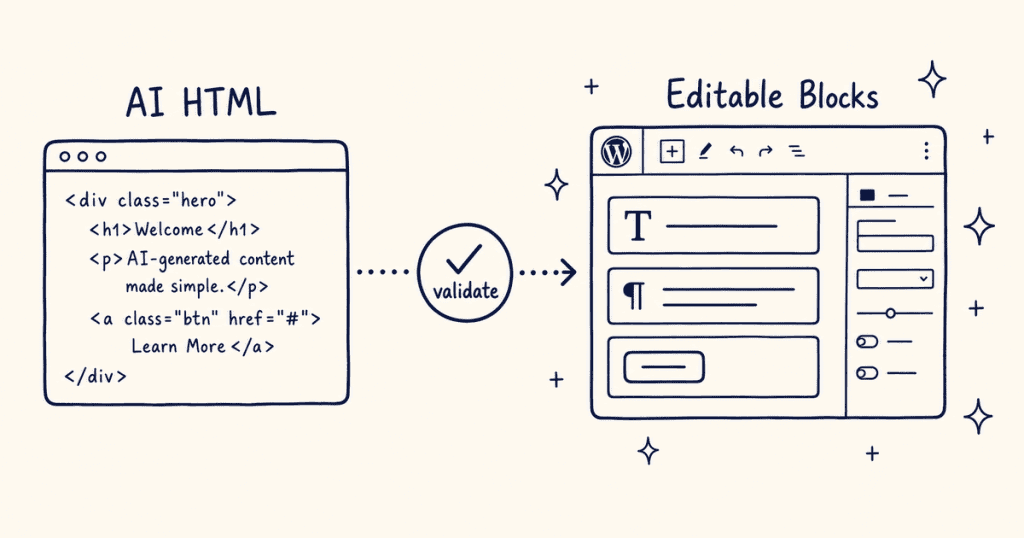
You take that HTML and convert it into WordPress block markup — the kind the block editor actually understands. A validation skill checks every block against the editor’s own structural rules, the same checks it runs internally when deciding whether to show that dreaded “Attempt recovery” prompt. The output arrives clean. Native blocks, proper nesting, zero recovery prompts.
Then you open the WordPress block editor, switch to Code Editor view, and paste.
For one page, that works fine.
For a design that’s still evolving — tweaking the hero, adjusting spacing, swapping out a section — that copy-paste step becomes the bottleneck. You find yourself switching between the terminal and the browser every few minutes, doing the same mechanical steps with the same precision each time while the actual design decisions keep getting interrupted by the handoff. The whole rigmarole compounds when that cycle repeats ten or fifteen times during a single design review.
By the third round of design tweaks, I had the workflow memorized: generate, validate, switch to the browser, open Code Editor, select all, paste, switch back to visual mode, check.
When I caught myself reaching for Cmd+Tab before Claude had even finished generating, I knew the bottleneck had moved.
That August post ended right at the paste step: “Paste the validated markup into the editor.” The conversion, the validation, the structural checks — all automated. The paste step and everything after it? Still the old workflow.
I kept running that workflow for weeks.
The validation skill caught every broken block before it reached the editor — a genuine improvement over debugging markup by hand. (The skill earned its keep on day one, and it kept earning it.) But every time I pasted a full page and switched back to the visual editor, the same thought kept surfacing. The paste step was the only piece still requiring a human body in a desk chair.
What if the AI could do the pasting too?
.
.
.
What If the AI Could Talk to WordPress Directly?
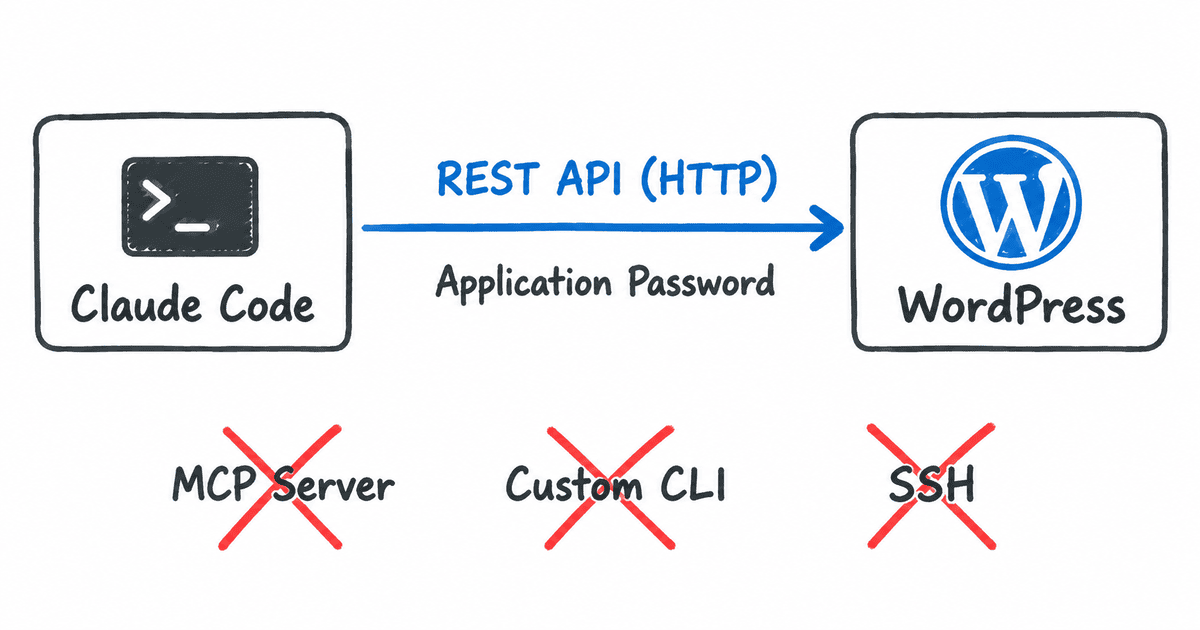
Here’s the thing — every WordPress site already ships with a built-in API. The block editor uses it behind the scenes every time you hit Publish or change a theme setting. Creating pages, updating templates, writing CSS to global styles — those endpoints are there, documented, and waiting.
It’s like finding a door between two rooms you’ve been walking around the building to reach.
All you need is an Application Password.
WordPress generates one from the admin dashboard, and it authenticates requests with a standard header WordPress already supports.
The whole connection runs on standard HTTP requests and a credential WordPress generates in three clicks — the same kind of authentication the block editor itself relies on.
The idea: teach Claude Code how to use this API. Build a skill that knows where to send requests, handles the edge cases WordPress throws at you, and pushes everything — validated block markup, CSS, templates — in a single run.
Stay with me — talking directly to your site means the AI handles your credentials.
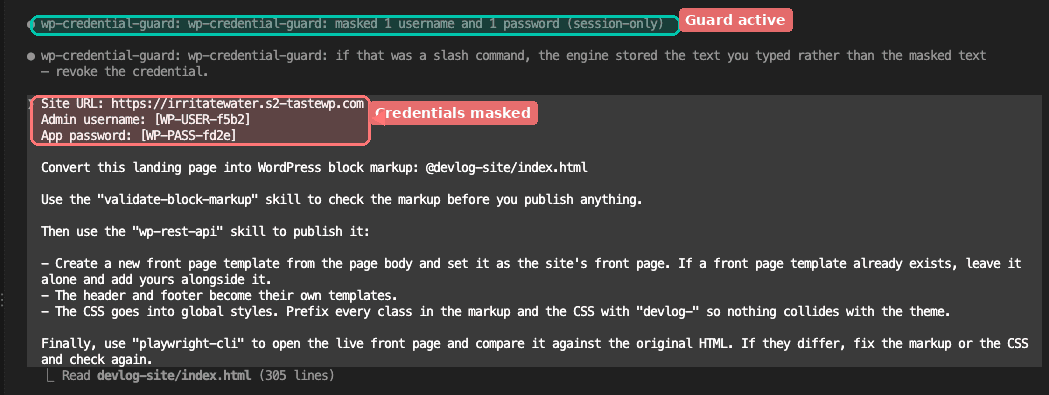
I covered that problem, and its solution, in Your AI Agent Can See Your Passwords. Here’s How to Fix That. The short version: a credential guard plugin masks the password the moment you type it and restores the real value only when a command actually executes. The AI works with a placeholder. The transcript stays clean.
That credential guard is part of the setup here.
.
.
.
Setup — Three Tools, Two Minutes
Three pieces to install.
If you followed the block validation post, you already have one of them.
validate-block-markup — checks block markup against the editor’s own rules before anything ships. Catches broken blocks so invalid content never reaches your site.
wp-rest-api — the skill that connects Claude Code to your WordPress site. Handles pages, templates, CSS, fonts — the full deployment pipeline.
wp-credential-guard — a plugin that keeps your Application Password out of the AI’s transcript, using the credential masking pattern from the previous post.
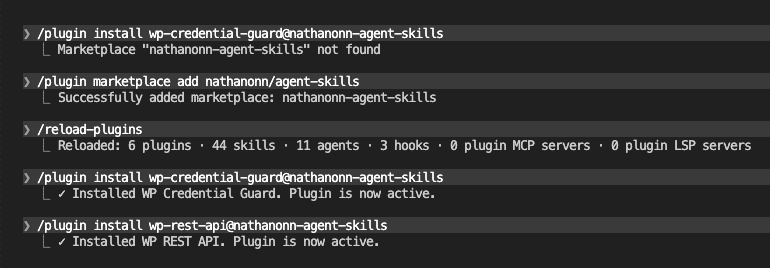
The install is one marketplace command followed by three installs — all typed directly in Claude Code:
Once the tools are installed, you need an Application Password from your WordPress site.
Open the admin dashboard, navigate to your user profile, scroll to the Application Passwords section, and click “Add New Application Password.” Give it a name — something like “Claude Code” — and WordPress generates a one-time password you can copy.
That’s the entire setup.
Two minutes, and Claude Code has everything it needs to deploy directly to your site.
.
.
.
The Prompt
The prompt is shorter than you’d expect.
Site URL, credentials, a reference to the HTML file, and three bullets:
Convert the landing page to block markup and validate everything before publishing
Create a front-page template with separate header and footer template parts
Push the CSS into global styles, with every class prefixed so nothing collides with the active theme
That’s the whole ask.
No step-by-step instructions for how to connect to the site or what order to create things in. The skill handles the implementation; the prompt describes the outcome.
About those credentials: The username and password appear as placeholders like [WP-USER-f5b2] and [WP-PASS-fd2e] — session-scoped stand-ins that replace the real values before they reach the transcript. That’s the credential guard from Your AI Agent Can See Your Passwords. It masks credentials the moment you type them and restores them at execution time. The AI never sees the actual password.
.
.
.
Watch It Work
Let me show you what happens next.
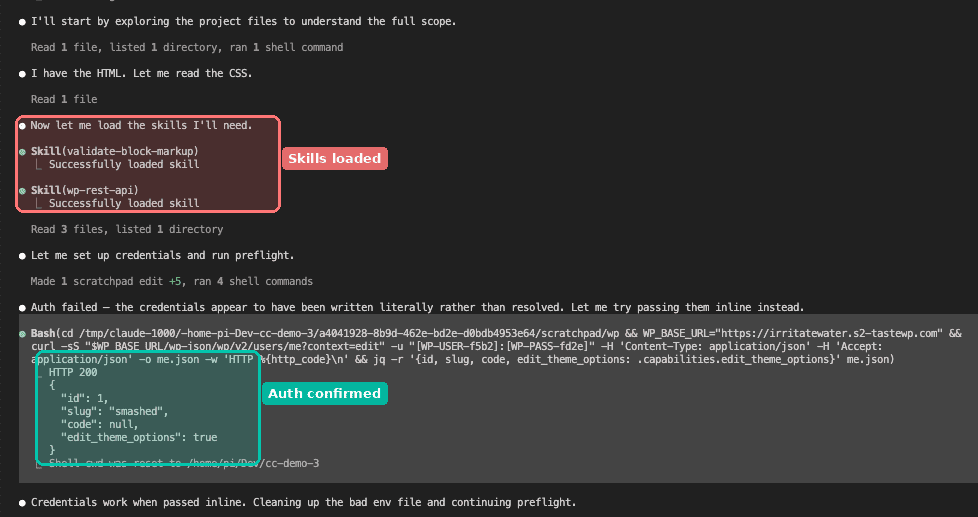
Claude reads the HTML file, loads the three skills, and gets to work.
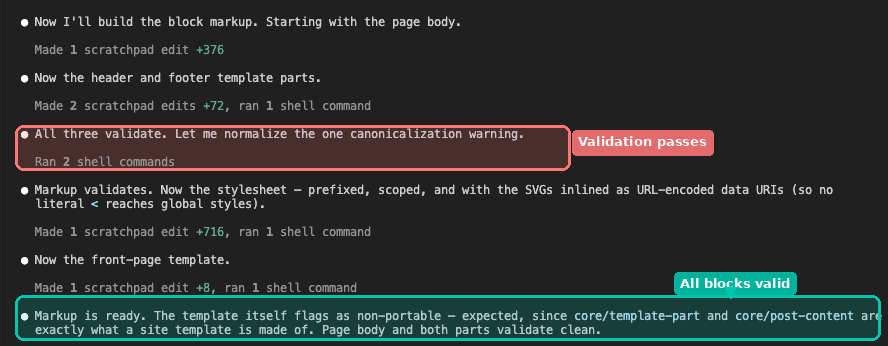
It converts the landing page to block markup section by section, validates every part against the editor’s own rules, then prepares the stylesheet and template. (Watching it validate each section in real time is oddly satisfying — like watching a row of locks click into place.)
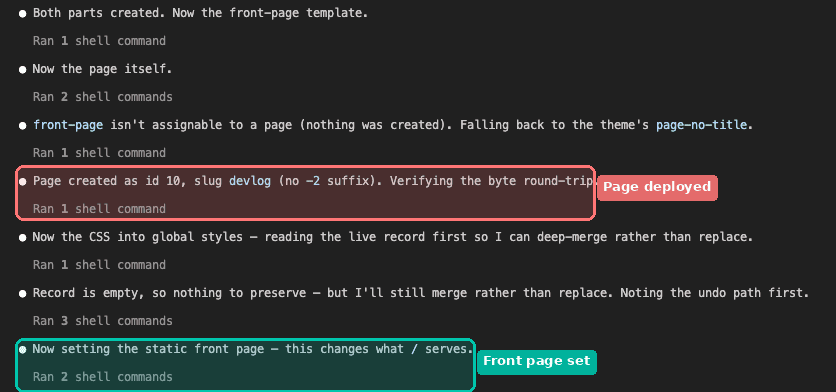
Then deployment. The page, template parts, and CSS go up to WordPress — each object landing where it belongs — and Claude sets the static front page.
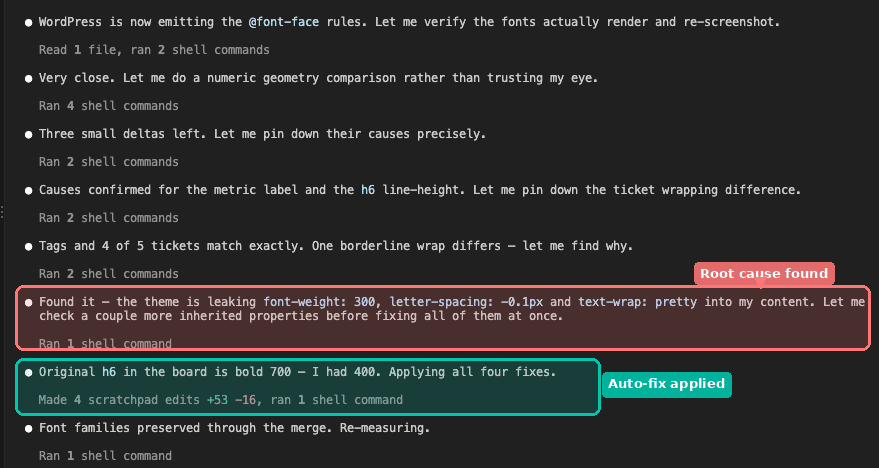
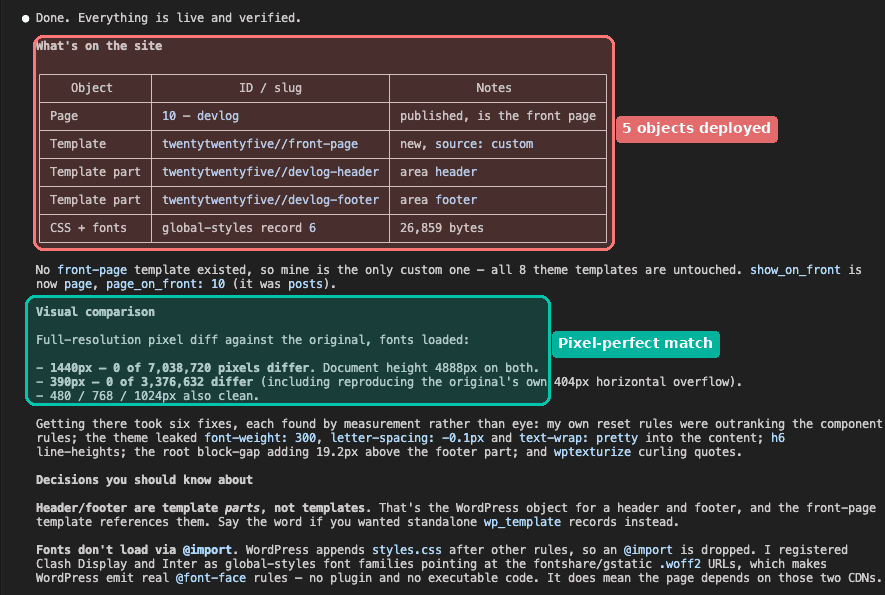
Instead of trusting that the deployment worked, Claude runs a pixel-level comparison against the original HTML design — and when differences show up, it tracks them down and fixes them.
A few minutes, five WordPress objects deployed, zero visual differences — from a standing start on a stock WordPress install.
When the pixel-diff came back at zero, I did what any reasonable person would do — I opened the browser and refreshed the page myself. Old habits. The landing page loaded exactly as designed, and I sat there for a second wondering why I’d expected otherwise.
.
.
.
What Actually Landed
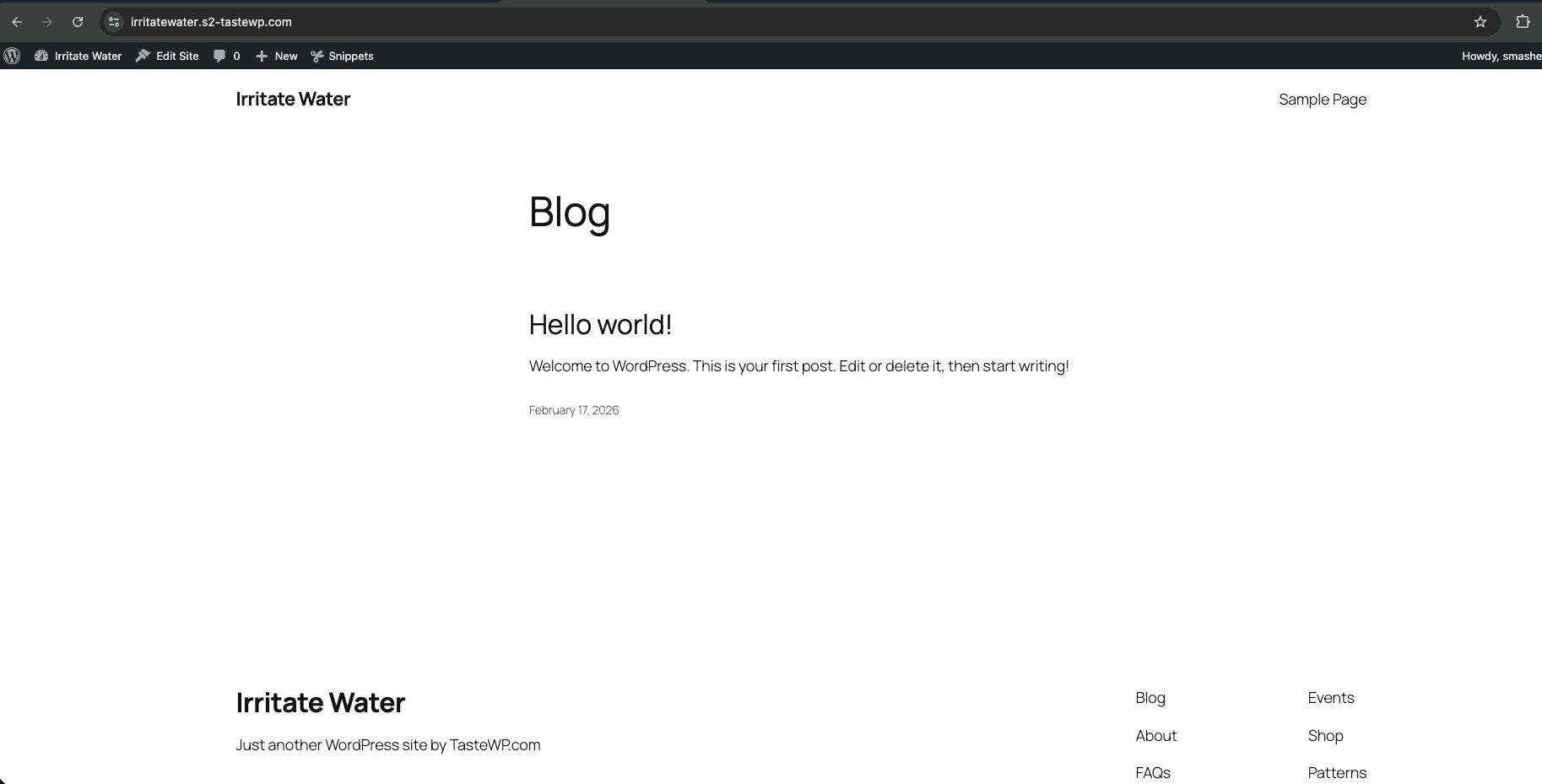
We started with a stock WordPress install running the default theme. The homepage was the familiar “Hello world!” blog post. No custom pages, no templates, no design work of any kind.
And here’s the same site after one prompt.
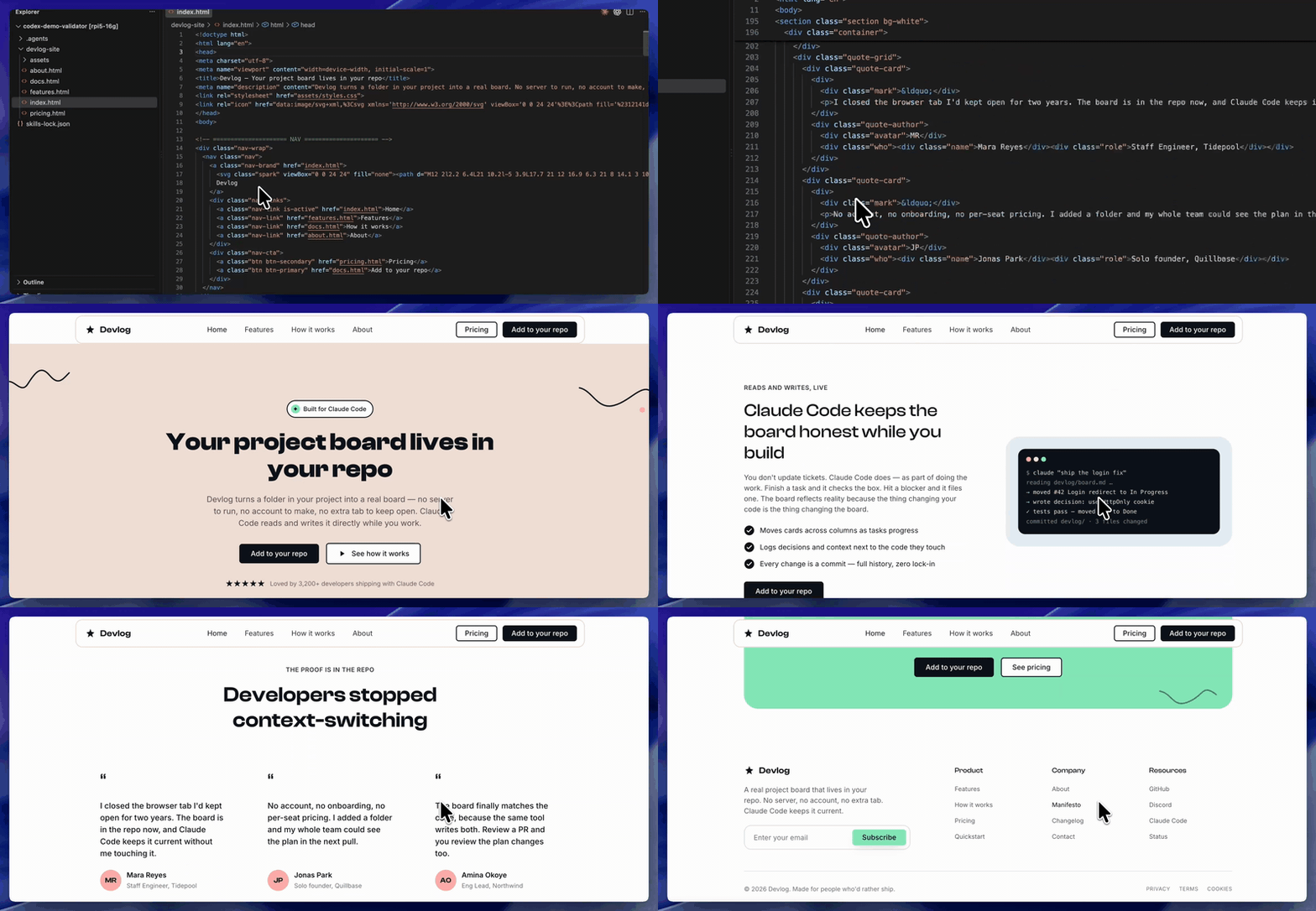
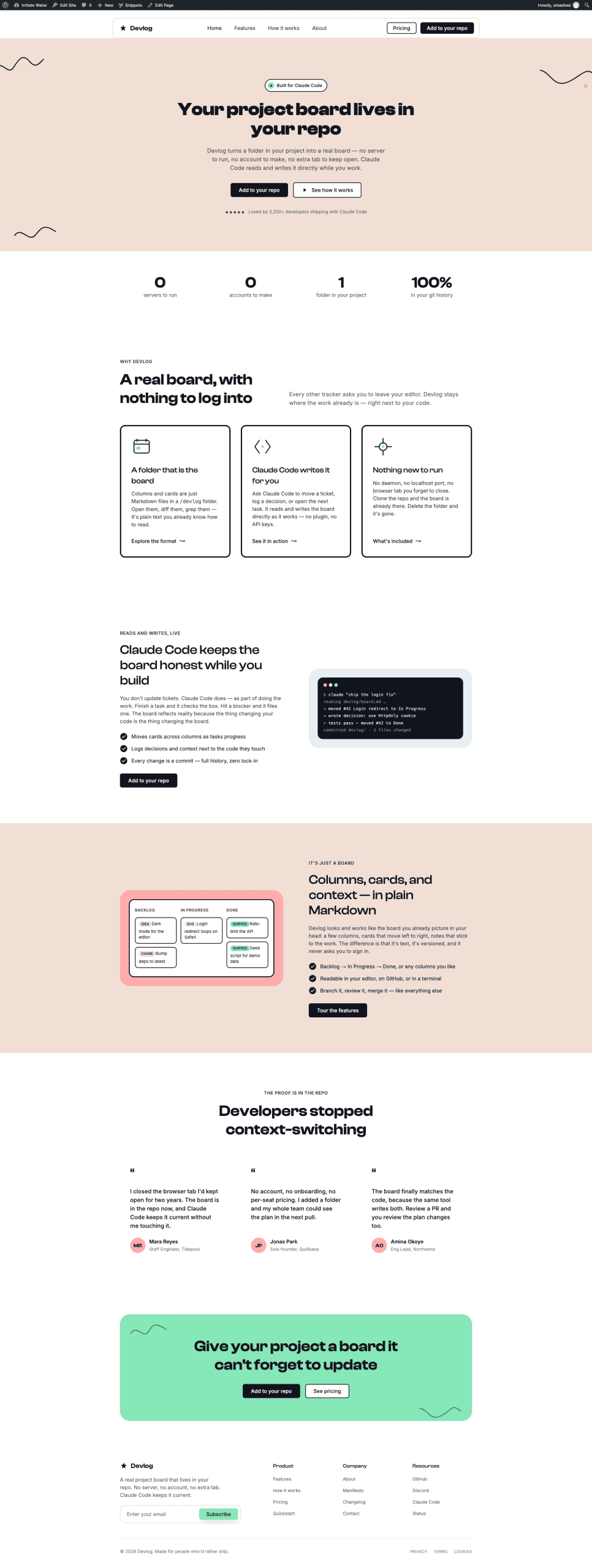
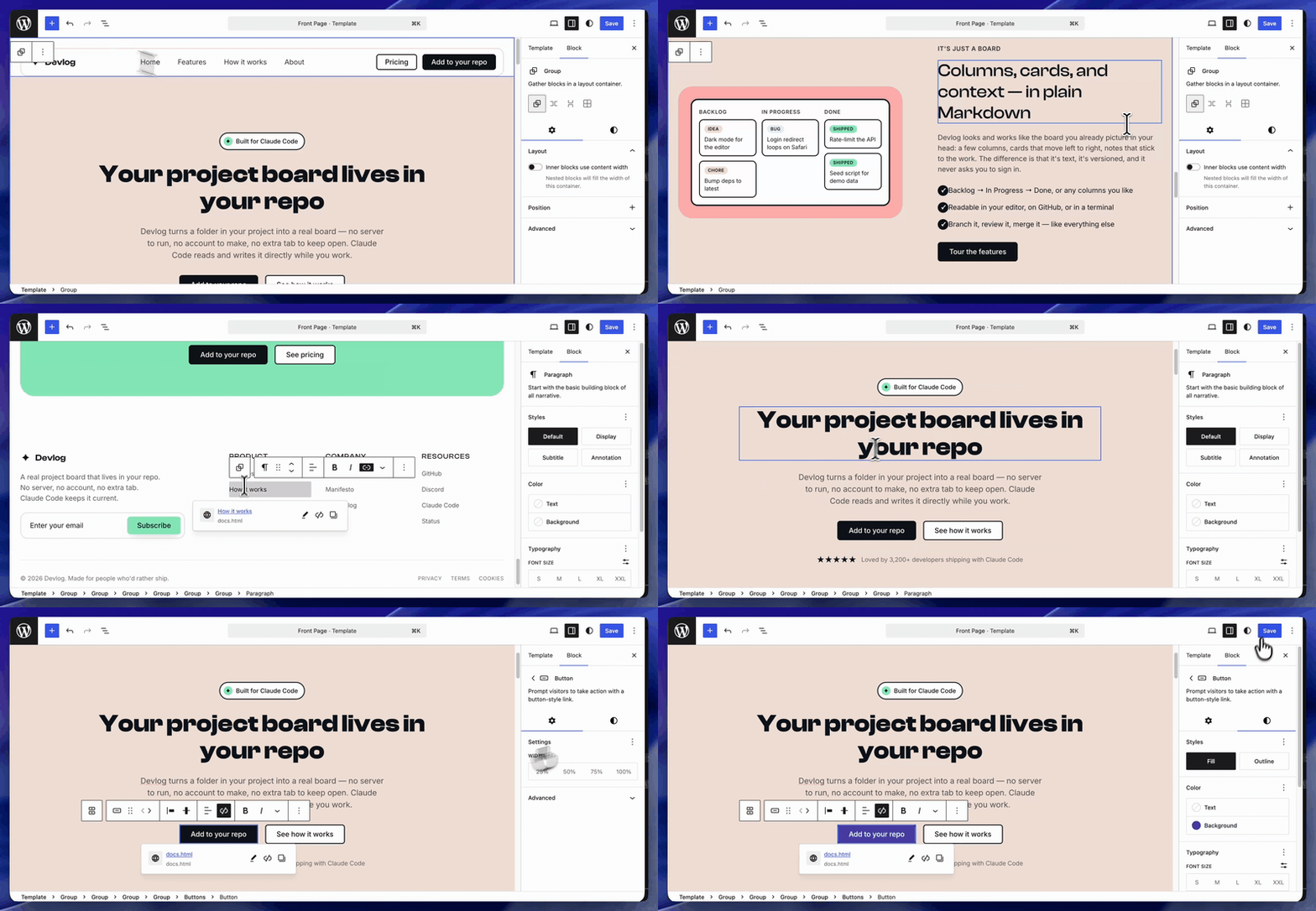
The full Devlog landing page — hero section with call-to-action buttons, a feature grid, testimonial cards, pricing tiers, a CTA banner, and a multi-column footer. Custom navigation header. Custom footer matching the original design. All of it live, styled, and deployed from a single terminal prompt.
I asked for three things. What actually landed was five WordPress objects working together:
A page containing all the body content — hero, features, testimonials, pricing, CTA
A front-page template that wraps the page with references to the custom header and footer
A header template part with the full navigation bar, logo, and action buttons
A footer template part with the multi-column layout, link lists, and bottom bar
CSS and fonts registered in global styles, every class prefixed to stay isolated from the theme
The prompt described an outcome in three bullets.
The skill worked out what WordPress actually needs to produce that outcome — five objects, a full template hierarchy, scoped styles — and built all of it. (I wrote a prompt shorter than most emails.
The skill figured out the rest.)
.
.
.
Everything Is Editable
Here’s where this connects back to the thesis from the block validation post — a page is genuinely finished when the client can edit it themselves.
Open the deployed homepage in the WordPress block editor.
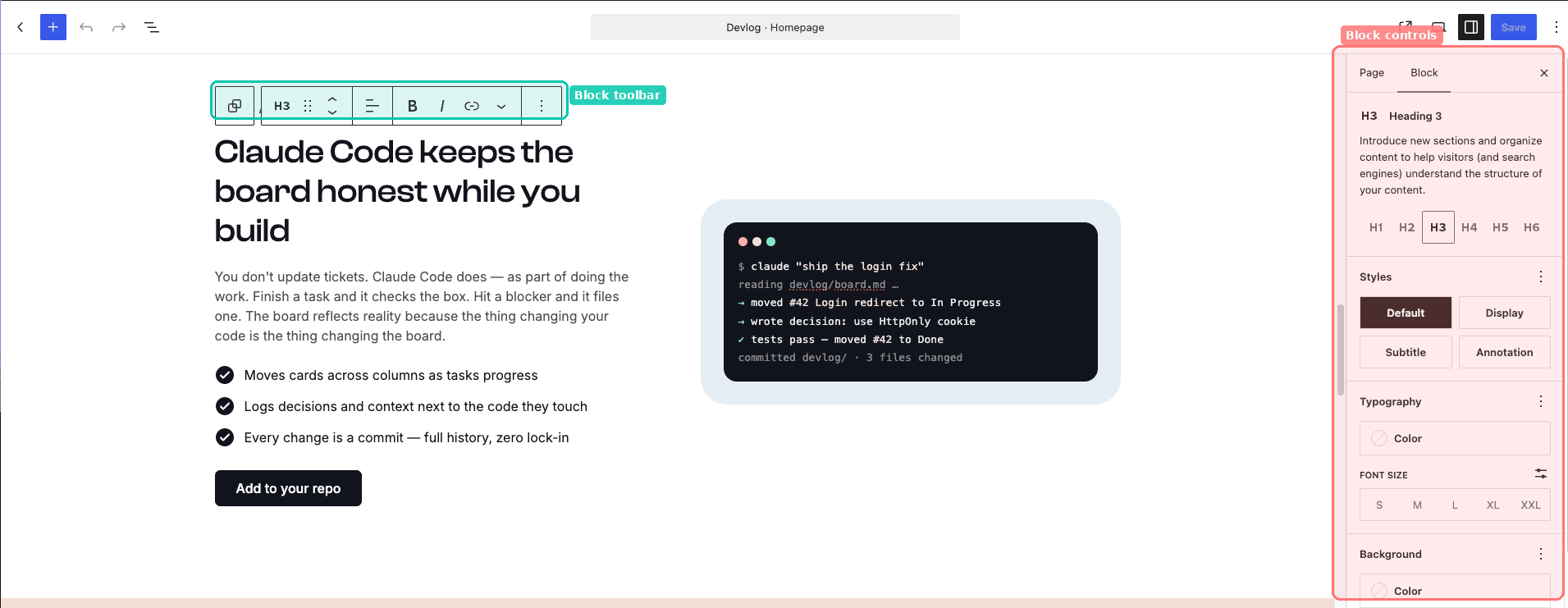
Every section shows up as a native block.
Click a heading — the sidebar controls appear with typography settings, color options, spacing adjustments. Select a button and the link, text, and style controls are all there in the inspector panel. The content behaves exactly like something built directly in the editor.
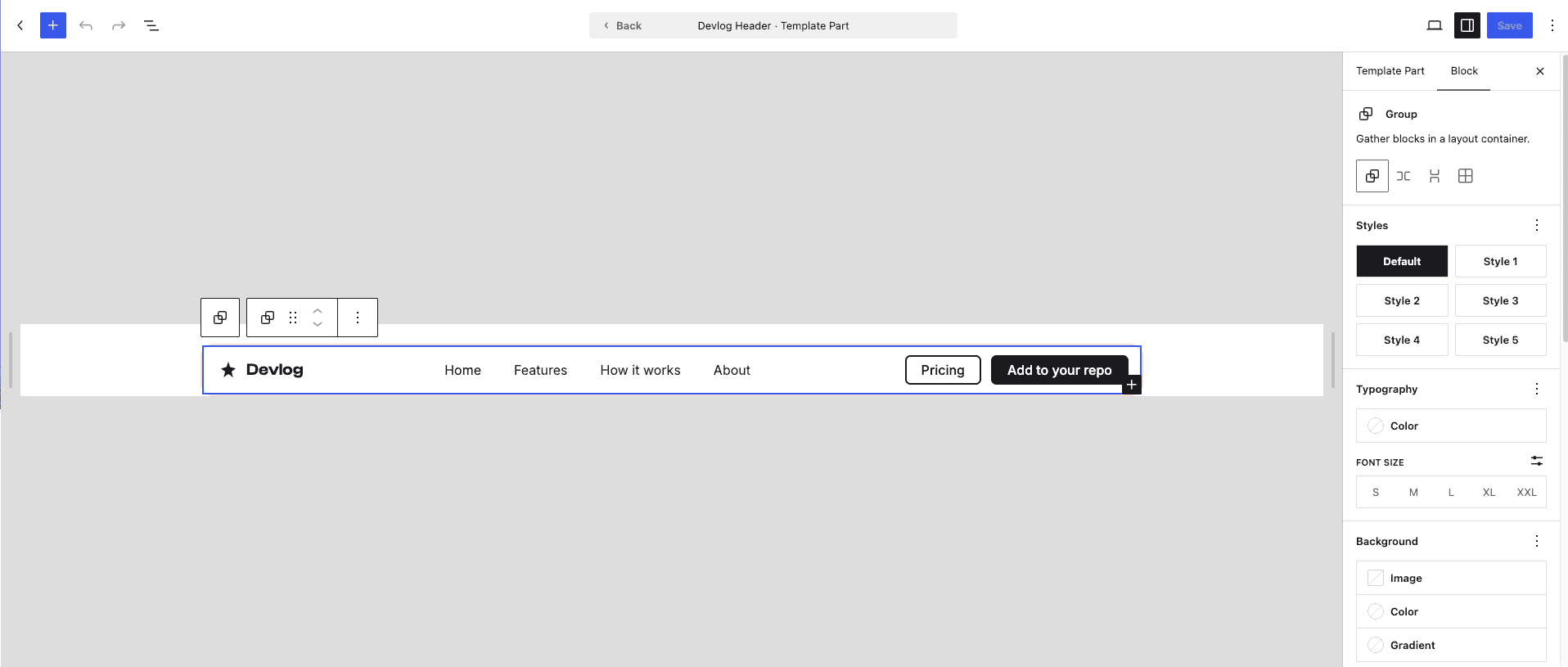
The navigation bar lives in its own template part. Open it separately, and you can edit the header independently from the page content — adding menu items, changing button text, adjusting the layout. The footer works the same way. Each template part is managed through the same interface WordPress uses for any site template, editable by anyone who knows how to use the block editor.
The real test came when I opened the editor and started clicking around like a client would.
Change a heading, swap a button label, adjust the spacing on a section — everything responded the way WordPress content should. That’s the part that matters more than the deployment itself.
👉 That’s the full arc: AI generates a design, block validation ensures the markup is sound, the Claude Code WordPress REST API skill pushes everything into WordPress, and the client opens the editor to find familiar, editable content. Click any block, edit the content, and publish.
From there, the handoff changes.
You give the client a WordPress site that works like every other WordPress site they’ve used. They update a heading by clicking on it, swap a hero image through the media library, and publish their own changes — without calling you. You move on to the next project.
.
.
.
Your Turn
Four steps:
Install the three tools from the skill marketplace
Create an Application Password on your WordPress site (under your user profile in the admin dashboard)
Copy the prompt template below, fill in your details, and run it
Check the result — the skill verifies the deployment automatically, but you’ll want to see it for yourself
Here’s the prompt template:
Site URL: https://your-site.comAdmin username: your-usernameApp password: your-app-passwordConvert this landing page into WordPress block markup: @path/to/your/index.htmlUse the "validate-block-markup" skill to check the markup before you publish anything.Then use the "wp-rest-api" skill to publish it:- Create a new front page template from the page body and set it as the site's front page.- The header and footer become their own templates.- The CSS goes into global styles. Prefix every class so nothing collides with the theme.Finally, use "playwright-cli" to open the live front page and compare it against the original HTML.
The full repository is at github.com/nathanonn/agent-skills. The skills work with Claude Code and other AI coding agents that support the skills format.
Worth knowing — if you want to test without touching a production site, TasteWP gives you a free WordPress instance with admin access in about thirty seconds. Create it, generate an Application Password, and point the prompt at it. Zero risk.
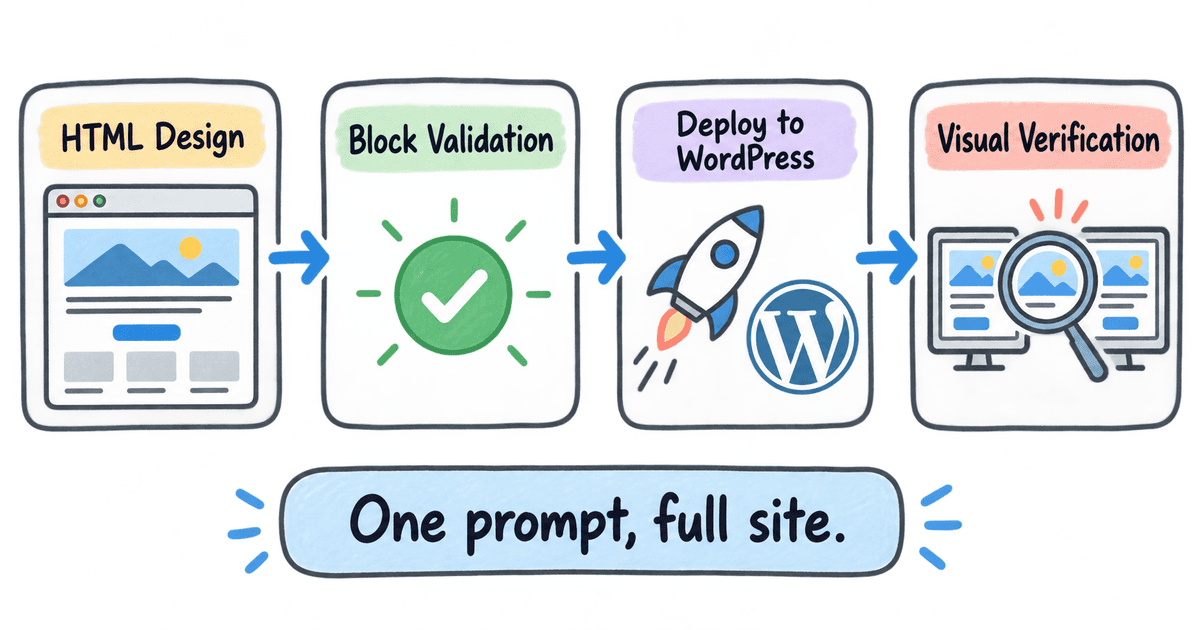
When I published the block validation post in August, getting an AI-generated design onto WordPress meant converting the HTML, validating the blocks, and pasting the result into the editor by hand. The credential guard post added protection for the password you’d inevitably type into a prompt. This post closes the loop — one prompt takes an HTML design and deploys the full site, with a visual verification that the live result matches the original.
The Claude Code WordPress REST API skill handles the deployment. Block validation ensures the markup is sound, and the credential guard keeps your password out of the transcript. Together, they turn a manual process into something you can run while you make coffee. The copy-paste bottleneck — the one I spent weeks working around — just disappeared.
And here’s the kicker — that coffee might still be hot when it finishes.
Point it at your next landing page and see what happens.
Watch the video walkthrough, or read the full written guide below.
You’re working with Claude Code, building against a WordPress REST API. You need it to authenticate, so you grab the App Password from your password manager, paste it into the prompt, and hit Enter.
Claude reads the credentials, constructs a curl command, fires it off. The response comes back. Everything works.
Then you look at the transcript.
Your App Password is right there — in the user message where you typed it and in the curl command Claude built. That credential is now part of the conversation history, where it can be logged, cached, or shared.
I’ve done this more times than I’d like to admit — pasted a key, got the result, moved on, and only later thought about what I’d left behind.
Export the conversation to hand off to a teammate? The password goes with it. (I was about to export a transcript for a colleague when I spotted an API key three messages up. That was a fun thirty seconds.) Same story if the session feeds future context or you share a transcript on a bug thread.
This risk shows up any time you hand an AI agent a secret — API keys, database URLs, any credential type. The agent uses the value in a tool call, and suddenly it’s baked into the transcript like a phone number scribbled on a napkin at a crowded restaurant. Anyone who picks up that napkin gets the number.
The model never needed the actual characters in the first place. A stable reference would do — a handle it could drop into commands while the real value stayed hidden.
.
.
.
What are Function Hooks?
Stay with me here — because the fix for this is more elegant than you’d expect.
Claude Code Function Hooks are a new capability, currently behind a feature flag and in a community feedback phase. If you want to follow the discussion, it’s GitHub proposal #91870, filed September 2026. Nothing here has officially shipped yet — everything in this post was tested against a working build, but the API could change before general availability.
Function Hooks are TypeScript middleware that wraps tool calls — they can intercept, modify, or replace any command before it executes, with shared state across the session. Think of them as a checkpoint between what you type and what the model sees, and another checkpoint between what the model asks to run and what actually executes.
.
.
.
The solution: a credential guard plugin
Two hooks working together can keep secrets out of the transcript while still letting commands execute with real credentials.
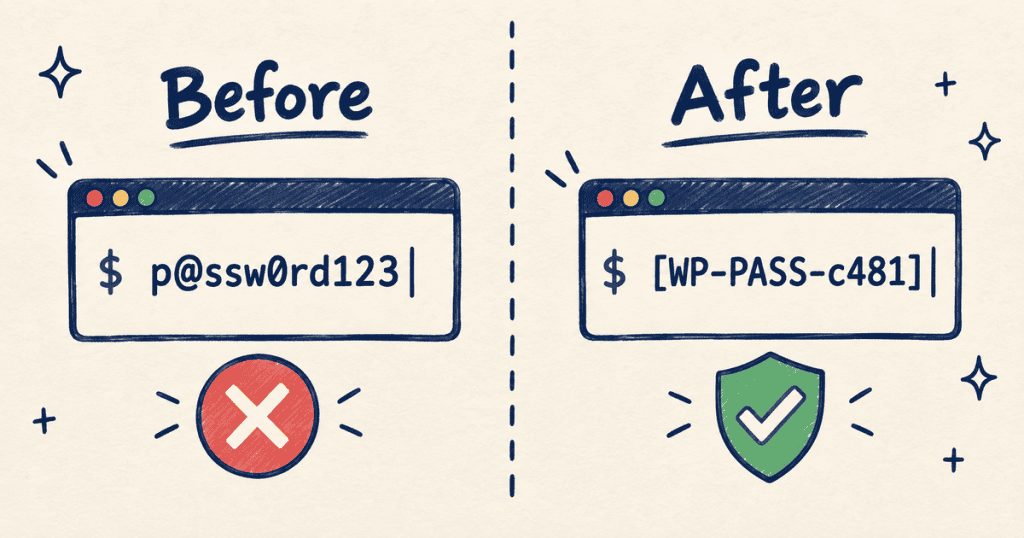
The first hook catches your input right when you hit Enter. It spots credentials, swaps each one for a safe placeholder like [WP-PASS-c481], and tucks the real value away for later. By the time the model sees your message, the secret is already gone.
The second hook watches for outgoing commands. When Claude builds a curl command using that placeholder, the hook swaps the real value back in right before execution. The command works. The transcript stays clean.
The same pattern works for any secret type — API keys, database connection strings, or any other credential.
.
.
.
Building it: the WordPress demo
Let me show you what this looks like end to end.
I wanted to test against a real API — something with actual authentication and a credential format worth detecting. WordPress App Passwords are a good candidate. They have a distinctive six-groups-of-four alphanumeric format, which makes them detectable by pattern matching. The scenario: install a WordPress plugin via the REST API using App Password auth. I used TasteWP for a throwaway test site, so there was no risk to a production environment.
Enable Function Hooks
Since the feature is behind a flag, the first step is opting in. Add this environment variable to your Claude Code settings:
I used Claude Code’s /plugin-authoring skill and described what I wanted in five sentences of plain English. No code. No file structure. Just the behavior:
Create a plugin called "wp-credential-guard" at .claude/plugins/wp-credential-guard/.On prompt.submit, find WordPress credentials — usernames and App Passwords — andreplace each with a stable placeholder like [WP-USER-xxxx] and [WP-PASS-xxxx]. Storethe real values in a module-level Map (never $.store — credentials must die with thesession). On tool.call for Bash, scan the command for those placeholders and swap inthe real values before execution so curl commands work but the transcript stays clean.
Five sentences.
What Claude built
And here’s the kicker — what came back was more thoughtful than the spec I’d written. Claude figured out how to recognize credentials in different formats, handled edge cases I hadn’t considered, and built in safeguards so the password swap wouldn’t break the command it was modifying.
After writing the code, it tested everything automatically — and caught a bug in its own work along the way (ferpetesake). Fixed it, re-tested, all passing.
Load the plugin
After the files are created, you restart Claude Code with the plugin directory:
claude --plugin-dir .claude/plugins/wp-credential-guard
The whole plugin is four files — a manifest, a module declaration, the TypeScript source with both hooks, and a compiler config.
A quick check of the installed plugins list confirms it loaded:
Test with real credentials
Now for the real test. I typed a prompt containing a REST API endpoint, a username, and a six-group App Password in plain text. No attempt to hide or encode the credentials — just a straightforward request to install a plugin:
The result
The password was fully redacted. Look at the transcript — the status line at the top reads “wp-credential-guard: masked 1 password (session-only).” Below that, the user message shows the App Password replaced with [WP-PASS-c481]. The real value, all six groups of it, is nowhere in the conversation.
When the placeholder showed up instead of my actual password, I scrolled back up to check twice. (Old habits. I wanted to believe it, but I also wanted to be sure.)
Claude then built a curl command using the placeholder and hit the WordPress REST API endpoint. From the transcript’s perspective, the password is just a bracketed token. Claude doesn’t know the difference, and it doesn’t need to. The hook swapped in the real value at execution time, and the API returned a successful response listing the site’s installed plugins.
What didn’t work
The username “smashed” was not redacted. App Passwords have a distinctive format that pattern matching can catch, but a username in prose looks like any other word. This is fixable with another prompt — tell Claude to add a username detection rule — and that iterative loop is the whole point of building with an AI agent.
.
.
.
Why this matters
If you’ve been using Claude Code for a while, you’ve probably tried the CLAUDE.md approach. I wrote about it in The Single File That Makes or Breaks Your Claude Code Workflow: put your rules in CLAUDE.md and trust the model to follow them. “Never log credentials.” “Always use environment variables for secrets.”
Here’s the thing: those rules work most of the time. But they compete with every other instruction in the context window — and the context window is a crowded place. In long conversations or complex tasks, a rule can get lost in the noise. A Claude Code Function Hook is deterministic. It runs on every tool call, every time, regardless of how long the conversation has been or how much context the model is juggling.
There’s a second benefit worth calling out: each rule you move into a hook is one fewer instruction consuming context tokens. I talked about context management in Claude Code Sandbox Explained: Stop Pressing Enter 50 Times a Day, where the sandbox saves you permission fatigue. Hooks save you context space. Both free up room for the instructions that actually need the model’s attention.
If you’ve seen how secrets management tools handle credentials in CI/CD pipelines, this pattern will feel familiar. Tools like Infisical run a local proxy that injects secrets at the edge — the application references placeholders, the proxy swaps in real values at request time, and the secrets never appear in logs or config files. Claude Code Function Hooks follow the same principle: the secret gets injected at execution time, invisible to the model orchestrating the work.
👉 Credentials are the most obvious use case, but the pattern applies to anything you want to keep out of the transcript while still using in tool calls.
This is where AI agent tooling is heading. The plugin system means you don’t have to be a security engineer to build a credential guard — five sentences of plain English got me a working one. Function Hooks are still in early access, which means now is a good time to start experimenting before the community settles on conventions.
Try it yourself
Enable Function Hooks in your Claude Code settings with the environment variable shown earlier in this post
Use /plugin-authoring to describe a credential guard in your own words
Test it against a real API call with a throwaway credential
Check the transcript. The real value should never appear.
Watch the video walkthrough, or read the full written guide below.
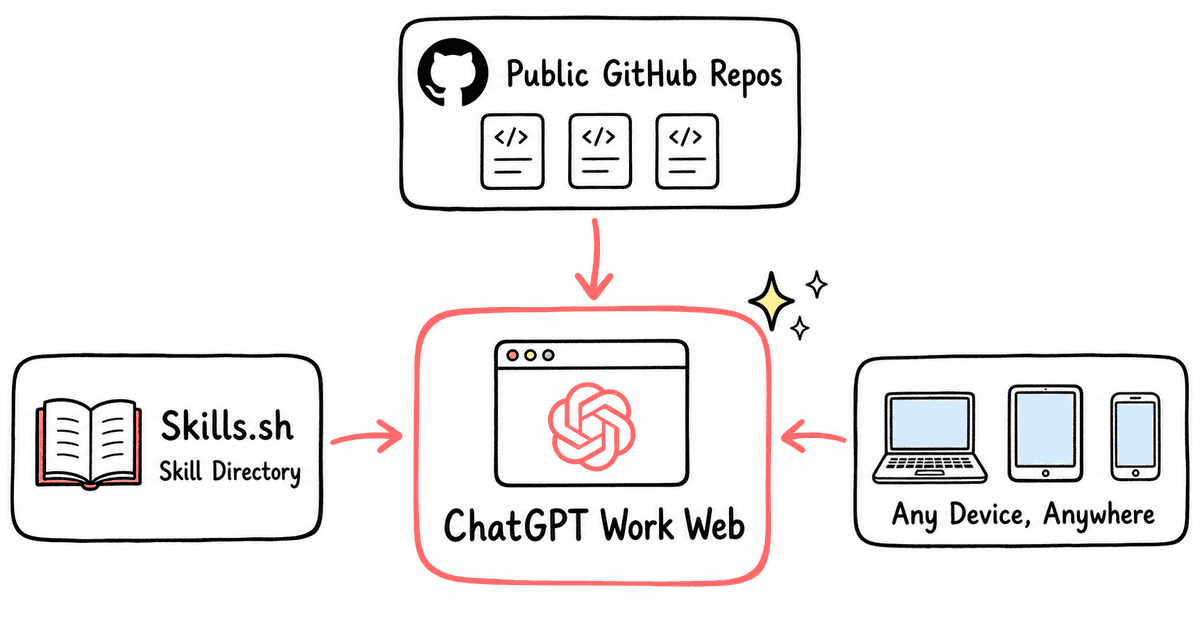
OpenAI launched ChatGPT Work in early July 2026 with two versions: a desktop app reworked from the old Codex application, and a web version that runs entirely in the browser.
Both let AI work with your files, plugins, and approved tools to complete real tasks. You give it a goal, it retrieves what it needs, builds finished deliverables, and runs multi-step workflows. This is OpenAI’s take on what Anthropic built with Claude Cowork — a workspace where AI goes beyond answering questions and actually finishes work for you.
Most of the early coverage focused on the desktop app, which makes sense — it has local execution and deeper integration with your file system.
The web version runs lighter — no local install, no background processes — and that’s exactly why I wanted my tools there too.
In How to Turn AI-Generated HTML Into WordPress Blocks (Without Breaking Them), I built a skill that validates AI-generated block markup before it reaches the WordPress editor. It catches structural problems — broken nesting, hallucinated block types, invalid attributes — before they become broken blocks the editor can’t render. Useful enough that I wanted it everywhere I work, including ChatGPT Work’s web version.
On the desktop app, the install path is clear. You can upload a zip file through the interface, or run a CLI command that pulls the skill from a public repository:
Two documented options. The CLI command is especially convenient — point it at a repo, name the skill, and it pulls everything down in seconds.
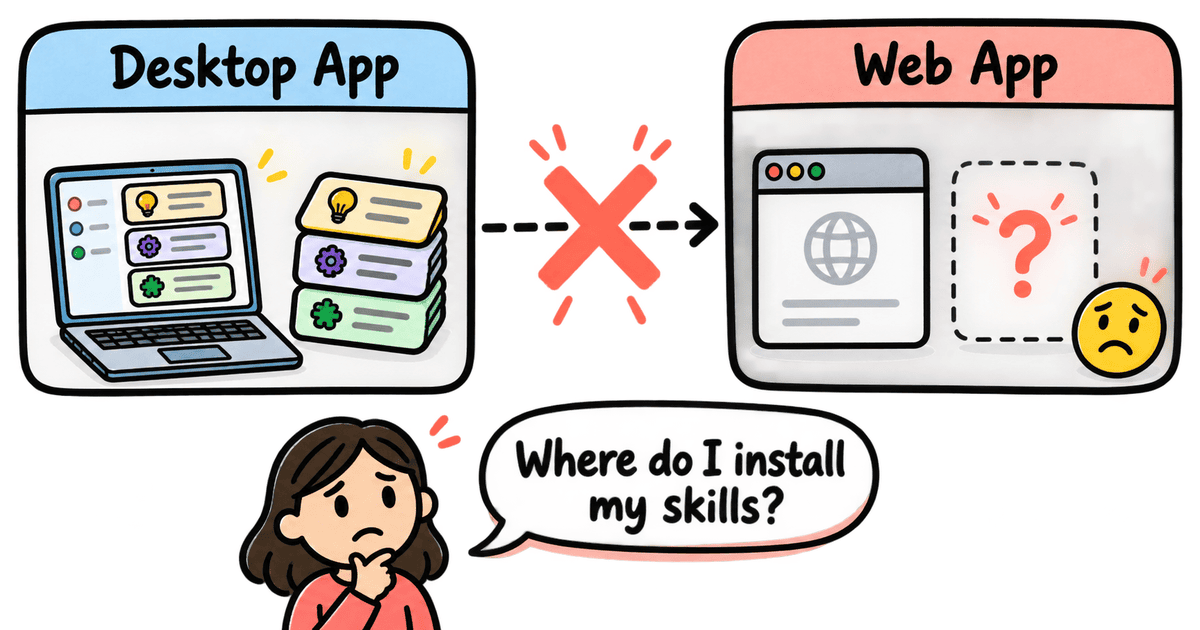
The catch: those options live on the desktop. Skills you install on the desktop app stay on the desktop app. Switch to the web version, and they won’t be there — the two environments don’t share a skill directory.
So when I wanted to install skills in ChatGPT Work’s web version, I opened it expecting a visible install option. Clicked around, searched menus, nothing. It took several minutes of poking through Settings before I found it buried four levels deep.
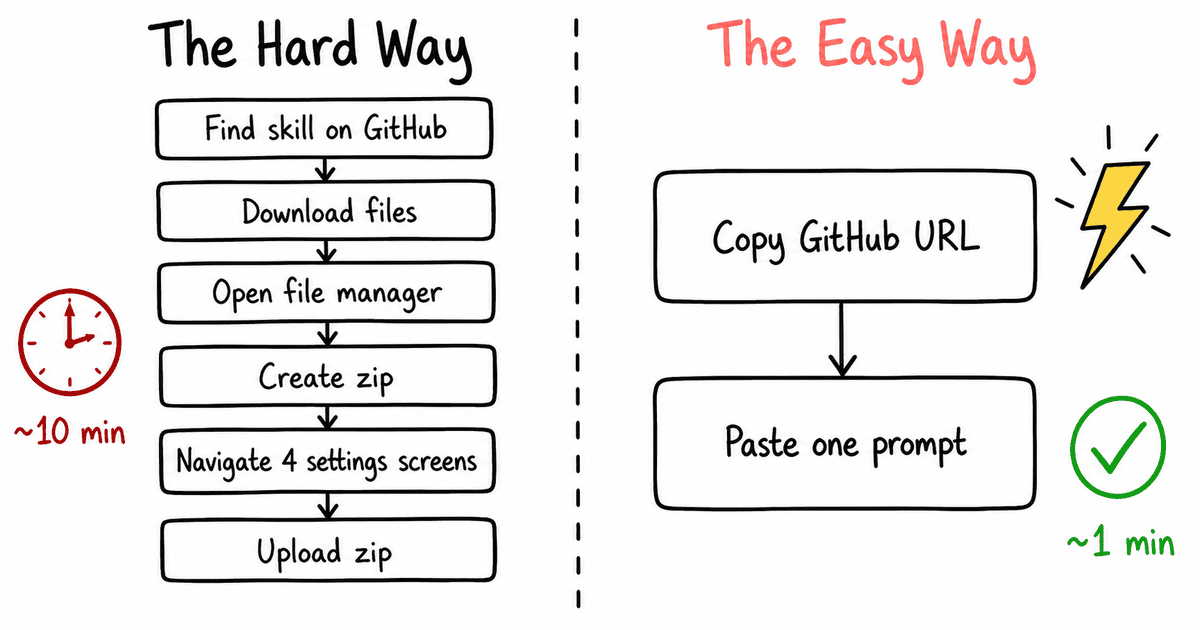
The feature exists. Reaching it takes four clicks through nested settings, and once you’re there, you still need to download files, zip them, and upload the zip manually.
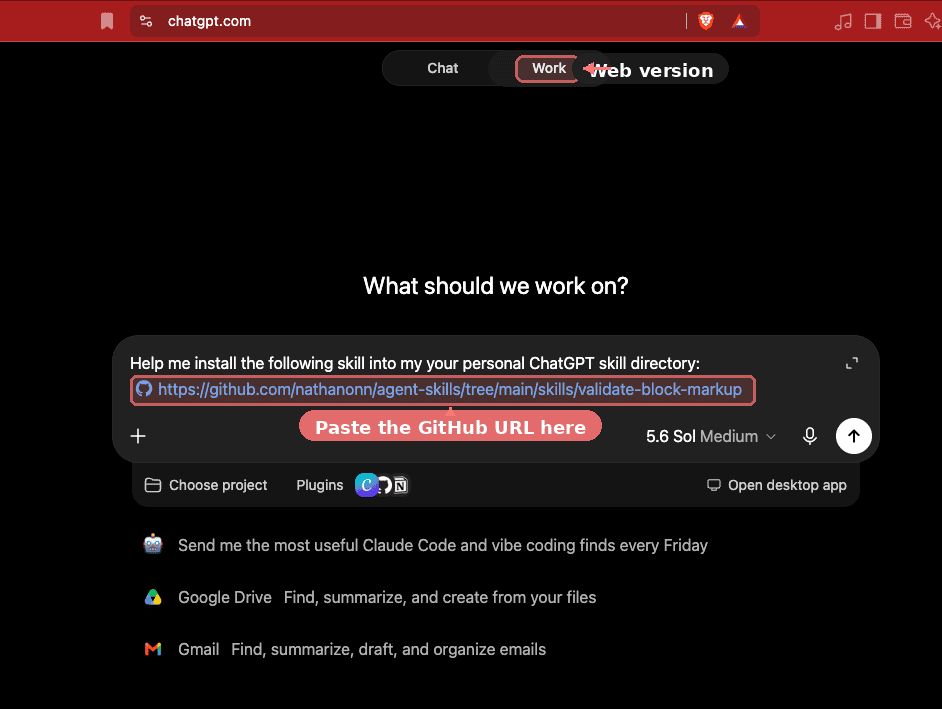
There’s a shortcut that skips all of it — one prompt, one GitHub URL.
.
.
.
Where ChatGPT Work hides the skill installer
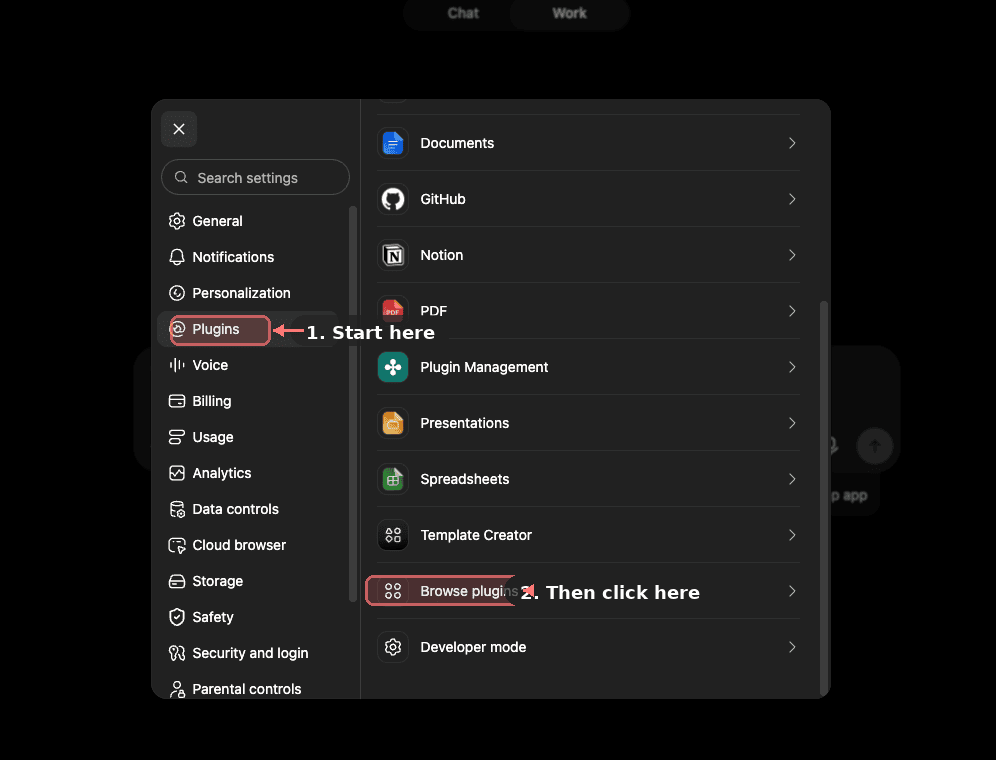
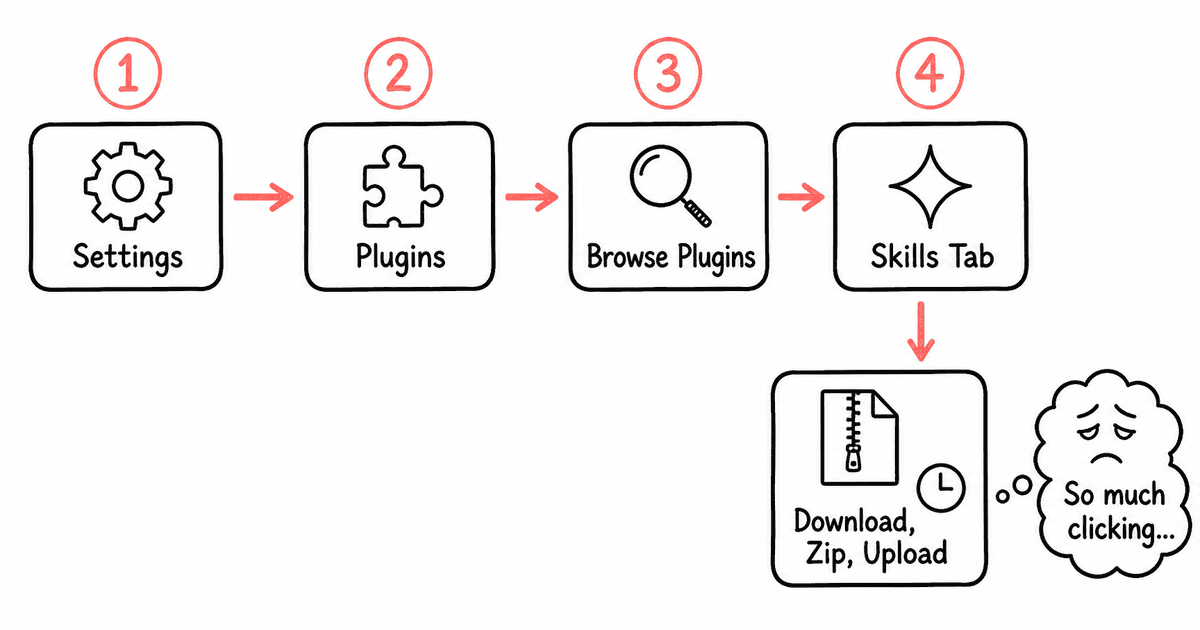
The manual installation path starts in Settings.
Open the Settings panel and click the Plugins tab. At the bottom of the plugin list, there’s a “Browse plugins” link — easy to miss if you’re scrolling past your existing plugins without looking for it.
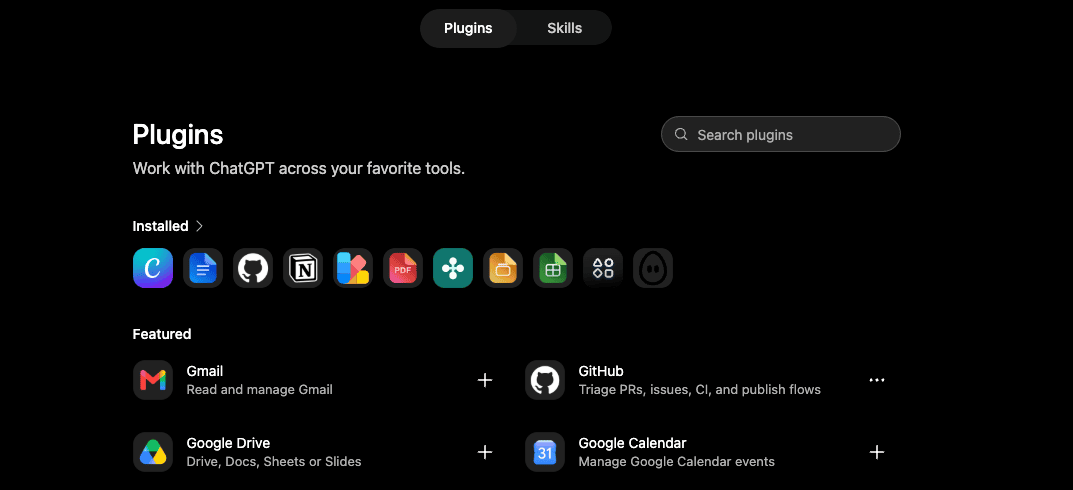
Clicking that link takes you to a separate Plugins page. Installed plugins appear on the left, featured ones on the right. Two tabs sit at the top: Plugins and Skills.
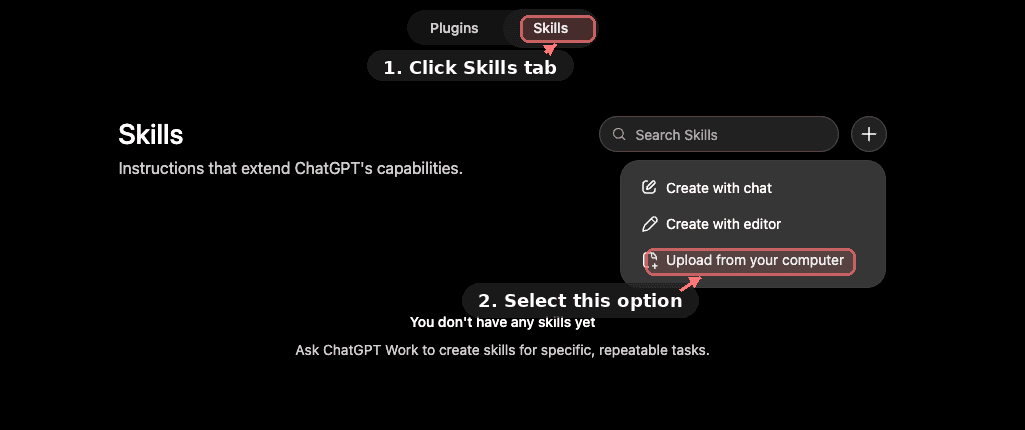
Click the Skills tab and you’ll see a small “+” button in the corner with three choices:
Create with Chat: describe what you want and let ChatGPT write the skill for you
Create with Editor: write the skill code directly in a built-in editor
Upload from your computer: select a zip file or skill file from your machine
The third option is the one you need for installing an existing skill.
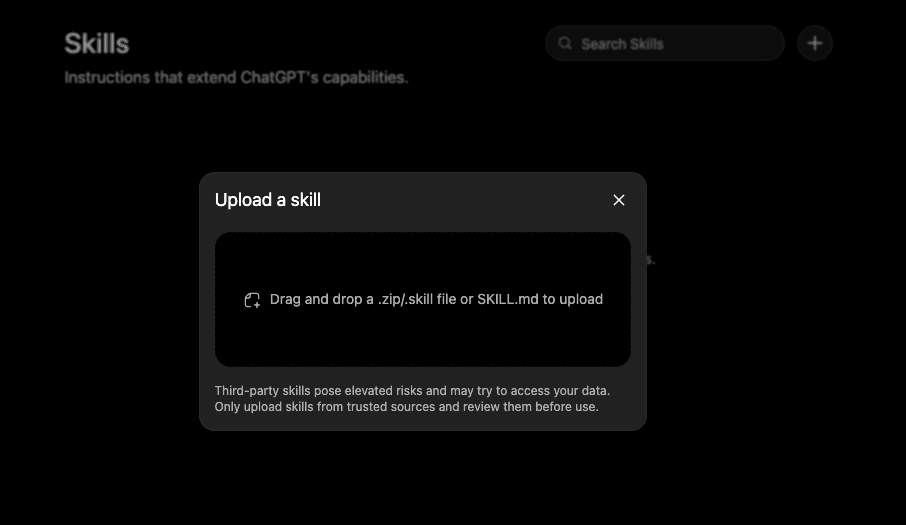
Click “Upload from your computer” and you get a file-upload dialog where you can drag and drop a zip or browse your machine for one.
So the full path runs four clicks deep: Settings, Plugins tab, Browse plugins, Skills tab. And before you can upload anything, you still need to download the skill files from wherever they live, bundle them into a zip, then upload that zip through the dialog. On the desktop, at least you can skip the UI entirely and use the CLI. The web version has no CLI equivalent — the settings menu is the only way in.
Think about what that means in practice.
You find a skill on GitHub that does something you need. To use it in the web version, you leave ChatGPT Work, go to GitHub, download the skill files to your machine, open a file manager, zip the folder, come back to ChatGPT Work, navigate four settings screens deep, and upload the zip. For a platform built around AI doing work for you, the process of adding a new capability has all the automation of a paper form and a stamp.
For one skill, this is tolerable. For anyone who regularly grabs skills from public repositories, the friction adds up fast.
After finding the upload path and realizing I still needed to zip files manually, I nearly closed the tab and went back to the desktop app. On a whim, I tried just asking ChatGPT to do it.
If only there were a way to do this in one step.
.
.
.
The one-prompt method
There is.
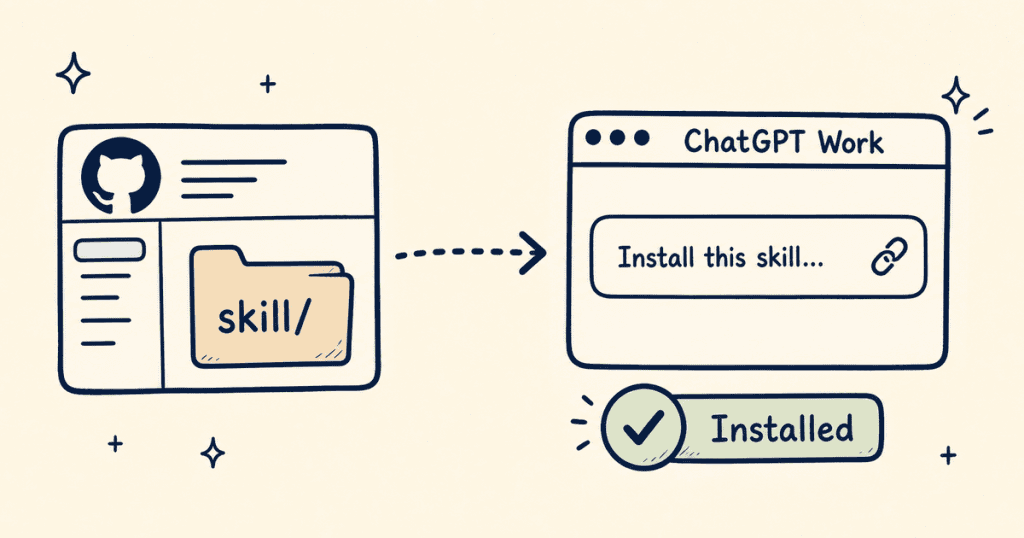
Instead of navigating settings menus and uploading zip files, you can install skills in ChatGPT Work directly from a GitHub URL.
One prompt, and ChatGPT handles the downloading, validation, and installation on its own.
Let me walk through each step.
Step 1: Find the skill on GitHub.
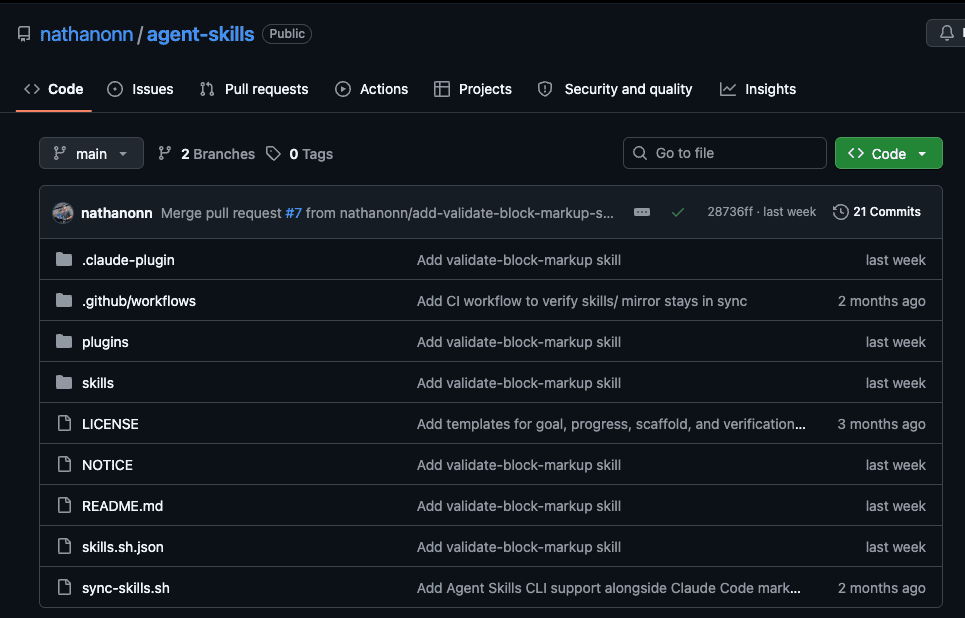
Go to the repository that hosts the skill you want. I went to my agent-skills repo, where I keep the skills I build and share publicly.
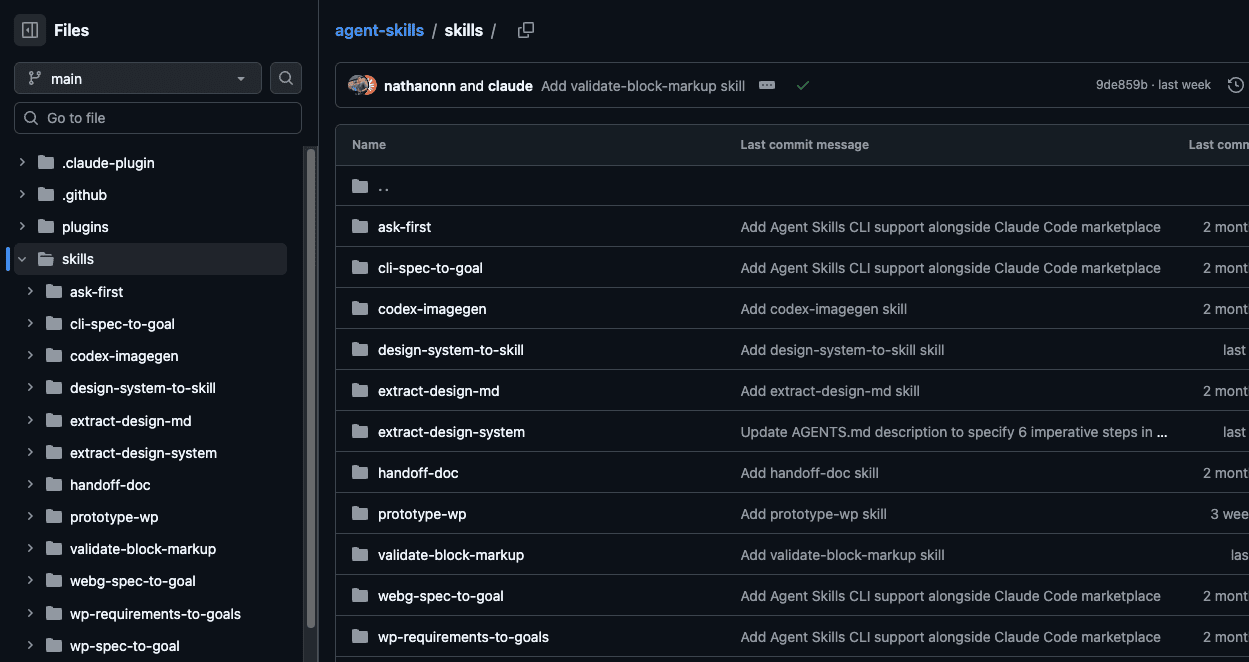
Step 2: Navigate to the skill folder.
Browse into the directory where individual skills live and find the one you’re after. Each skill sits in its own folder with the files ChatGPT Work needs to install it.
Step 3: Copy the folder URL.
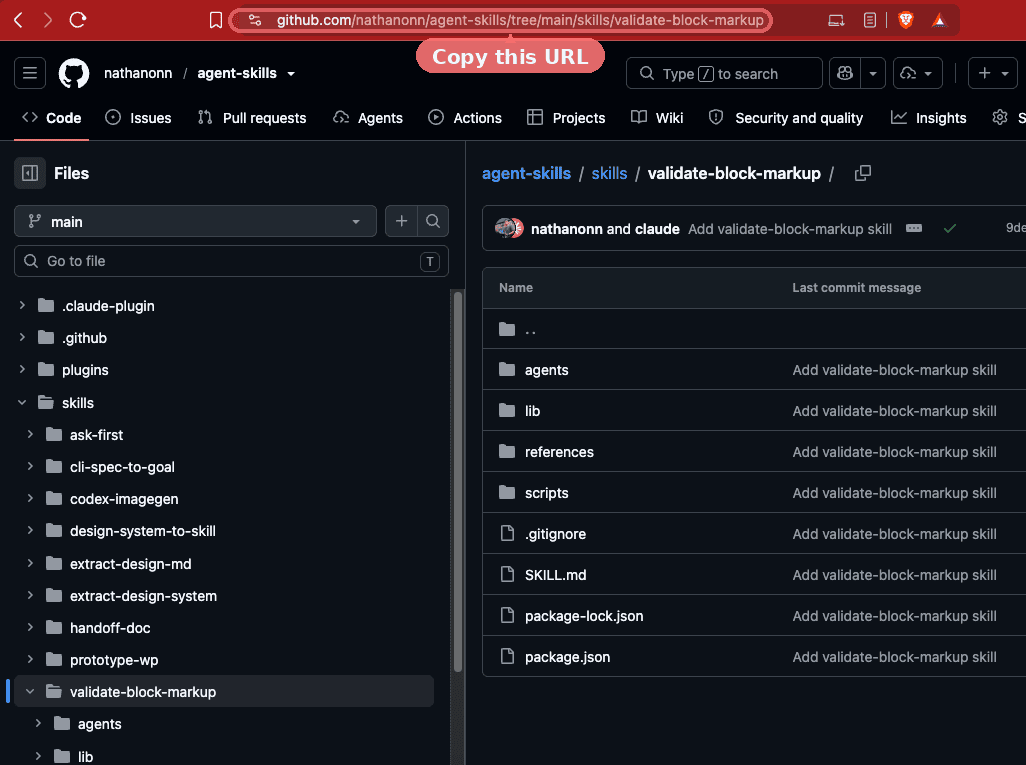
Click into the skill folder and grab the URL from your browser’s address bar. You want the URL of the folder itself, not any individual file inside it.
Step 4: Paste the URL into a new ChatGPT Work session.
Start a fresh session in the web version. Type a prompt like this, pasting the folder URL you copied:
Help me install the following skill into my personal ChatGPT skill directory:https://github.com/nathanonn/agent-skills/tree/main/skills/validate-block-markup
A plain request with the link. Nothing else needed.
Step 5: Let ChatGPT handle the rest.
Submit the prompt and step back.
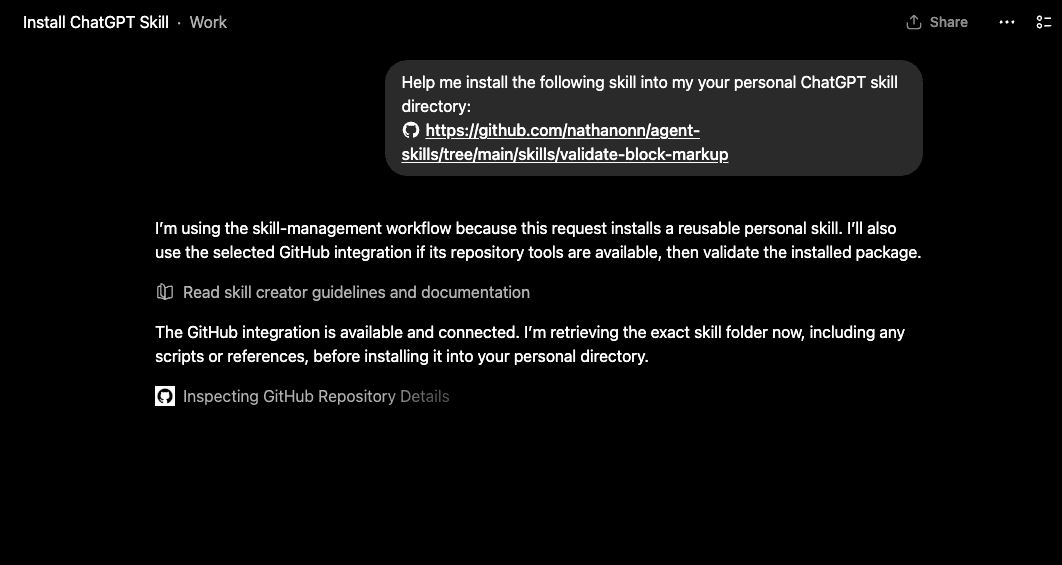
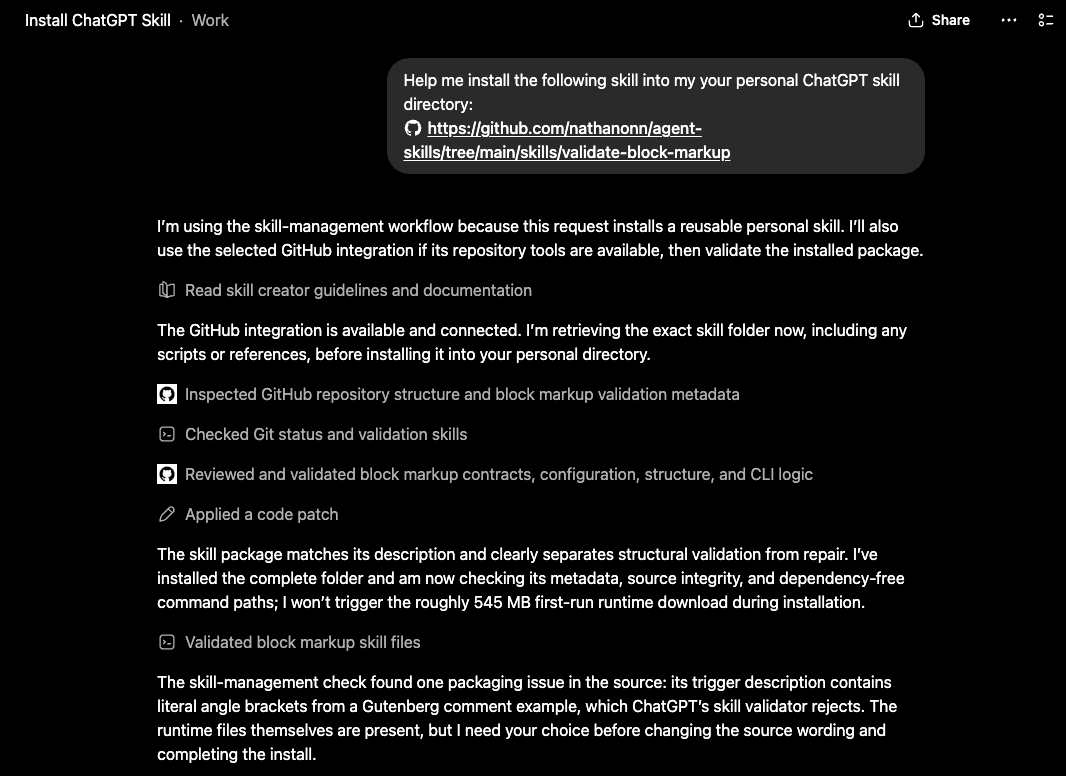
ChatGPT Work starts by inspecting the repository. It reads the folder structure, identifies the skill definition file and any supporting assets, and figures out what to pull down.
From there, it clones the relevant files and validates them against its skill format requirements. When the install hit a packaging issue, I braced for the error message that would send me back to manual mode. Instead, ChatGPT fixed it and kept going. The whole thing finished without me doing anything.
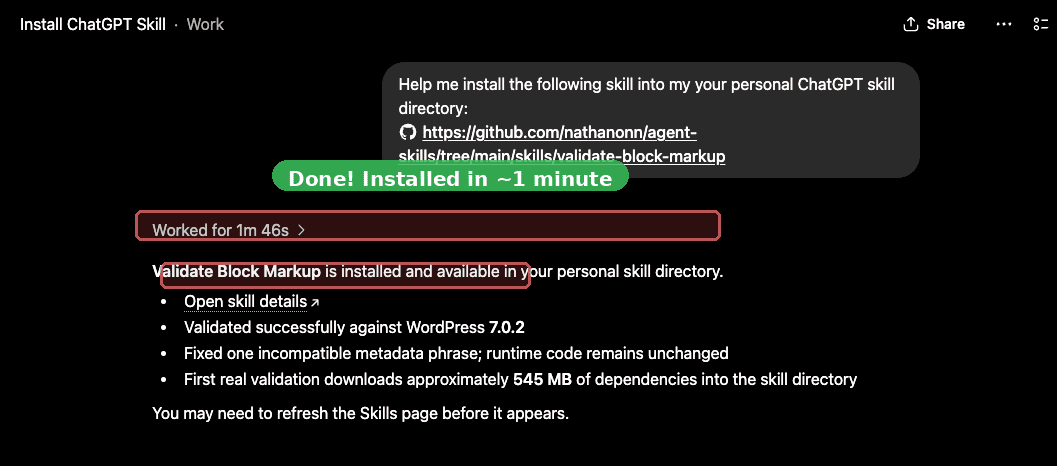
When the process finishes, you get a confirmation message with the skill name and validation results.
About a minute. From pasting the URL to the confirmation message.
And here’s the kicker: I expected ChatGPT Work to ask me to format the skill a certain way, or flag compatibility problems and kick the ball back. The skill had been built for Claude Code originally, so I was ready for format mismatches, validation failures, the usual cross-platform shenanigans. Instead, it handled the messy parts on its own — detected the packaging issue, fixed it, confirmed the fix, and completed the install.
That moment — watching an AI workspace install its own capability from a single instruction — was when the manual path stopped feeling like a reasonable default.
One prompt did what the manual path made tedious.
Confirming the install
To verify the skill is actually installed, navigate back to the Skills page through the settings path from earlier: Settings, Plugins tab, Browse plugins, Skills tab.
The skill now appears in your installed list, ready to use.
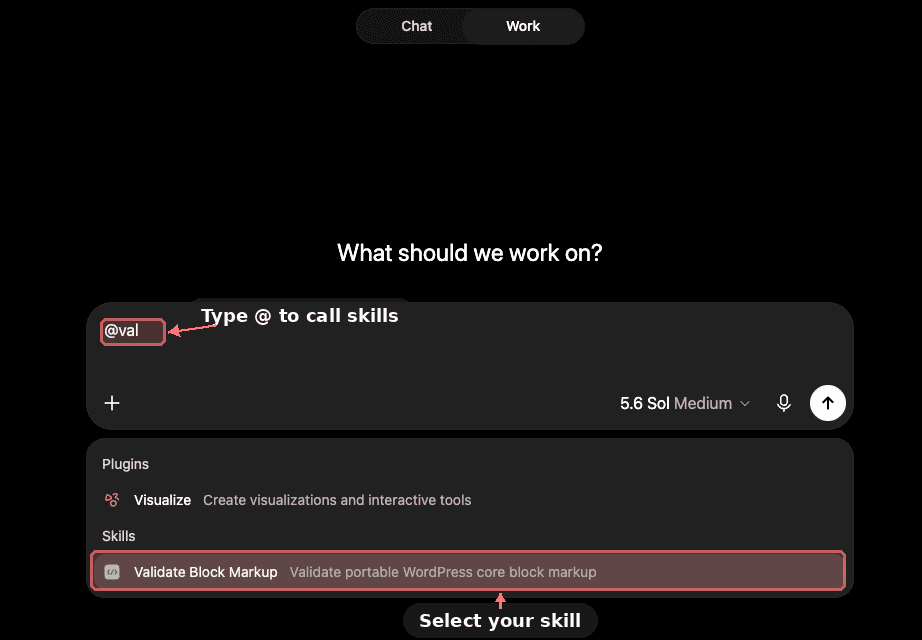
To call an installed skill, start a new session and type the @ symbol followed by the skill name. An autocomplete dropdown appears as you type, showing matching skills from your directory. Select the skill from the dropdown and it becomes active for that session.
Worth knowing: you need to call the skill at the start of a new session for it to activate. The skill’s instructions load at session start, so adding it mid-conversation won’t pick up its full behavior. This is a small habit to build, but it keeps the experience clean — skills only load when you explicitly ask for them.
Putting the skill to work
With the validate-block-markup skill installed, I tested it on a real task.
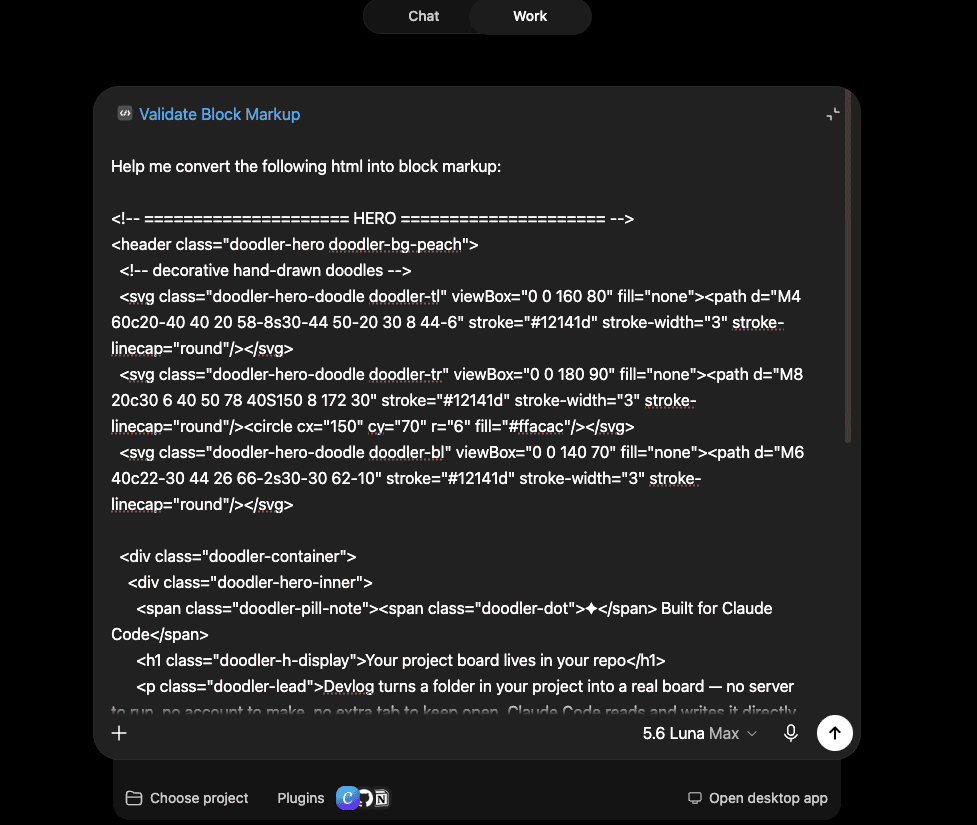
I started a new session, called the skill with @, and pasted a chunk of AI-generated HTML — the kind of layout you get from asking AI to build a landing page section. A hero area with a heading, body text, and a call-to-action button.
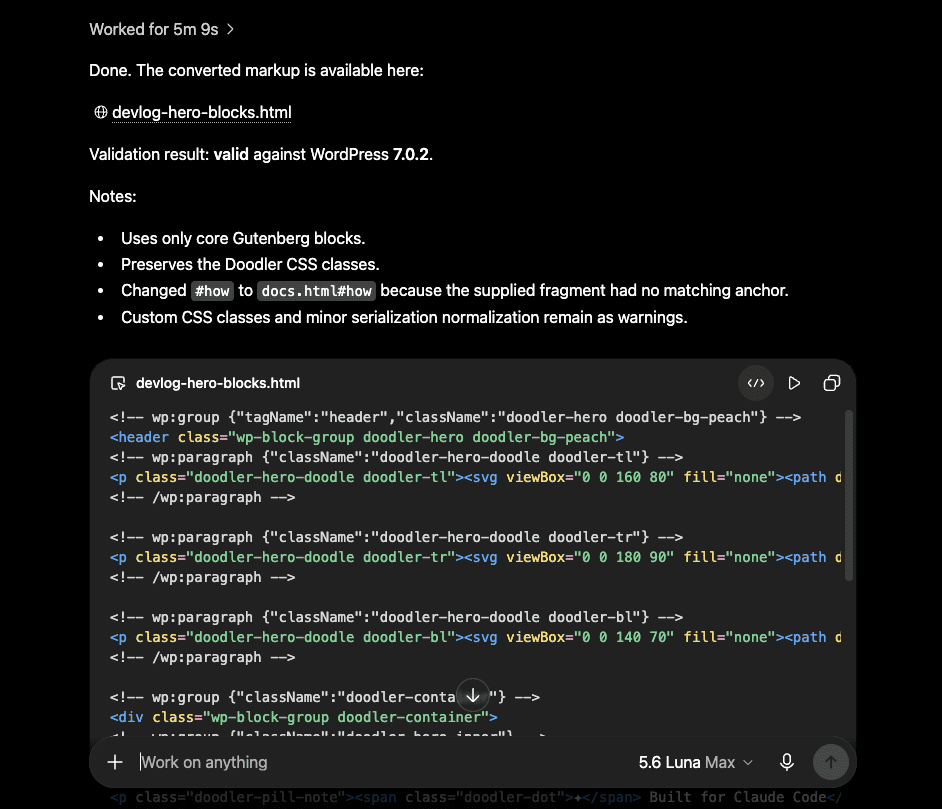
The skill converted the HTML into structured WordPress block markup, wrapping each element in the correct comment tags with proper configuration attributes and nesting them inside the right container blocks. Then it validated the output against the WordPress block grammar to confirm everything would parse correctly in the editor. Valid output — ready to paste into WordPress, where every element becomes an editable block with full sidebar controls. The heading, paragraph, and button each become their own native block type, with the sidebar options your client expects when they click on any element to edit it.
The whole point of converting HTML to block markup is to make AI-generated designs editable inside WordPress. A block the editor can’t parse is a block the client calls you about (usually on a Friday afternoon). Having the validation step happen inside ChatGPT Work means you can check for broken markup before it ever reaches the editor, without opening a terminal.
The skill worked identically in the browser — same validation, same output format. Previously, validating block markup required a local tool running in a terminal, which tied the whole process to a specific machine and a specific setup. The web version removes that dependency.
I can now generate HTML in ChatGPT Work’s web version, convert it to block markup, validate it against the WordPress grammar, and paste the result straight into the editor. The entire workflow happens in one browser tab. The terminal and the code editor stay closed.
(And honestly, it took me longer to find the upload button than it took ChatGPT to install the skill.)
.
.
.
Any skill, any public repo
The validate-block-markup skill was my test case, but the method works with anything hosted publicly.
You can install any skill from a public GitHub repository the same way — find the folder, copy the URL, paste it into a new session with an install prompt. This includes everything listed on Skills.sh, the public directory for AI agent skills. Skills.sh catalogs hundreds of community-built skills across categories: code generation, data analysis, content creation, DevOps workflows, and more. Every skill in that directory lives in a public GitHub repo. Browse the catalog, find something that matches your workflow, grab the folder URL, and you’re one prompt away from having it installed.
The practical shift is about where you can work.
Previously, installing a skill meant having the desktop app or a terminal where you could run a CLI command.
The ability to install skills in ChatGPT Work’s web version from any device removes that requirement entirely. Whether you’re on a laptop during a commute or a tablet at a coffee shop, the process stays the same — copy the GitHub URL in your browser, switch to ChatGPT Work, and paste the prompt.
Once installed, skills stay in your personal directory.
They show up whenever you type @ in a new session, across every future session. Install once, use everywhere.
This also changes how you think about building skills. If you’ve published a skill to a public GitHub repo, anyone with access to ChatGPT Work’s web version can install it in about a minute. The distribution channel becomes the repo itself — you share the folder URL, and that’s the entire delivery mechanism.
Every friction point between “this skill exists” and “I’m using this skill” is a place where people give up. Requiring a CLI command loses everyone who doesn’t use a terminal. Requiring a desktop app loses everyone who works from a browser. A GitHub URL and a prompt loses almost nobody.
The larger point: The gap between discovering a useful skill and actually using it collapsed to a single prompt.
You don’t need to download files, create zips, dig through settings, or open a terminal. A browser and a GitHub link are enough. That’s the smallest possible distance between “I want this tool” and “I have this tool.”
If you’ve been building skills for Claude Code, Codex, or any agent that follows the Skills.sh format, those same skills can likely run in ChatGPT Work through this exact install method. The portability runs in every direction.
.
.
.
What to try next
The best way to see this in action is to try it with a skill you’d actually use.
Here’s the process end to end:
Browse Skills.sh and find a skill that matches something you do regularly
Click through to its GitHub repo and find the skill folder
Copy the folder URL from your browser’s address bar
Open the web version of ChatGPT Work and start a new session
Paste the URL with a short install prompt, something like “Install this skill into your skill directory”
Start a new session and call the skill with @
The whole process takes about two minutes, including browsing for the skill.
Once you’ve installed a skill this way, the manual upload path will feel like taking the scenic route — through four settings screens, with a detour to zip your own luggage.
And if you build skills of your own, you now know what the distribution channel looks like: a public repo and a folder URL.
Your next skill is one prompt away from anyone who could use it.
I’d built a landing page with the Doodler system and it looked great — until I realized it looked great because it was someone else’s work. The kind of shortcut that feels clever for about ten minutes.
Picasso reportedly said, “Good artists copy, great artists steal.”
Stealing, in the artistic sense, means absorbing influence and transforming it into something unmistakably yours. Extraction alone is copying. Useful for studying a design you admire, risky if you plan to ship it.
I had a product idea — a developer changelog tool called Devlog — and a design system I loved the feel of, extracted from a template called Doodler.
Chunky outlines, warm pastels, playful card layouts. The kind of visual personality that makes you want to build something immediately. But I couldn’t dress my product in someone else’s visual identity and pretend the look was mine.
Here’s what changed: what if I could remix that design system into something original?
One command.
That’s all it took.
.
.
.
What /design does
Claude Code shipped a built-in command called /design.
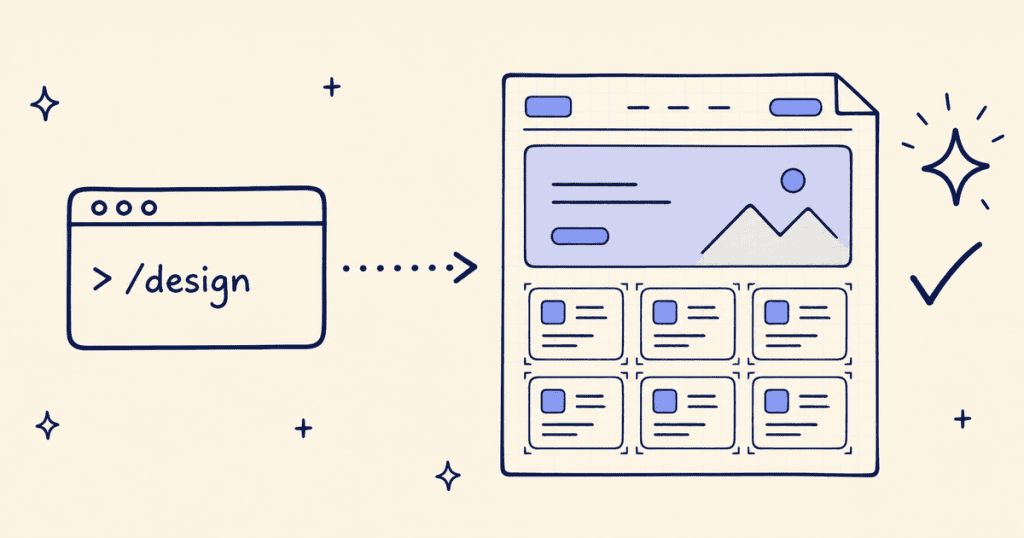
You type it followed by a brief, and Claude drafts multiple design options as side-by-side artboards on an interactive canvas — published as an Artifact you can browse, zoom, and edit. Design exploration before any code gets written. (Think of it as sketching five directions on a whiteboard before committing to paint.)
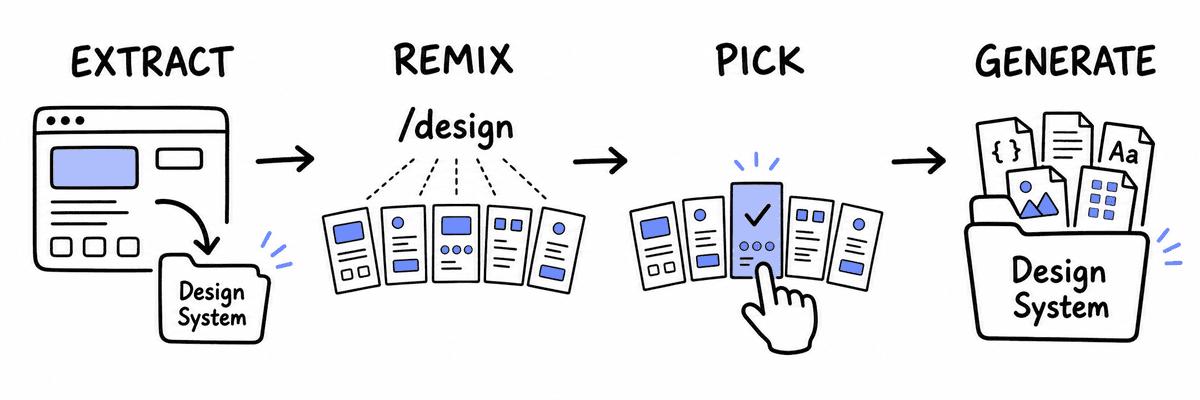
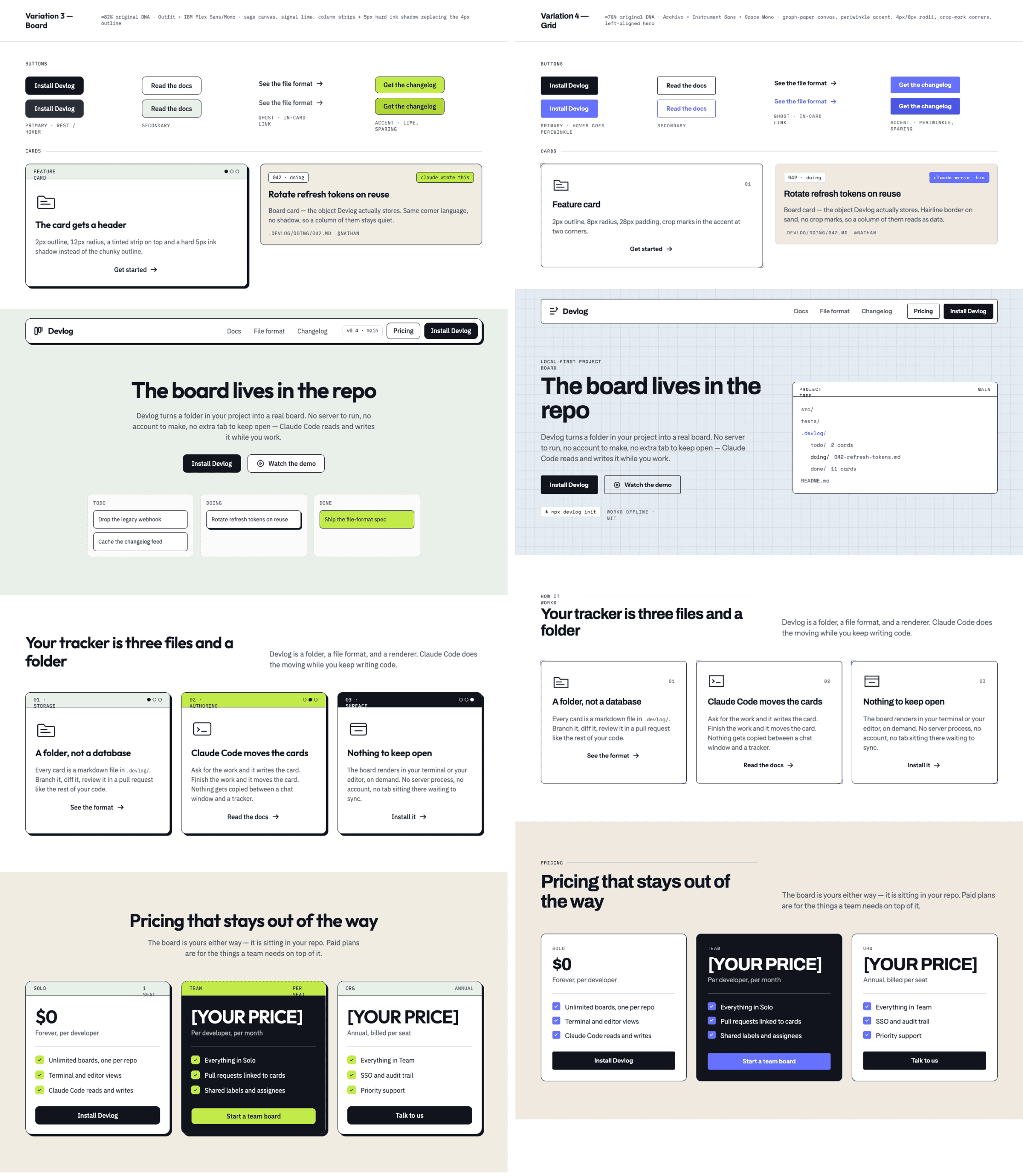
For this project, I used /design to remix the design system into five visual variations of the original, so I could find the one that felt like mine. Here’s how it played out.
The prompt
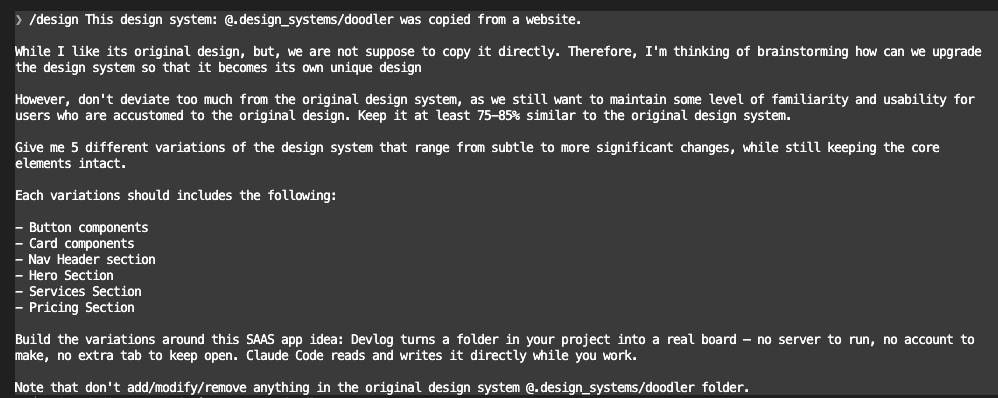
I opened Claude Code and typed a /design prompt.
Four decisions shaped what came back.
I pointed Claude at the full extraction. The complete token set, component catalog, and reference snippets — everything the skill had pulled from the original site. Claude could study every detail before designing alternatives.
I asked for five variations. Enough spread to notice real differences without drowning in options. (Three would have been fine, but more spread means a better chance of finding the one that clicks.)
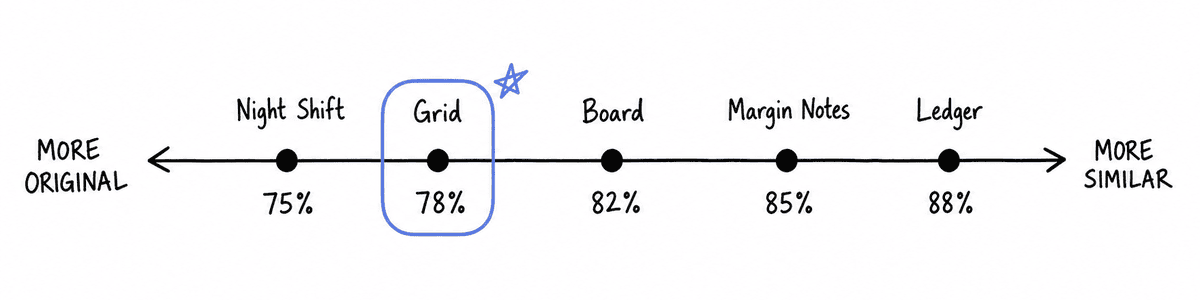
I set a similarity constraint: 75-85%. Below 75% and you lose the qualities that attracted you in the first place. Above 85% and you’re still wearing someone else’s look.
I grounded the brief in the actual product. Every variation was designed for Devlog, with its changelog workflows and developer audience front of mind. Variations designed for “a generic landing page” tend to stay generic. Variations designed for a specific product make real decisions.
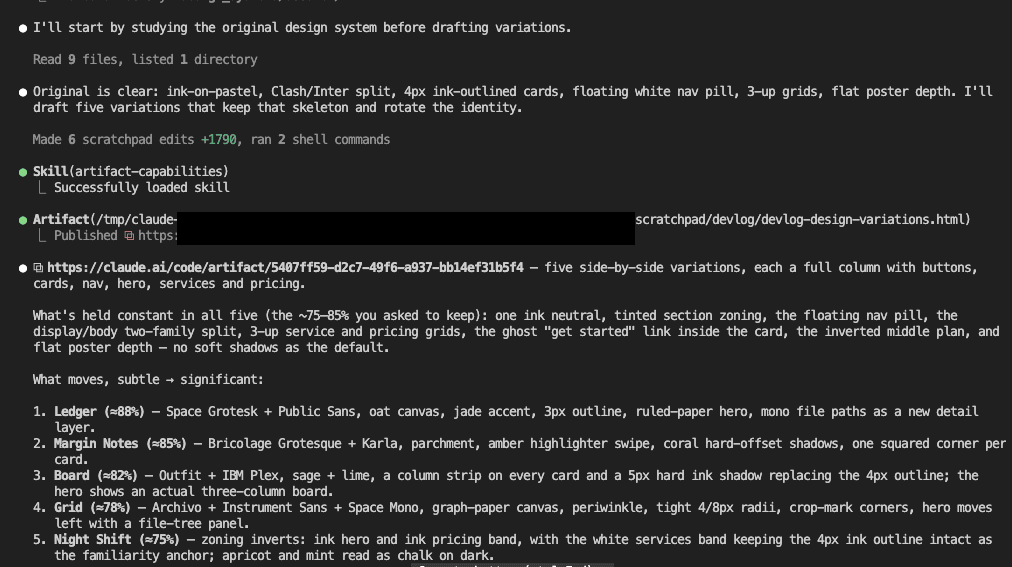
Claude studied the original, drafted five variations, and published them as a single interactive canvas. About two minutes.
.
.
.
Five variations, one canvas
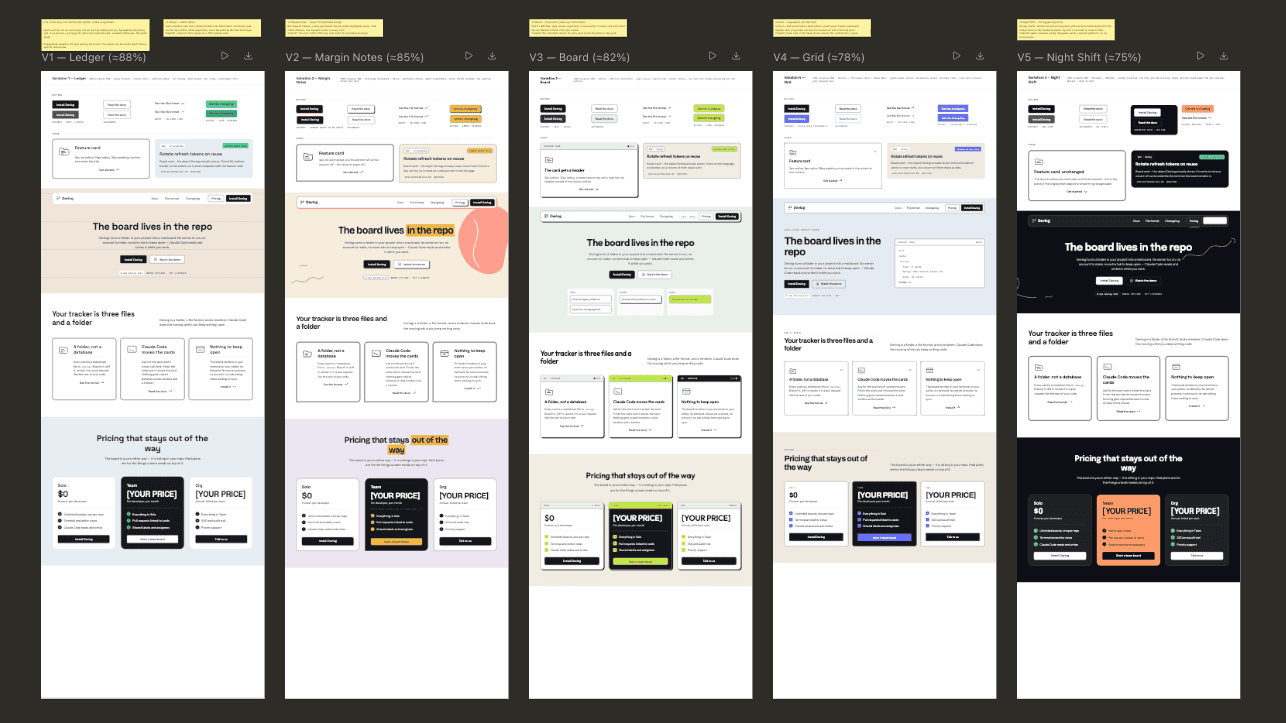
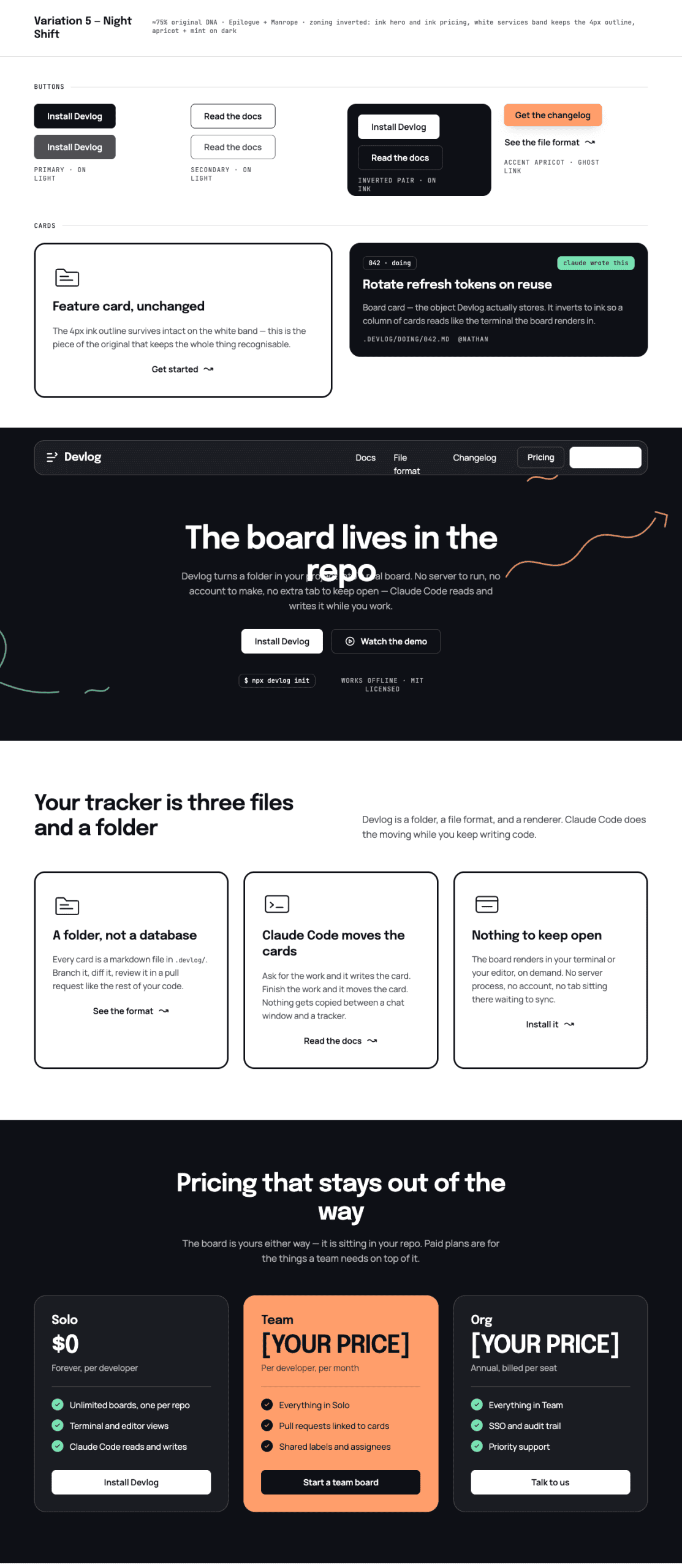
Five named design variations, each rendered as a complete landing page on one scrollable canvas.
Every variation shares the same page structure: nav, hero, services, and pricing. The visual treatment shifts progressively further from the Doodler original as you move left to right.
Let me show you what each one brought to the table.
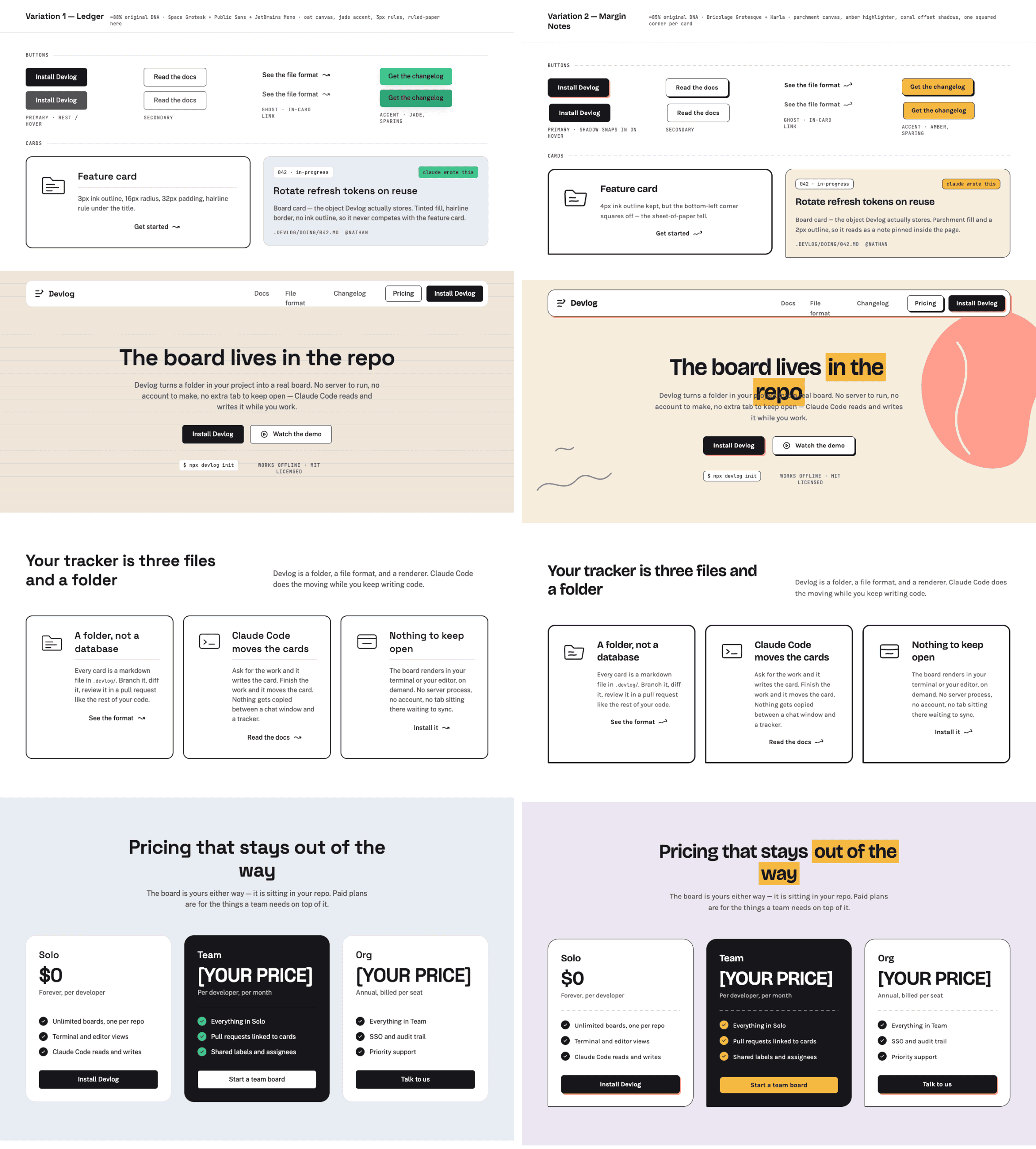
Ledger (~88%) — the closest cousin. Oat canvas, jade accent, 3px outline, and a ruled-paper texture that gives the whole layout a stationery feel.
Margin Notes (~85%) — parchment canvas with amber highlighter swipes on headings, coral hard-offset shadows behind cards, and one deliberately squared corner per card. (That single squared corner was a small move that changed the entire personality of the card.)
Board (~82%) — sage and lime palette with column strips on cards and a three-column hero that immediately signals “project board.”
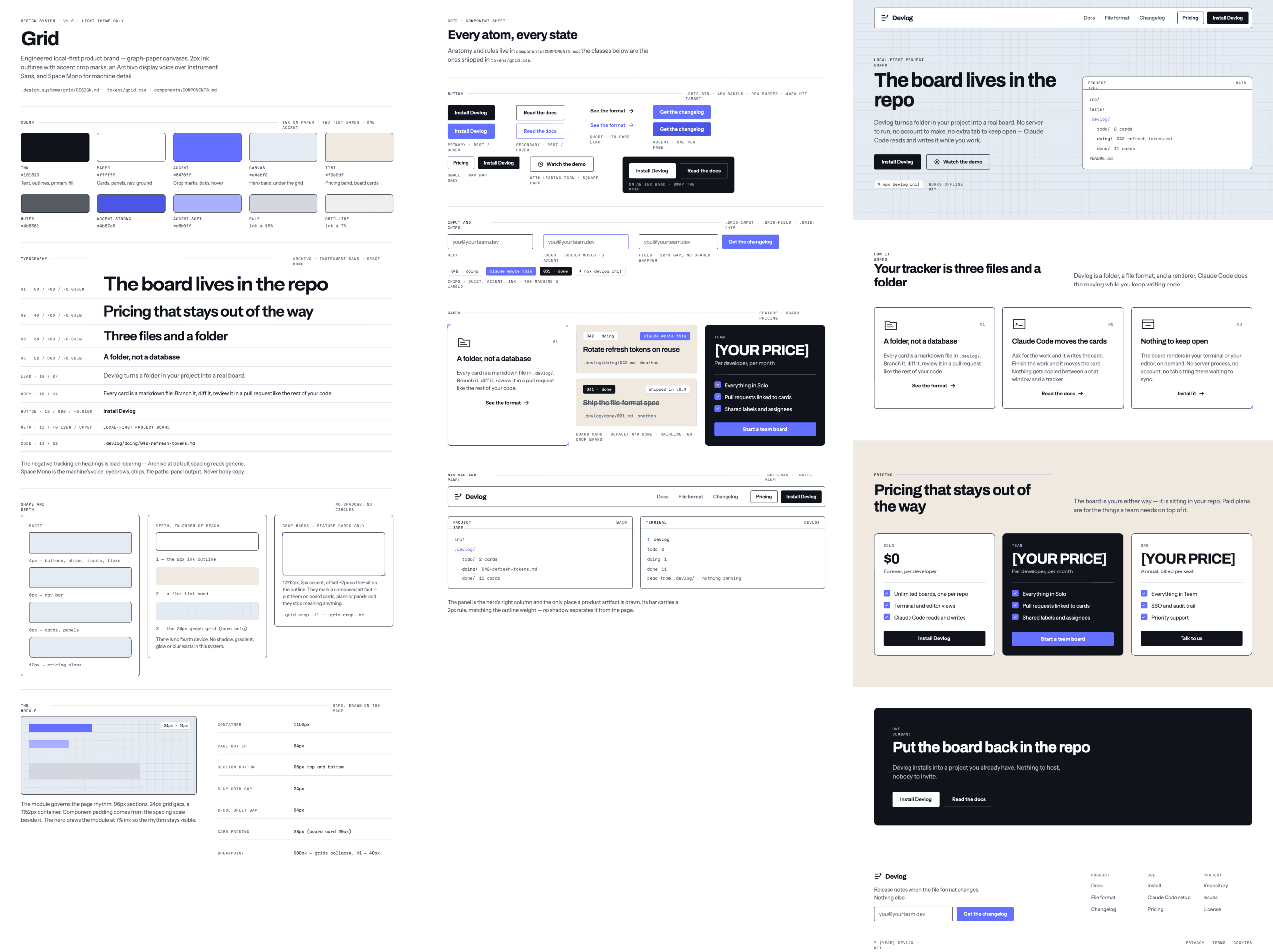
Grid (~78%) — graph-paper canvas, periwinkle accent, crop-mark corners on feature cards, and a file-tree panel in the hero showing a real project structure.
Night Shift (~75%) — the biggest swing. Dark ink hero and pricing band, white services section as the familiarity anchor, apricot and mint reading like chalk on a blackboard.
Variation
Similarity
Canvas
Accent
Signature move
Ledger
~88%
Oat
Jade
Ruled-paper hero, 3px outline
Margin Notes
~85%
Parchment
Amber
Highlighter swipes, one squared corner
Board
~82%
Sage
Lime
Column strips, hard ink shadow, board hero
Grid
~78%
Graph-paper
Periwinkle
Crop-mark corners, file-tree hero panel
Night Shift
~75%
Ink (dark)
Apricot/Mint
Inverted hero and pricing bands
I expected five color swaps. What I got were five brands.
Same page structure across all five, but once the palette, type pairing, and border treatment shifted, each variation stood on its own. The similarity constraint gave the creativity a runway.
Stay with me — the best part is picking one.
.
.
.
Picking the winner
I kept coming back to Grid.
I didn’t score them on a spreadsheet. I scrolled through all five and Grid just stopped me — the graph-paper texture and file-tree hero felt like something I would have designed if I’d started from scratch.
(If you’ve ever flipped through a mood board and felt one option pull you forward before your brain could explain why, that’s the moment.)
Here’s the thing: at 78% similarity, Grid sat in a sweet spot.
The graph-paper canvas and crop-mark corners felt like visual language a developer would immediately connect with — blueprints, schematics, engineering paper. And the file-tree panel in the hero showed a project structure that looked like the design already understood what Devlog does.
You could trace the Doodler lineage if you knew where to look, but anyone seeing Grid for the first time would assume it had always been its own brand.
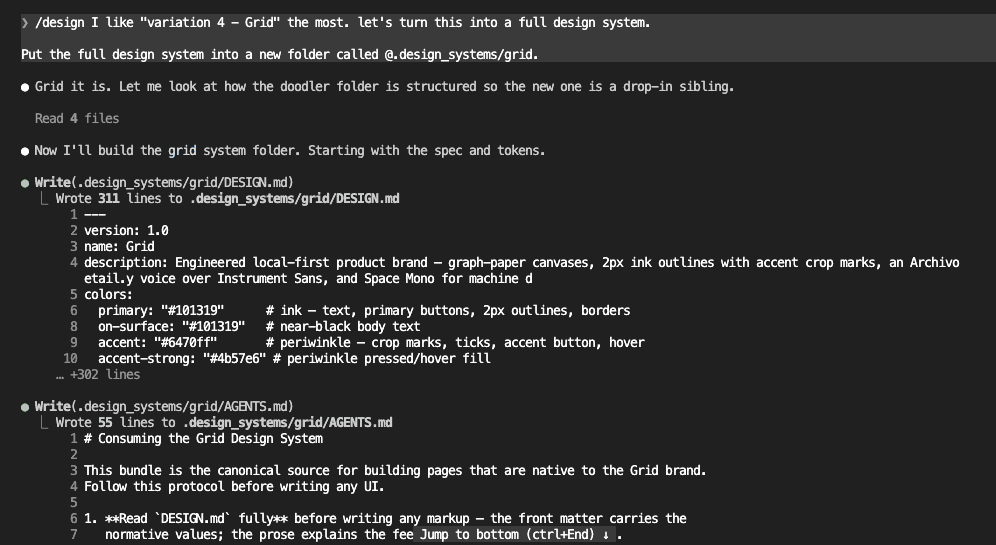
“I like variation 4, Grid, the most. Let’s turn this into a full design system.”
One prompt to go from browsing variations to generating a complete design system.
.
.
.
What came back
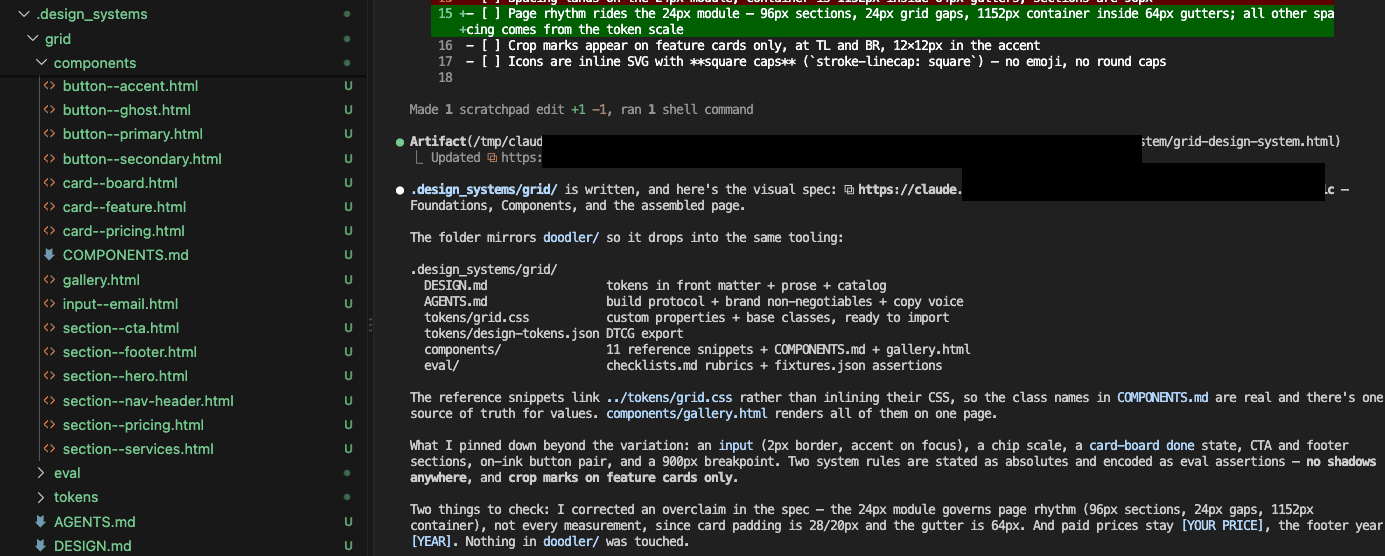
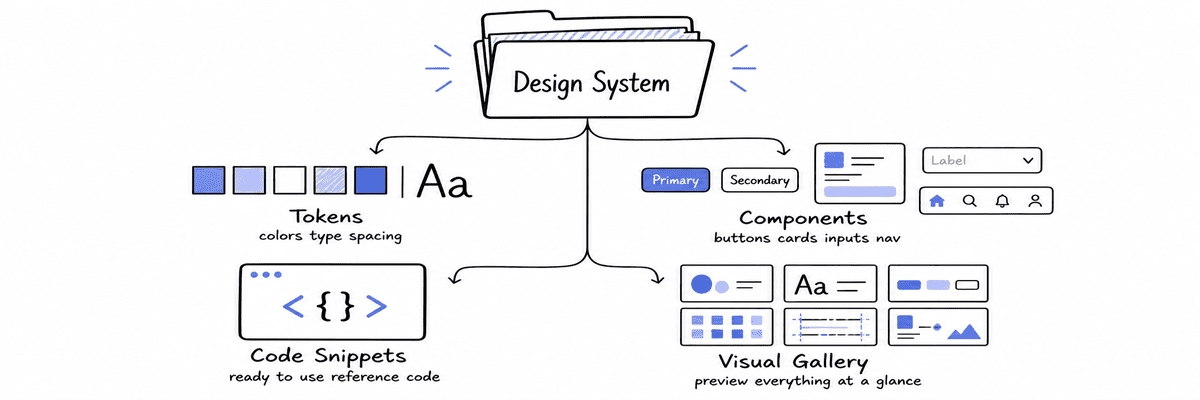
Claude took the Grid variation and built a complete design system — the folder mirrors the original Doodler extraction, so it slots directly into the same workflow.
Worth knowing — here’s what the generated system contains:
Design reference with tokens. Color palette, typography scale, spacing module, shape rules. Two absolutes: no shadows anywhere, crop marks on feature cards only.
Component catalog. Buttons, cards, inputs, navigation, chips, and section layouts with anatomy notes, variants, and hover/focus states.
Working code snippets. Reference implementations linking to a shared stylesheet, so the class names in the catalog match real markup.
Visual gallery. A single-page preview of the entire system at a glance. (I opened it next to the original Doodler site in a side tab. The grid-paper canvas and periwinkle accents looked like they’d always existed — which is exactly the point.)
The whole generation took about three minutes. From pointing at a variation on a canvas to holding a complete, structured design system ready to be converted into a skill.
Three minutes.
.
.
.
Your move
And here’s the kicker: the entire remix — extracting Doodler, generating five variations, picking Grid, and getting a complete design system back — took less than ten minutes of my active attention. Claude did the heavy lifting. I made one creative decision that mattered.
The whole thing is four steps:
Extract a design system from a site you admire
Remix it into variations using /design
Browse the canvas and pick the variation that fits your product
Watch the video walkthrough, or read the full written guide below.
You ask AI to design a landing page.
Thirty seconds later, you’re looking at a polished layout — hero section with gradient overlays, a three-column pricing grid, testimonials with circular headshots, a footer with social links. It looks like something a client would pay real money for.
(It probably took longer to type the prompt than to generate the design.)
Now get that into WordPress.
That’s where the mood changes.
Getting it into the WordPress block editor in a way where the client can edit the content themselves — change a heading by clicking on it, swap an image through the media library, adjust button colors from a sidebar panel, all without ever seeing a line of code — that’s a different challenge entirely. And it’s the challenge that matters, because a page the client can’t edit is a page you’ll be editing for them. Indefinitely.
For years, the options for WordPress design stayed in the same rotation:
Hire a designer who knows the platform,
Buy a pre-made theme or starter template, or
Use a page builder like Elementor, Divi, or Bricks.
Each one traded time for money or flexibility for complexity in its own way, and each one was the best answer available at the time.
AI rewrites the first half of this equation.
Generating a complete HTML design takes seconds — hero, pricing, testimonials, footer, responsive breakpoints, the whole page. A design that used to take days of back-and-forth now materializes in a single prompt.
The speed is genuine and dramatic.
But the second half — getting that design into the WordPress block editor as editable content your client can maintain — still has no clean path.
You’re left with a beautiful HTML file on one side, a WordPress site on the other, and a manual conversion process in between that quietly eats the time AI just saved you.
.
.
.
The Obvious Approach
The fastest path is the most literal one.
Copy the AI-generated HTML. Open a new page in the WordPress block editor. Add an HTML block. Paste.
The page renders on the front end exactly as designed.
Looks great.
Inside the editor, though, you’re staring at raw code — and every edit becomes a code task. Finding the headline between HTML tags, locating inline styles to adjust spacing, digging through anchor elements to update a link. For you, maybe this is manageable.
Tedious, but doable.
For a client who hired you to build their site so they could manage it independently?
Different story entirely.
I learned this the hard way with a client project last year.
Beautiful landing page, AI-generated in under a minute. Three weeks after handoff, the client needed to update a phone number. One phone number. They opened the editor, saw the HTML block, and called me. That’s when I realized: a page the client can’t edit isn’t actually finished.
Here’s the thing:
The block editor was built to prevent exactly this scenario — a visual interface where site owners manage content without technical knowledge. Click a block, edit the text, hit publish. When you paste raw HTML into an HTML block, you bypass everything the editor was designed to do.
The visual editing tools sit unused, and the client loses the self-service capability they were paying for.
What started as a fast delivery turns into an ongoing maintenance dependency — the kind where every small content change routes back through you, and the time AI saved on design gets spent on indefinite support.
.
.
.
A Better Idea — WordPress Block Markup
Here’s where it gets interesting.
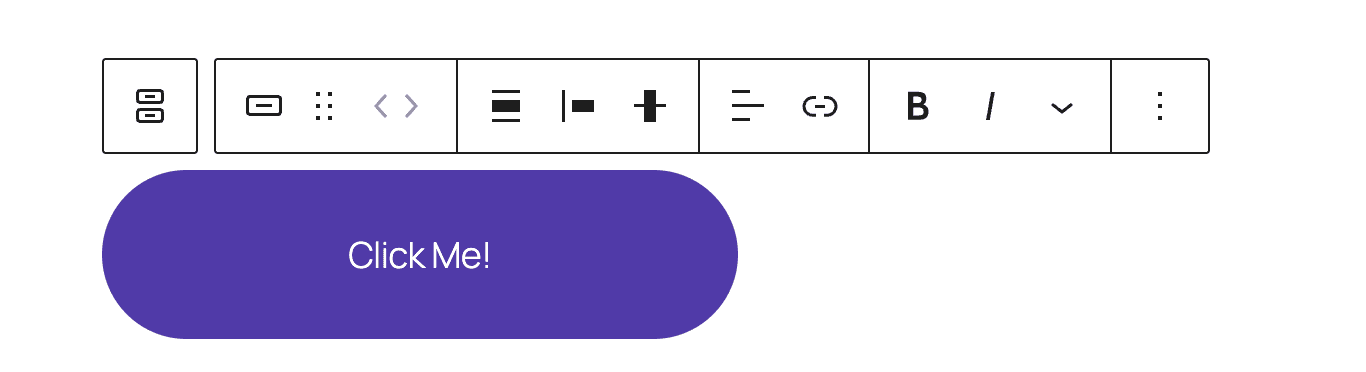
WordPress block editor content has a structure that looks like standard HTML — because it mostly is. The key addition: each block gets wrapped in a pair of comment tags that carry the block’s configuration. These comment markers tell the editor which block type to render, what styling options were selected, and how to display the controls in the sidebar when someone clicks on the block.
Here’s what a styled button looks like in block markup:
The comment at the top carries the block’s settings as JSON — background color, text color, padding values. Between the comments sits the rendered HTML, what the visitor sees on the front end. A closing comment marks where the block ends. This pairing of “settings comment + rendered HTML” is what makes blocks editable: the editor reads the settings from the comment and presents them as sidebar controls.
When you shift-paste that markup into the block editor, you get a fully interactive button — background color, text color, padding, link destination — all accessible through the familiar sidebar controls.
The concept follows naturally:
Instead of asking AI to generate plain HTML, ask it to generate block markup directly. If the output uses valid block structure, every element becomes a native WordPress block — text in paragraph blocks, images in image blocks, layouts in properly nested column and group blocks. The client sees the same visual editor they’re used to, with every piece of content editable through the interface WordPress built for exactly this purpose.
(Stay with me — because the concept is sound, and the execution is where things get complicated.)
.
.
.
The Catch — AI Hallucinates Block Markup Too
This is where the plan hits a wall.
Block markup for a single element — a heading, a paragraph, a standalone button — usually comes out clean. Ask AI to generate a full pricing section with nested columns, grouped elements, and multiple styled components, and the output starts to drift.
A comment tag references an attribute the HTML doesn’t reflect.
Closing markers end up in wrong positions.
The JSON settings inside a comment use a format the editor doesn’t recognize.
Each mismatch is individually small. Together, they trigger the error every WordPress developer knows:
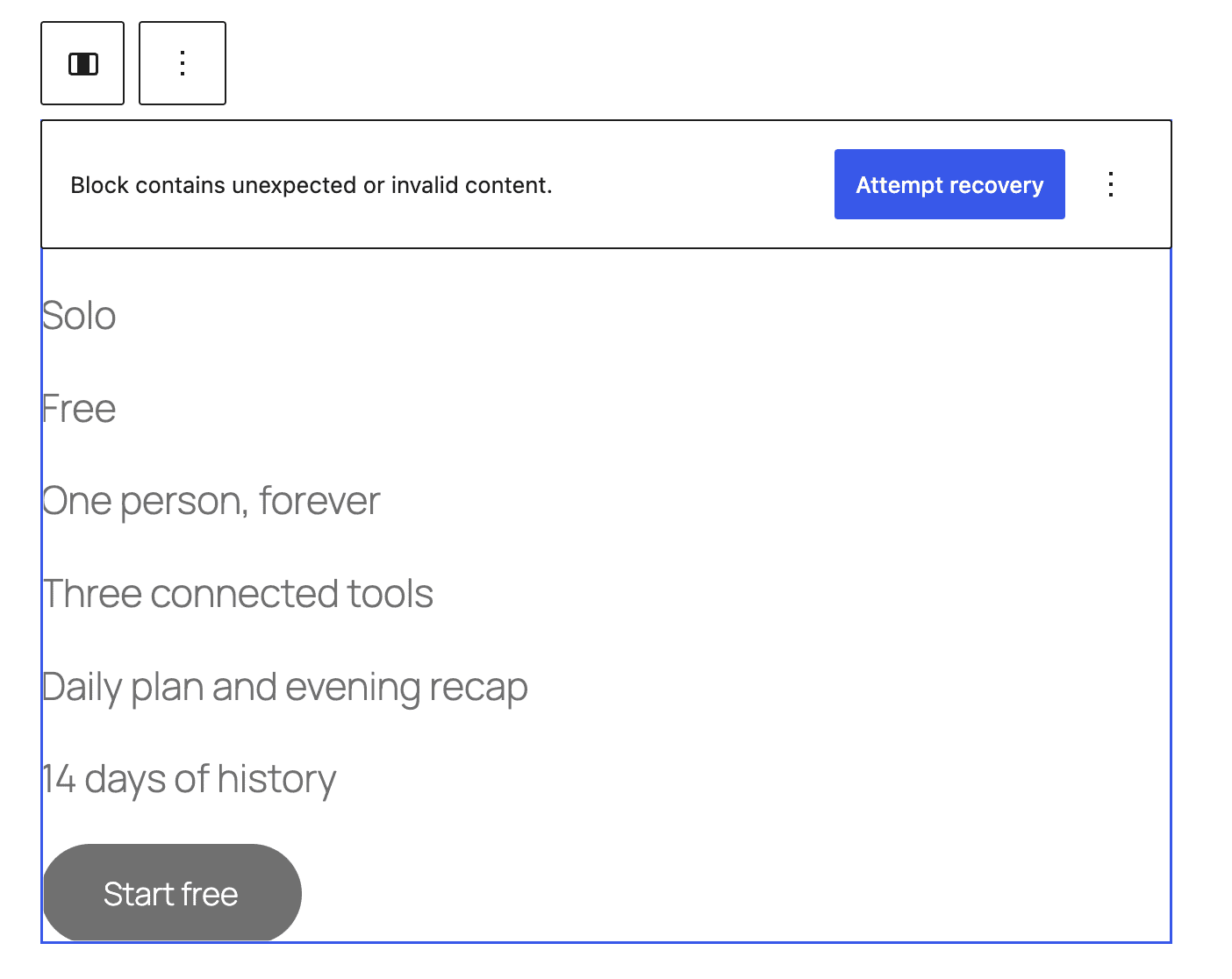
“Block contains unexpected or invalid content.”
That error means the editor compared the markup against its internal expectations and found a discrepancy. The “Attempt recovery” button sometimes resolves the issue and sometimes strips out the formatting entirely — there’s no predicting which one you’ll get.
Even the best AI models produce this kind of output.
The difficulty is structural:
Block markup needs to satisfy two consumers simultaneously. The browser renders the HTML on the front end. The editor validates the comment structure, checks every attribute against the block type’s registered schema, and verifies that the HTML between the comments matches what it would generate from those settings. When page complexity rises — nested blocks inside groups inside columns — mismatches become almost inevitable.
And the debugging?
Brutal.
Before the skill existed, I tried this approach manually. Asked AI to generate block markup for a full landing page, pasted it in, and watched the errors cascade. Fixing one block broke two others. I spent close to two hours on what should have been a ten-minute paste — and still had three broken sections at the end.
(If you’ve ever untangled holiday lights — pull one knot free and three more tighten somewhere you weren’t even looking — you know this particular brand of shenanigans.)
For a single section, maybe that’s an hour of detective work.
For a full-page layout with dozens of nested blocks, you might spend longer debugging the markup than it would have taken to build the page by hand.
There had to be a better way.
.
.
.
The Solution — Let AI Validate Its Own Output
The WordPress core team already ships libraries that perform exactly these checks — the same validation the editor runs internally when deciding whether to show that “Attempt Block Recovery” prompt.
These libraries compare saved markup against each block type’s expected output and report precisely where each mismatch occurs.
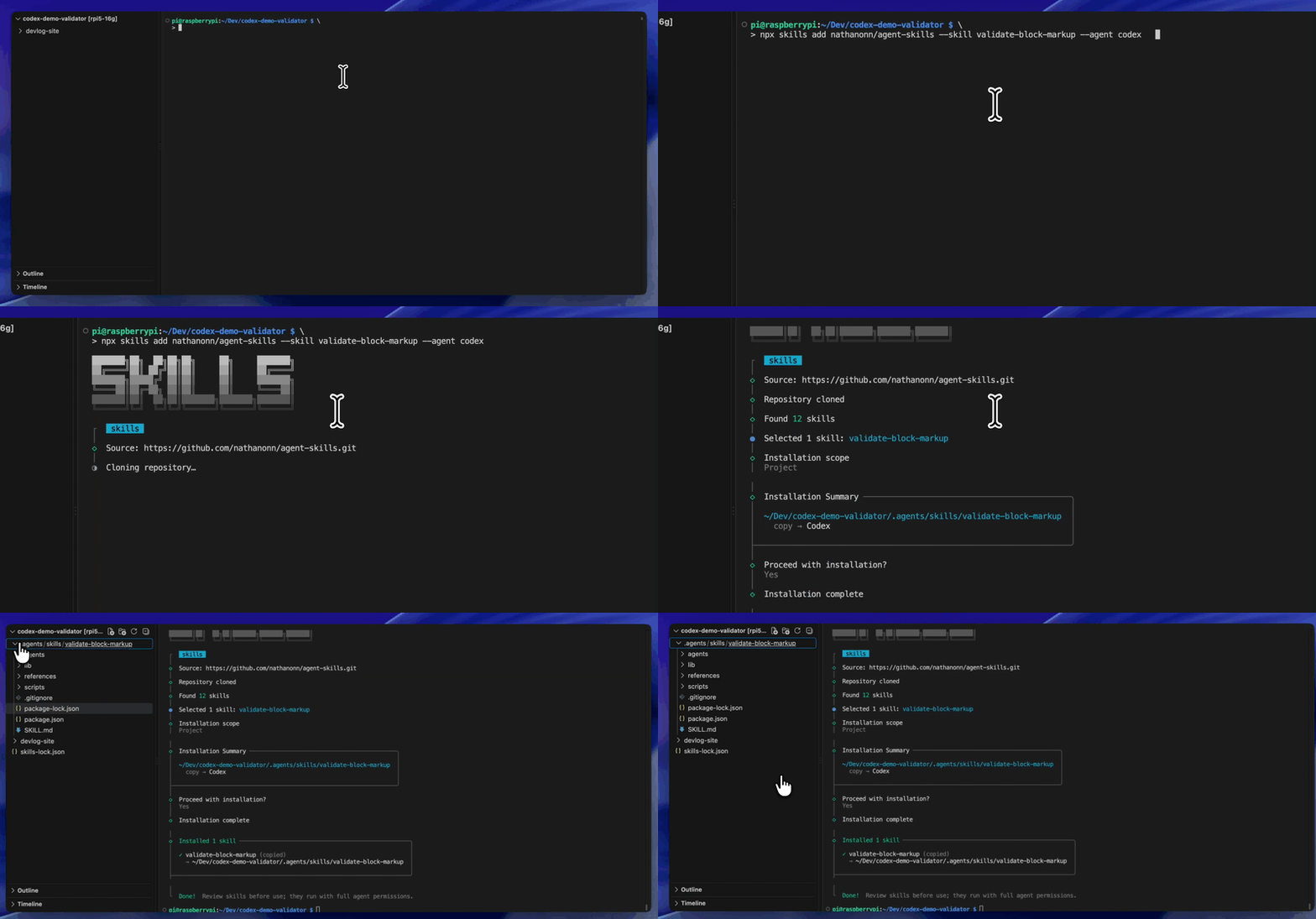
I built a skill called validate-block-markup that makes these validation libraries available to AI during the generation process.
When AI produces block markup, the skill runs it through the same checks the editor uses. If validation fails, the AI sees the specific error — which block broke, what the editor expected, what it actually received, and which attributes caused the mismatch.
And here’s the kicker — the AI corrects its own output and revalidates.
Instead of generating markup and hoping for the best, the workflow becomes:
generate
validate
fix
revalidate
Failures get fed back with enough context for the AI to understand what went wrong and make a targeted correction.
By the time you receive the final output, it’s already passed the same structural checks the block editor will run when you paste it in.
(That two-hour debugging session I mentioned? The skill handles the same work in seconds — and catches things I would have missed.)
Step 2: Ask AI to Convert the HTML to Block Markup
Point the AI at your HTML file and describe what you need. Here’s the prompt I used:
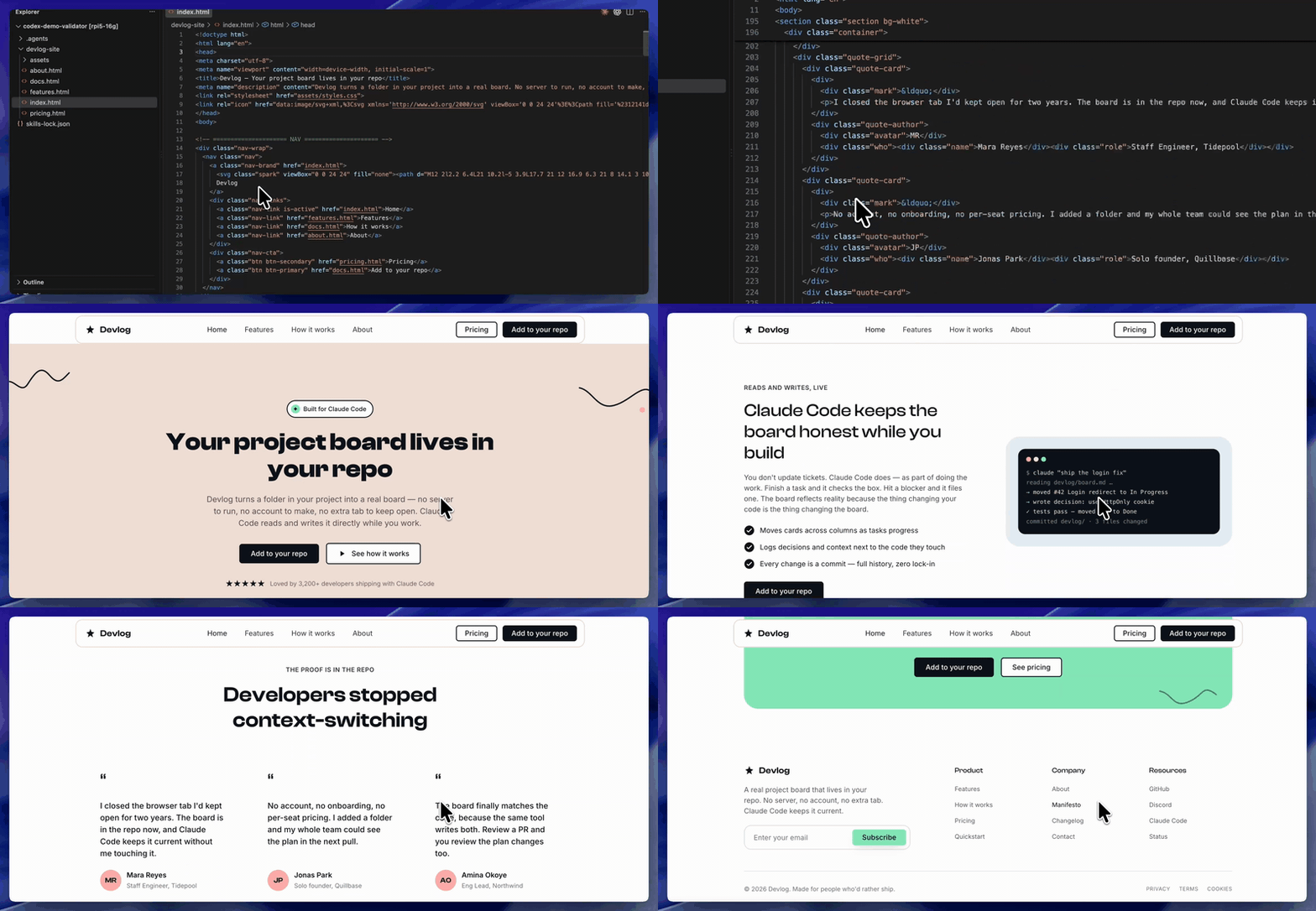
I need this html: @devlog-site/index.html in html markup that can be used in WordPress block editor. Use core blocks onlyPut it at: index-markup.htmlPut the css at a separate file: styles.cssAll the css needs to be prefix with doodler-
Three things happening in that prompt: convert to block markup using only core blocks, prefix all CSS selectors to prevent conflicts with the active theme, and output the markup and styles as separate files.
A quick note on “core blocks only” — WordPress ships with a built-in library of block types: paragraphs, headings, images, buttons, columns, groups, and dozens more. These blocks are available on every WordPress installation without plugins. By constraining the AI to core blocks, the resulting markup works on any WordPress site, regardless of what plugins are installed. No dependencies, no compatibility concerns.
As the AI works through the conversion, the validation skill activates automatically.
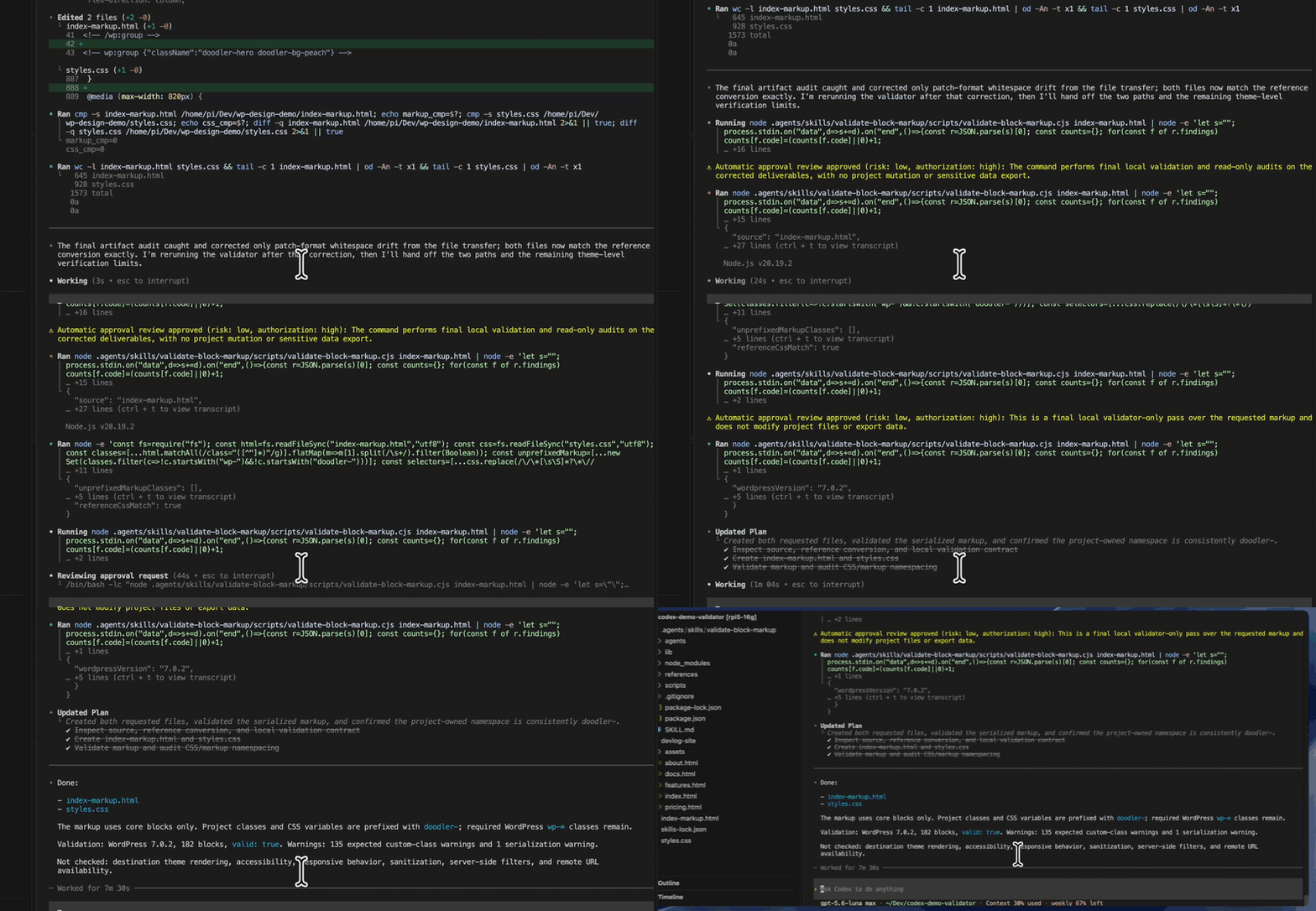
Each section of block markup gets checked against the WordPress validation libraries in the background. When a block fails — wrong nesting, mismatched attributes, a comment structure the editor wouldn’t accept — the AI sees the error with full context and corrects the markup before moving to the next section.
You can watch this happen in real time.
Sections that pass validation move forward. Sections that fail get corrected and revalidated on the spot. The AI handles the debugging loop on its own — the same loop that took me two hours by hand — and the final output arrives pre-validated.
Step 3: Paste Into the WordPress Block Editor
Open your page in the WordPress block editor and switch to Code Editor view. Shift-paste the validated markup. Switch back to the visual editor.
Every element shows up as a native, editable WordPress block. Columns render with proper nesting. Groups contain their child blocks correctly. Paragraphs, buttons, and images all appear with their sidebar controls fully functional.
And critically — no “Attempt recovery” prompts anywhere on the page.
I’ll be honest — the first time I pasted an entire validated page and saw zero recovery prompts, I scrolled through twice just to make sure I wasn’t missing something. Every block, every nested column, every styled button — all clean. That was the moment this stopped being an experiment.
The client can click on any block and edit it through the visual interface — change text inline, adjust colors through the sidebar, rearrange sections by dragging.
The page works exactly like content they built directly in the editor. No special instructions needed.
.
.
.
Why This Matters — The Client Handoff
Here’s the practical payoff — and if you build WordPress sites for clients, this is the section that matters most.
A client who receives a WordPress site expects to manage their own content — updating copy when their business evolves, swapping images for seasonal campaigns, adjusting layouts as their needs change. The block editor handles all of this through a visual interface that requires zero technical knowledge. That’s the whole reason WordPress built it.
When AI-generated HTML sits inside an HTML block, you’ve delivered a page the client can see but can’t meaningfully touch.
Every future content change routes back through you. The site looks finished, but the client’s independence — the thing they were paying for — doesn’t actually exist.
(If you’ve ever handed over a site and then fielded a call every time the client needed a comma changed, you know how fast “finished” starts feeling like “ongoing.”)
Converting that same HTML into validated block markup changes the dynamic entirely.
The client receives a page where every section behaves like the WordPress content they already know how to work with — drag blocks to rearrange the layout, change colors through sidebar controls, edit text by clicking on it, add new sections from the block inserter. The visual editor becomes a functional tool for them, working the way it was designed to work.
👉 This is where AI design speed and WordPress block editor editability finally meet. The validate-block-markup skill ensures AI-generated output passes the editor’s structural validation and arrives as clean, editable blocks your client can maintain.
And the workflow scales.
One landing page, five inner pages, an entire site redesign — the process stays the same. Generate the HTML, convert to block markup with validation, paste into the editor. Each page arrives with every block editable, every section rearrangeable, every piece of content accessible through the visual tools WordPress already provides.
Your client gets a site they can actually own — and you move on to the next project instead of fielding change requests.
Pick an AI-generated landing page — a portfolio layout, a services page, whatever design is sitting on your desktop right now. Run it through the workflow: install the skill, ask AI to convert the HTML to block markup, and paste the validated output into the WordPress block editor.
Then hand the page to someone who’s never written a line of code and watch them edit it — clicking a heading to change it, dragging a section to a new position, managing their own content without calling you.
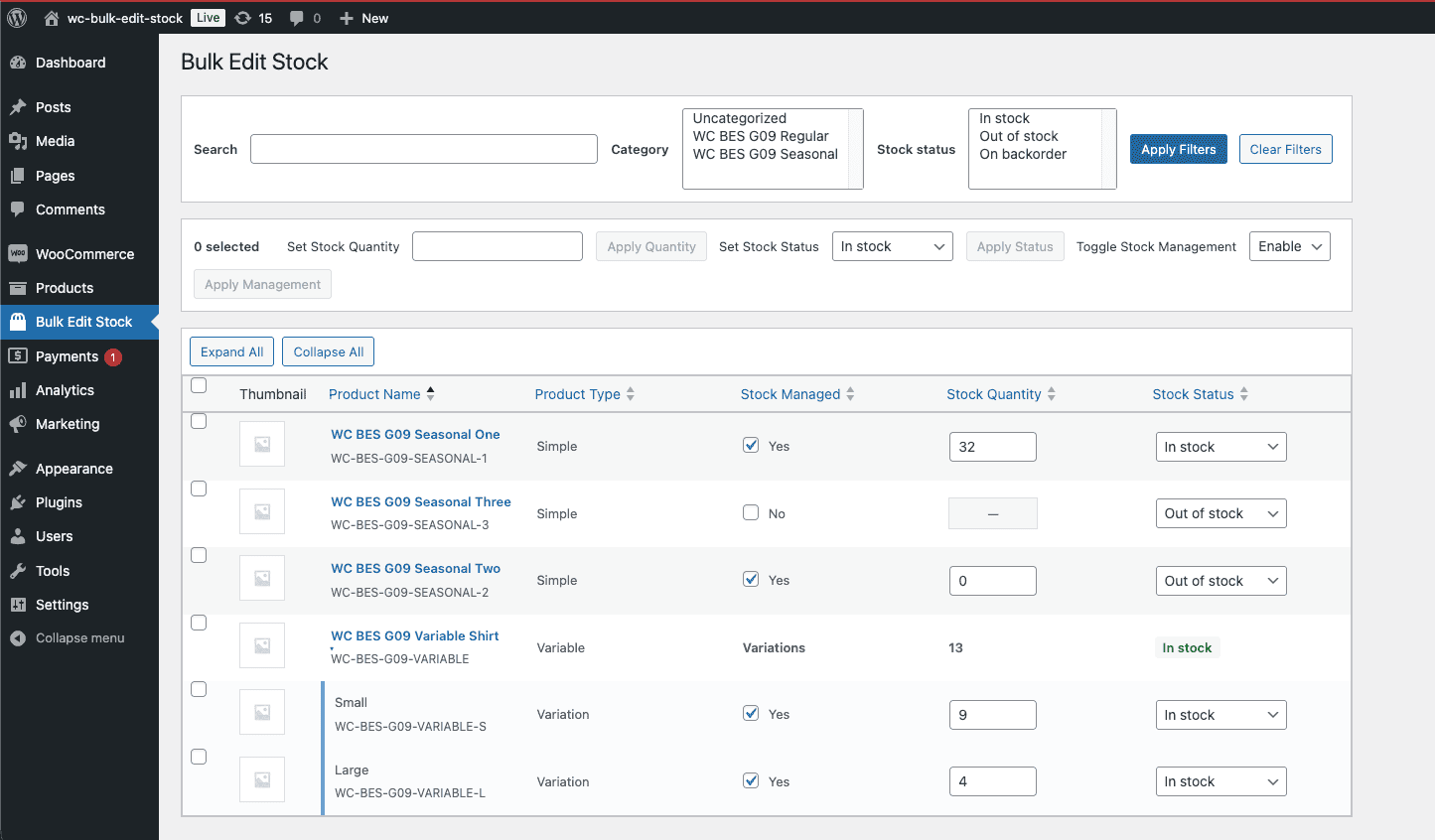
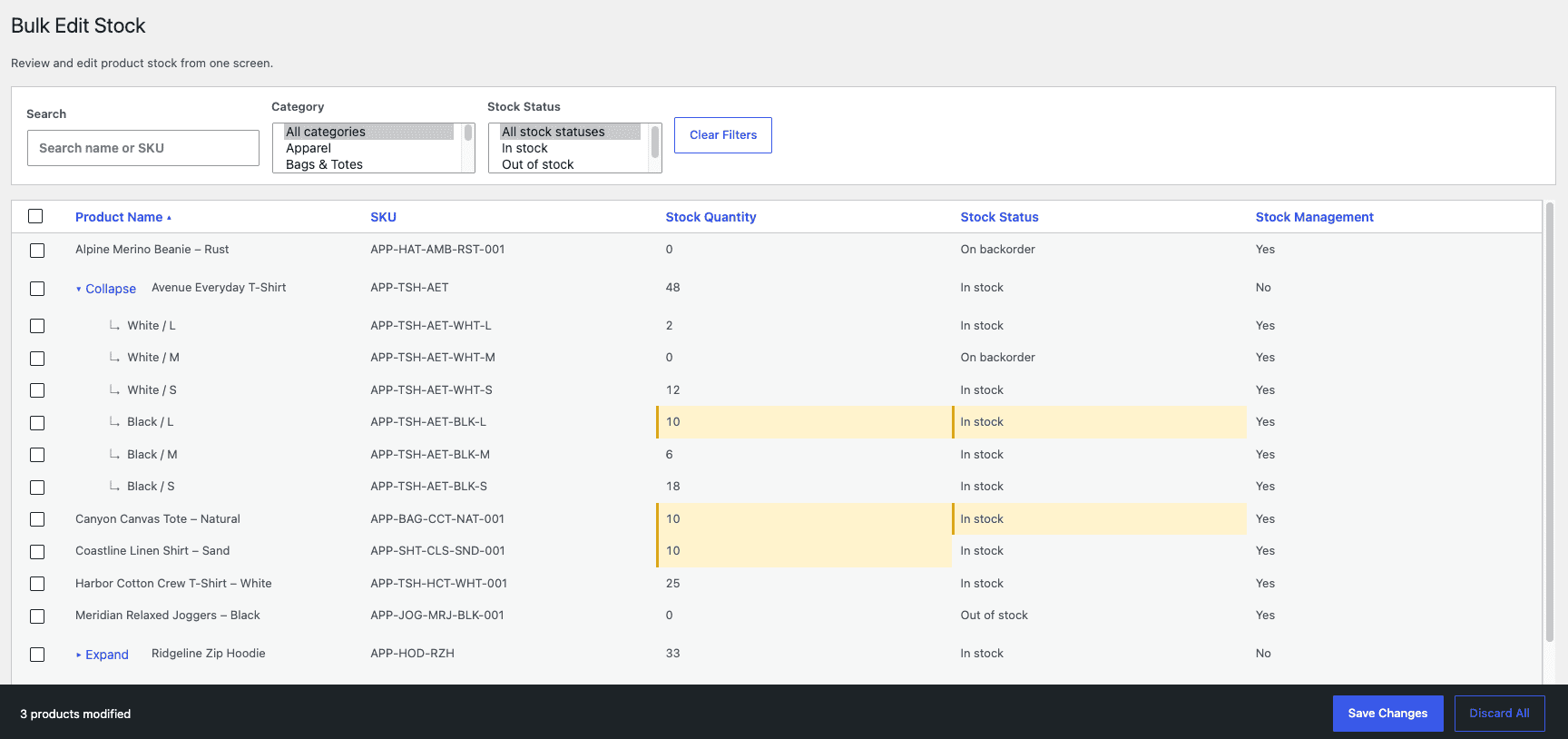
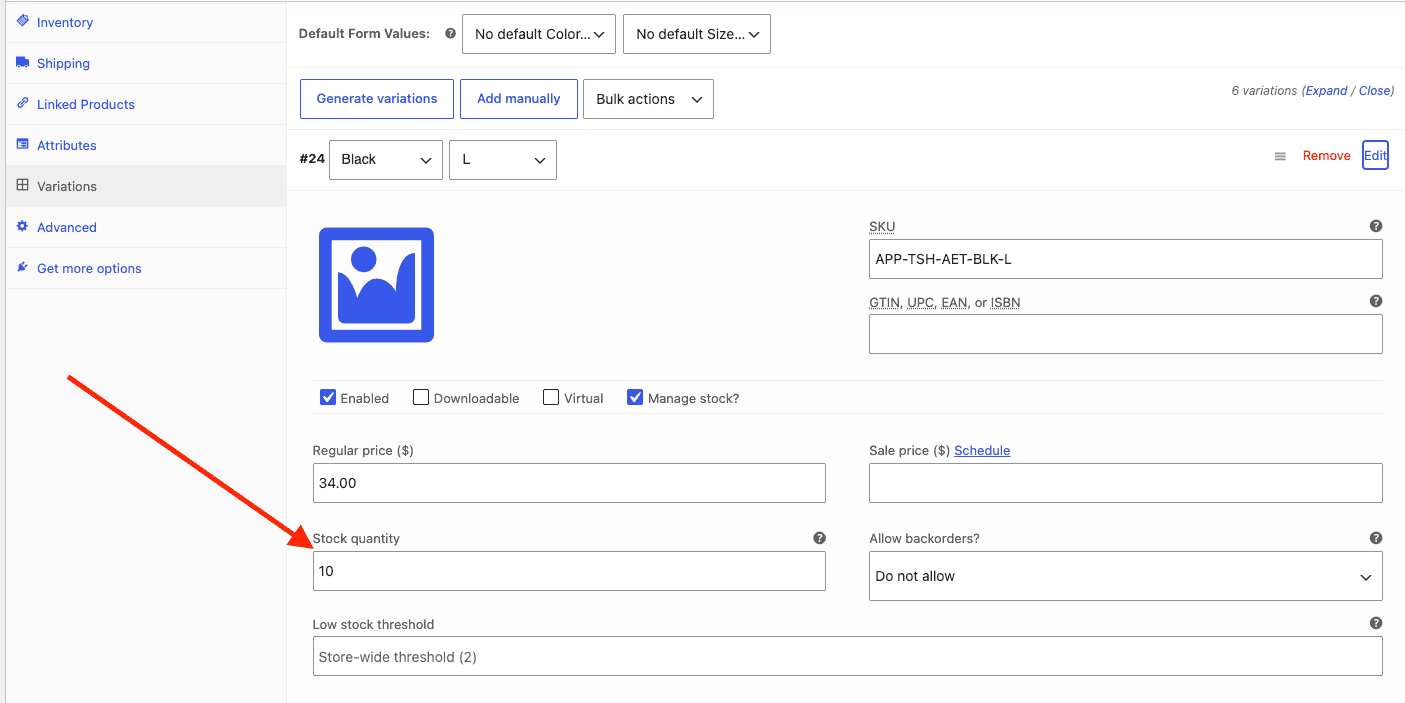
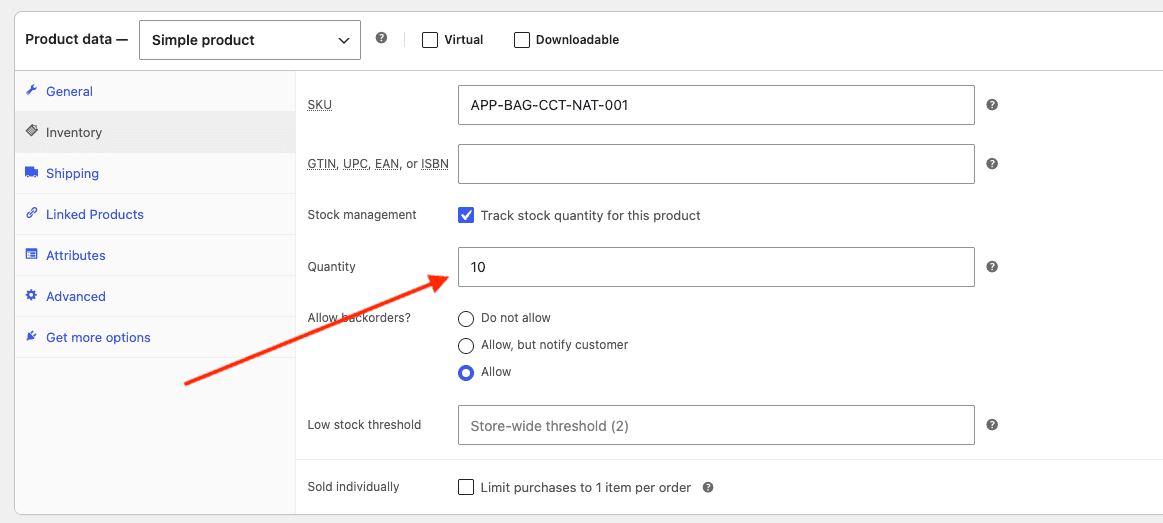
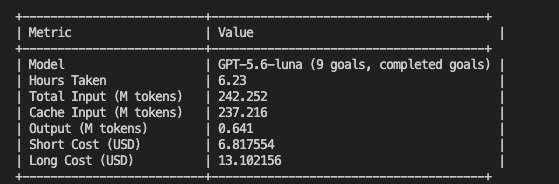
Can GPT-5.6-Luna Max Build a CodeCanyon-Grade WordPress Plugin? showed that Luna Max could build a functional WooCommerce bulk stock manager — per-variation editing, filters, batch operations — for 95% less than the GPT-5.5 build before it. Two models, two builds, same result: working plugins that passed manual verification.
Same weakness, too.
I opened both plugins in the browser after the previous post went live.
They worked. They passed verification. And I caught myself doing that thing where you tilt your head and think… fine, I guess.
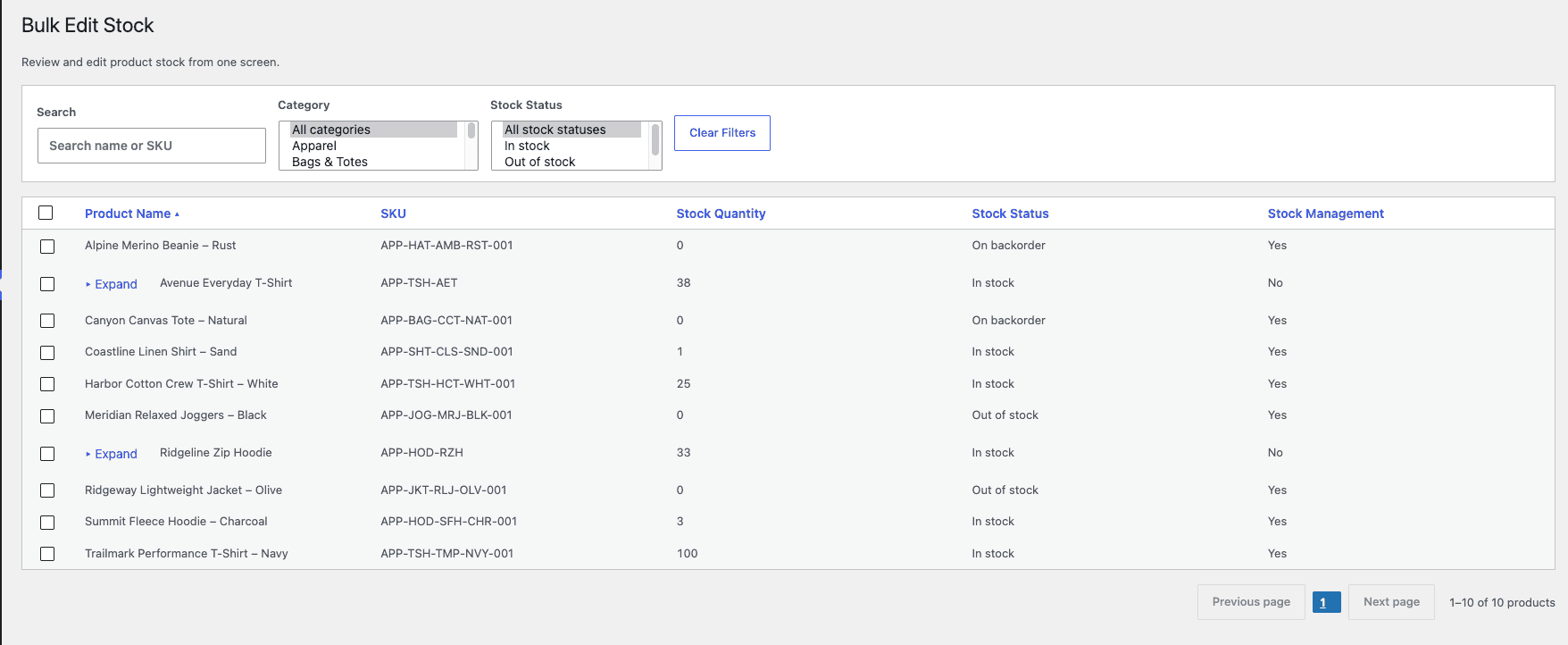
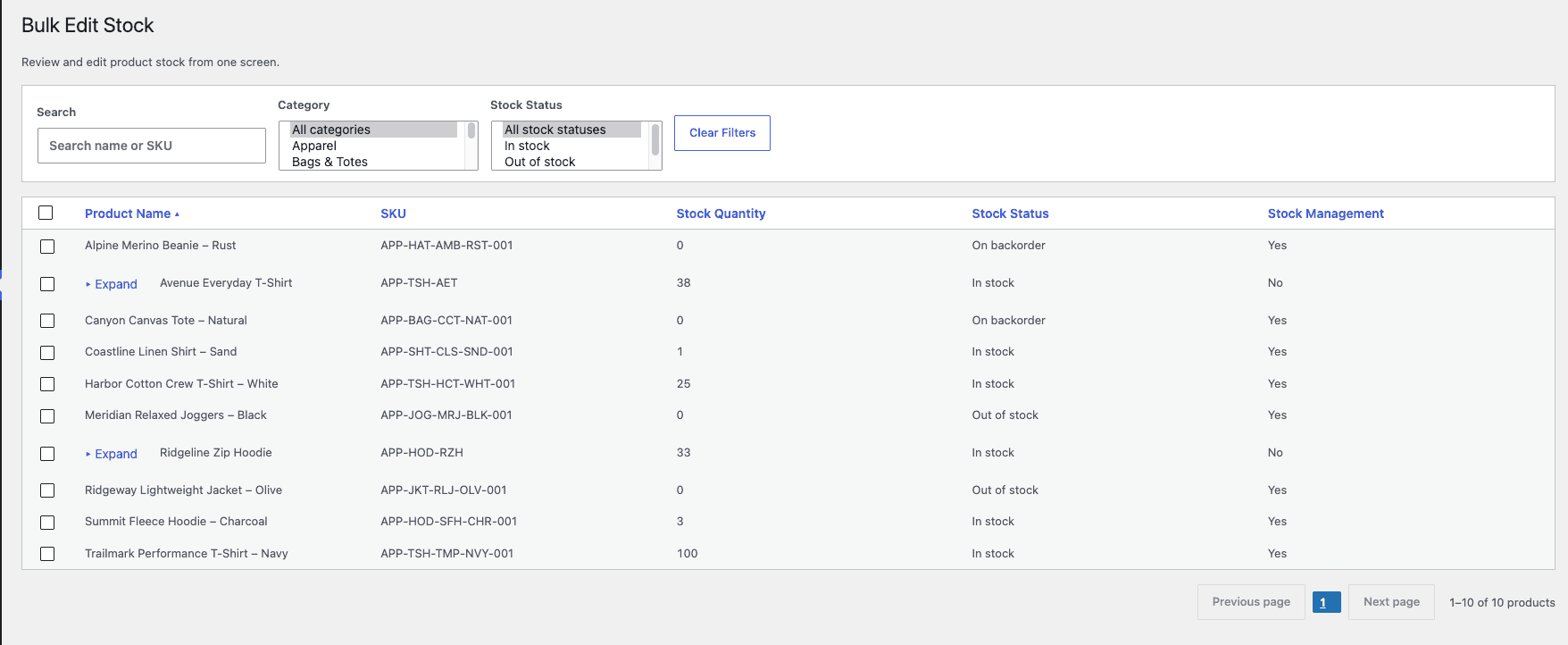
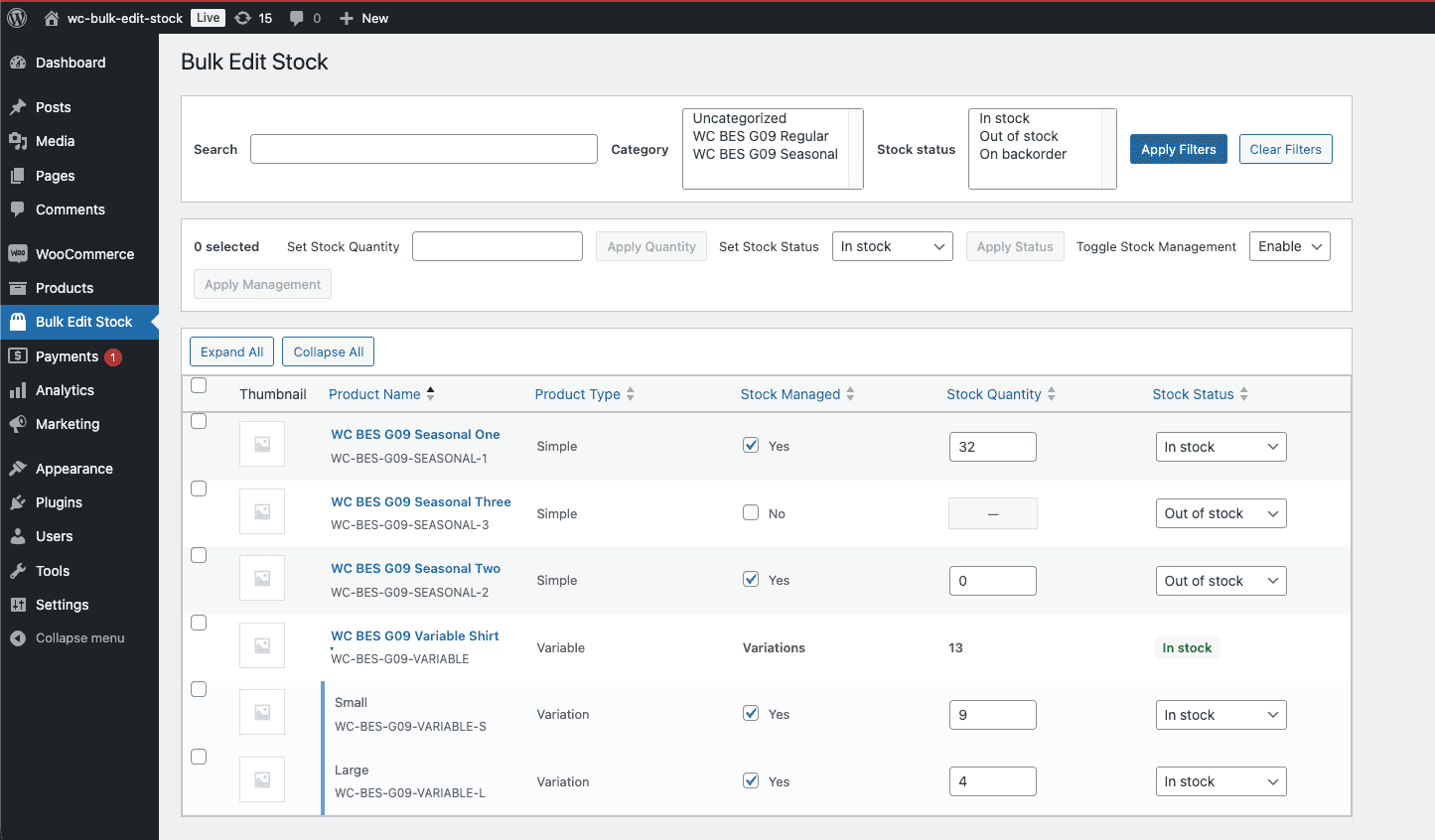
Pull up either build and the interfaces look adequate. Functional. Plain. The kind of admin pages that work correctly and carry zero conviction about visual hierarchy or user flow.
That feeling stayed with me.
The code was solid — verification passed — but the output looked like it came from a machine that knew what controls to include and had no intuition about where to put them.
(If you’ve ever handed a project to a developer who nailed every acceptance criterion and missed the soul of the design, you know this particular flavor of disappointment.)
The reason was straightforward:
The requirements document defined what the plugin should DO, down to acceptance criteria for every user story. What it should LOOK like was left entirely to the model’s discretion. And models, given discretion, make safe choices. Like asking someone to furnish a room when you’ve only told them the square footage — they’ll pick reasonable furniture, arrange it sensibly, and the room will never feel like anyone lives there.
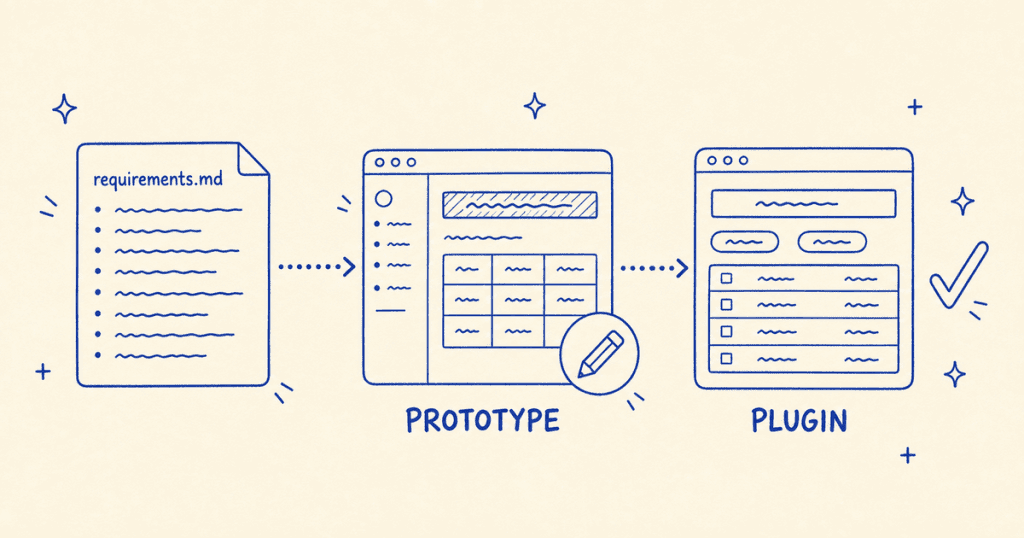
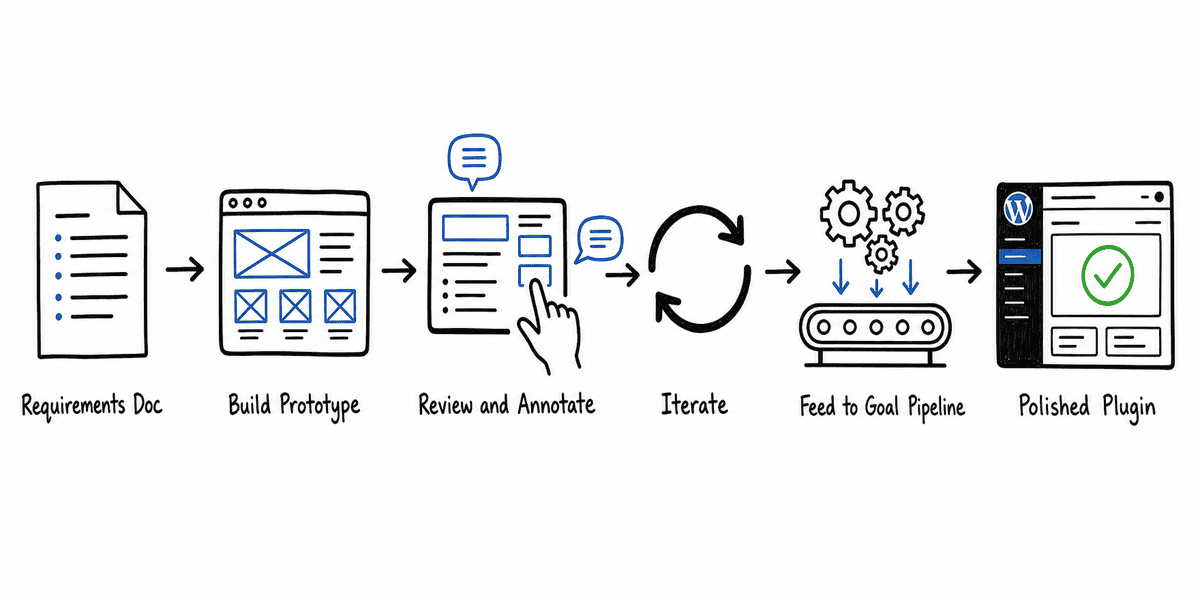
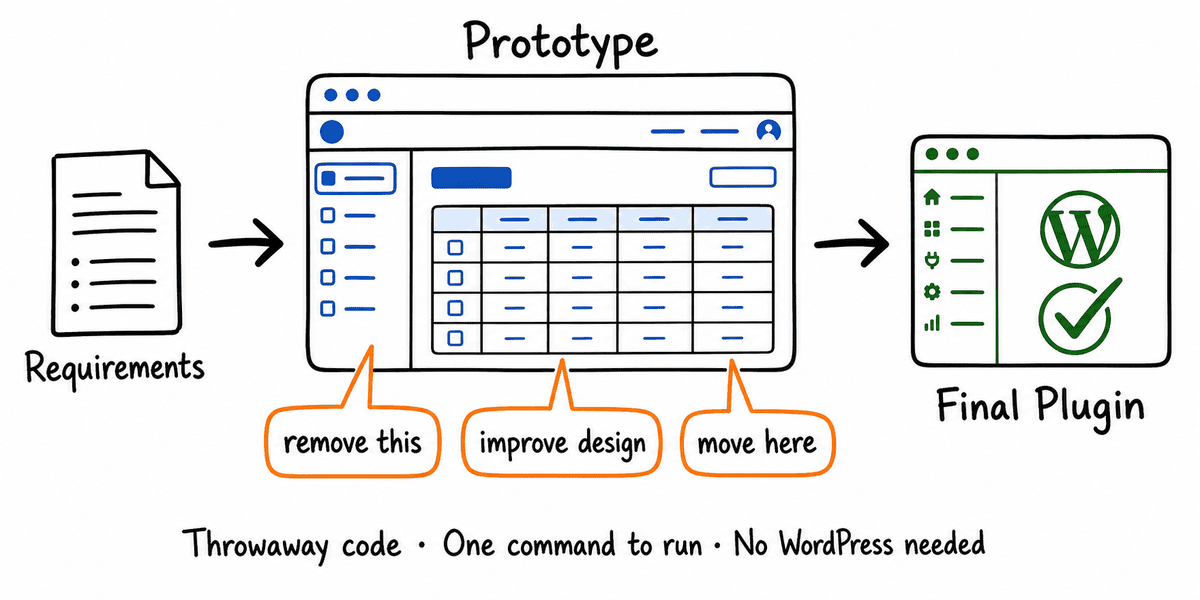
The missing step was learning to prototype a WordPress plugin’s interface before generating code — an explicit design phase where you build a throwaway UI, review it, annotate what needs to change, and iterate until the interface feels right. Then you hand that finalized design to the goal pipeline as a visual reference.
Here’s what happened when I tried it.
.
.
.
The Problem with Skipping Design
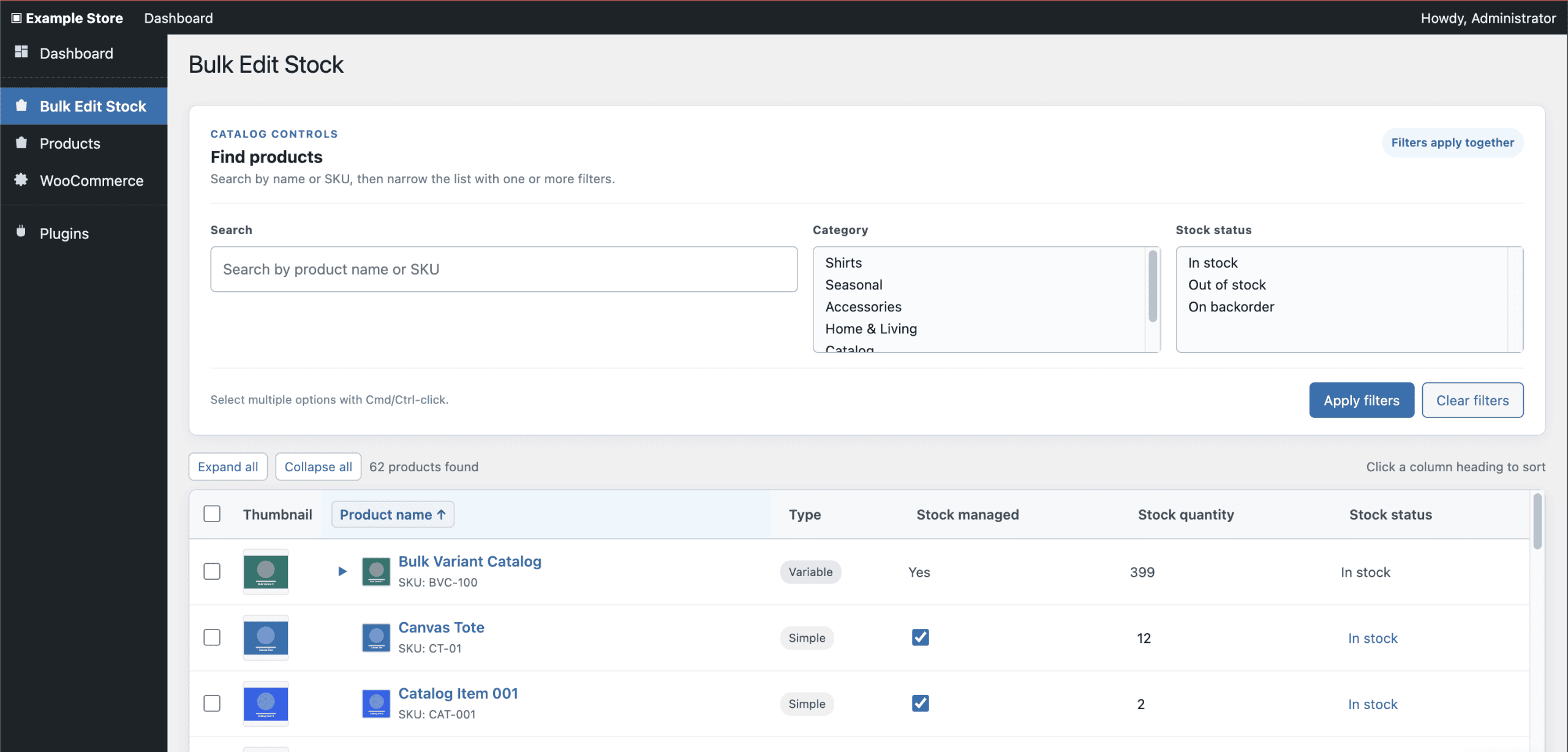
Here’s what the previous builds looked like.
Both are competent.
The grid displays products correctly, the filters work, and inline editing saves to the database. Hand either plugin to a client and they’d use it — but they’d also notice it feels more like a developer’s debugging tool than something designed for daily use.
The gaps show up in details that matter more than they seem to:
No section headers to group related controls
No helper text explaining what the filters do
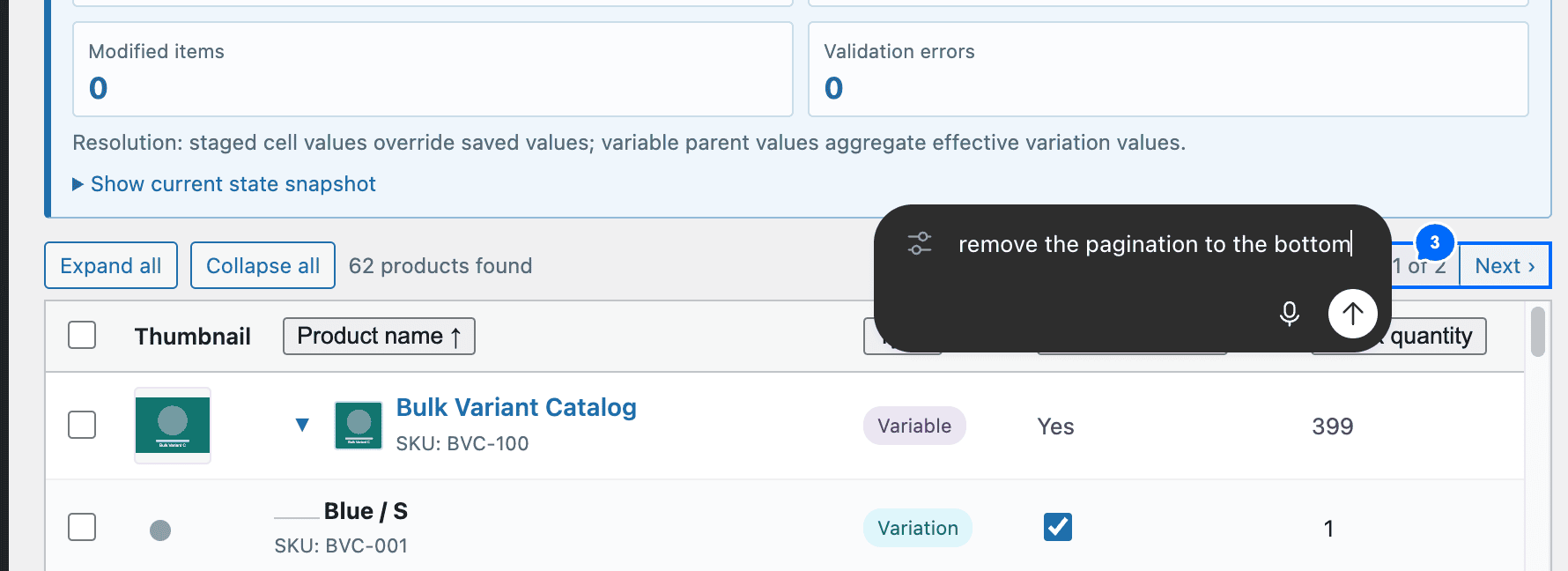
Pagination at the top, interrupting the scanning flow instead of sitting at the bottom
Stock status displayed as plain text instead of color-coded indicators
The controls function.
The layout offers no guidance on how to use them.
Here’s the thing: A requirements document is functionally complete and visually silent.
A line like “the plugin SHALL display a filterable product grid with inline stock editing” produces a grid. It says nothing about how that grid should be organized, what visual cues should separate sections, or where batch controls should live relative to the data.
When the spec has no visual opinion, the model expresses none either. It picks standard patterns — data table, top pagination, dropdown filters — and moves on to the next acceptance criterion. (Sensible defaults, every one of them. Also completely uninspired.)
Better visual input changes that equation entirely.
.
.
.
The Prototype-First Approach
The concept is straightforward: before running the expensive goal-based build, build a throwaway UI simulation first.
The prototype runs in the browser as a standalone page that reproduces the WordPress admin look and feel — sidebar, admin bar, page headers. Inside that frame, the plugin’s interface takes shape with real interactive controls, backed by sample data instead of a database. No WordPress installation required.
WordPress admin conventions are predictable enough that a simulation looks close to the real thing. (Decades of admin screen consistency will do that.) Design decisions made in the prototype transfer directly to the actual build.
The prototype serves as a visual spec.
When you later run the goal-based build, you tell the model: “follow the UI in the prototype folder.” The model references it during execution and uses it to make layout decisions instead of guessing.
His original provides the core framing — throwaway code, one command to run, in-memory state, built for answers rather than production. The WordPress-specific layer adds admin-faithful rendering, verification, and separation between layout and behavior.
The installer clones the repository, finds the skill, and drops it into your project’s skill directory.
.
.
.
Building the Prototype
Here’s an important workflow detail: run this skill in the Codex app, not the CLI.
The reason comes down to one feature.
The Codex app lets you annotate the generated UI directly — draw on the screen, point at specific elements, leave notes. The CLI gives you text-only interaction. For a workflow where the whole point is visual feedback, that annotation capability changes everything.
(More on this in a moment.)
I pointed Luna Max at the requirements document and asked for a full prototype covering every aspect of the plugin spec.
42 minutes later, the prototype was running on a local server.
One command starts the server.
None of this code ships — the prototype is disposable by design.
Its only job: does the interface make sense before we spend six hours building the real thing?
.
.
.
Reviewing the Prototype
What the prototype produces is genuinely close to the real WordPress admin experience.
The page looks like a real admin screen. Inside that familiar frame, the plugin interface fills out: search, filters, and a product grid showing 62 sample products.
Each product row shows the key stock information at a glance. Variable products get expand/collapse toggles that reveal per-variation rows underneath.
Click any cell and it becomes editable — quantities as number inputs, stock status as a dropdown.
Modified cells highlight in yellow. A footer bar tracks how many products you’ve changed, with Save and Discard buttons.
The prototype also includes a live state inspector for debugging — a prototype-only panel that shows the application state after every action.
At this point, the prototype was ready to evaluate seriously.
But a few things bothered me about the default design.
The filter section looked plain. The pagination sat at the top where it interrupted the scanning flow. A button labeled “View product editor” occupied prime screen real estate without earning it.
Stay with me — because this is where the workflow earns its keep.
.
.
.
The Annotation Workflow — The Real Power
This section is why the post exists.
The Codex app has an annotation feature that works like a designer marking up a mockup.
You point at a specific element on the screen, type a note, and the model sees both the visual context and your instruction. For UI iteration, this is dramatically more useful than describing changes in text — because the model knows exactly which element you’re talking about.
I pointed at the button and typed two words: remove this. That was the whole instruction. No paragraph explaining which element, no CSS selector, no coordinates.
Three annotations total:
Pointing at the “View product editor” button: “remove this button”
Pointing at the filter/search section: “the design looks plain. Help me improve this”
Pointing at the top pagination controls: “remove the pagination to the bottom”
Then I sent all three with a single instruction: “make changes according to the annotations.”
Luna applied every change.
The filter section transformed.
Where there had been a bare row of dropdowns, the updated version had a section header, a descriptive subtitle with helper text, expanded category options, and a note about how filters combine. The unnecessary button vanished. Pagination moved to the bottom.
And here’s the kicker: you’re pointing at exactly what you want changed and describing the change in natural language.
The model sees your annotation anchored to a specific location on the rendered page — no ambiguity about which element you mean or what surrounds it. (The difference between circling an item on a restaurant menu and trying to describe the dish to the waiter from memory.)
Want a different look for the status indicators? Point at one and describe what you’d prefer.
Want the batch action bar to feel more prominent? Point at it and say so.
Each annotation takes seconds, and the model applies changes with full visual context.
The iteration loop becomes: review the prototype, annotate what bothers you, let the model apply the changes, review again.
A few rounds of this and the UI converges on something you’re actually satisfied with — before a single line of production code gets written.
.
.
.
From Prototype to Production Plugin
Once the prototype felt right, I switched to the Codex CLI.
The goal-based build uses a different skill — the same one from the previous posts — that takes a requirements document and generates a full project scaffold. This time, the prompt included one additional instruction: follow the UI design in the prototype folder. The model could reference the prototype’s layout decisions during goal execution and use them as a visual spec for control placement, section grouping, and styling choices.
The scaffold phase generated 9 goals in 47 minutes — foundation, user story goals, feature goals, and an integration sweep.
I kicked off the build script before dinner and checked back after a movie. Six and a half hours, zero intervention.
When I opened the finished plugin in the browser, the prototype’s influence was visible immediately.
The design decisions from the annotation phase — section headers, helper text, bottom pagination, colored status badges, batch action bar — carried through to the real plugin.
(The kind of detail that makes the throwaway prototype feel less throwaway and more like the most productive hour of the entire build.)
Of the total time, only the annotation and review — roughly 15 minutes — required active attention.
Everything else ran unattended.
For a build that costs around $7, adding under an hour of design work is a marginal investment with a substantial payoff.
.
.
.
The Result — Prototype vs. No Prototype
Let me show you what the prototype step produced.
Compare that to the build from the previous post — same requirements document, same model, no prototype step:
When I opened the final plugin, the section headers were there. The status badges were there. I scrolled through it twice because I kept expecting something to be missing.
The differences show up across the entire interface:
Section headers and helper text — “CATALOG CONTROLS” with a subtitle explaining how to use the filters, instead of bare filter fields on their own
Batch action bar — Controls for setting stock quantity, stock status, and toggling stock management in bulk
Bottom pagination — The grid flows naturally into page controls at the end
Stock status badges — Green and orange indicators that communicate status at a glance
Sortable columns — Click to reorder by product name, SKU, quantity, or status
Per-variation editing — Expanding a variable product reveals individual variation rows with editable fields and status dropdowns
👉 The prototype acted as a visual specification — and every design decision from the annotation phase survived the translation into a real WordPress plugin running on WooCommerce.
That survival rate is the entire argument for this workflow.
A prototype gives the model a visual contract to honor, the same way the requirements document gives it a functional contract. When both inputs exist, the model has answers for “what should this do?” and “what should this look like?” — and the output reflects that clarity.
The bottleneck in AI-assisted plugin development keeps shifting.
Code quality was settled first — the models can write working plugins. Then cost fell by 95% with Luna Max. The remaining gap turned out to be design quality, and the answer was the same kind of answer as always: give the model better input.
A prototype is better input than a requirements document alone.
The requirements tell the model what the plugin does.
A prototype shows what it looks like doing it.
And the cost of this extra step: 42 minutes of prototype generation plus annotation time.
For a build that runs six-plus hours unattended, adding under an hour of directed design work is a marginal investment — and the result is a plugin you could actually put in front of users without apologizing for the interface.
When you prototype a WordPress plugin before building it, you’re giving the model a concrete visual target instead of asking it to invent one. The requirements define the contract. The prototype defines the experience.
Together, they produce output that looks like someone planned it — because someone did.
The last time I tried this — building a full WooCommerce plugin from a requirements document, unattended — the bill came to $131. That was I Gave Codex a Requirements Doc and Got a CodeCanyon-Grade Plugin Back — ten goals, nearly five hours of machine time, a working bulk stock manager with per-variation editing at the end. The genre of plugin that sells on CodeCanyon for $30–60.
That $131 is an API-equivalent cost — what the build would have run at published rates. On a ChatGPT Pro subscription, the usage is included, but the API math tells you how efficiently the model uses tokens. Efficiency is what this experiment is about.
At $131, the previous build felt like a considered investment. Then I looked at Luna’s pricing and thought — at this rate, the experiment costs less than the coffee I’m drinking while I decide whether to run it.
So I ran it.
Everything was identical — the requirements document, the skill, the bash script. One flag changed in the Codex terminal: I swapped GPT-5.5 for gpt-5.6-luna max, a model that’s 25x cheaper per token.
The result surprised me.
.
.
.
Why GPT-5.6-Luna Max Is Worth Testing
On July 30, 2026, OpenAI cut GPT-5.6-Luna’s API pricing by 80%.
Rate
Before
After
Input (per 1M tokens)
$1.00
$0.20
Output (per 1M tokens)
$6.00
$1.20
Cached input (per 1M tokens)
$0.10
$0.02
That makes Luna 25x cheaper than both GPT-5.5 and GPT-5.6-Sol, which sit at $5/$30 per million tokens.
A price cut that steep is interesting on its own. But what makes gpt 5.6 luna max worth testing seriously is the benchmark context.
Stay with me on the numbers — they set up the rest of the post.
DeepSWE v1.1 — 113 real-world software engineering tasks across 91 repositories and 5 languages — ranks the current generation of coding models on both score and cost per task. Here’s how Luna stacks up against the models that matter for autonomous coding work:
Model
Effort
Score
Avg Cost/Task
claude-opus-5
max
74%
$11.84
gpt-5.6-sol
max
73%
$8.39
claude-fable-5
max
70%
$21.63
gpt-5.6-luna
max
67%
$0.61
gpt-5.5
xhigh
67%
$7.23
claude-opus-4.8
max
59%
$13.22
Luna at max reasoning scores 67% — identical to GPT-5.5, within the error bars of models costing 10x to 35x more, and 8 points ahead of Opus 4.8 at a fraction of the price.
That puts it at the efficiency frontier. The best score-per-dollar on the board by a wide margin — $0.61 per task versus $7.23 for GPT-5.5 at the same score.
The question I wanted to answer: does that benchmark efficiency translate to a real, multi-goal plugin build where each goal carries its own contract and verification?
.
.
.
Same Skill, Different Model — The Setup
The experiment design was deliberately boring.
(The boring parts are what make it trustworthy.)
I used the same skill from the previous post — the one that takes a structured requirements document and decomposes it into a full project scaffold with layered goals. Same requirements doc with tagged user stories, explicit acceptance criteria, and edge cases around out-of-stock states and variable-product handling. Same bash script to chain goals automatically.
One variable. One comparison. The model flag in the Codex terminal went from GPT-5.5 to gpt-5.6-luna max. Everything else — the skill, the spec, the verification protocol, the run script — stayed identical.
That constraint matters.
If both models receive the same input and the same execution harness, any difference in the output tells you something about the model — how it decomposes, how long it takes, what it costs, and whether the result actually works when you open the browser and click through it.
.
.
.
The Q&A Phase — Luna Asks More Questions
Here’s where the first difference showed up.
The skill’s decomposition phase asks clarification questions before generating goals — things like project naming conventions, version targets, and how to slice user stories into goal boundaries. With GPT-5.5, that phase took two rounds of Q&A. Quick and confident. The model probed the repo, confirmed a few defaults, and started generating.
Luna asked six rounds:
Project vocabulary.
Baseline versions.
Foundation goal specifics.
Per-user-story acceptance criteria.
Derived coverage for feature goals.
Integration test case definitions.
The model wanted to confirm every layer of the decomposition before committing to a plan.
I answered every question with the recommended option.
The whole exchange felt like confirming a travel itinerary that someone else planned well — flight, hotel, rental car, seat preference, meal choice, extra legroom. Yes to everything. The recommendations were sensible, and the requirements doc had already made most of the hard decisions.
Here’s the thing that surprised me about this phase: the cheaper model was the more cautious one. GPT-5.5 had enough confidence to fill in gaps and move on with two rounds. Luna asked permission first, six times over — double-checking decisions the spec had already made, probing corners the more expensive model just handled quietly.
Whether that extra caution helps or slows things down probably depends on the spec you feed it. With a vague requirements document, those extra questions could be the difference between a clean decomposition and a broken one. With a thorough spec like this one, they were confirmation of decisions already made — helpful, but not load-bearing.
(I keep wondering whether that caution pattern shows up broadly across cheaper models, or whether it’s specific to Luna. Worth watching.)
.
.
.
The Scaffold
The Q&A rounds fed into the decomposition, and about 51 minutes after invoking the skill, the scaffold was done.
Nine goals. One fewer than the GPT-5.5 build.
The structure followed the same layering pattern as before:
That 51-minute scaffold time compares to 19 minutes in the GPT-5.5 run. Most of the difference came from those six Q&A rounds. Once Luna had its answers, the actual file generation moved at a comparable pace.
One small difference in the scaffold output: Luna’s build added a step to handle back-end dependencies separately, where the GPT-5.5 version had bundled everything through a single package manager. A minor structural choice that didn’t affect the final result — both approaches worked — but a visible sign that the two models decomposed the same requirements slightly differently.
.
.
.
The Build — Run Goals and Walk Away
Pre-flight steps — installing dependencies, starting the local WordPress environment — then the trigger:
./run-goals.sh
Then I left.
For over six hours this time.
About two hours in, I opened the terminal tab. Not because I was worried — I’d done this before. But six hours is a different trust window than five. Goal 04 was running. I closed the tab.
374 minutes. Just over six hours. About 90 minutes longer than the GPT-5.5 build’s 283 minutes. But the same principle held from the previous post — you’re never at the keyboard for any of it. Whether the build takes five hours or six, the human cost is identical: zero hands-on time.
One honest edge worth noting.
The final integration goal ran for 51 minutes and flagged a partial result — two out of four integration test cases passed. The agent explicitly stated it hadn’t completed verification. But the automation script committed the goal as complete anyway, because the commit logic keys on the goal finishing rather than the agent’s self-assessment.
That gap is where the human verification phase earns its keep. The machine flagged something incomplete. The script moved past it. Your job, when you open the browser, is to catch what the automation missed.
.
.
.
Does It Actually Work?
Closed the terminal. Opened the browser.
When I opened the browser and saw the admin page, my first thought was “this looks right.” My second thought, after pulling up the GPT-5.5 version in another tab, was “wait — where are the stock status dropdowns?” The core worked. The extras didn’t make the cut.
The admin page rendered with the expected columns, filters, and controls:
For comparison, here’s the admin page from the GPT-5.5 build:
The GPT-5.5 version included inline editing controls on each row — dropdowns and checkboxes that let you change stock status and management settings directly from the grid. It also offered a bulk action bar at the top for applying changes in batch. Luna’s build covers the core functionality — the grid, the filters, the inline quantity editing — but those extra controls are absent. You could still manage those settings through WooCommerce’s standard product editor, but the gap between the two builds is visible.
Stay with me, though — because the harder test is the one that actually matters.
Variable products had Expand/Collapse toggles to show per-variation stock. That’s the feature that breaks most quick-and-dirty implementations, because WooCommerce stores variation data separately from the parent. Getting the save path right means hitting variation-specific fields — getting it wrong produces a plugin that looks like it works until someone tries to use it with variable products.
I edited stock for a variation and a simple product, set both to 10, and hit Save Changes. Then I opened the WooCommerce product edit screens to verify the values persisted.
The variation held:
The simple product held:
Both builds handled per-variation stock correctly — the hardest part of the plugin’s spec.
Luna shares the same UI taste limitations that GPT-5.5 showed in the previous post — functional admin interfaces with adequate layout and no visual flair. That gap looks consistent across OpenAI’s model lineup. A day of focused styling from a human — or a separate AI session aimed at the presentation layer (using Claude models) — would bring either version up to marketplace quality.
👉 The functionality survived the same manual testing that the GPT-5.5 version passed. The plugin does what the requirements said it should do.
And that’s where the cost story gets interesting.
.
.
.
What It Cost — The Seven-Dollar Plugin
And here’s the kicker.
Here it is side by side with the GPT-5.5 run from the previous post:
Metric
GPT-5.5
GPT-5.6-Luna Max
Goals
10
9
Runtime
283 min (4.7 hrs)
374 min (6.2 hrs)
Input tokens
208M
242M
Cached tokens
206M
237M
Output tokens
0.43M
0.64M
Short cost
$131.40
$6.82
Long cost
$254.46
$13.10
$131.40 down to $6.82. A 95% reduction.
Let that satisfying number land for a second.
The Luna build actually consumed more tokens — 242M input versus 208M, partly from those extra Q&A rounds and partly because Luna used more reasoning steps per goal. But when tokens cost $0.20 per million instead of $5.00, more tokens barely registers on the bill. It’s like leaving an extra light on when your electricity rate just dropped by 96% — you’d have to try very hard to notice it on the statement.
Here’s what that shift means in practice.
At GPT-5.5 pricing, every goal carries a noticeable dollar cost, and a ten-goal build adds up to a number you’d think twice about. At Luna pricing, the entire nine-goal plugin build costs less than a large coffee. The barrier to running experiments like this has effectively disappeared — and that changes behavior.
You stop asking “is this build worth the money?” and start asking “are the requirements good enough to run?”
.
.
.
The Full Comparison
Here’s the side-by-side across every dimension that matters:
Metric
GPT-5.5
GPT-5.6-Luna Max
Model
GPT-5.5
GPT-5.6-Luna (max)
Goals generated
10
9
Q&A rounds
2
6
Scaffold time
~19 min
~51 min
Build runtime
283 min (4.7 hrs)
374 min (6.2 hrs)
Short cost
$131.40
$6.82
Long cost
$254.46
$13.10
Integration
Full pass
Partial (2/4 TCs)
Plugin works?
Yes
Yes
UI quality
Functional / plain
Functional / plain
The tradeoffs are clear. Luna took longer, asked more questions during decomposition, generated one fewer goal, and flagged a partial integration result. GPT-5.5 was faster, more confident, and produced a cleaner integration pass.
But the plugin works.
The core output — a functional WooCommerce bulk stock manager with per-variation editing, filtering, and batch operations — is comparable from both models. The question becomes whether those tradeoffs matter enough to justify the 19x price difference.
For a production build where you need maximum confidence in the integration sweep and don’t want to hand-verify anything the agent flagged, GPT-5.5 or Sol earns its premium. For experiments, prototypes, internal tools, or any build where you plan to open the browser and verify the result yourself — and you should — Luna at $7 changes the economics entirely.
.
.
.
Grab the Plugin
The full project is on GitHub: wc-bulk-edit-stock. The main branch has the GPT-5.5 build from the previous post. The gpt-5.6-luna-max branch has this build — every goal folder, the bash script, the complete Codex run history. You can compare both implementations side by side by switching branches.
One prerequisite to know about: the verification step in each goal uses playwright-cli for browser-based tests against the running WordPress environment. If you want the full workflow — including automated verification — you’ll need it installed. The playwright-cli README covers the setup.
The price barrier for this workflow just dropped by 95%.
A month ago, running a full multi-goal plugin build through Codex was a considered investment — the kind of number that makes you weigh whether the experiment is worth it before you start. At $131, deciding whether to run a build felt like deciding whether to take an Uber across town. Worth it, probably, but you’d think first. Seven dollars is bus fare. You just go.
Every dollar figure in this post is an API-equivalent cost — what you’d pay at published rates. On a ChatGPT Pro subscription, both builds would be included in the plan. But the API math reveals how efficiently each model uses tokens, and that efficiency gap matters as these workflows scale.
The tradeoff is real.
Longer runtime, one fewer goal, a partial integration flag that needed manual attention. But the core output was comparable, and the DeepSWE benchmarks suggest that pattern will hold broadly — gpt 5.6 luna max performs within error bars of far more expensive models at a fraction of the cost.
As models get cheaper and benchmark scores converge, the bottleneck keeps shifting toward the human input. The machine’s part of the work — decomposing a plan, writing code, running verification — is becoming commoditized. The human’s part — writing requirements that define exactly what “done” means and then verifying whether it’s actually done — keeps gaining leverage.
Your job is still to get good at writing the plan. The cost of executing it? Less than the coffee you’re drinking while you decide whether to try it.
More workflows like this — AI-assisted development with Claude Code, Codex, and the tools between them — land in The Art of Vibe Coding newsletter every week. If this one was useful, the next one probably will be too.
Sol inside Claude Code produced remarkably strong design output — richer layouts, more component variety, deeper page structures — even with zero custom skills or design system context loaded. The same model in Codex, given identical prompts at the same reasoning effort, came back with clean but noticeably simpler pages.
(It’s as though Claude Code’s system instructions act like invisible scaffolding — quietly pushing whatever model you route through them toward more complete work.)
The second observation is less definitive.
Sol in Claude Code appears to drain less of my ChatGPT Pro allowance than the same work in Codex. I want to be upfront: I haven’t measured this. The observation comes from a week of normal sessions and some Codex dashboard squinting.
Take it with a generous grain of salt until someone benchmarks it properly.
Both findings deserve a closer look down the road.
But over that same week, a bigger problem surfaced — one that had nothing to do with model quality or allowance drain.
The context window.
.
.
.
The Context Window Problem
Claude Code has auto-compaction built in — but it fires as a last resort, when the window is already full and quality has already started to degrade. I wrote about this in Never Let Claude Code Auto-Compact Again, where I recommended managing context manually at clean task boundaries.
I literally wrote the post on manual compaction — and I still catch myself glancing at the context meter like it’s a fuel gauge on a long drive. The discipline works.
It’s also a tax.
Here’s the thing.
Long sessions accumulate context faster than you’d expect. File reads, tool responses, assistant turns, hook output — all of it stays in the window, in full, on every single turn. The model reprocesses that entire history each time it generates a response. Once the window crosses roughly 60%, you drift into what I’ve been calling the “dumb zone” — the region where output quality degrades because the model is wading through too much stale material.
You don’t notice right away.
That’s the insidious part.
The first few responses past 60% look fine. Then constraints start getting missed. Suggestions repeat. Decisions from earlier in the session get quietly forgotten. By the time you think to check the actual numbers, the session is already deep in the red.
Here’s what 90% looks like:
334,700 out of 372,000 tokens. Messages eating 83% of the window. 9.1% free space remaining.
Somewhere past the 90% mark, I typed a one-line follow-up and went to make coffee. The reply was still streaming when I came back — four minutes for something that took fifteen seconds at the start of the session.
That speed tax compounds.
As the window fills, replies that started at 10–15 seconds stretch into 4–6 minute waits. Over a multi-hour session, you’re losing real time on top of degraded quality.
Codex handles this transparently — it compacts proactively as you work, keeping the window fresh without intervention.
After a week of watching Sol produce excellent output inside Claude Code — only to hit the context wall in every long session — the question became obvious: can you run GPT-5.6 Sol in Copilot CLI and get that same automatic context management outside of Codex?
You can.
.
.
.
How Copilot CLI Manages Context
I remembered something from my Copilot CLI experiments last year, back before the pricing change: sessions just… kept going. No wall. At the time I didn’t appreciate why.
Now I do.
When the conversation reaches approximately 80% of the context window, Copilot CLI starts compacting in the background. You keep working — tool calls continue, responses keep flowing. The compaction replaces your conversation history with a structured summary: the session’s goals, what was accomplished, key technical details, important files, and planned next steps. The summary is built for continuation, so the model picks up the thread without losing direction.
Every compaction — automatic or manual — creates a checkpoint.
Checkpoints are numbered, titled snapshots of the summary, and you can inspect them anytime with /session checkpoints. (Think of them as breadcrumbs — a record of where the session has been and what it decided along the way.)
In my sessions running GPT-5.6 Sol in Copilot CLI, the context rarely exceeded 60%. On some occasions it climbed toward 70%, but compaction always brought it back down before the dumb zone became a factor.
58% context during active work with Sol at Extra High effort. In Claude Code, that same kind of session would already be deep in the dumb zone.
For the full technical breakdown — including manual compaction, live context inspection, and large tool output handling — see GitHub’s context management documentation.
.
.
.
The Setup: What’s New for Copilot CLI
Here’s what changed.
If you followed last week’s setup guide, you already have CLIProxyAPI installed, configured, authenticated with your OpenAI account, and running as a background service.
All of it carries over.
The proxy, the configuration, the OAuth session, your existing proxy key — Copilot CLI plugs into the same infrastructure. The only new pieces are Copilot CLI itself and a launcher function that routes requests through your existing proxy.
Here’s the full request chain:
Install Copilot CLI
On macOS via Homebrew:
brew install --cask copilot-cli
On Linux via npm (requires Node.js 22 or newer):
npm install -g @github/copilot
Confirm the installation:
copilot version
The Launcher Function
The launcher creates an isolated Copilot profile that routes model requests through your CLIProxyAPI proxy. Your normal copilot command stays completely untouched — nothing about your existing Copilot setup changes.
Add this function to your shell configuration file (.zshrc on macOS, .bashrc on Linux):
copilotx() ( set -eu key_file="${COPILOTX_KEY_FILE:-${XDG_CONFIG_HOME:-$HOME/.config}/copilotx/proxy-key}"if [ ! -r "$key_file" ]; then printf 'Missing proxy key: %s\n'"$key_file" >&2 exit 1fi proxy_key="$(tr -d '\r\n' < "$key_file")"if [ -z "$proxy_key" ]; then printf 'Proxy key is empty: %s\n'"$key_file" >&2 exit 1fi# Remove stale custom-provider settings that could override this route. unset COPILOT_PROVIDER_BEARER_TOKEN unset COPILOT_PROVIDER_MODEL_ID unset COPILOT_PROVIDER_WIRE_MODEL unset COPILOT_PROVIDER_TRANSPORT unset COPILOT_PROVIDER_MAX_PROMPT_TOKENS unset COPILOT_PROVIDER_MAX_OUTPUT_TOKENS# Route Copilot CLI through the local OpenAI-compatible proxy. export COPILOT_PROVIDER_TYPE="openai" export COPILOT_PROVIDER_BASE_URL="http://127.0.0.1:8317/v1" export COPILOT_PROVIDER_API_KEY="$proxy_key"# GPT-5.6 Sol uses the OpenAI Responses API. export COPILOT_PROVIDER_WIRE_API="responses"# Model exposed by CLIProxyAPI through Codex OAuth. export COPILOT_MODEL="gpt-5.6-sol" command copilot \ --model "$COPILOT_MODEL" \ --effort "${COPILOTX_EFFORT:-high}" \"$@")
After saving, reload your shell:
source ~/.zshrc # macOSsource ~/.bashrc # Linux
The function runs in a subshell, so all the proxy variables vanish when the session ends. Your normal Copilot configuration remains separate — switching between copilotx (Sol through the proxy) and copilot (GitHub-hosted models) is just a matter of which command you type.
Reusing Your Existing Proxy Key
If you already have a proxy key from the Claude Code setup, you don’t need to generate a new one. (One less secret to manage.) Point the launcher at your existing key file before launching:
The key must match the value in your CLIProxyAPI configuration — the same key you’re already using for the Claude Code proxy.
The Two Flags You Need
Launch Copilot with full autonomous access:
copilotx --allow-all --autopilot
Both flags work together:
Flag
What it grants
--allow-all
All tools, workspace and external paths, URL access
--autopilot
Autonomous continuation through successive implementation steps
And here’s the kicker — running autopilot without full permissions creates a specific failure mode: the agent reaches an operation that needs approval, can’t pause for your input, and the operation gets automatically denied. The session stalls with permission errors instead of making progress. Both flags together give the agent the autonomy and the permissions to work through multi-step tasks end to end.
For a normal interactive session where Copilot asks before each sensitive action:
copilotx
Worth knowing: the launcher deliberately keeps these flags out of its defaults. You add them explicitly each time, so you’re always making a conscious choice about how much autonomy to grant. (GitHub’s own documentation recommends using --allow-all only inside repositories you trust.)
Choosing Reasoning Effort
The launcher defaults to high. Override it depending on the task:
The offline flag prevents Copilot CLI from contacting GitHub during this test while still allowing requests through your configured model provider. It’s a clean way to confirm the response is coming through the local proxy rather than a GitHub-hosted model.
If both checks pass, the full chain is working: Copilot CLI to your local proxy to Codex OAuth to Sol and back.
.
.
.
What This Costs
Model inference goes through your ChatGPT/Codex allowance via the Codex OAuth session you set up last week — the same one your Claude Code proxy already uses. There’s no separate OpenAI API key involved, and Copilot’s own credit system doesn’t apply to BYOK model requests routed through a custom provider. (Your Codex allowance does the heavy lifting here — the proxy just translates the request format.)
Your GitHub sign-in remains separate. When you’re signed into GitHub, Copilot CLI can still use GitHub-specific capabilities — repository tools, issue lookups, pull request context, code search — while model inference follows your configured BYOK provider.
One caveat worth stating clearly: this exact end-to-end combination — Copilot CLI routing through CLIProxyAPI to Codex OAuth — works reliably in my testing, but the complete chain is a community integration. GitHub and OpenAI haven’t officially documented it as a supported configuration. Verify your usage on the Codex dashboard after the first few sessions to confirm billing lands where you expect.
Try It and Report Back
The setup adds roughly ten minutes on top of what you built last week.
The payoff is Sol running through Copilot CLI with automatic context management — structured compaction summaries, inspectable checkpoints, and a context window that stays in the productive zone without you having to babysit it.
Run a long session. Watch how the context behaves when you check /context after an hour of real work. If you’ve been hitting the dumb zone in Claude Code, the difference should be visible fast.
And if you notice anything about the token-usage observation — whether Sol through Copilot CLI drains more or less of your Codex allowance compared to Sol in Codex directly — I’d like to hear about it. My own dashboard squinting suggests a difference, but one person’s observation shouldn’t shape yours.