How to Run Firecrawl for Free in the Cloud (No API Key Needed)
Run the full Firecrawl stack on a free GitHub Codespaces 16 GB cloud machine — no API keys, 5-minute setup, and wired into Claude Code via a single tunnel command.
The Hardware Problem Nobody Warns You About
I have an M1 Pro MacBook Pro. Base model. 16 GB of RAM.
I figured that was plenty.
So I read a tutorial about Firecrawl — the open-source tool that turns messy web pages into clean, LLM-ready markdown — and ran docker compose up without a second thought.
Then I opened Activity Monitor.
14+ GB of RAM. 3 GB spilling into swap.
Memory pressure glowing yellow — the macOS equivalent of a check-engine light.
What I’d forgotten (ferpetesake) was that VS Code, Chrome, and a dev server were already running. Firecrawl’s Docker stack — five services simultaneously: the API server, a Playwright browser cluster, Redis, RabbitMQ, and PostgreSQL — landed on top of my normal development tools like a brick on a soufflé.
Here’s what most tutorials skip: they say “just install Docker” and assume you have unlimited RAM under your desk. Firecrawl can allocate up to 12 GB of RAM on its own. If your machine is already breathing hard from your regular workflow, adding Firecrawl is the thing that tips it over.
But — and stay with me here — GitHub Codespaces gives you a 16 GB RAM, 4-core cloud machine for free. The free tier includes 30 hours of runtime per month. For development, tutorials, and on-demand scraping sessions, that’s more than enough.
I’ve packaged the entire setup into a template repo you can fork: firecrawl-codespaces. Five minutes from zero to a working Firecrawl instance, connected to Claude Code on your local machine.
Let me show you exactly how.
.
.
.
What You’re Actually Getting (Honest Assessment First)
Before we touch a single command, let’s set expectations.
I’d rather you know the trade-offs now than feel surprised after investing 5 minutes.
| GitHub Codespaces (Free) | Local Machine | |
|---|---|---|
| RAM | 16 GB (4-core machine) | Whatever you have |
| CPU | 4 cores | Whatever you have |
| Cost | 30 hrs/month free | Free (hardware cost) |
| Setup time | ~5 minutes | ~10 minutes |
| Always-on? | No — auto-stops after inactivity | Yes |
| API keys needed? | None | None |
Two honest limitations:
1. Not always-on. Codespaces auto-stops after 30 minutes of inactivity. There are workarounds (covered later), but if you need Firecrawl running 24/7 without any interaction — Codespaces is the wrong fit.
2. No anti-bot bypass. The self-hosted version of Firecrawl doesn’t include Fire-engine — the component that handles IP rotation and bot detection circumvention. For scraping documentation sites, GitHub repos, and public content (the 95% use case for Claude Code), you don’t need it. For scraping LinkedIn or heavily Cloudflare-protected sites, you do.
The verdict: Codespaces is perfect for development, learning, and on-demand scraping sessions. You spin it up when you need it, stop it when you don’t.
.
.
.
Prerequisites
Short list. Zero friction.
- A GitHub account (free tier works; Pro gives 50% more hours)
- The GitHub CLI (
gh) installed on your local machine — install guide
That’s it.
No Docker Desktop. No Homebrew. No Node.
The entire Firecrawl stack runs inside the Codespace — the only thing your local machine needs is the gh CLI for the tunnel command.
.
.
.
The Setup — Step by Step
Step 1: Create the Codespace
Go to the firecrawl-codespaces repo on GitHub. Fork it (or use it directly).
Click the green <> Code button → select the Codespaces tab → click Create codespace on main.
Machine type matters. Select the 4-core (16 GB RAM) option. The 2-core machine only has 8 GB — Firecrawl will OOM (out of memory) on it.
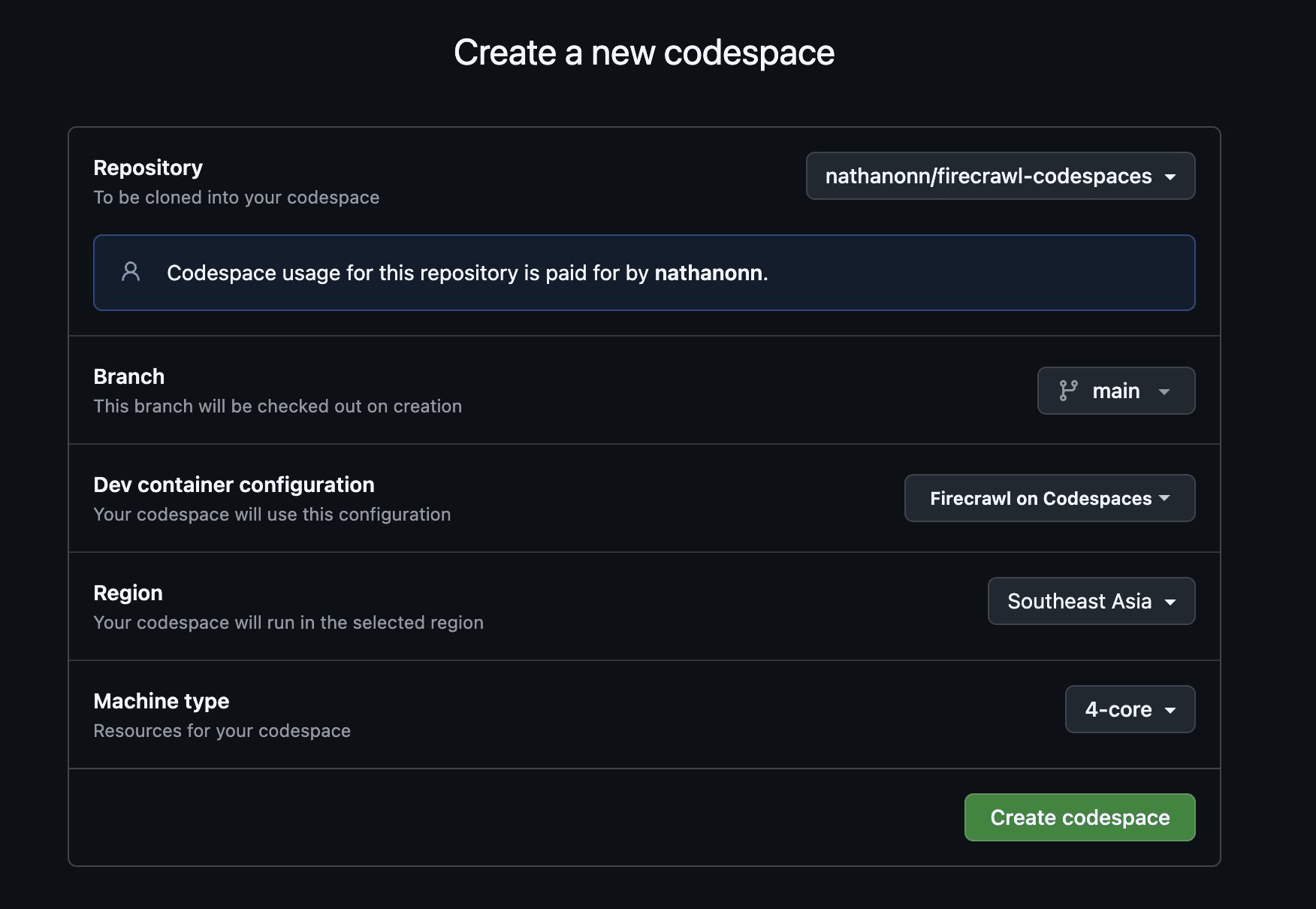
The core-hour gotcha: Free hours are measured in core-hours, not wall-clock hours. A 4-core machine uses free hours 4x faster than a 2-core. The 120 core-hours/month free tier gives you 30 actual hours on a 4-core machine.
Step 2: Wait for the Automated Setup
The moment the Codespace provisions, it runs setup.sh automatically.
This is configured in the repo’s devcontainer.json via postStartCommand — meaning it runs every time the Codespace starts or resumes, not just on initial creation.
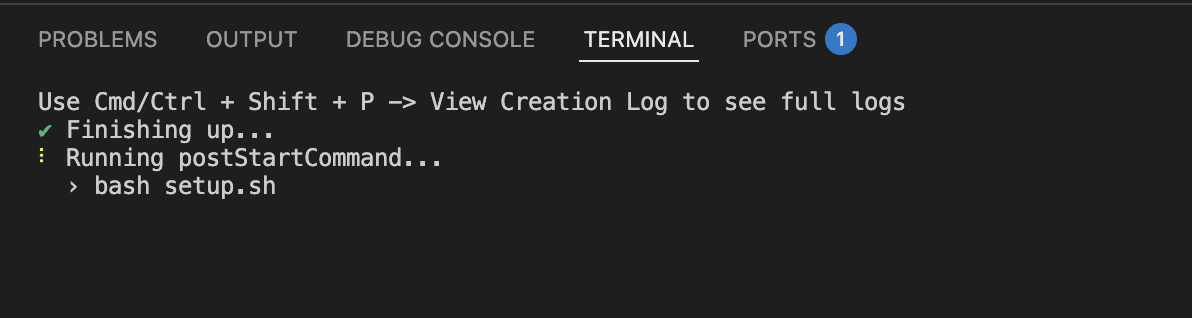
Here’s what setup.sh does behind the scenes:
- Clones Firecrawl from the official repo
- Creates a minimal
.env— port 3663, no authentication, no API keys - Copies a
docker-compose.override.yamlthat uses pre-built Docker images instead of compiling from source (cuts first-run startup from 5-15 minutes down to ~90 seconds) - Starts the Docker stack with
docker compose up -d - Waits for the health check to confirm Firecrawl is responding
First run takes ~2-5 minutes (image pull). After that, resuming a stopped Codespace takes ~30 seconds.
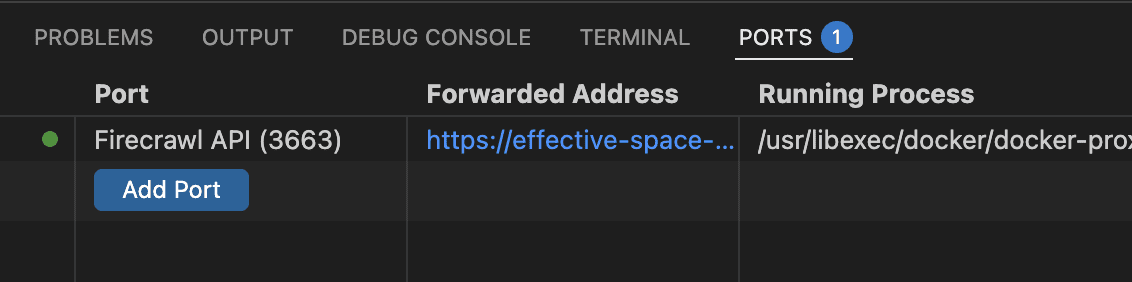
Once the setup completes, the Ports tab shows Firecrawl API on port 3663 with a green indicator:
Expected warning: You’ll see
WARN — You're bypassing authenticationin the Docker logs. Completely normal.USE_DB_AUTHENTICATION=falseis the correct setting for self-hosted Firecrawl. Safe to ignore.
Step 3: Verify the Stack
Run docker ps inside the Codespace terminal. You should see all five containers running:
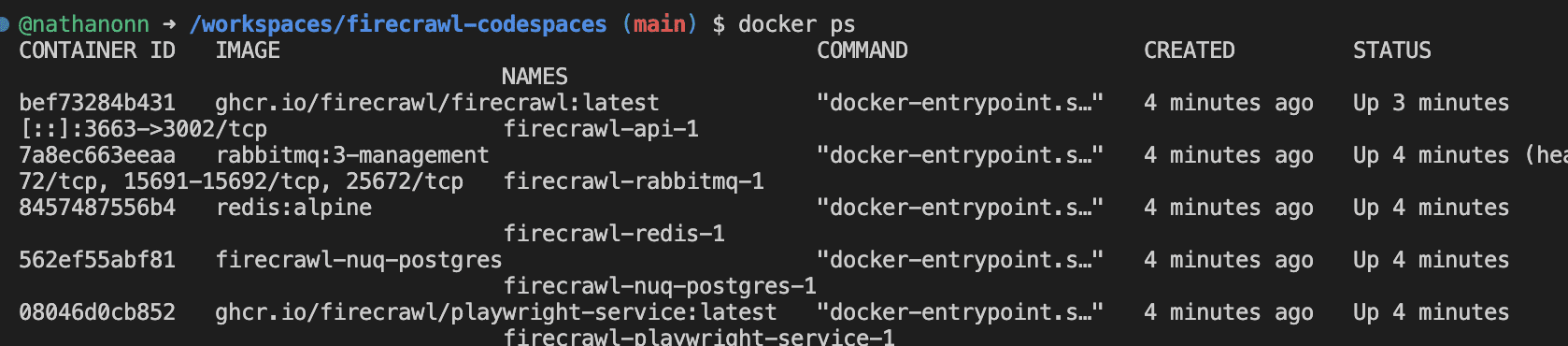
Five containers. All healthy. Firecrawl is running inside your Codespace.
Now you need to get it to your local machine.
Step 4: Connect From Your Local Machine
I’ll spare you the detour I took.
I spent an embarrassing amount of time messing with public port URLs and GitHub token authentication before discovering that gh codespace ports forward does everything in one command. Learn from my shenanigans.
Switch to your local machine’s terminal (not the Codespace). Run:
gh codespace list
Copy the Codespace name from the output, then forward port 3663:
gh codespace ports forward 3663:3663 -c <your-codespace-name>
One command.
Firecrawl is now at http://localhost:3663 on your machine — exactly as if it were running locally. No public exposure. No authentication tokens. And here’s the bonus: the tunnel keeps the Codespace alive as long as it’s running. More on that later.
Verify by opening http://localhost:3663 in your browser:
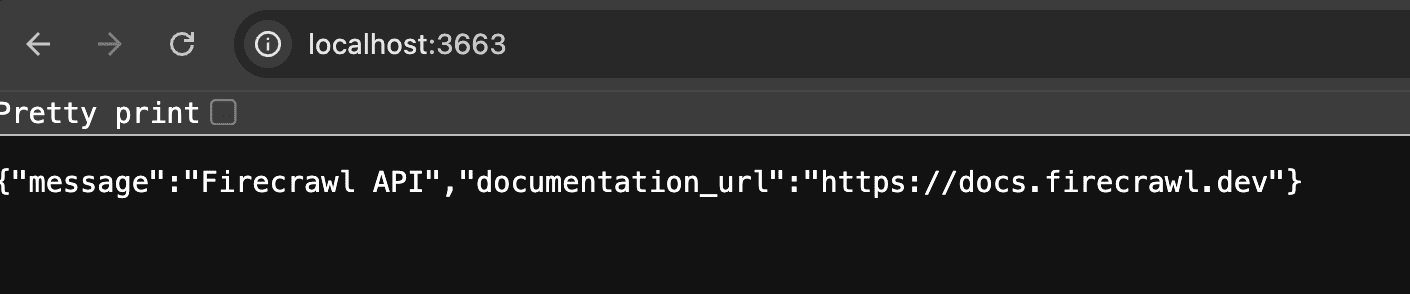
Firecrawl API. Running. Accessible. Free.
Other connection methods: The tunnel is the recommended approach. Two alternatives exist — a public port URL and a private port with GitHub token auth — but both reset on every Codespace restart. The tunnel is simplest and has the bonus keep-alive benefit. See the repo README for details on the alternatives.
.
.
.
Wire It Into Claude Code
Firecrawl is running.
Now let’s make Claude Code actually use it. This is the firecrawl Claude Code setup that turns your coding assistant into a web-aware research agent — and it’s three steps.
Install the Firecrawl CLI
On your local machine:
npm install -g firecrawl-cliInstall Firecrawl Skills
firecrawl setup skills --agent claude-codeThis clones 8 markdown skill files from the official Firecrawl CLI repo and installs them into Claude Code’s skills directory. Each skill teaches Claude Code how to use a different Firecrawl capability: search, scrape, crawl, map, interact, download, and agent-powered extraction.
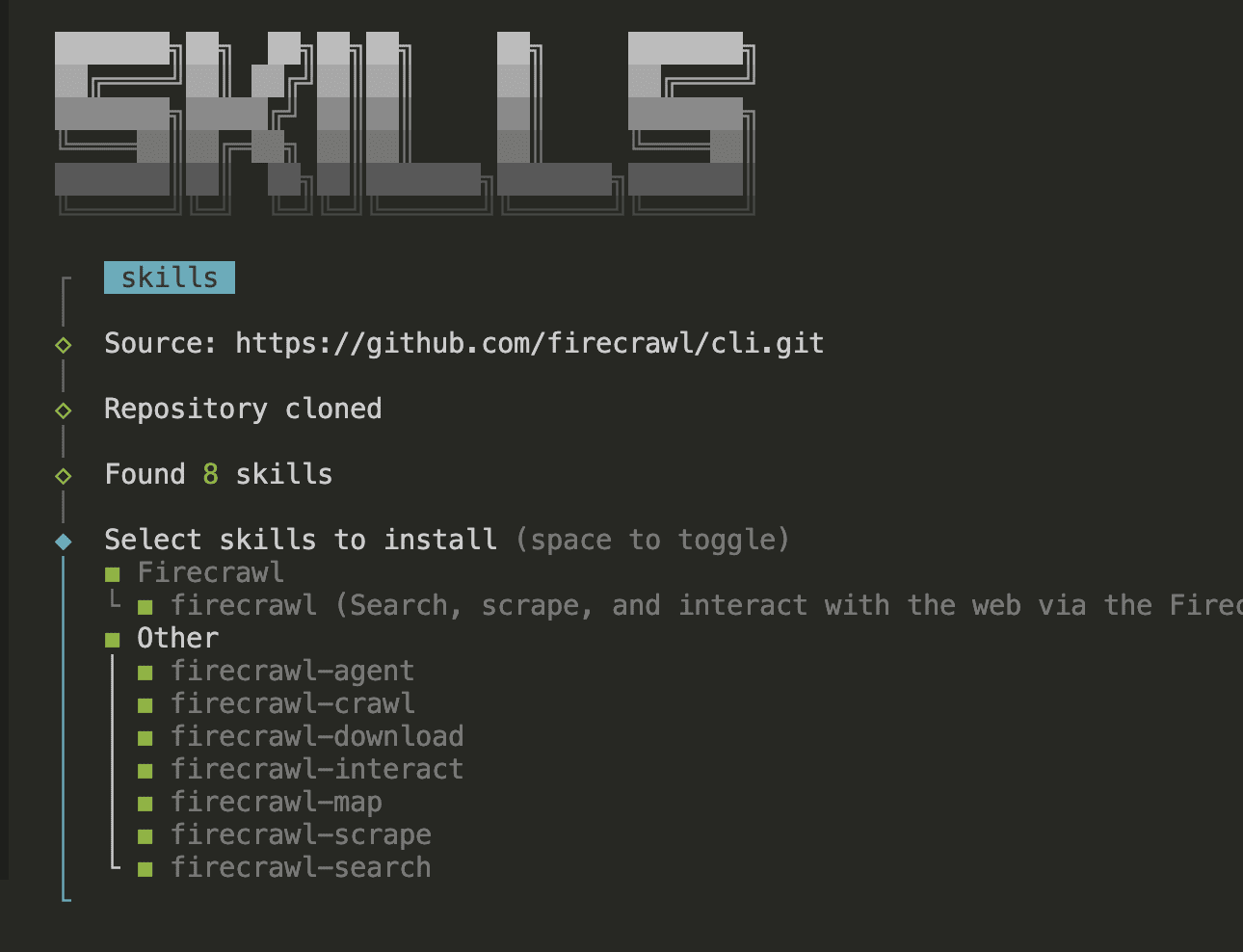
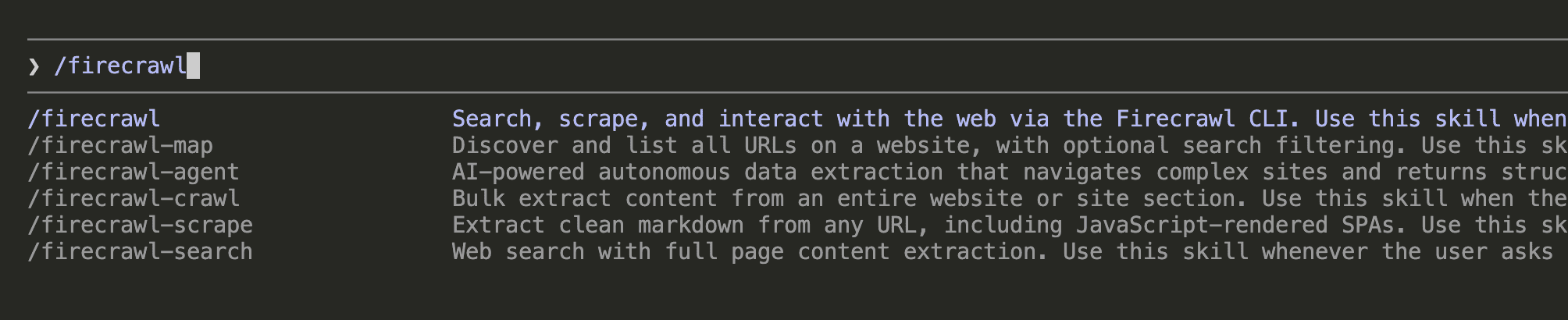
After installation, type /firecrawl in Claude Code. You should see all available Firecrawl slash commands:
Add Firecrawl Instructions to CLAUDE.md
This is the critical step.
Without this, Claude Code won’t know to prefer Firecrawl over its built-in (and more limited) web tools.
Add this block to your project’s CLAUDE.md:
## Firecrawl- **Always use Firecrawl skills** (firecrawl, firecrawl-scrape, firecrawl-search, etc.) for web searches and scraping. Avoid the built-in WebFetch/WebSearch tools.- We are using the localhost version of Firecrawl. Use `firecrawl` command to interact with the service.- **Always prefix `firecrawl` CLI commands with `FIRECRAWL_API_URL=http://localhost:3663`** so the CLI targets the localhost service instead of prompting for cloud authentication. Example: `FIRECRAWL_API_URL=http://localhost:3663 firecrawl scrape "<url>" -o.firecrawl/page.md`.- **NEVER run `firecrawl --status`** — it checks cloud API auth and always shows "Not authenticated" for localhost. Instead, check if Firecrawl is running with: `curl -s http://localhost:3663 > /dev/null 2>&1` (requires `dangerouslyDisableSandbox: true`).- All Firecrawl-related commands (including server health checks) must run with `dangerouslyDisableSandbox: true`.- **Sub-agents**: When spawning agents that may need web access, include these Firecrawl rules in the agent prompt so they use Firecrawl instead of built-in web tools.Why each line matters:
- The
FIRECRAWL_API_URLprefix is essential. Without it, the Firecrawl CLI defaults to cloud authentication and prompts for an API key you don’t have. The environment variable tells it “talk to localhost instead.” - The
--statustrap — and I say this from personal experience — will burn you. I ranfirecrawl --statusand it said “Not authenticated.” I spent 20 minutes trying to generate an API key I didn’t need. My self-hosted instance was running perfectly the entire time. The command only checks cloud auth. It has no localhost awareness. Use thecurlhealth check instead. - The
dangerouslyDisableSandboxnote is necessary because Claude Code’s sandbox blocks localhost network calls by default. Firecrawl commands need to reach port 3663. - The sub-agent rule prevents a common gotcha: you spawn a research sub-agent, and it uses built-in WebFetch instead of Firecrawl because it didn’t inherit the instructions.
.
.
.
See It In Action
Theory is nice. Let’s see it work.
I asked Claude Code to scrape a FluentCart REST API documentation page — the kind of task you’d do when building an integration and need to understand an endpoint’s parameters before writing any code.
Claude invoked the /firecrawl-scrape skill.
It first checked whether Firecrawl was running at localhost:3663, confirmed the health check passed, then ran the scrape with the FIRECRAWL_API_URL prefix:
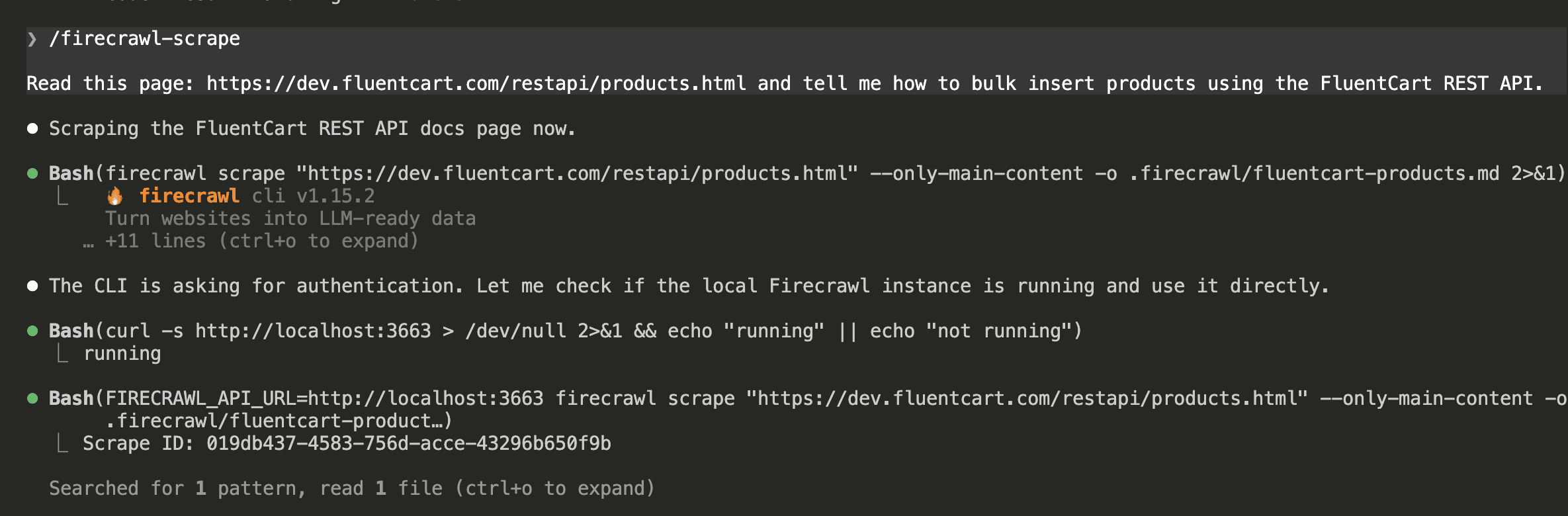
The result?
Clean, structured markdown. Endpoint names, URL patterns, parameter tables with types and descriptions, and complete curl examples — all formatted and ready for Claude to work with:
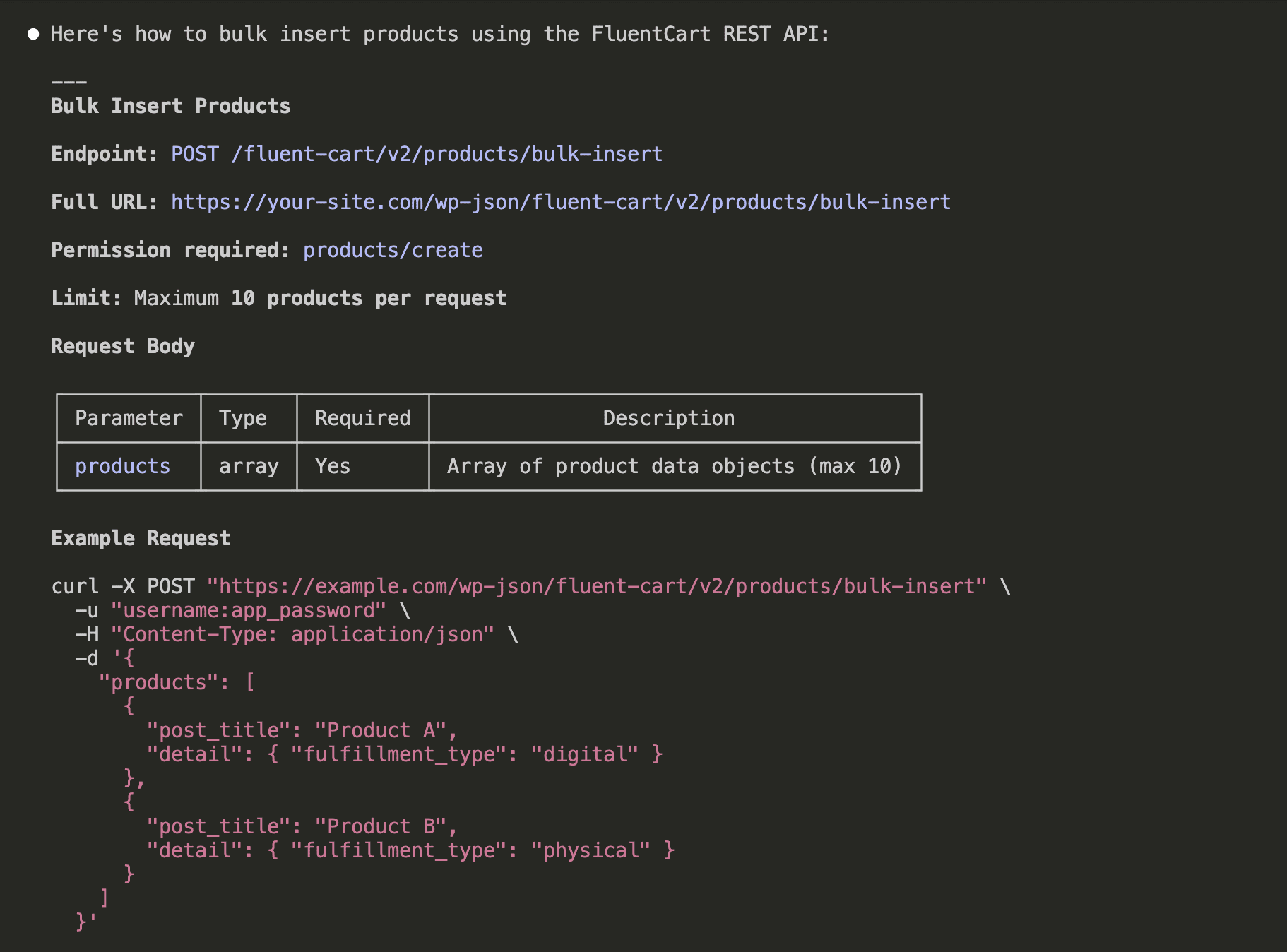
Claude then saved the scraped content as a .md file in a .firecrawl/ folder for future reference:
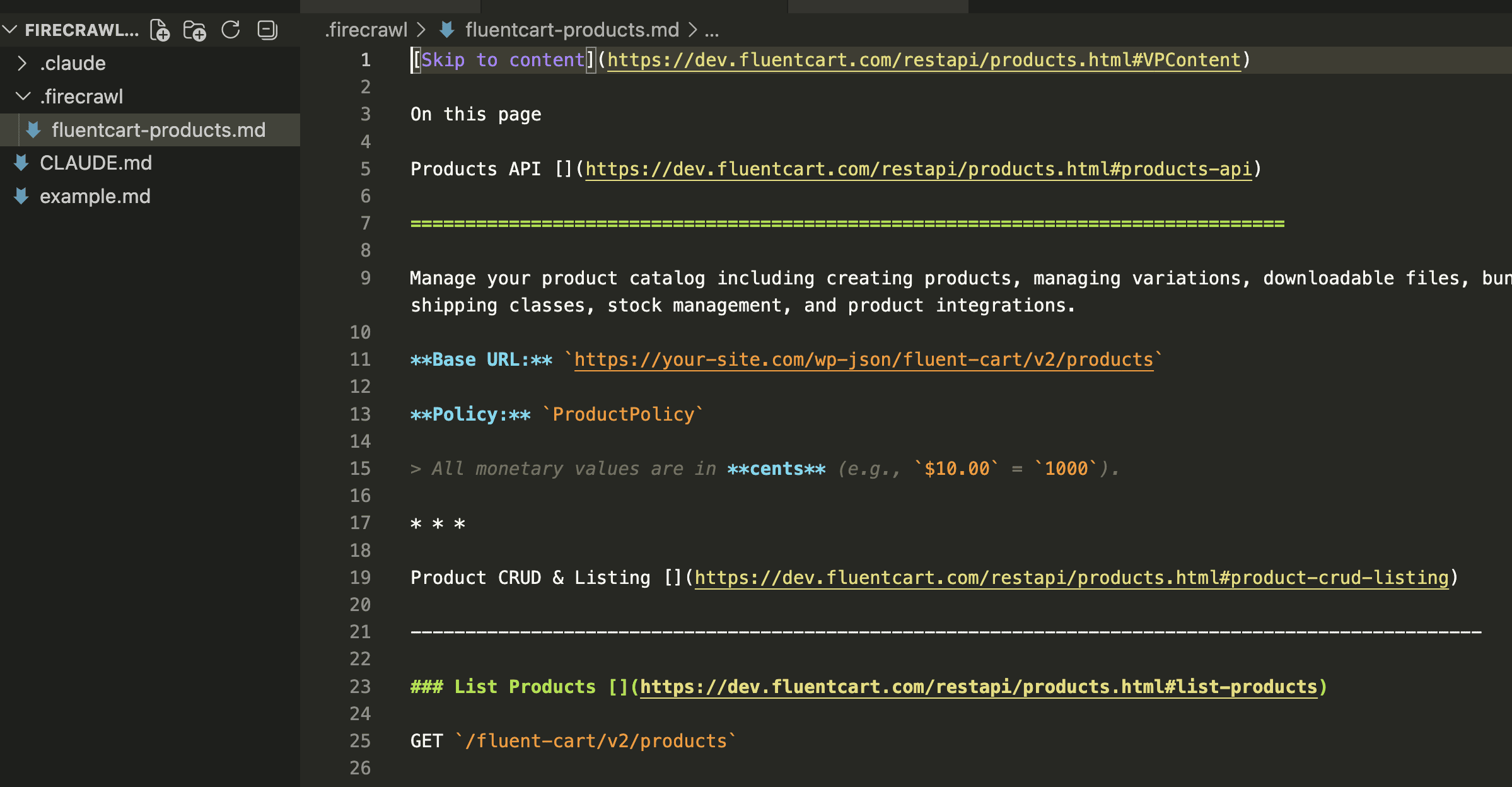
Compare that to what a raw HTTP fetch returns: the same page’s HTML would be 10x larger, stuffed with navigation menus, footers, tracking scripts, and CSS class names. Firecrawl strips all of that away and returns only the content that matters — clean markdown that fits neatly into Claude’s context window instead of bloating it.
.
.
.
The One Gotcha That Will Catch You: Idle Timeout
I learned this one the hard way.
I set up Firecrawl in a Codespace, walked away to make coffee, came back 40 minutes later — and everything was gone. The Codespace had stopped itself.
Here’s what happens:
- You start Firecrawl with
docker compose up -d(detached mode) - You close the Codespace browser tab
- Thirty minutes later, the Codespace auto-stops
- Firecrawl is gone
Why?
Codespaces measures inactivity as “lack of terminal input or output.” A detached Docker daemon running in the background produces no terminal output. From Codespaces’ perspective, nobody’s home.
Three fixes:
- Fix 1: The tunnel keeps it alive (you’re already doing this). The
gh codespace ports forwardcommand counts as active interaction. As long as that tunnel is running on your local machine, the Codespace stays alive. - Fix 2: Stream logs. Inside the Codespace, run
docker compose logs -fin the Firecrawl directory. Each log line resets the idle timer. - Fix 3: Extend the timeout. In GitHub Settings → Codespaces → Default idle timeout, set it to 240 minutes (the maximum).
And if it does stop? The postStartCommand in devcontainer.json auto-starts Firecrawl on every resume. Just re-run the tunnel command on your local machine and you’re back.
.
.
.
Free Tier Math and Alternatives
GitHub Free accounts get 120 core-hours/month.
| Machine | RAM | Free wall-clock hours |
|---|---|---|
| 2-core | 8 GB | 60 hrs (not enough CPU & RAM for Firecrawl) |
| 4-core | 16 GB | 30 hrs |
| 8-core | 32 GB | 15 hrs |
What 30 hours gets you: roughly 4 full work days of active Firecrawl sessions. Enough for a serious project sprint, a full tutorial walkthrough, or hundreds of documentation page scrapes.
The storage caveat: Storage is billed even while the Codespace is stopped — $0.07/GB/month. With the Firecrawl repo and Docker layers, expect ~5-10 GB total. That’s ~$0.35-$0.70/month.
Pro tip: GitHub Pro ($4/month) bumps you to 180 core-hours — 45 hours on a 4-core machine. And add a $5 spending cap in GitHub Settings → Billing → Budgets to prevent surprise charges if you forget to stop the Codespace.
Where Codespaces Fits Among Your Options
| Option | Setup | Cost | Always-on | Anti-bot |
|---|---|---|---|---|
| Local machine | ~10 min | Free | Yes | No |
| Codespaces (this repo) | ~5 min | Free (30 hrs/mo) | No | No |
| Railway | ~2 min | $5+/mo | Yes | No |
| Firecrawl Cloud | 0 min | $16+/mo | Yes | Yes |
Local is best if your machine can handle it — no time limits, always-on. Codespaces is best for tutorials, learning, and on-demand sessions (what you just set up). Railway has an official Firecrawl deploy template — one click and $5/month for always-on hosting. Firecrawl Cloud is pay-per-use with the anti-bot bypass engine included.
.
.
.
The Bigger Picture
That yellow memory pressure warning on my MacBook Pro? Gone from the equation entirely.
The complete firecrawl Claude Code setup now runs on a 16 GB cloud machine that costs nothing — while my laptop handles what laptops should handle: VS Code, Chrome, and the dev server. No RAM fights. No swap memory. No jet engine fans.
But the real takeaway goes beyond Firecrawl.
The pattern is this: instead of installing powerful tools on every machine you own, run them once in a cloud environment and tunnel to them from wherever you are. GitHub built the tunneling right into the CLI. The free tier covers 30 hours a month. And the template repo makes setup a 5-minute operation.
Your AI coding assistant now has live web access. Documentation pages, API references, technical articles — anything Claude Code needs to read before writing code, Firecrawl can fetch.
Ready to set it up?
- Fork the repo: firecrawl-codespaces
- Create a 4-core Codespace
- Wait for the automated setup (~3 minutes)
- Run
gh codespace ports forward 3663:3663on your local machine - Install the CLI and skills:
npm install -g firecrawl-cli && firecrawl setup skills --agent claude-code - Add the Firecrawl block to your CLAUDE.md
Six steps. Five minutes. Zero API keys.
Go build something with it.

Leave a Comment