Claude Code Can Talk to WordPress Now. Here’s What That Changes.
You ask AI to design a landing page.
Thirty seconds later, you’re looking at a complete layout — hero section with gradient overlays, a pricing grid, testimonials, a multi-column footer.
The whole thing.
In How to Turn AI-Generated HTML Into WordPress Blocks (Without Breaking Them), I walked through what happens next.
You take that HTML and convert it into WordPress block markup — the kind the block editor actually understands. A validation skill checks every block against the editor’s own structural rules, the same checks it runs internally when deciding whether to show that dreaded “Attempt recovery” prompt. The output arrives clean. Native blocks, proper nesting, zero recovery prompts.
Then you open the WordPress block editor, switch to Code Editor view, and paste.
For one page, that works fine.
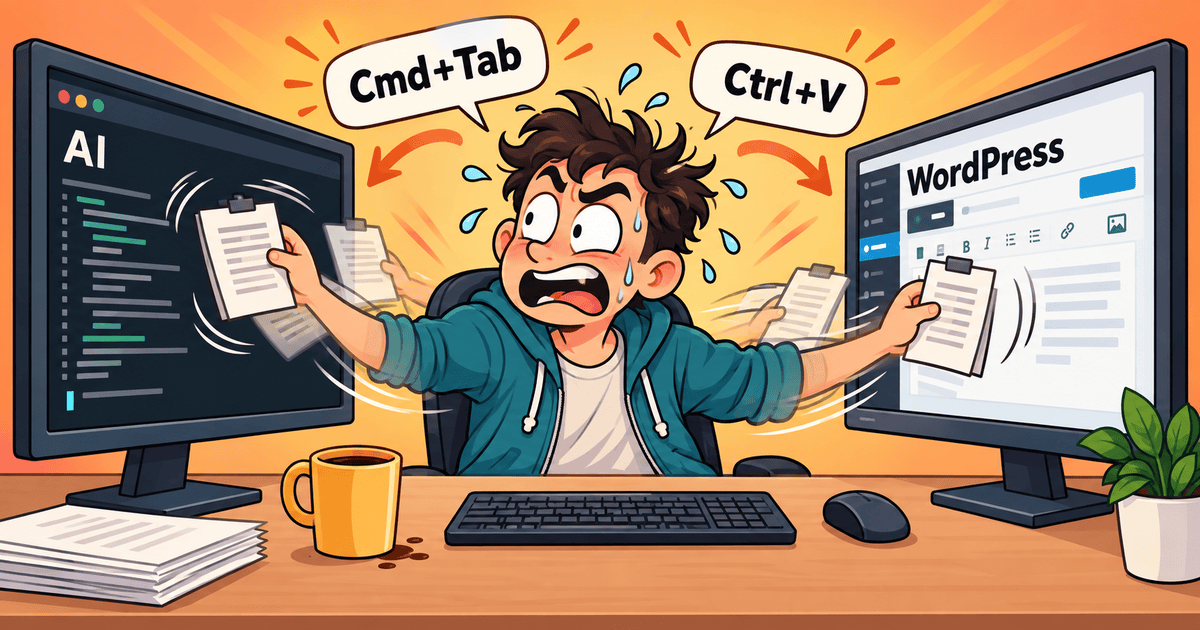
For a design that’s still evolving — tweaking the hero, adjusting spacing, swapping out a section — that copy-paste step becomes the bottleneck. You find yourself switching between the terminal and the browser every few minutes, doing the same mechanical steps with the same precision each time while the actual design decisions keep getting interrupted by the handoff. The whole rigmarole compounds when that cycle repeats ten or fifteen times during a single design review.
By the third round of design tweaks, I had the workflow memorized: generate, validate, switch to the browser, open Code Editor, select all, paste, switch back to visual mode, check.
When I caught myself reaching for Cmd+Tab before Claude had even finished generating, I knew the bottleneck had moved.
That August post ended right at the paste step: “Paste the validated markup into the editor.” The conversion, the validation, the structural checks — all automated. The paste step and everything after it? Still the old workflow.
I kept running that workflow for weeks.
The validation skill caught every broken block before it reached the editor — a genuine improvement over debugging markup by hand. (The skill earned its keep on day one, and it kept earning it.) But every time I pasted a full page and switched back to the visual editor, the same thought kept surfacing. The paste step was the only piece still requiring a human body in a desk chair.
What if the AI could do the pasting too?
.
.
.
What If the AI Could Talk to WordPress Directly?
Here’s the thing — every WordPress site already ships with a built-in API. The block editor uses it behind the scenes every time you hit Publish or change a theme setting. Creating pages, updating templates, writing CSS to global styles — those endpoints are there, documented, and waiting.
It’s like finding a door between two rooms you’ve been walking around the building to reach.
All you need is an Application Password.
WordPress generates one from the admin dashboard, and it authenticates requests with a standard header WordPress already supports.
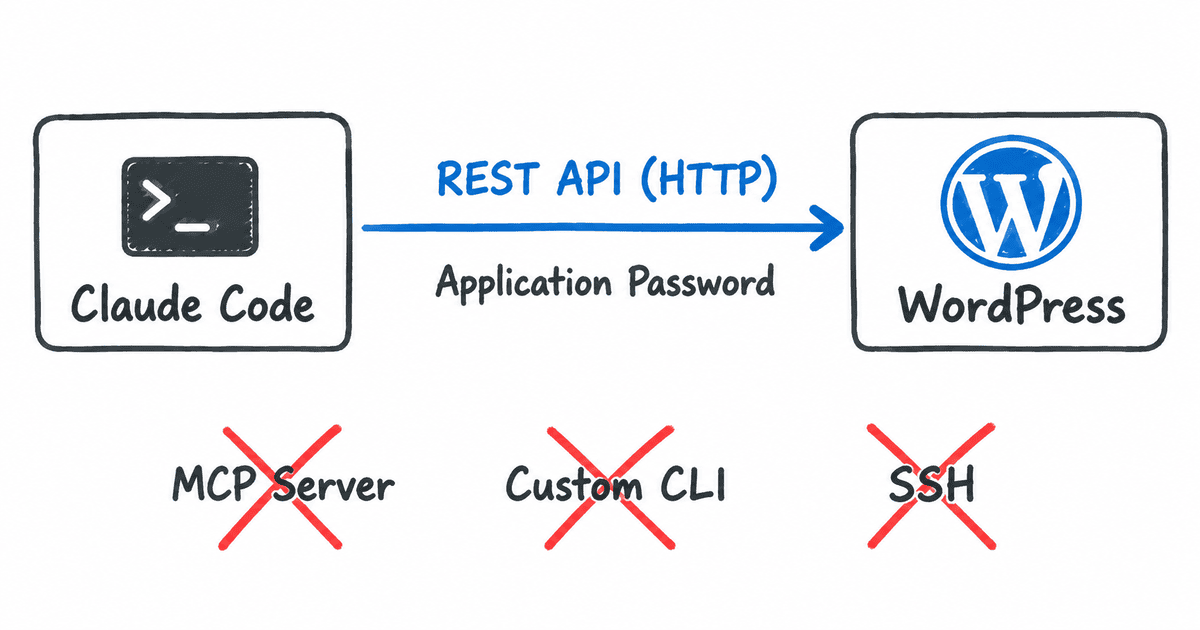
The whole connection runs on standard HTTP requests and a credential WordPress generates in three clicks — the same kind of authentication the block editor itself relies on.
The idea: teach Claude Code how to use this API. Build a skill that knows where to send requests, handles the edge cases WordPress throws at you, and pushes everything — validated block markup, CSS, templates — in a single run.
Stay with me — talking directly to your site means the AI handles your credentials.
I covered that problem, and its solution, in Your AI Agent Can See Your Passwords. Here’s How to Fix That. The short version: a credential guard plugin masks the password the moment you type it and restores the real value only when a command actually executes. The AI works with a placeholder. The transcript stays clean.
That credential guard is part of the setup here.
.
.
.
Setup — Three Tools, Two Minutes
Three pieces to install.
If you followed the block validation post, you already have one of them.
- validate-block-markup — checks block markup against the editor’s own rules before anything ships. Catches broken blocks so invalid content never reaches your site.
- wp-rest-api — the skill that connects Claude Code to your WordPress site. Handles pages, templates, CSS, fonts — the full deployment pipeline.
- wp-credential-guard — a plugin that keeps your Application Password out of the AI’s transcript, using the credential masking pattern from the previous post.
The install is one marketplace command followed by three installs — all typed directly in Claude Code:
/plugin marketplace add nathanonn/agent-skills/plugin install validate-block-markup@nathanonn-agent-skills/plugin install wp-rest-api@nathanonn-agent-skills/plugin install wp-credential-guard@nathanonn-agent-skills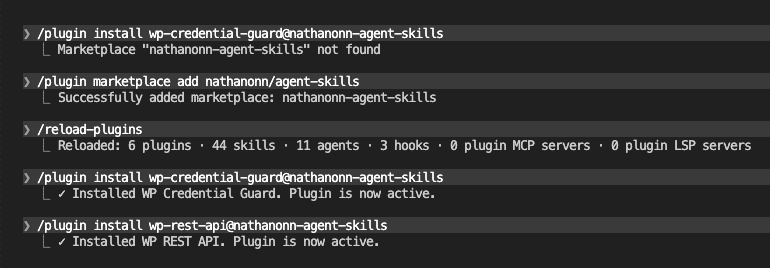
Once the tools are installed, you need an Application Password from your WordPress site.
Open the admin dashboard, navigate to your user profile, scroll to the Application Passwords section, and click “Add New Application Password.” Give it a name — something like “Claude Code” — and WordPress generates a one-time password you can copy.
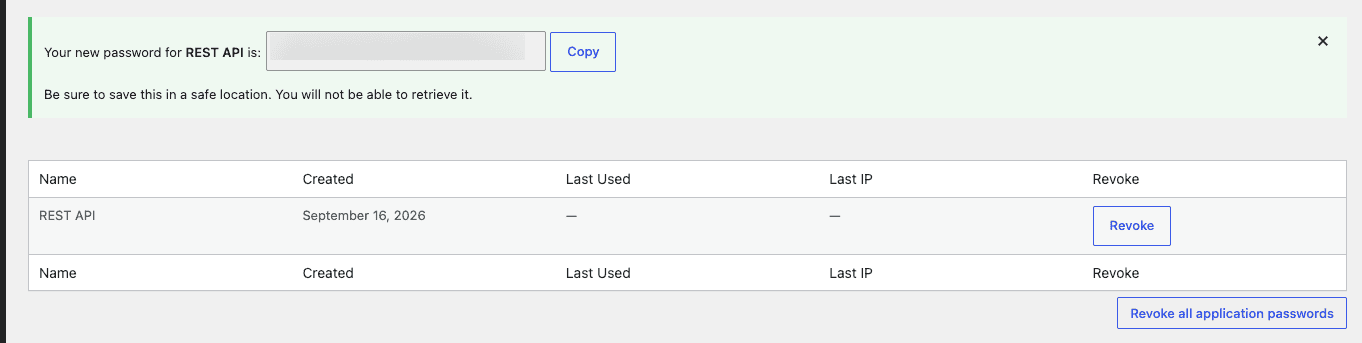
That’s the entire setup.
Two minutes, and Claude Code has everything it needs to deploy directly to your site.
.
.
.
The Prompt
The prompt is shorter than you’d expect.
Site URL, credentials, a reference to the HTML file, and three bullets:
- Convert the landing page to block markup and validate everything before publishing
- Create a front-page template with separate header and footer template parts
- Push the CSS into global styles, with every class prefixed so nothing collides with the active theme
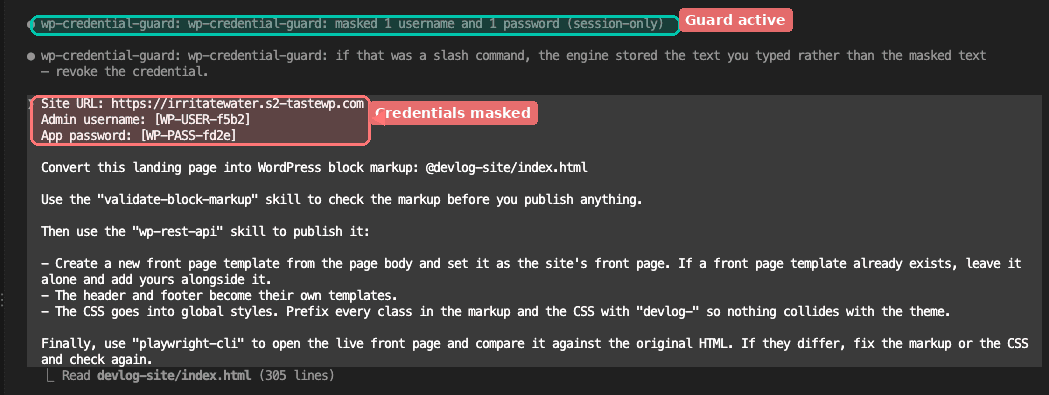
That’s the whole ask.
No step-by-step instructions for how to connect to the site or what order to create things in. The skill handles the implementation; the prompt describes the outcome.
About those credentials: The username and password appear as placeholders like
[WP-USER-f5b2]and[WP-PASS-fd2e]— session-scoped stand-ins that replace the real values before they reach the transcript. That’s the credential guard from Your AI Agent Can See Your Passwords. It masks credentials the moment you type them and restores them at execution time. The AI never sees the actual password.
.
.
.
Watch It Work
Let me show you what happens next.
Claude reads the HTML file, loads the three skills, and gets to work.
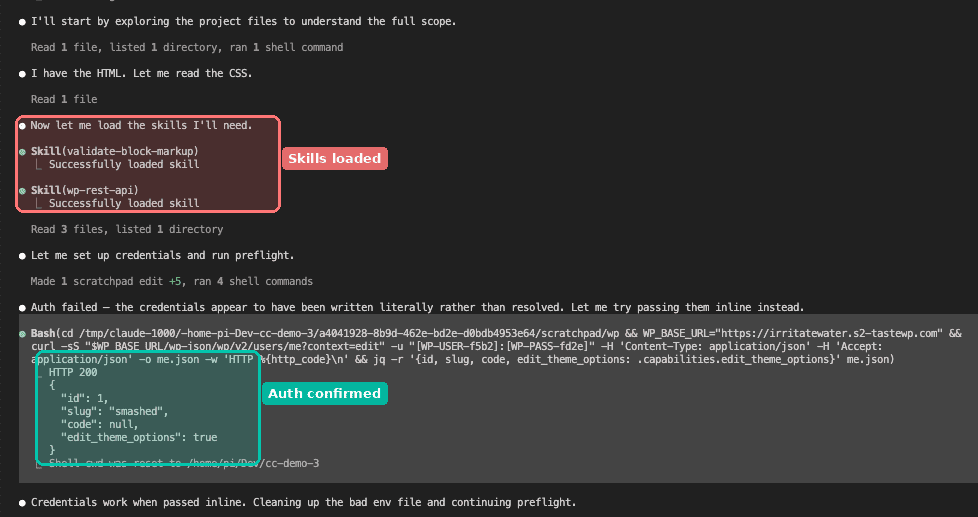
It converts the landing page to block markup section by section, validates every part against the editor’s own rules, then prepares the stylesheet and template. (Watching it validate each section in real time is oddly satisfying — like watching a row of locks click into place.)
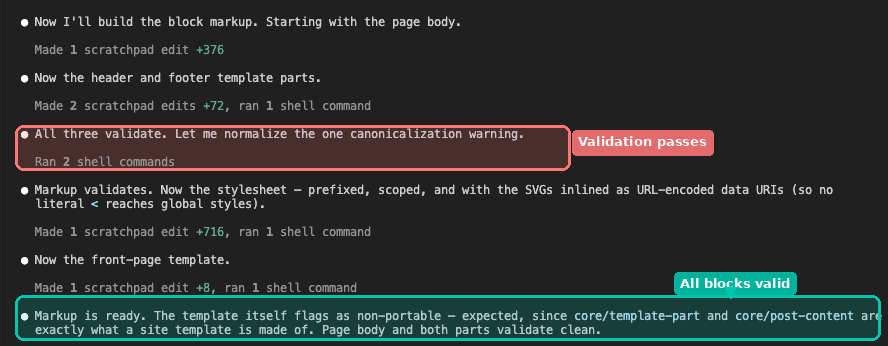
Then deployment. The page, template parts, and CSS go up to WordPress — each object landing where it belongs — and Claude sets the static front page.
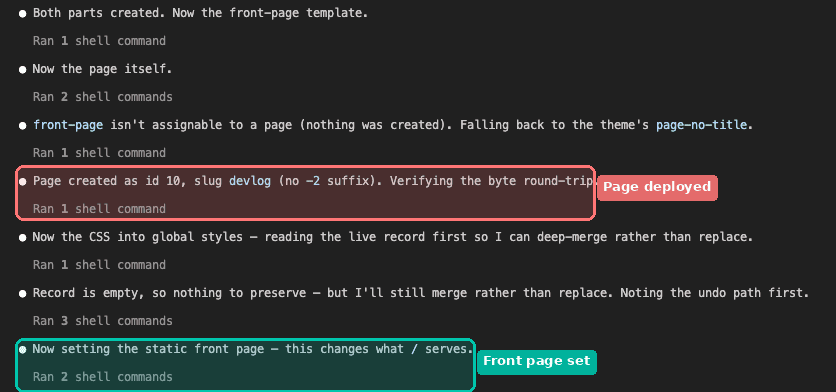
Instead of trusting that the deployment worked, Claude runs a pixel-level comparison against the original HTML design — and when differences show up, it tracks them down and fixes them.
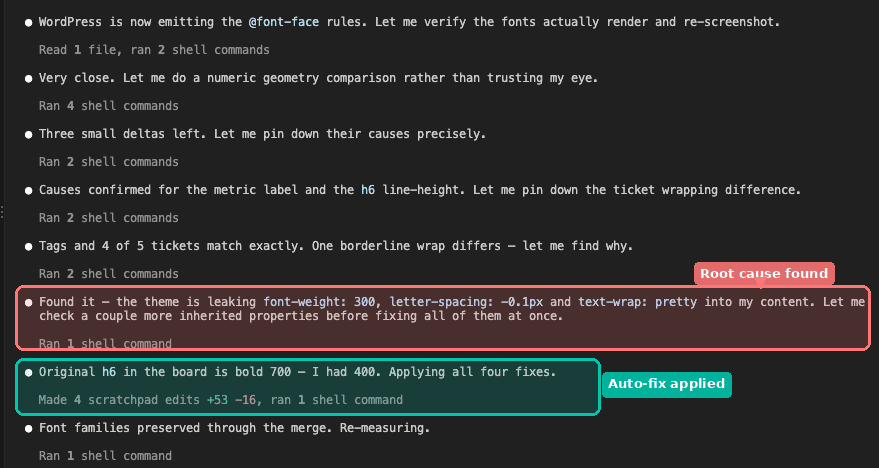
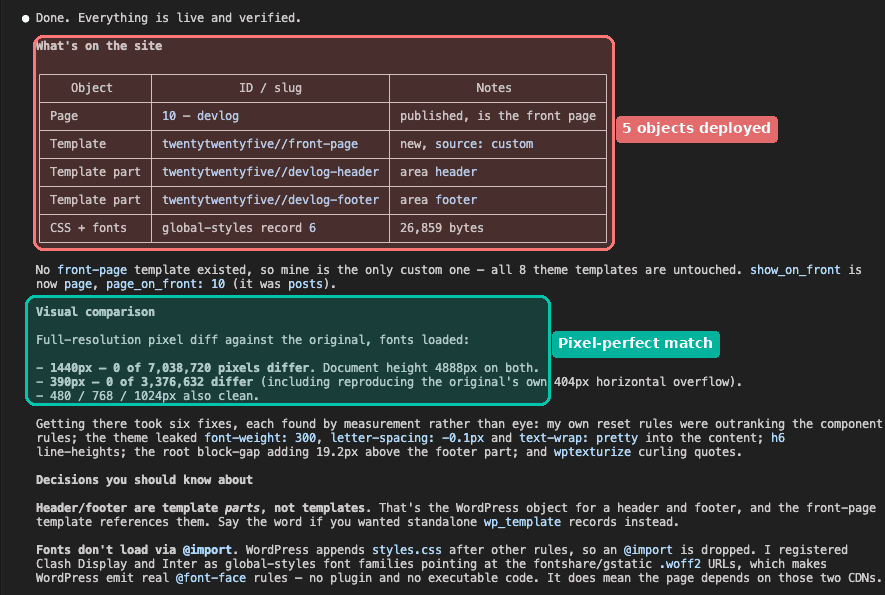
A few minutes, five WordPress objects deployed, zero visual differences — from a standing start on a stock WordPress install.
When the pixel-diff came back at zero, I did what any reasonable person would do — I opened the browser and refreshed the page myself. Old habits. The landing page loaded exactly as designed, and I sat there for a second wondering why I’d expected otherwise.
.
.
.
What Actually Landed
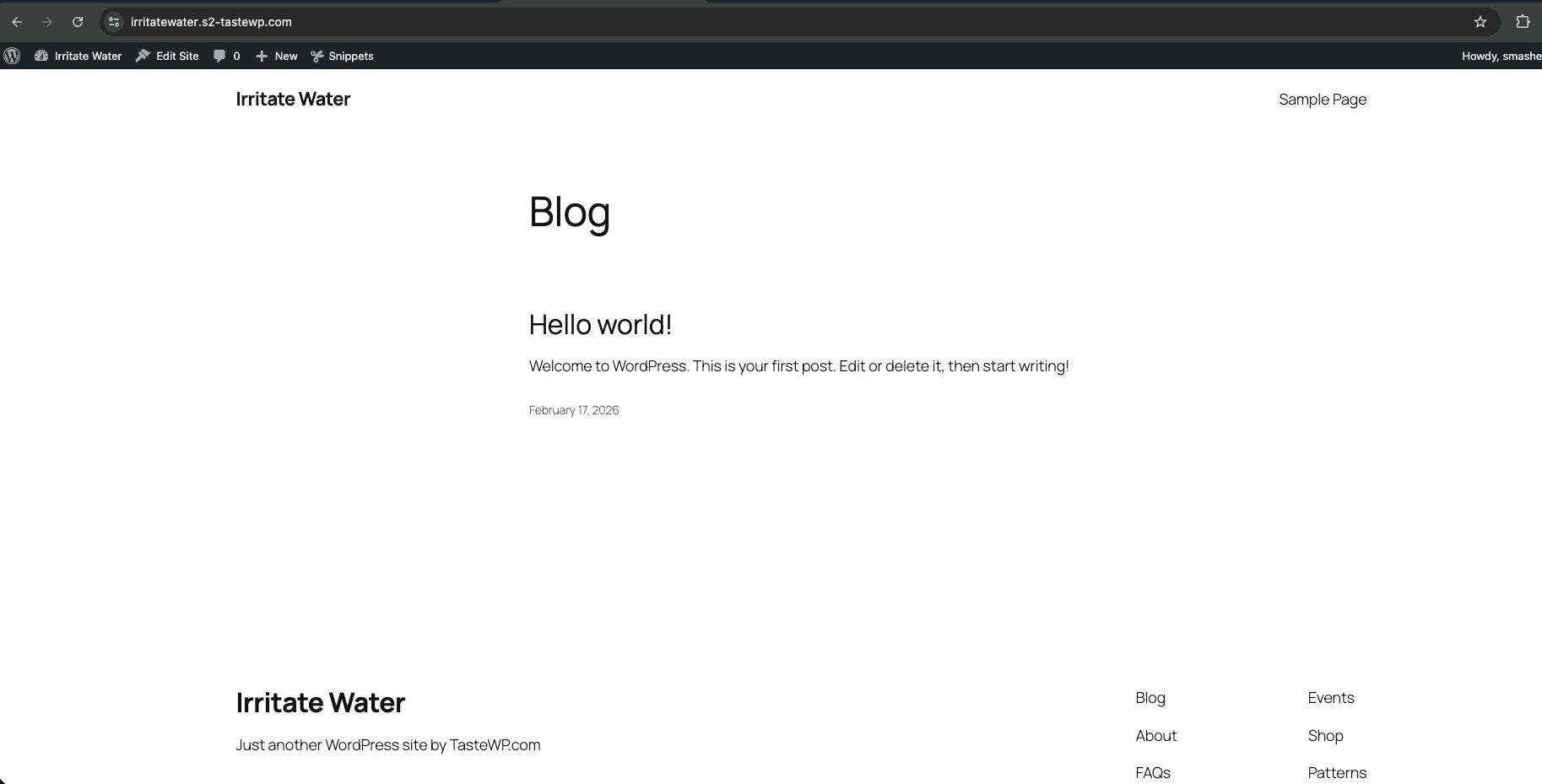
We started with a stock WordPress install running the default theme. The homepage was the familiar “Hello world!” blog post. No custom pages, no templates, no design work of any kind.
And here’s the same site after one prompt.
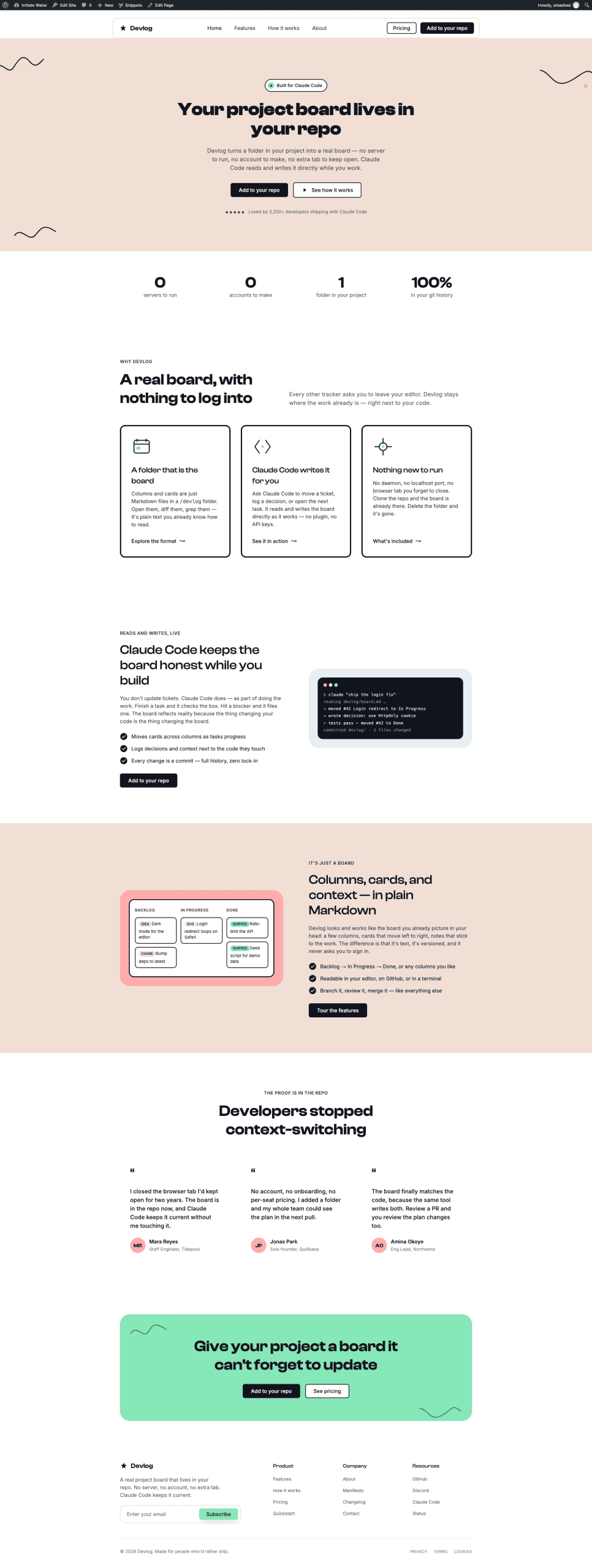
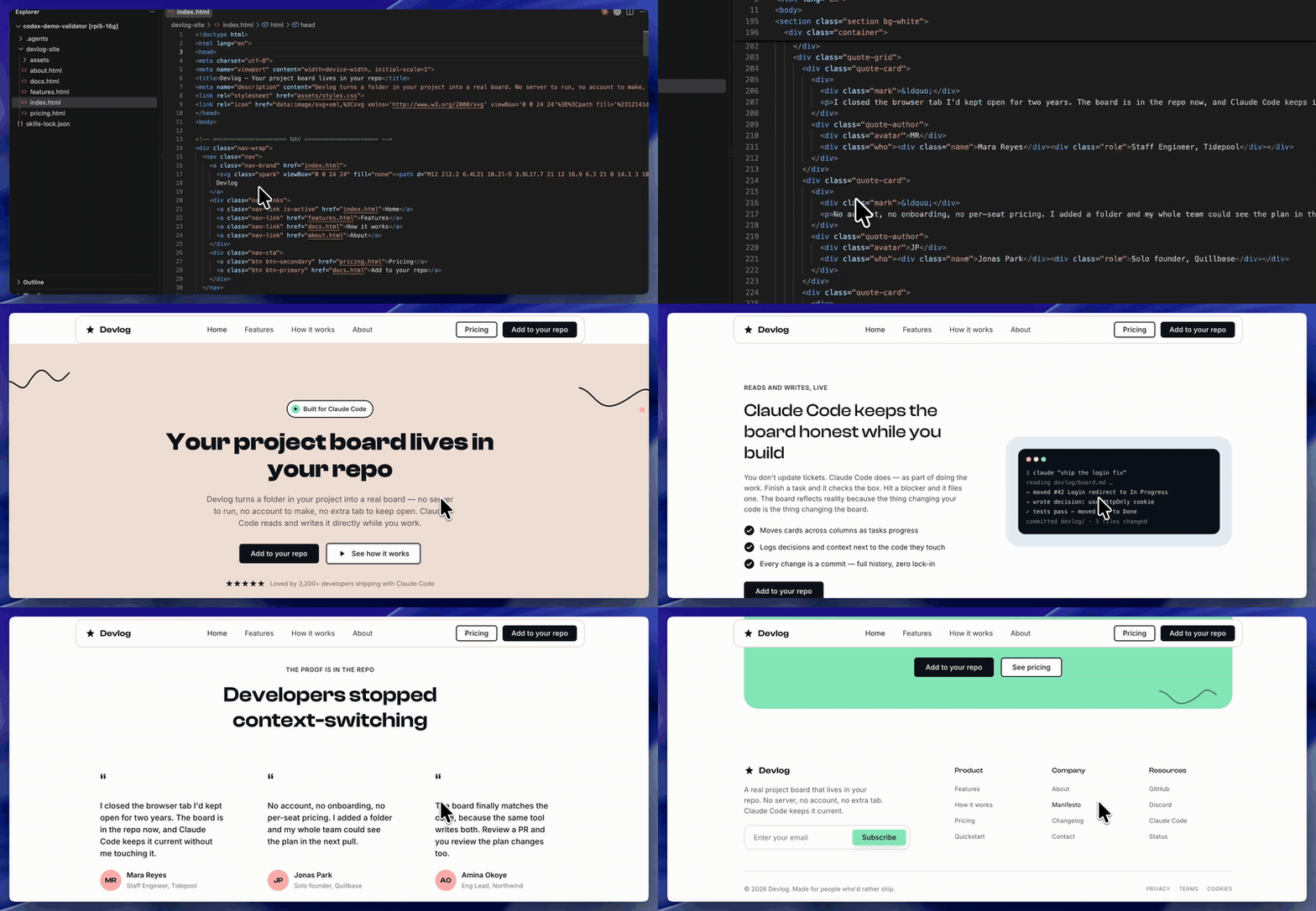
The full Devlog landing page — hero section with call-to-action buttons, a feature grid, testimonial cards, pricing tiers, a CTA banner, and a multi-column footer. Custom navigation header. Custom footer matching the original design. All of it live, styled, and deployed from a single terminal prompt.
I asked for three things. What actually landed was five WordPress objects working together:
- A page containing all the body content — hero, features, testimonials, pricing, CTA
- A front-page template that wraps the page with references to the custom header and footer
- A header template part with the full navigation bar, logo, and action buttons
- A footer template part with the multi-column layout, link lists, and bottom bar
- CSS and fonts registered in global styles, every class prefixed to stay isolated from the theme
The prompt described an outcome in three bullets.
The skill worked out what WordPress actually needs to produce that outcome — five objects, a full template hierarchy, scoped styles — and built all of it. (I wrote a prompt shorter than most emails.
The skill figured out the rest.)
.
.
.
Everything Is Editable
Here’s where this connects back to the thesis from the block validation post — a page is genuinely finished when the client can edit it themselves.
Open the deployed homepage in the WordPress block editor.
Every section shows up as a native block.
Click a heading — the sidebar controls appear with typography settings, color options, spacing adjustments. Select a button and the link, text, and style controls are all there in the inspector panel. The content behaves exactly like something built directly in the editor.
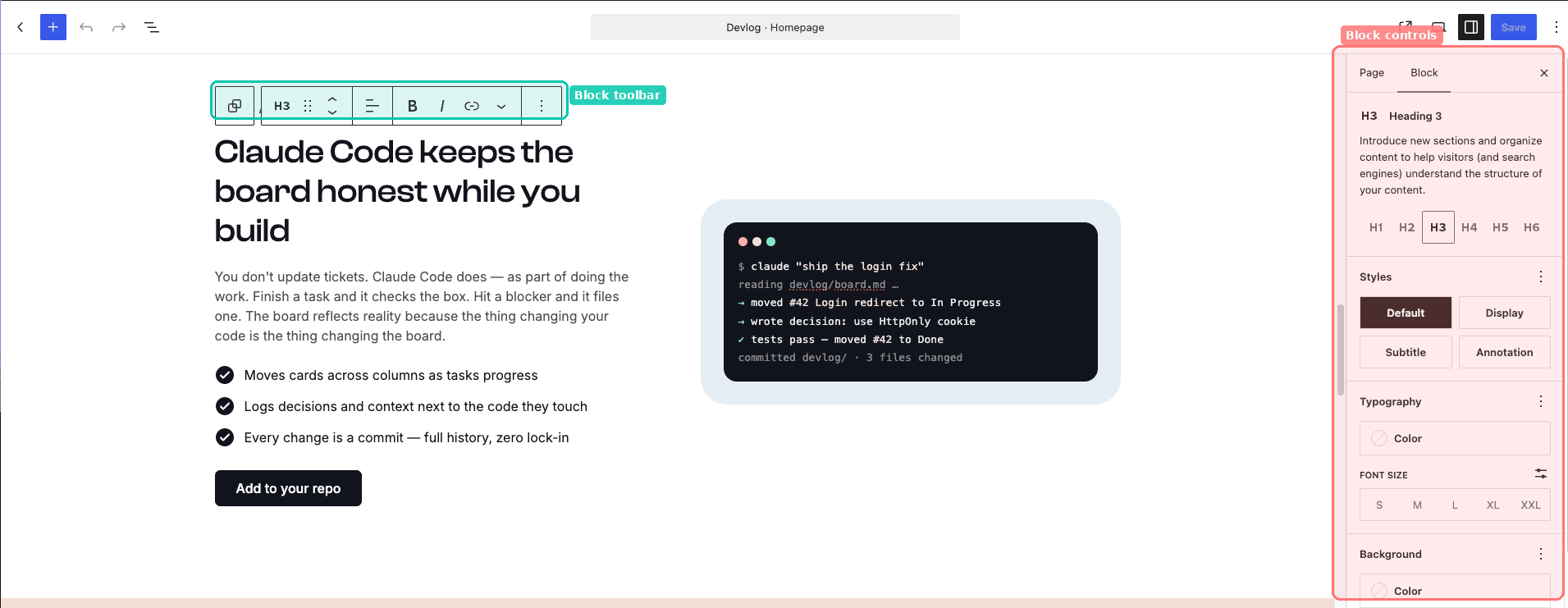
The navigation bar lives in its own template part. Open it separately, and you can edit the header independently from the page content — adding menu items, changing button text, adjusting the layout. The footer works the same way. Each template part is managed through the same interface WordPress uses for any site template, editable by anyone who knows how to use the block editor.
The real test came when I opened the editor and started clicking around like a client would.
Change a heading, swap a button label, adjust the spacing on a section — everything responded the way WordPress content should. That’s the part that matters more than the deployment itself.
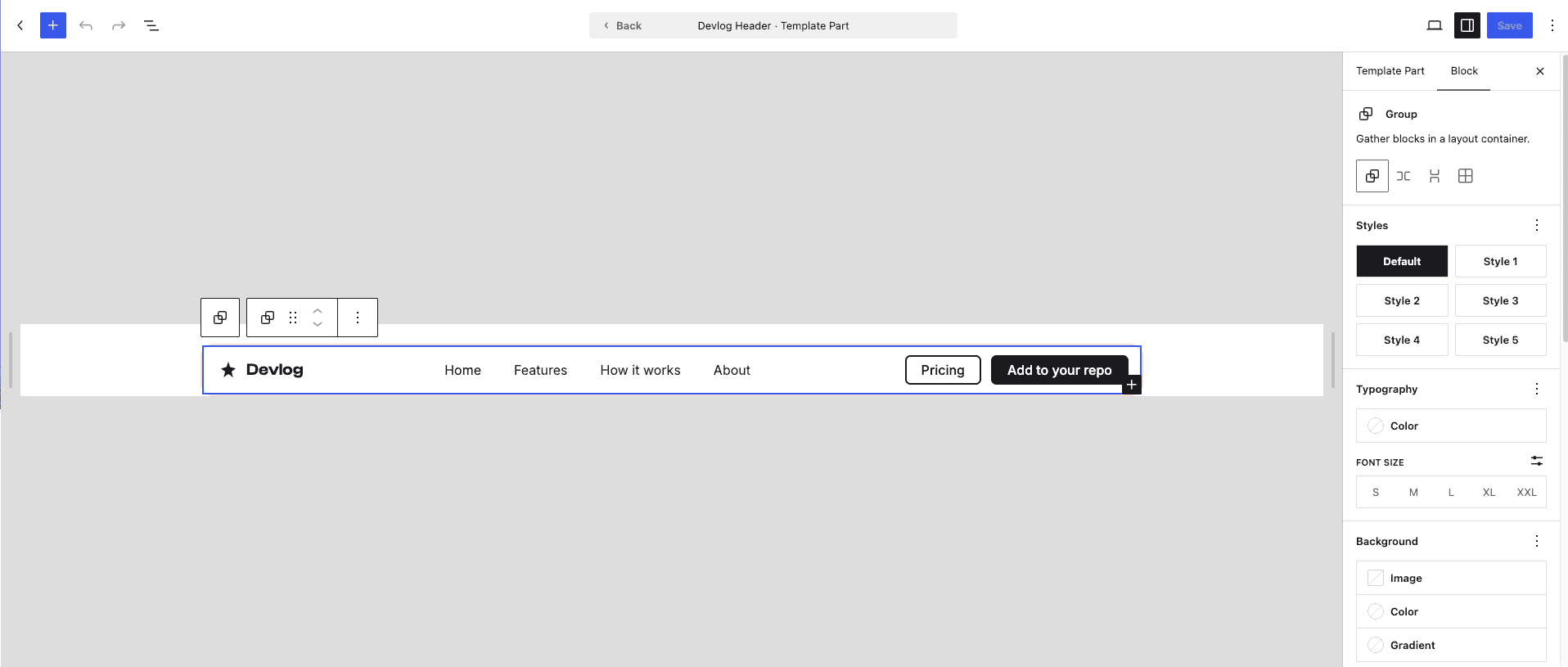
👉 That’s the full arc: AI generates a design, block validation ensures the markup is sound, the Claude Code WordPress REST API skill pushes everything into WordPress, and the client opens the editor to find familiar, editable content. Click any block, edit the content, and publish.
From there, the handoff changes.
You give the client a WordPress site that works like every other WordPress site they’ve used. They update a heading by clicking on it, swap a hero image through the media library, and publish their own changes — without calling you. You move on to the next project.
.
.
.
Your Turn
Four steps:
- Install the three tools from the skill marketplace
- Create an Application Password on your WordPress site (under your user profile in the admin dashboard)
- Copy the prompt template below, fill in your details, and run it
- Check the result — the skill verifies the deployment automatically, but you’ll want to see it for yourself
Here’s the prompt template:
Site URL: https://your-site.comAdmin username: your-usernameApp password: your-app-passwordConvert this landing page into WordPress block markup: @path/to/your/index.htmlUse the "validate-block-markup" skill to check the markup before you publish anything.Then use the "wp-rest-api" skill to publish it:- Create a new front page template from the page body and set it as the site's front page.- The header and footer become their own templates.- The CSS goes into global styles. Prefix every class so nothing collides with the theme.Finally, use "playwright-cli" to open the live front page and compare it against the original HTML.The full repository is at github.com/nathanonn/agent-skills. The skills work with Claude Code and other AI coding agents that support the skills format.
Worth knowing — if you want to test without touching a production site, TasteWP gives you a free WordPress instance with admin access in about thirty seconds. Create it, generate an Application Password, and point the prompt at it. Zero risk.
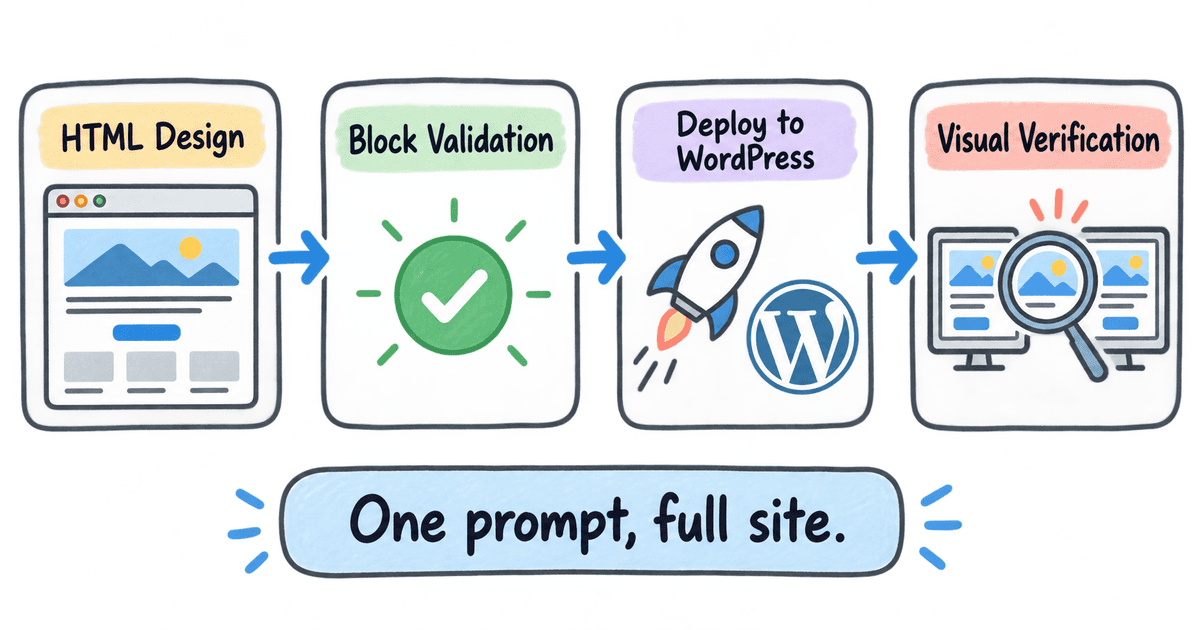
When I published the block validation post in August, getting an AI-generated design onto WordPress meant converting the HTML, validating the blocks, and pasting the result into the editor by hand. The credential guard post added protection for the password you’d inevitably type into a prompt. This post closes the loop — one prompt takes an HTML design and deploys the full site, with a visual verification that the live result matches the original.
The Claude Code WordPress REST API skill handles the deployment. Block validation ensures the markup is sound, and the credential guard keeps your password out of the transcript. Together, they turn a manual process into something you can run while you make coffee. The copy-paste bottleneck — the one I spent weeks working around — just disappeared.
And here’s the kicker — that coffee might still be hot when it finishes.
Point it at your next landing page and see what happens.

Leave a Comment