Claude Code Sandbox Explained: Stop Pressing Enter 50 Times a Day
You’re deep in flow state.
Claude Code is humming along—building your Next.js app, spinning up components, mapping out API routes, sketching database schemas. It’s beautiful. It’s efficient. It’s everything you dreamed AI-assisted coding could be.
And then.
Allow Claude to run `npm install`? [y/n]You press Enter.
Allow Claude to run `git status`? [y/n]You press Enter.
Allow Claude to run `ls src/`? [y/n]Enter. Enter. Enter. Enter. Enter.
By prompt #47, you’re not even reading anymore. You’re just… pressing Enter. Like a very tired seal at a circus act nobody asked for.
Here’s the thing: that permission system was designed to protect you. And instead? It’s training you to ignore it entirely.
Let’s fix that.
.
.
.
The Paradox Nobody Talks About
I want you to sit with this for a second—because it’s genuinely wild when you think about it.
Claude Code’s safety system was built with good intentions. Ask before every risky action. Sounds reasonable, right? Sounds responsible.
But here’s what actually happens in the wild:
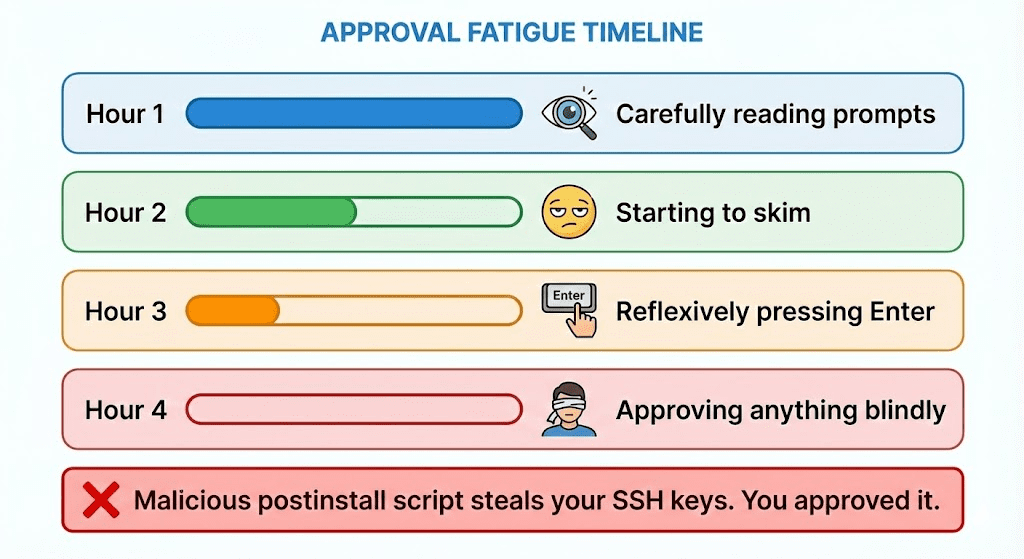
The safety mechanism designed to protect you makes you less safe.
Anthropic’s own testing confirmed this. They call it “approval fatigue.” And their data showed developers hit it within the first hour of use.
(Within the first hour. Not after weeks of grinding. One. Hour.)
Sound familiar?
Yeah. I thought so.
.
.
.
The Fix: Boundaries, Not Babysitting
Here’s where Claude Code Sandbox comes in—and it flips the entire model on its head.
Instead of asking permission for every tiny thing (like an overly anxious intern double-checking if it’s okay to use the stapler), the sandbox draws clear boundaries upfront. Work freely inside them. Get blocked immediately outside them.
Think of it like giving Claude a room to work in—not the keys to the whole house.
Inside that room? Full autonomy. Zero prompts. Go nuts.
Outside that room? Blocked. Immediately. At the operating system level.
Two Invisible Walls
Here’s what the sandbox actually does:
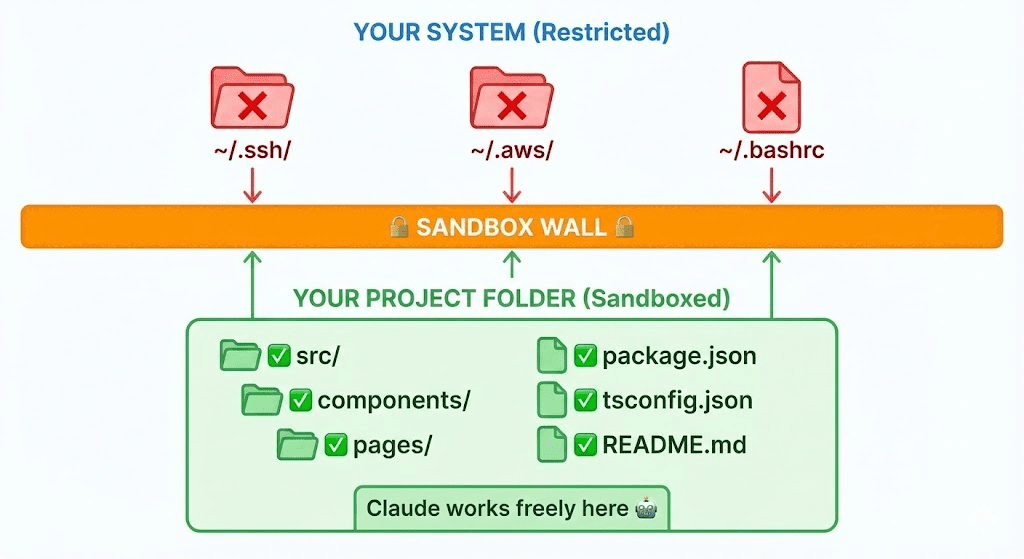
Wall 1: Filesystem Isolation
Claude can only read and write inside your project directory. Everything else—your SSH keys, AWS credentials, shell config—is invisible. Not just “blocked.” Invisible. Like it doesn’t exist. (Which, for Claude’s purposes, it doesn’t.)
Wall 2: Network Isolation
All network traffic routes through a proxy that only allows approved domains. npm install needs registry.npmjs.org? You approve it once. Some sketchy postinstall script tries to phone home to evil.com? Blocked. Immediately. No drama.
Why This Actually Works (And Why It’s Different)
Stay with me here—because this is the part that matters.
These aren’t application-level restrictions. They’re operating system enforced.
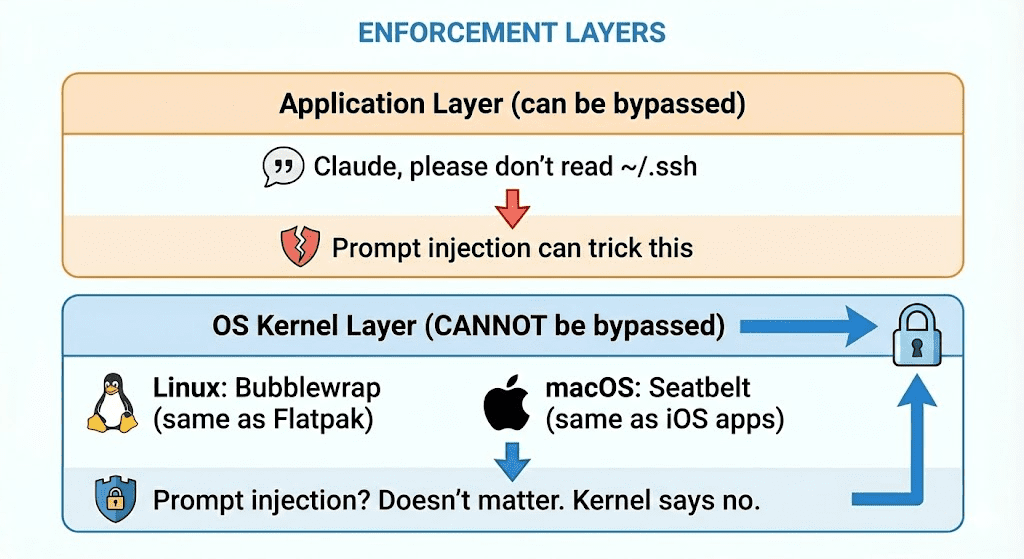
On Linux, Claude Code uses Bubblewrap—the same tech that powers Flatpak. On macOS, it’s Seatbelt—the same tech that restricts iOS apps.
This means even if a malicious prompt injection tricks Claude into trying to read your SSH keys… it physically cannot. The kernel blocks it. Full stop.
Prompt injection can’t bypass OS-level security.
That’s the whole point. That’s what makes this different from “please be good” security theater.
.
.
.
Quick Start: 5 Minutes to Actual Protection
Alright. Enough theory. Let’s get you set up.
Step 1: Enable Sandbox
In Claude Code, type:
/sandbox
Select Auto-allow mode.
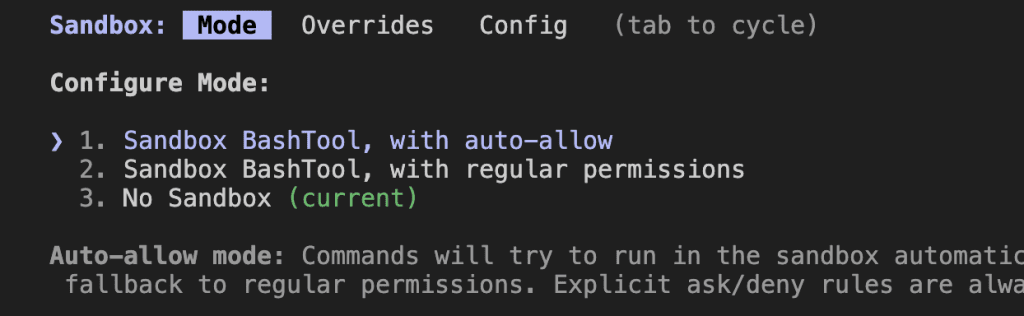

This is the sweet spot: sandboxed commands run automatically, unsandboxed actions still prompt you. Best of both worlds.
Step 2: Create Your Config
Create ~/.claude/settings.json:
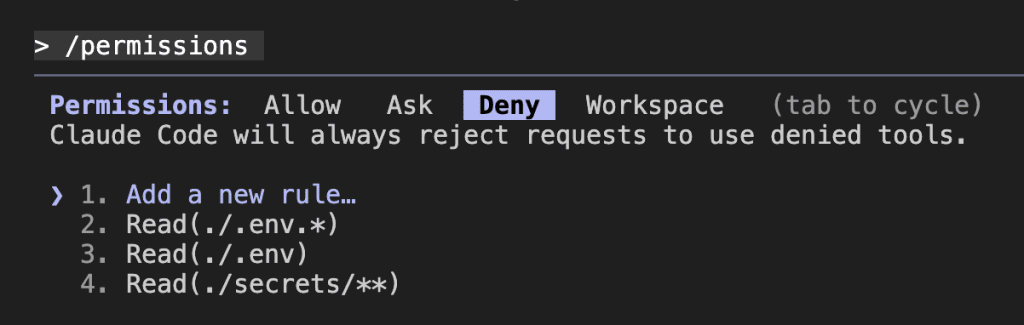
{ "sandbox": { "enabled": true, "autoAllowBashIfSandboxed": true, "excludedCommands": ["docker", "docker-compose"], "allowUnsandboxedCommands": true, "network": { "allowLocalBinding": true } }, "permissions": { "deny": [ "Read(./.env)", "Read(./.env.*)", "Read(./secrets/**)" ] }}Step 3: Verify It’s Working
Run:
/permissionsYou’ll see your active configuration.
Now test with a simple command:
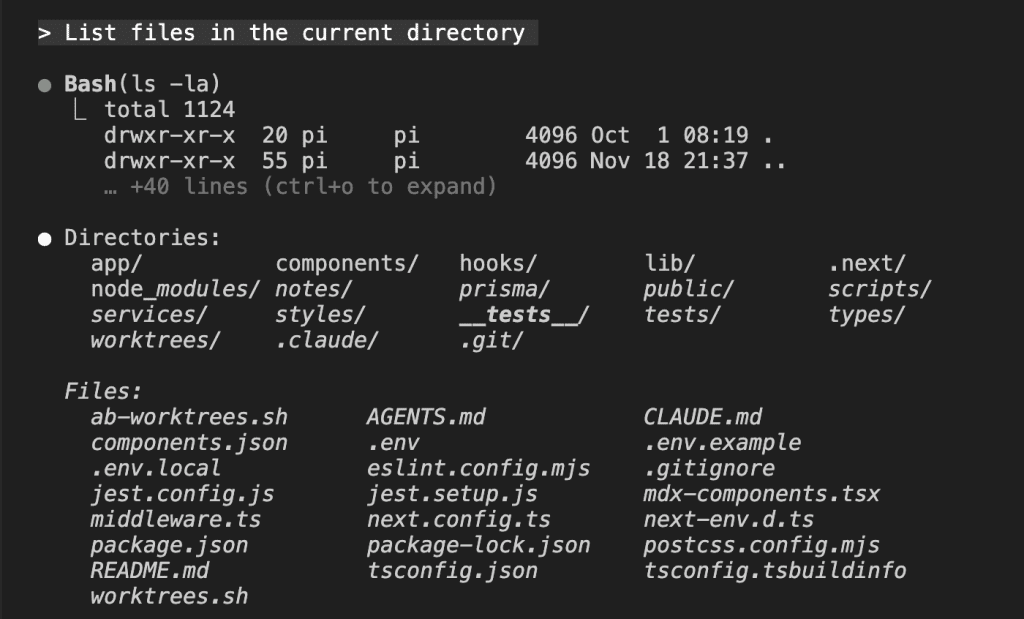
> List files in the current directoryIf it executes without prompting? Sandbox is working.
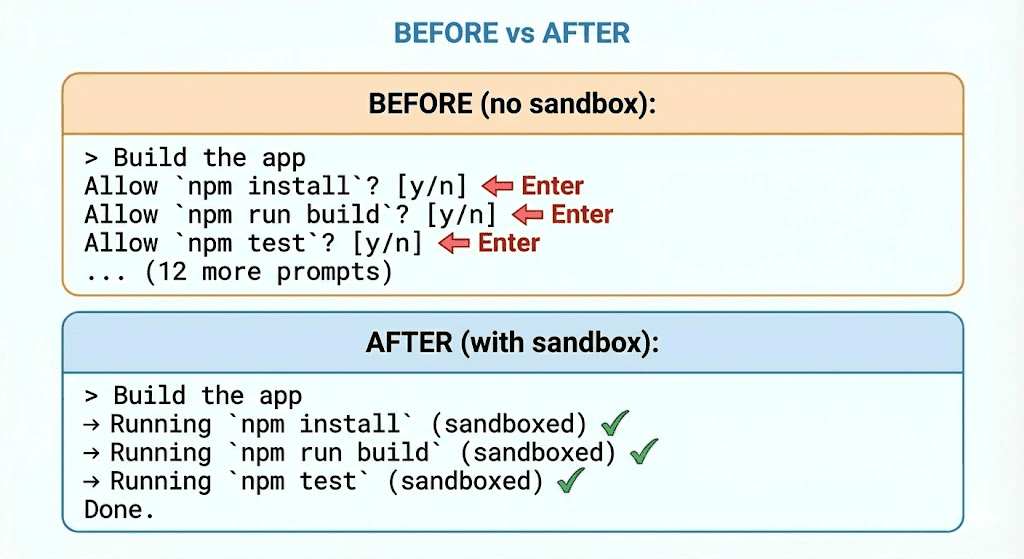
That’s it. OS-level protection with zero friction for normal work.
(I know, I know—it almost feels too easy. It’s not a trick. It just… works.)
.
.
.
Real-World Configurations You Can Steal
The basic setup handles most projects beautifully. But different stacks have different quirks.
Docker can’t run inside a sandbox. Dev servers need to bind ports. Private registries need network access. You know how it goes.
Here are three battle-tested configs. Find the one closest to your setup, copy-paste, adjust as needed.
Scenario 1: Web Development (Next.js, Vite, React)
The Problem: You run npm run dev inside sandbox and… nothing happens. On macOS, the sandbox blocks port binding by default. Your dev server can’t start. Cue frustration.
The Fix:
{ "sandbox": { "enabled": true, "autoAllowBashIfSandboxed": true, "excludedCommands": [], "network": { "allowLocalBinding": true } }, "permissions": { "allow": [ "Bash(npm:*)", "Bash(npx:*)", "Bash(node:*)", "WebFetch(domain:registry.npmjs.org)" ], "deny": [ "Read(./.env)", "Read(./.env.*)" ], "ask": [ "Bash(npm publish:*)", "Bash(git push:*)" ] }}What this does: allowLocalBinding: true fixes the macOS dev server issue. npm/npx/node commands run automatically (sandboxed). Your .env files stay invisible to Claude. And it still asks before publishing to npm or pushing to git—because those are the “are you really sure?” moments.
Zero prompts for normal work. Full protection. Still asks before the dangerous stuff.
Scenario 2: WordPress with Docker and wp-env
WordPress development is trickier. Tools like wp-env and docker-compose fundamentally don’t work inside a sandbox—Docker needs to talk to the Docker daemon through a Unix socket, and the sandbox blocks socket access.
The Fix:
{ "sandbox": { "enabled": true, "autoAllowBashIfSandboxed": true, "excludedCommands": [ "docker", "docker-compose", "wp-env" ], "network": { "allowLocalBinding": true } }, "permissions": { "allow": [ "Bash(php:*)", "Bash(composer:*)", "Bash(wp:*)", "WebFetch(domain:packagist.org)", "WebFetch(domain:wordpress.org)", "WebFetch(domain:api.wordpress.org)" ], "deny": [ "Read(./.env)", "Read(./wp-config.php)", "Read(./wp-config-local.php)" ], "ask": [ "Bash(docker:*)", "Bash(wp-env:*)" ] }}The trade-off: Docker runs unsandboxed. That’s less secure—I won’t pretend otherwise.
But here’s the thing: Docker commands still require your approval. And your actual code (PHP, composer, wp-cli) runs fully sandboxed. Claude never sees your wp-config.php with all those database credentials.
You’re protecting where it matters most.
Scenario 3: Maximum Paranoia Mode (Untrusted Code)
Reviewing a pull request from an unknown contributor? Auditing a dependency after a security advisory? This is when you want full lockdown.
The Config:
{ "sandbox": { "enabled": true, "autoAllowBashIfSandboxed": false, "allowUnsandboxedCommands": false, "excludedCommands": [], "network": { "allowLocalBinding": false } }, "permissions": { "allow": [], "deny": [ "Read(./.env)", "Read(./.env.*)", "Read(./secrets/**)", "Bash(curl:*)", "Bash(wget:*)", "Bash(nc:*)" ], "ask": [ "Bash", "Edit", "WebFetch" ] }}What this does: Every command prompts—even sandboxed ones. No escape hatch. Common data exfiltration tools (curl, wget, nc) are explicitly blocked. Three walls, all OS-enforced.
Malicious README contains hidden instructions to steal your AWS credentials? Claude literally cannot read ~/.aws/. The kernel says no. End of story.
.
.
.
The YOLO Warning: Why This Actually Matters
Let me be direct with you for a second.
Running Claude Code without sandbox is genuinely risky. I’m not being dramatic—this is just the reality of how npm packages work.
Every npm package you install runs postinstall scripts with full access to your system. Every malicious prompt hidden in a README could trick Claude into reading your credentials. Every compromised dependency could phone home with your data.
“It probably won’t happen to me” is not a security strategy.
(It’s barely even a sentence.)
The Claude Code Sandbox isn’t paranoia. It’s basic hygiene. Like washing your hands. Like wearing a seatbelt. Like not storing passwords in a Google Doc called “passwords.txt.”
The 84% reduction in permission prompts? That’s nice. That’s a quality-of-life improvement. But the real win is protection that actually works—because it’s enforced at the kernel level, not just “Claude, please don’t do bad things.”
What Sandbox Doesn’t Protect
Let’s be honest about the limits, though. Sandbox protects your system files, SSH keys, AWS credentials, shell config, and network exfiltration.
It does not protect your project files from mistakes, defend against social engineering, or magically secure allowed domains.
The sandbox makes Claude safe to use autonomously. It doesn’t make you invincible.
👉 Use git. Review changes. Read prompts when they appear. (The ones that do appear now actually matter—which is kind of the whole point.)
.
.
.
Stop Configuring, Start Building
Here’s the thing about sandbox configuration:
every project is different. Next.js needs different settings than Django. WordPress with Docker needs different settings than a Python CLI tool.
Figuring out the right config for YOUR specific codebase? That’s tedious. That’s the kind of thing that makes you put it off until “later” (which, let’s be honest, means “never”).
So I built a tool to do it for you.
Introducing: Sandbox Architect
It’s a Claude Code skill that:
- Analyzes your codebase — Detects your stack, package managers, frameworks, Docker usage, sensitive files
- Asks smart questions — Only what it can’t figure out automatically
- Generates your config — Tailored to YOUR project, ready to paste
No more reading documentation. No more guessing which domains you need. No more discovering your config is wrong when commands fail at the worst possible moment.
Install Sandbox Architect:
/plugin marketplace add nathanonn/claude-skills-sandbox-architectAfter adding the marketplace, the sandbox-architect skill will be available for installation and will help you configure sandbox settings for your projects.
That’s it.
Next time you start a project, just ask:
> Help me configure sandbox settings for this projectDone. Configured. Protected. Back to building.
.
.
.
Your Next Steps
- Run
/sandboxand enable Auto-allow mode - Create your
~/.claude/settings.jsonusing one of the configs above - Install Sandbox Architect for automatic configuration
- Never press Enter 50 times again
The Claude Code Sandbox isn’t just a feature—it’s a fundamental shift in how you work with AI coding assistants. Boundaries instead of babysitting. Protection that works because physics says so, not because we asked nicely.
What project are you going to secure first?
Drop a comment below—I’d love to hear what you’re building.
Now go make something.

Leave a Comment